Micros RES Deployment Steps
Mass Micros RES Deployment Steps
Punchh provided the following outline of steps on deploying Punchh Integration on Micros RES as a courtesy. Due to the wide variety of Micros RES environments, Punchh does not have the ability to support this type of broad-deployment outside of normal POS Engineering team working hours (M-F 8:30a-5:30p PDT) Punchh cannot provide assistance with writing the scripts required to enable remote, command line deployment of Punchh
-
Deploy single location according to Micros RES 3700 Configuration and Installation Guide
-
Validate all Punchh integration functionality before proceeding
-
Confirm all required Micros RES Firewall and AV Networking rules are working in the pilot site.
-
Update and CONFIRM all firewall and AV networking rules have been pushed to all target sites
-
Copy the save the following files from C:\Program Files (x86)\Punchh\Config :
Punchh.cfg
Micros.cfg -
Edit the following line in the Punchh.cfg file as follows (or in a similar way):
- <API_Key>API_Key_Placeholder</API_Key>
This placeholder will be used by your the script that you will need to write to be replaced with the actual Punchh API key
- <API_Key>API_Key_Placeholder</API_Key>
-
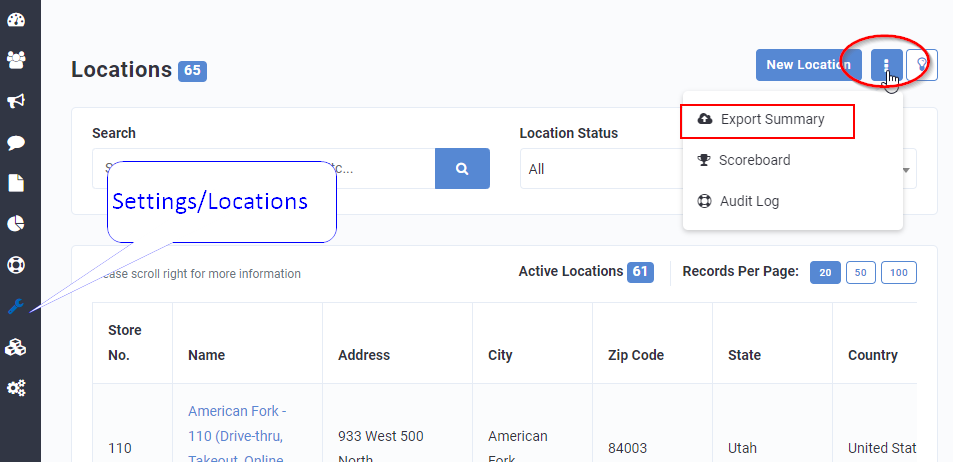
Export the location list from the Punchh Portal
-
The Location CSV will be emailed and will include each location's details including the API key for each location
-
Add column to that list for a field that can uniquely identify your locations. That can be BOH machine name or something on your system that you can detect from your shell script
-
Write shell script that does the following:
-
Copies your preserved config files to C:\Program Files (x86)\Punchh\Config
-
Replaces API_Key_Placeholder in Punchh.cfg with the actual API key
-
Runs Punchh MSI installer in a silent mode:
- See example below (note: this must be ran with an elevated command prompt):
SetupPunchh_vX.X.X.X.exe msiexec /i "SetupPunchh.msi /qn" - Refer to the following msiexec guide for the list of parameters: https://docs.microsoft.com/en-us/windows-server/administration/windows-commands/msiexec
- See example below (note: this must be ran with an elevated command prompt):
-
The previous step can be done after you copy the config files in place. If you do it 1st then you'll have to restart Punchh service
-
-
Micros RES POS Settings configuration has to be done separately.
Common issues
- If you have different printer setup in different locations then you'll need to create one more variable for <IDN_Printer>false</IDN_Printer>parameter in Micros.cfg
- Try to keep other parameters same between locations. That will simplify troubleshooting and deployment
