Attentive: A Guide to SMS Segmentation and Targeted Gifting
Overview
Segmenting SMS audiences and offering personalized gifting through campaigns is a powerful way to engage guests more meaningfully. By tailoring messages based on how users opt in, you can deliver more relevant experiences that drive loyalty and increase response rates. This article outlines how to create targeted SMS segments and set up Profile Update campaigns to effectively reach and reward guests.
Step 1: SMS Segments
Use the following steps to create your signup offer to guests who sign up via SMS or opt in to SMS messages.
Sign Up Segment: Text to Join
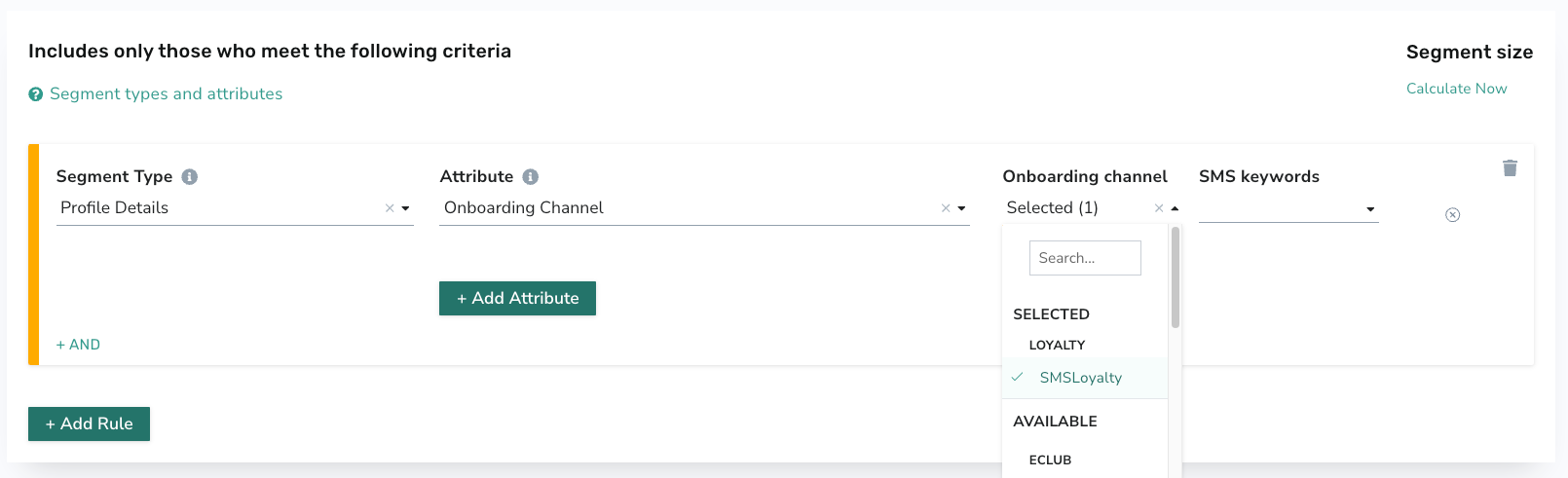
The Text-to-Join segment will filter for guests who signed up for your loyalty program via the text-to-join flow. Use the following segment setup.
- Segment Type: Profile Details
- Attribute: Onboarding Channel
- Onboarding channel: SMSLoyalty
- SMS keywords: Leave blank
Make note of what you name this segment.
Sign Up Segment: Attentive Two-Tap Flow
The Attentive Two-Tap segment will filter for guests who sign up for your loyalty program using the Attentive Two-Tap flow. Use the following segment setup.
- Segment Type: Profile Details
- Attribute: Onboarding Channel
- Onboarding channel: SMSPortal
Make note of what you name this segment.
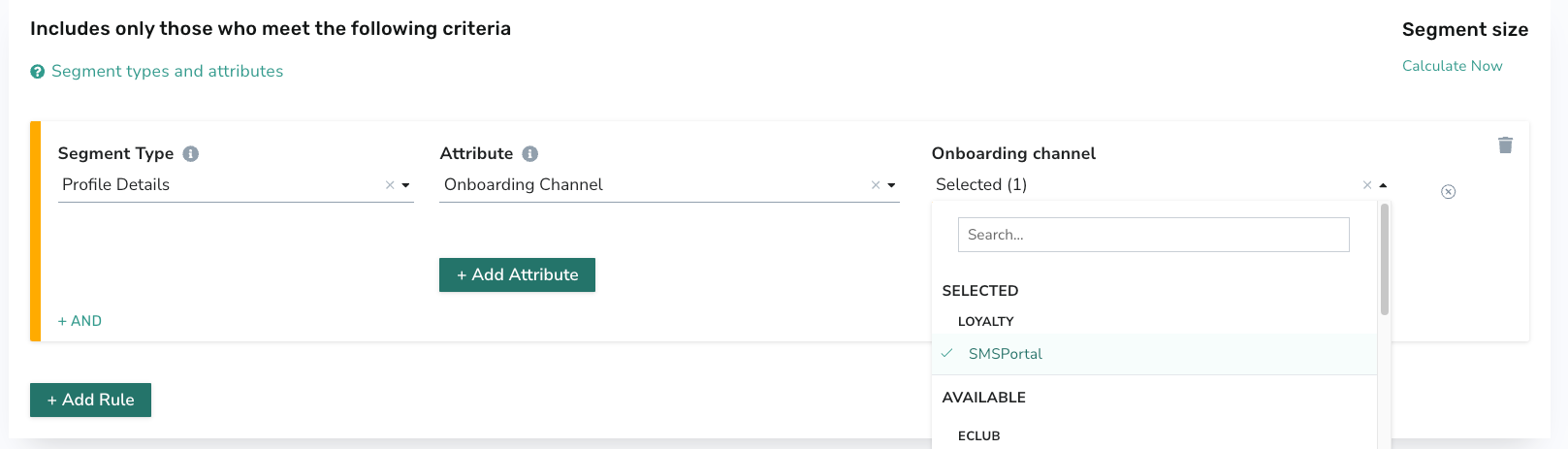
You could combine these segments into one if you want to gift these groups together. Select both SMSLoyatly and SMSPortal under Onboarding channel to do this.
Sign Up Segment: SMS Opt-In
The SMS Opt-in segment will filter for guests who sign up for your loyalty program via mobile or web (not through one of the flows above) AND opt in to SMS. Use the following segment setup.
- Segment Type: Profile Details
- Attribute: Sign Up Device
- Operator: Equal to
- Devices: Choose fromAny, Mobile, or Web
AND
- Segment Type: Engagement
- Channel: SMS
- Engagement Metric: Opted-in
Make note of what you name this segment.
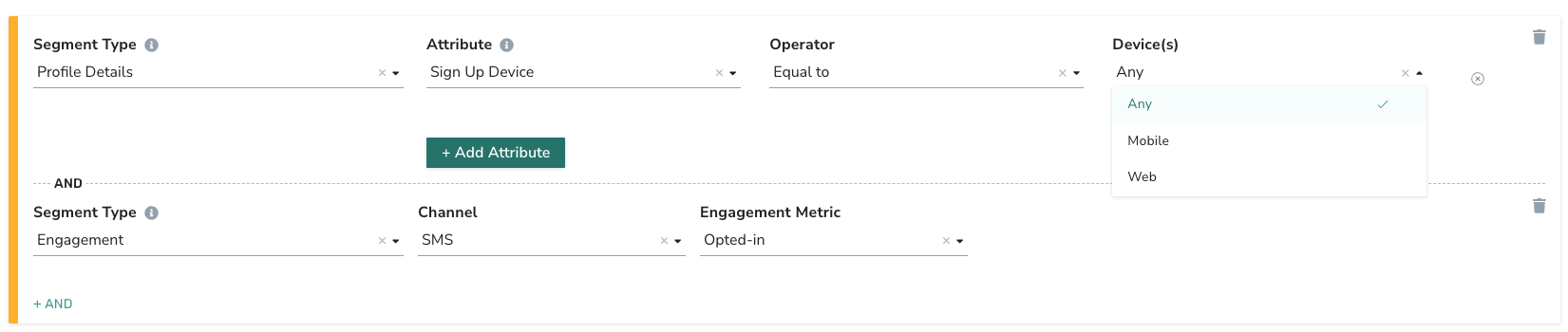
Use the AND function to combine all three of these segments into one SMS segment if desired.
Step 2: Create a Profile Update campaign.
Once you have created your segment(s), you will create a Profile Update campaign. A Profile Update campaign allows you to gather the most details about the guest in order to gift.
Make sure you have the following fields set up in Step 2: Whom of the campaign workflow:
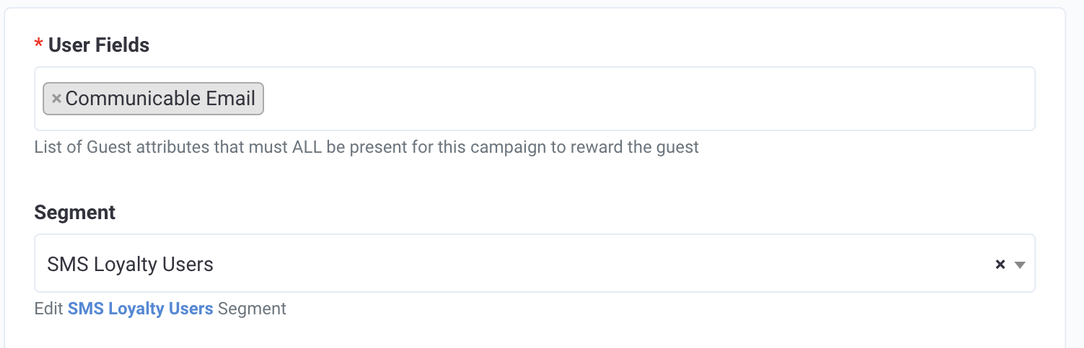
- User Fields: Communicable Email
- Segment: Select the segment you created above.
Note: If you created two or three separate segments, you will create two or three separate Profile Update Campaigns. Refer to the Profile Update Campaign article for details on how to set up this campaign type from start to finish.
