eClub Widget (iFrame)
Added Module The eClub Widget is part of the eClub Added Module available for an additional cost. To enable the eClub module, speak to your Punchh Customer Success Manager about adding it to your service contract.
Note: When using the iFrame, if you return a 500 Internal Server Error when clicking "Sign In" or "Sign Up," please reach out to your Punchh representative as this could be an issue with Apple Sign-in Configuration.
Punchh can provide you with HTML code to build a customizable eClub iFrame widget (data submission form) that can be embedded on one of your web pages in order to gather new guest information. This provides an easy way to acquire guests and later on convert them into full loyalty members by tempting them with special offers and promotions.
In addition to the required fields (full name and email address), the widget can be customized to include optional fields such as favorite location or birthday. Guests who enter their information into the widget will automatically be imported into an eClub list segment named "eClub Widget Guests."
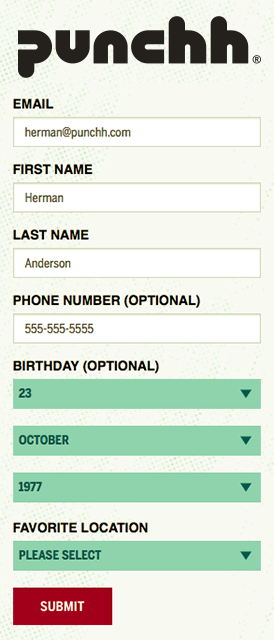
Enable the eClub Widget Module
In order to use the eClub widget, your business must first have the eClub module and iframe configuration enabled by Punchh. You can check to see if your business is currently enabled by using the following link, replacing "business name" with the name of your company: https://iframe.punchh.com/whitelabel/businessname/ecrm
If enabled, you'll see the widget. If not, you'll see the following message: "Business does not support eClub Module." In this case, contact your Punchh representative to get started.
Setting Up the eClub Widget
The eClub widget is enabled and configured for you behind the scenes by your Punchh Customer Success Manager via Whitelabel services. The following are possible settings you can request to be turned on/off for you by your CSM.
Input Fields
In addition to the mandatory email field, you can choose to include fields for phone number, birthday, address, etc. For each field, you can choose the language that will accompany it in the widget.
- eClub Guest Email (required) - "Email"
- eClub Guest First Name - "First Name"
- eClub Guest Last Name - "Last Name"
- eClub Guest Phone - "Phone Number"
- eClub Guest Birthday - "Birthday"
- eClub Guest Address - "Address"
- eClub Guest State - "State"
- eClub Guest Zip code - "ZIP Code"
- If a guest enters a Zip code, Punchh will automatically geolocate them and populate the "eClub Favorite Location" drop-down with the stores/locations nearest to them (in a 10-mile radius), so they don't have to scroll through potentially hundreds of locations to find the one they want. If no locations are found within a 10-mile radius, then you may manually find and select from the list of all locations included in the drop-down.
- eClub Terms and Conditions - "I accept the terms and conditions."
- This box must be checked in order for the guest to complete the sign-up. You must provide a link somewhere on your web page for the guest to view the text of your terms and conditions.
- eClub Compliance SMS - "Reply YES to enable SMS notifications from (business name)."
- Completing this field triggers an automatic SMS message to the guest, requesting their opt-in approval. (Requires the eClub Guest Phone field to be filled in).
- eClub Favorite Location - Auto-populates a drop-down list of all of your locations.
- Choices are affected by the guest's Zip code, if entered.
- eClub Registration Message - "Thank you! Your details have been submitted successfully."
- This message appears at the top of the page after a guest has successfully submitted their info.
- eClub Post Registration Redirect URL - "https://www.company.com/welcome.htm"
- In this field, you may enter a URL to which the user will be redirected after they've completed the sign-up form. This works either in conjunction with or independently from the eClub Registration Message. If a message has been set, it will first display that message, and then the user will be redirected to this URL. If no message is set, the redirect will occur immediately after submission. If no URL is set here, the page will either change to the registration message or simply reload if no message has been set.
All the fields apart from the mandatory fields can be turned ON/OFF. Providing text content in an input's text field automatically toggles that field to ON. Removing the text content (leaving the field blank) automatically toggles it to OFF.
eClub Sources
If you want to embed your eClub widget on multiple web pages (such as one on your main website, another on a specific promo event website, multiple widgets for your location websites, etc.), you can add each one as a separate "source." Each source you add will generate a separate URL that can then be embedded wherever you want, and each source will generate a separate eClub list as guests submit data. This can help your businesses compare how different points of entry perform with your potential guests.
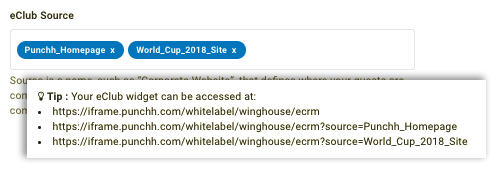
These eClub sources may also be viewed in the eClub Guests section once a guest submits their information through that particular URL. This is valid for normal eClub Widget guests as well as eClub guests who have been added without a particular URL source.
Guest Data Submission
When guests submit their information, an entry is created in a system list called eClub Widget Guests, and the guest's profile is created, along with an "eClub" tag denoting where they came from.
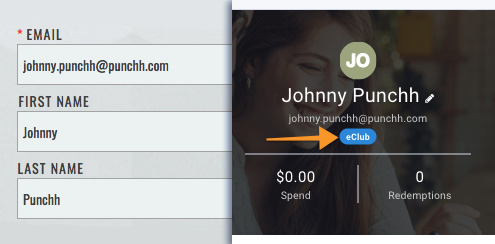
If a guest using the same email address submits information to your widget more than once, no new entry will be created. However, if the duplicate entry includes an updated Favorite Location, that information will update in their eClub info.
Style (CSS)
You can change the look and feel of your eClub widget by using a custom stylesheet (CSS) file. Here's the CSS template Punchh uses for the widget. All of the elements are present and named, so you can use this as a jumping-off point:
https://s3.amazonaws.com/punchhstatic/whitelabel_csses/iframe-style.css
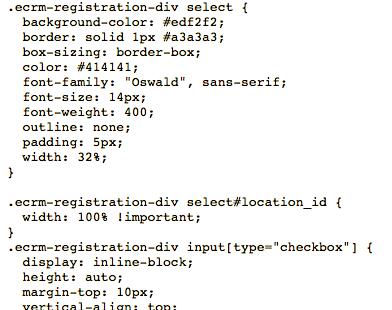
Once completed, ensure that your CSS file is hosted online and publicly available. Then, you may give the URL for your CSS to your Punchh Customer Service Manager, who will update it for your business via our Whitelabel services.
System Message
When a guest signs up using your eClub widget, you can send an optional email to them by editing the "Eclub Registration" System Message in Loyalty Program > System Messages. Use this email to thank the guest for signing up and/or offer them some incentive to make a purchase.
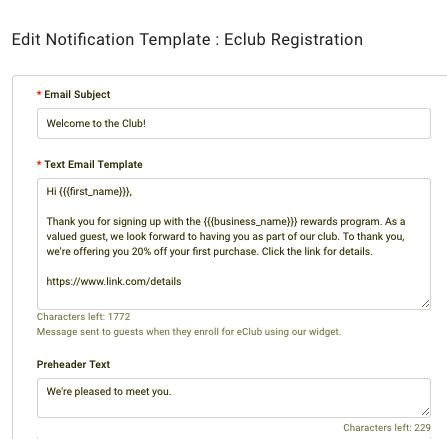
As mentioned in the Input Fields section above, you may also use the eClub Compliance SMS field to send an initial compliance/opt-in welcome message to the guest's phone following signup. Once they opt in, further marketing SMS notifications may be sent to them.
Custom Profile Fields
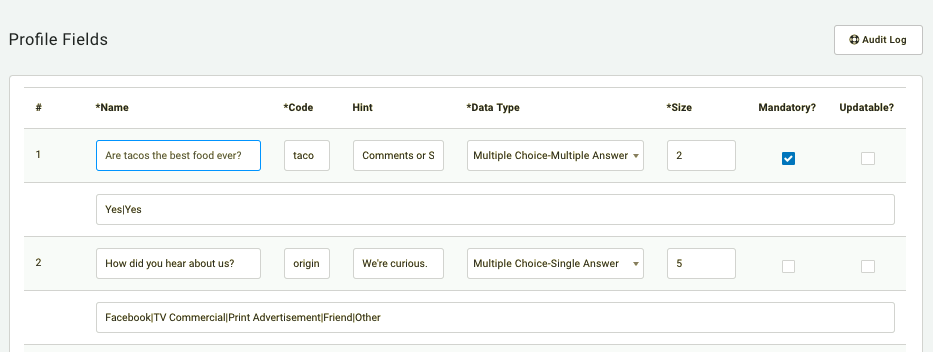
If you've created any custom Profile Fields under Guests > Profile Field Settings, it's possible to add those as additional input fields for your eClub widget. To take advantage of this capability, you'll need to speak to your Punchh Customer Success Manager for more details.
The eClub widget currently supports both multiple-choice and single-answer input fields.
Additional details for Franchisees (Fz)
The eClub Widget Guests list was previously visible only to Corporate admins, thereby restricting the Franchisees from creating segments based on that list, especially when a business is using only the eClub Widget to onboard guests.
In order to overcome this,
- An effective Location field has been introduced in the eClub Guests segment
- Fz is able to select the eClub Widget Guests List from the Segment Attributes drop-down as well.
