Workflow Management & Approvals
Workflow Management is a way for admins in your company to require and control approvals for campaigns created by users such as Franchisees or Site Admins. Whenever a new campaign is made, a designated admin must review it, checking everything in its setup such as messaging language, rewards, and audience/segment. If they do not approve, the campaign will be kicked back to the original creator to make any suggested changes before they may submit it for approval once again. Only when it receives approval may it be scheduled to go live.
Designate Admins for approvals
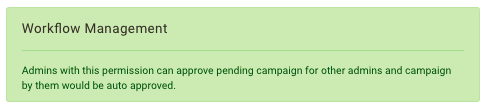
Once turned on, the first step is to designate which of your admins will hold the power to approve/disapprove campaigns. We can do this by turning on the Workflow Management permission for admins who belong to a particular Role.
- Navigate to Administration > All Users, Roles, and Permissions and click the Roles tab.
- You may want to create a New Role just for approvers, or you may simply turn on the permission for an existing Role.
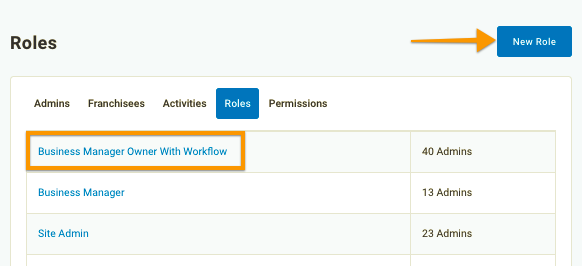
- When editing the Role, click to turn on the Workflow Management permission. Green means it's on.
While you're here, ensure the Business Manager permission is turned on as well. It's necessary in order for emails to be sent out.
- Click Save to finish.
- Next, navigate back to Administration > All Users, Roles, and Permissions and find an admin you want to give this role and permissions. Click their name to edit their user settings.
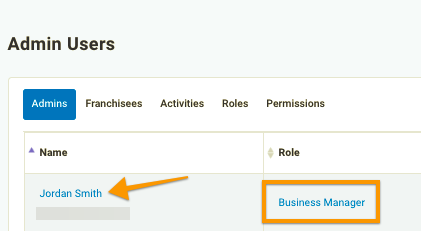
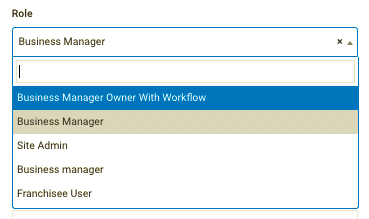
- Click the Role drop-down and select the role with workflow permissions enabled.
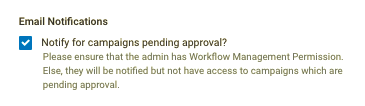
- Check the Notify for campaigns pending approval? box to make it so this admin receives an email any time a campaign is submitted for approval.
- Click Update to finish. Repeat this process for each additional admin.
Approvals Workflow
Once you've set up your designated admin approvers, the campaign approvals process can start, following the workflow below:
Step 1: User creates a campaign, submits for approval
When a user without approval permissions (such as a Franchisee) creates a new campaign, the final step will now be to Submit for Approval instead of saving and scheduling. This kicks off the start of the process.
When a user with Workflow Management permissions creates a campaign, they do not need to submit it for approval.
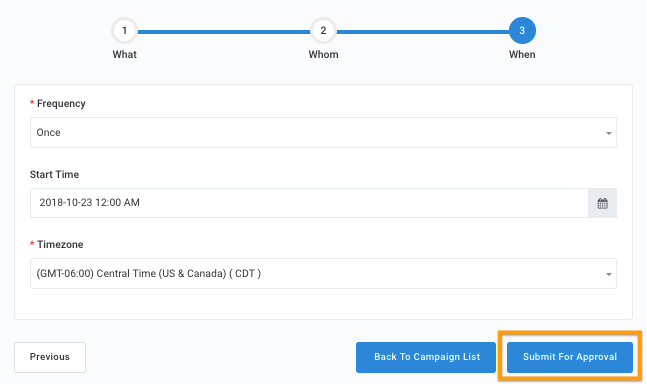
Step 2: Admins receive pending approval notification
Admins who have the Notify for campaigns pending approval setting turned on (see above) will receive an email notifying them that a campaign has been submitted for approval. This notification is sent both for new campaigns pending approval as well as campaigns that have been re-submitted for approval.
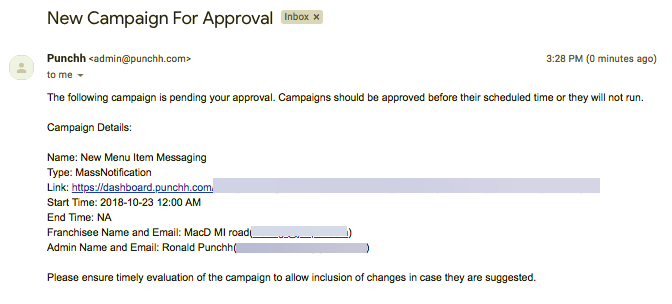
Alternately, an admin may check the Pending Approval queue in Marketing Automation > Pending Approval at any time to view current campaigns awaiting approval.
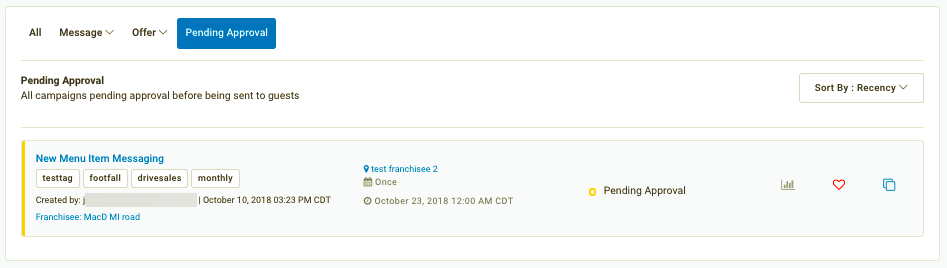
Step 3: Admin reviews, approves and schedules the campaign
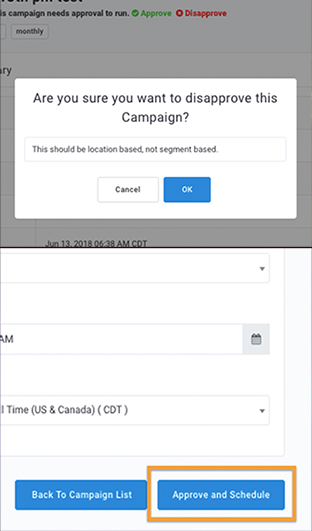
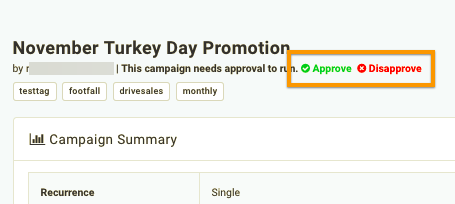
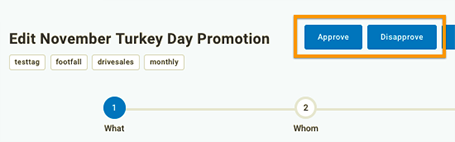
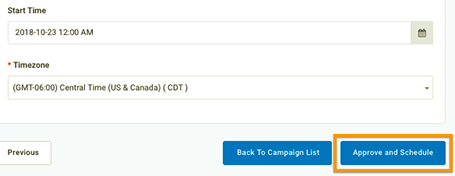
The approvals admin performs their due diligence and reviews the campaign. If everything looks good, they can Approve and Schedule the campaign from a number of places:
- From the Campaign Summary page...
- When editing the campaign...
- From the final step in campaign creation...
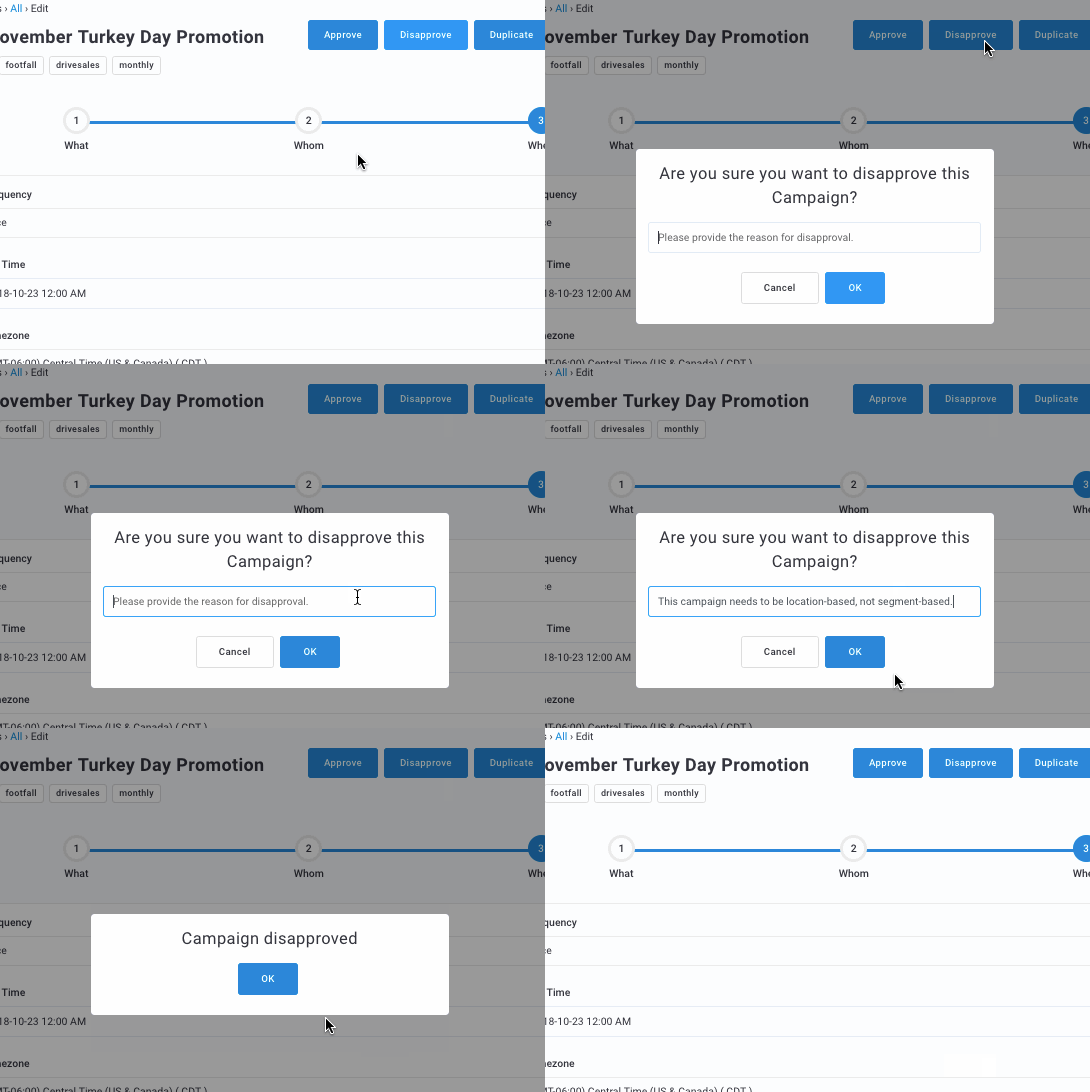
Step 3 (alternate) Admin reviews, disapproves and provides a reason for rejection
If the reviewer finds the campaign doesn't meet their approval standards, they may Disapprove it and provide a reason for disapproval. The creator of the campaign will receive an email with this feedback included.
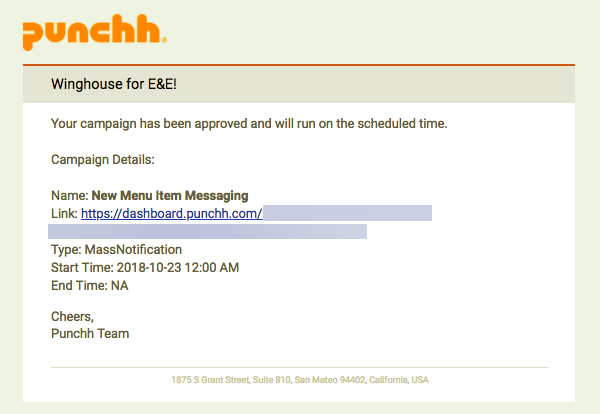
Step 4 Campaign creator receives approval confirmation
If approved, the original campaign creator receives an email notifying them that their campaign is all good and will run at the scheduled time.
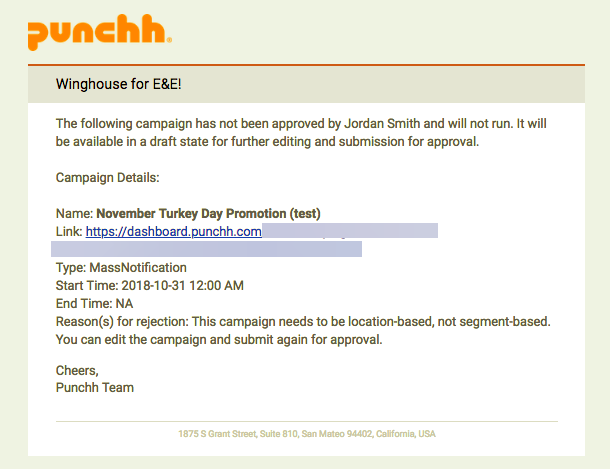
Step 4 (alternate) Campaign creator receives disapproval notification
If the campaign wasn't approved, the original creator receives an email notifying them and listing the reason why it was rejected. At this point they may make the suggested edits and resubmit the campaign for approval for a second time, returning to Step 2 above.
What if one admin approves a campaign and another disapproves it? The short answer is whoever submitted it first (based on timestamp) trumps the other's action. While theoretically possible that two admins would approve and disapprove a campaign at the exact same time, it is unlikely to ever happen. Once a campaign is approved, it is no longer part of the approvals queue and subsequently cannot be disapproved.
