PAR App Studio: Assets for First-Time Setup
All listed specs are recommendations. Different specs may be listed in the PAR App Studio.
Assets Checklist
- Brand Style Guide
- Typography files (Optional) - Font weight normal and bold
- Brand Colors (HEX codes)
- Brand Logo - 900px X 300px, PNG file
- Splash Screen Image - up to 5MB
- Half Image - 1080px X 960px
- Full Image - 1080px X 1920px
- Vector/PNG file (static) or GIF/Lottie file (animated)
- Device Assets - Required by app go-live
- App Icon - 1024px X 1024px, PNG file, up to 5MB
- Notification Icon (Android Only) - 96px X 96px, PNG file, up to 50KB
- Adaptive App Icon (Android 8+) - Two files (one for background and one for foreground), 432px X 432px, PNG files, up to 1MB
- Loading Animation (Optional) - App-wide, 120px X 120px, Lottie/JSON file
- Welcome Screen Image - PNG file
- Half Image Layout - 1125px X 1050px
- Full Image Layout - 1125px X 2436px
- Tutorial Slides (Optional) - If enabled, provide one for each onboarding tutorial screen, 503px X 880px, PNG file
- Common Sign-Up Screen Image - PNG file
- Logo with Background - 1125px X 1050px
- Half Image - 1125px X 1050px
- Full Image - 1125px X 2001px
- Congratulations Screen Animation (Optional) - 196px X 430px, Lottie/JSON file
- Invite Friends Screen Image (Optional) - 1125px X 1050px, PNG file
- About Us Screen Image (Optional) - 1125px X 1050px, PNG file
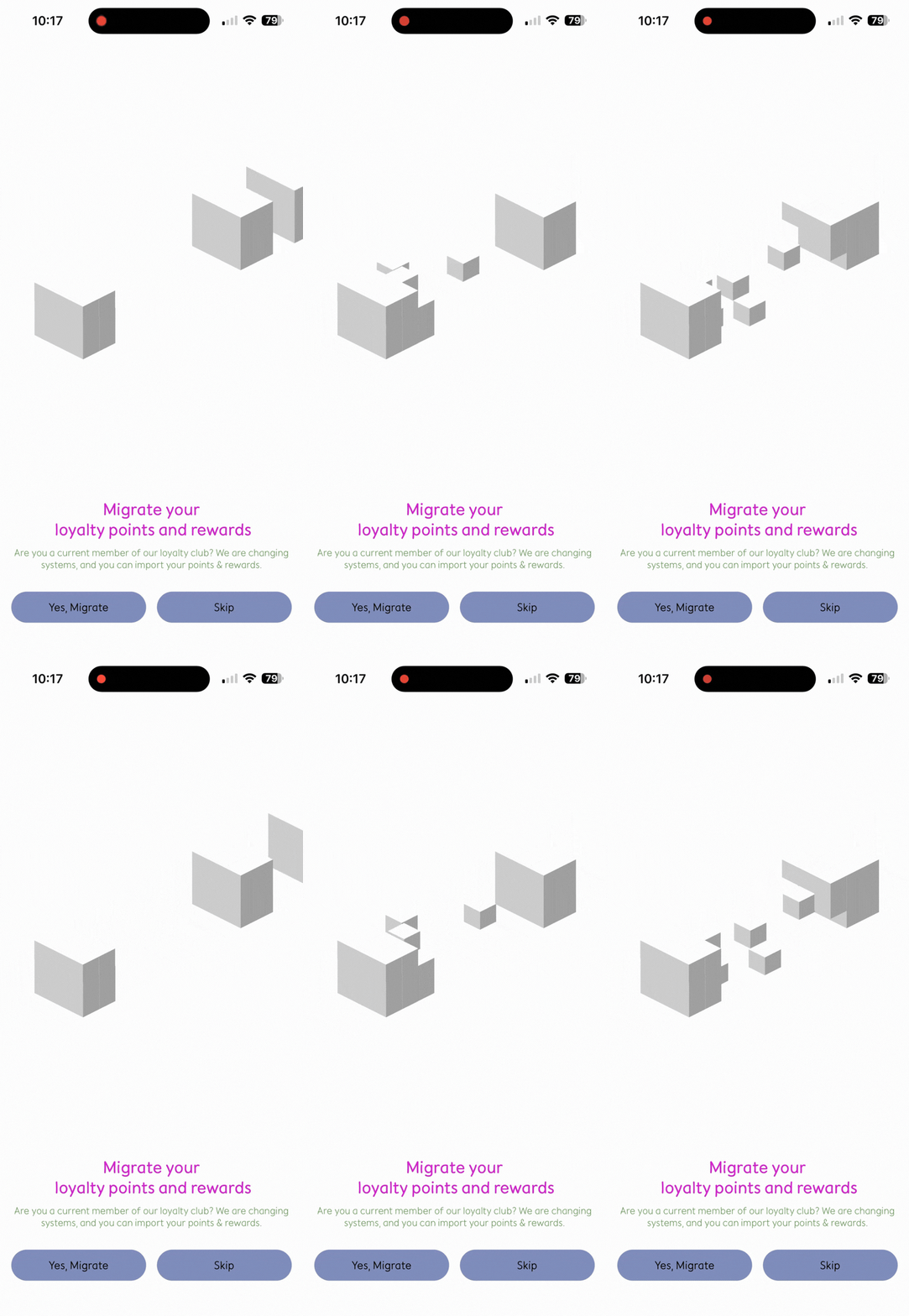
- Migration Screen Image (Optional) - 1125px X 1050px (sized to fit 70% of the screen), Lottie/JSON or PNG file
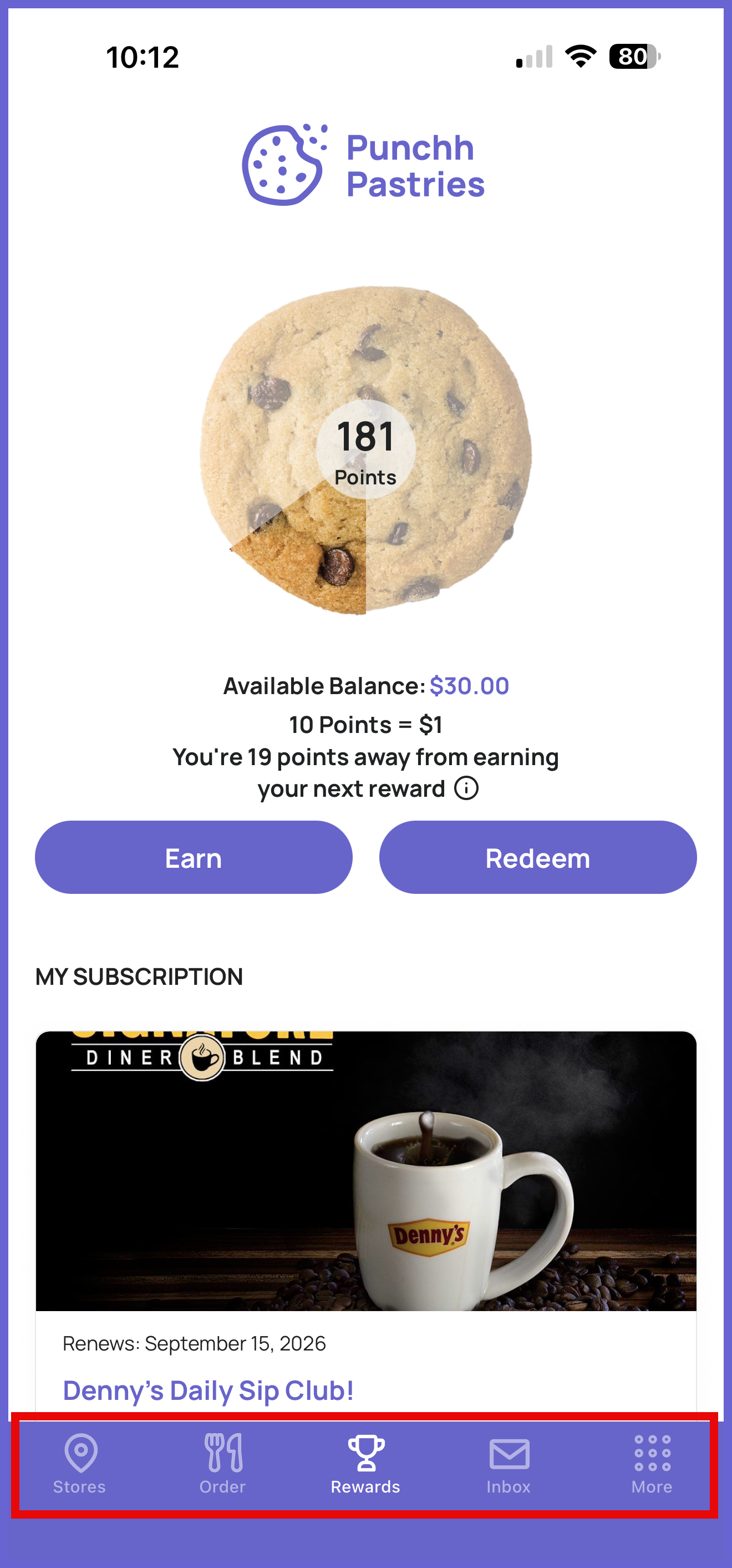
- Bottom Nav Icons - Optional but commonly customized, square (24px X 24px), SVG file, up to 50KB
Assets Breakdown
Typography Files (Optional)
You can customize the font used for text throughout the mobile app. The PAR App Studio contains a font library you can choose from. If you have a different font you would like to use, you can upload it in the PAR App Studio and it will be applied to the app.
Once the app is live, an app update is required to change the font. Font changes can still be previewed using the PAR App Studio Preview App.
Spec and File Format:
- TTF or OTF file
Best Practices and Additional Information:
- Requires font weights normal and bold
- If using a paid font, you will be required to provide proof of purchase/license for mobile usage OR sign a waiver
- It is recommended to use fonts that are easily readable on a mobile device
Where to Add Asset:
- During first-time setup by uploading your brand style guide OR in step 2 of the form
- In the PAR App Studio under App-wide > Typography
Brand Colors
The primary brand colors are used for banners, buttons, headers, and more throughout the mobile app. Three brand colors should be provided. Additional colors, such as text and app background, can also be customized.
Spec and File Format:
- HEX Codes
Best Practices and Additional Information:
- Use colors already associated with your brand
Where to Add Asset:
- During first-time setup by uploading your brand style guide OR in step 1 of the form
- In the PAR App Studio under App-wide > Colors
Brand Logo
The brand logo is primarily displayed on the Rewards screen, but may appear elsewhere in the mobile app.
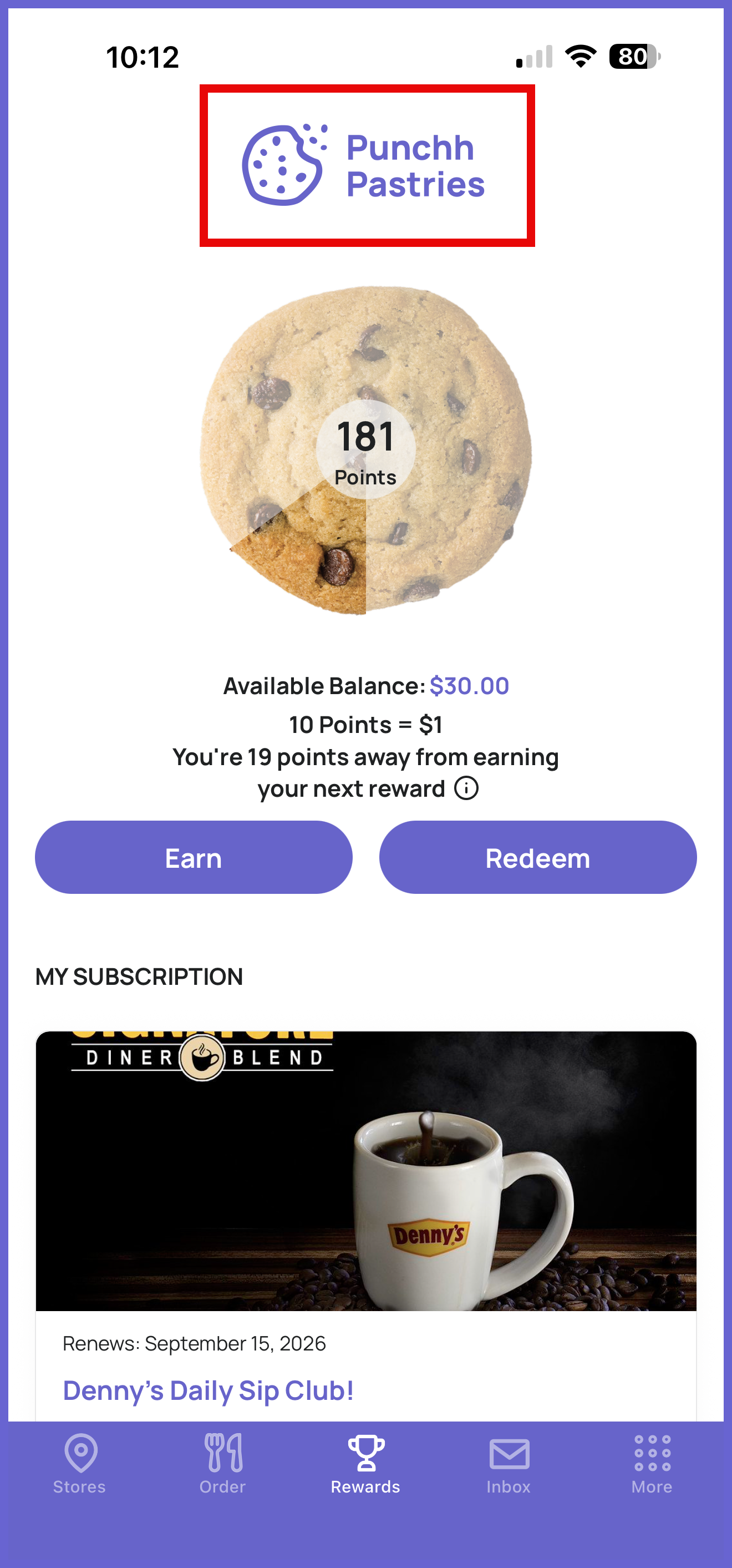
Spec and File Format:
- 900px X 300px
- PNG file
Best Practices and Additional Information:
- It is recommended to use a transparent background
Where to Add Asset:
- During first-time setup by uploading your brand style guide OR in step 5 of the form
- In the PAR App Studio under App-wide > Images
Splash Screen Image
The Splash Screen is the initial loading screen seen when opening the app.
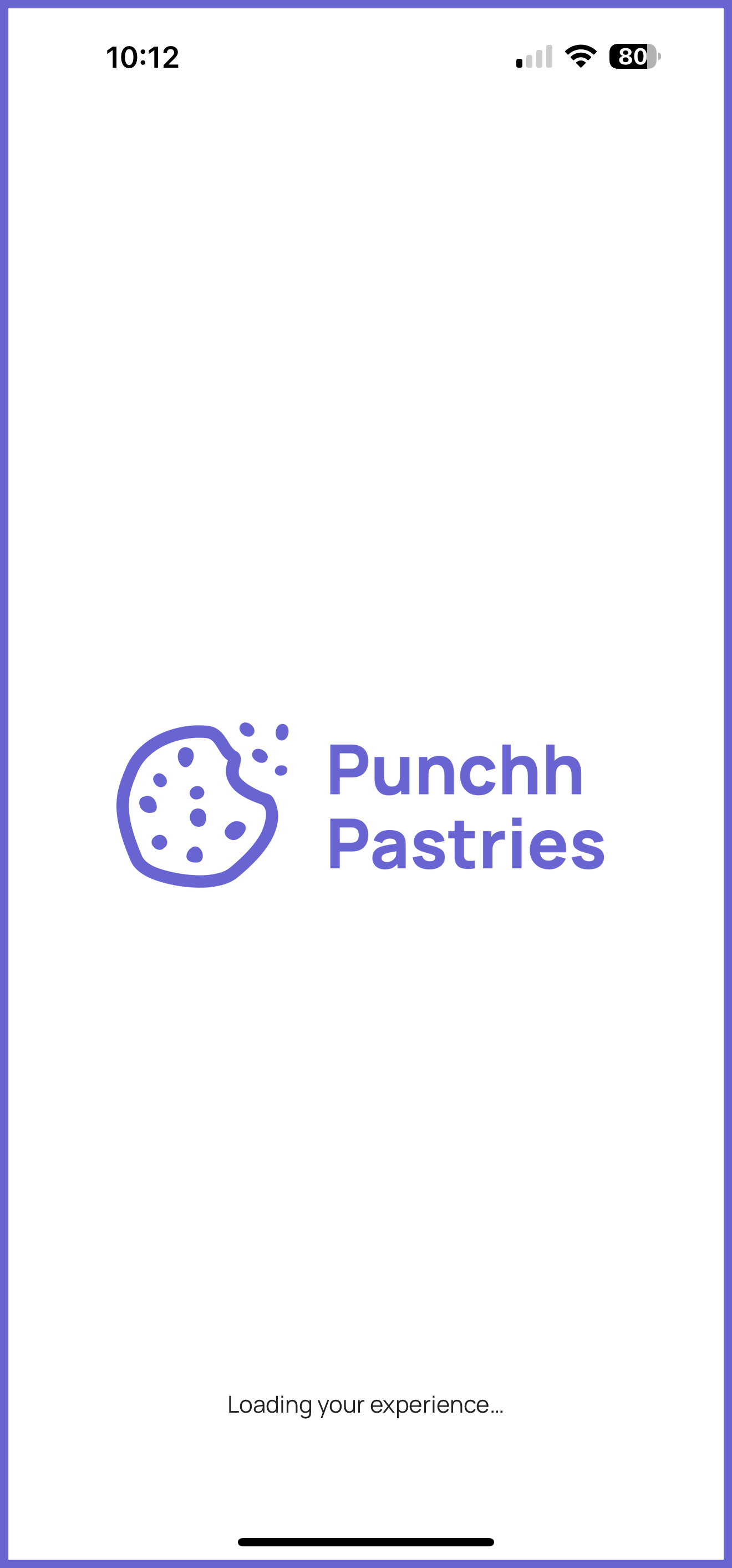
Spec and File Format:
- Recommended specs vary by layout:
- Half Image: 1080px X 960px
- Full Image: 1080px X 1920px
- Up to 5MB
- Vector or PNG files for static images, GIF or Lottie files for animations
Best Practices and Additional Information:
- Since phone screen size varies, it is recommended not to put important elements within 150px of the image border.
Where to Add Asset:
- During first-time setup by uploading your brand style guide OR in step 5 of the form
- In the PAR App Studio under App-wide > Images
Device Assets
While these assets are not required during initial setup, they will be required before the app can be launched.
App Icon
This is the icon used for the mobile app in the app store and on the user's device.
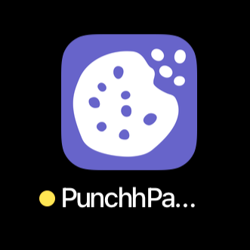
Spec and File Format:
- 1024px X 1024px
- Up to 5MB
- PNG file
Best Practices and Additional Information:
- Do not include any transparent elements. The Apple App Store will reject the app.
Where to Add Asset:
- During first-time setup by uploading your brand style guide OR in step 5 of the form
- In the PAR App Studio under App-wide > Images
Notification Icon (Android)
This is the icon used for notifications in Android devices.
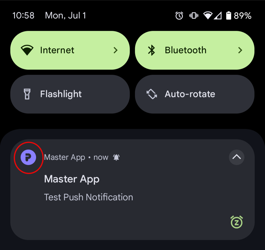
Spec and File Format:
- 96px X 96px
- Up to 50KB
- PNG file
Best Practices and Additional Information:
- Refer to Android: About notifications in Views for additional design guidelines
Where to Add Asset:
- During first-time setup by uploading your brand style guide OR in step 5 of the form
- In the PAR App Studio under App-wide > Images
Adaptive App Icon (Android 8+)
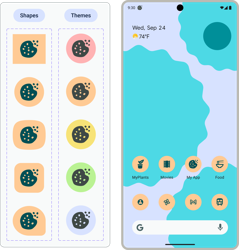
This is an alternative, adaptive icon used for the mobile app on the user's device.
Spec and File Format:
- 432px X 432px
- Up to 1MB
- PNG file
Best Practices and Additional Information:
- Two files required: one for background and one for foreground
- Refer to Android: Adaptive Icons for design guidelines
Where to Add Asset:
- During first-time setup by uploading your brand style guide OR in step 5 of the form
- In the PAR App Studio under App-wide > Images
Loading Animation (Optional)
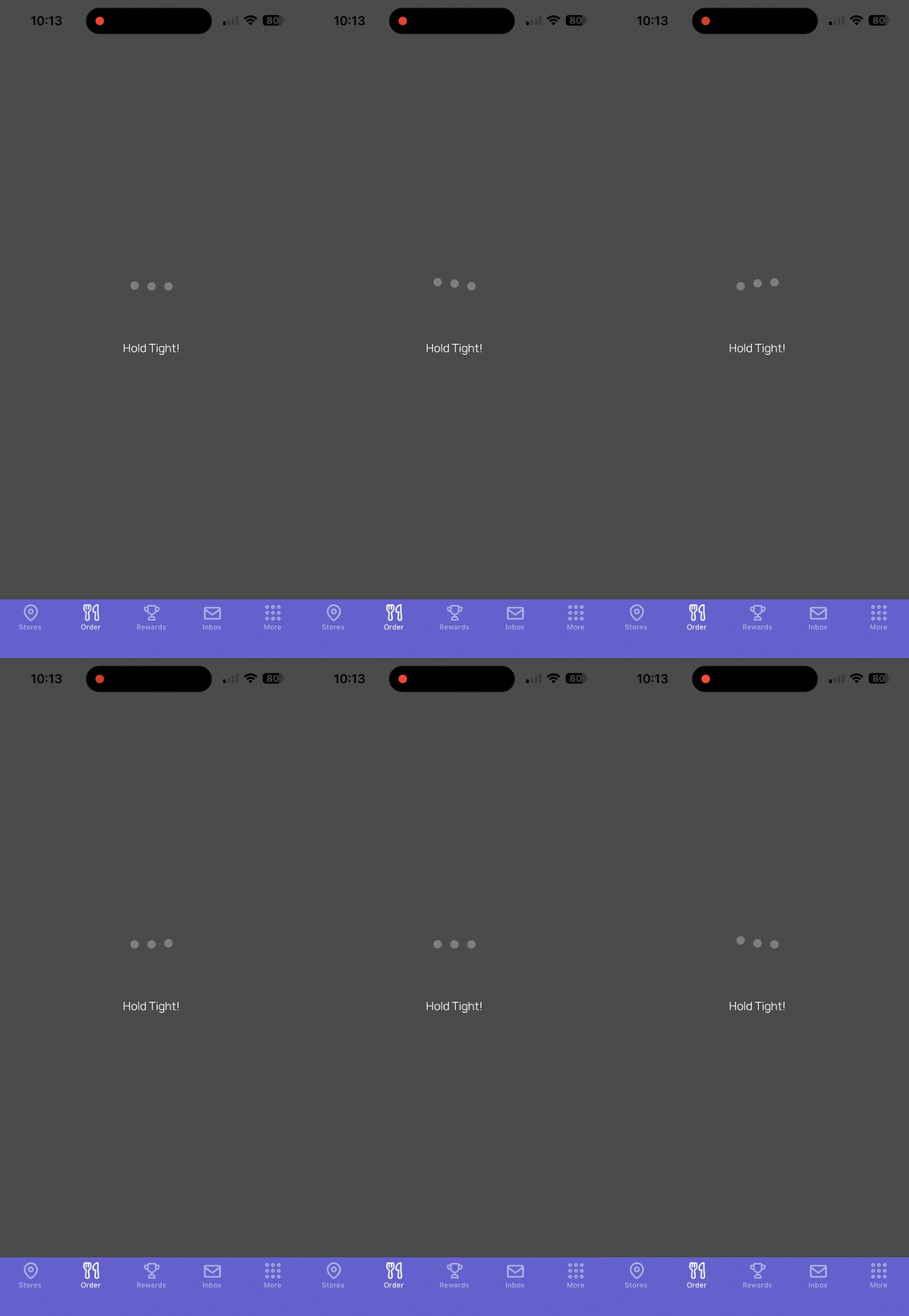
An app-wide loading animation. Providing a custom asset is optional.
Spec and File Format:
- 120px X 120px
- Lottie/JSON file
Where to Add Asset:
- During first-time setup by uploading your brand style guide OR in step 5 of the form
- In the PAR App Studio under App-wide > Images
Welcome Screen Image
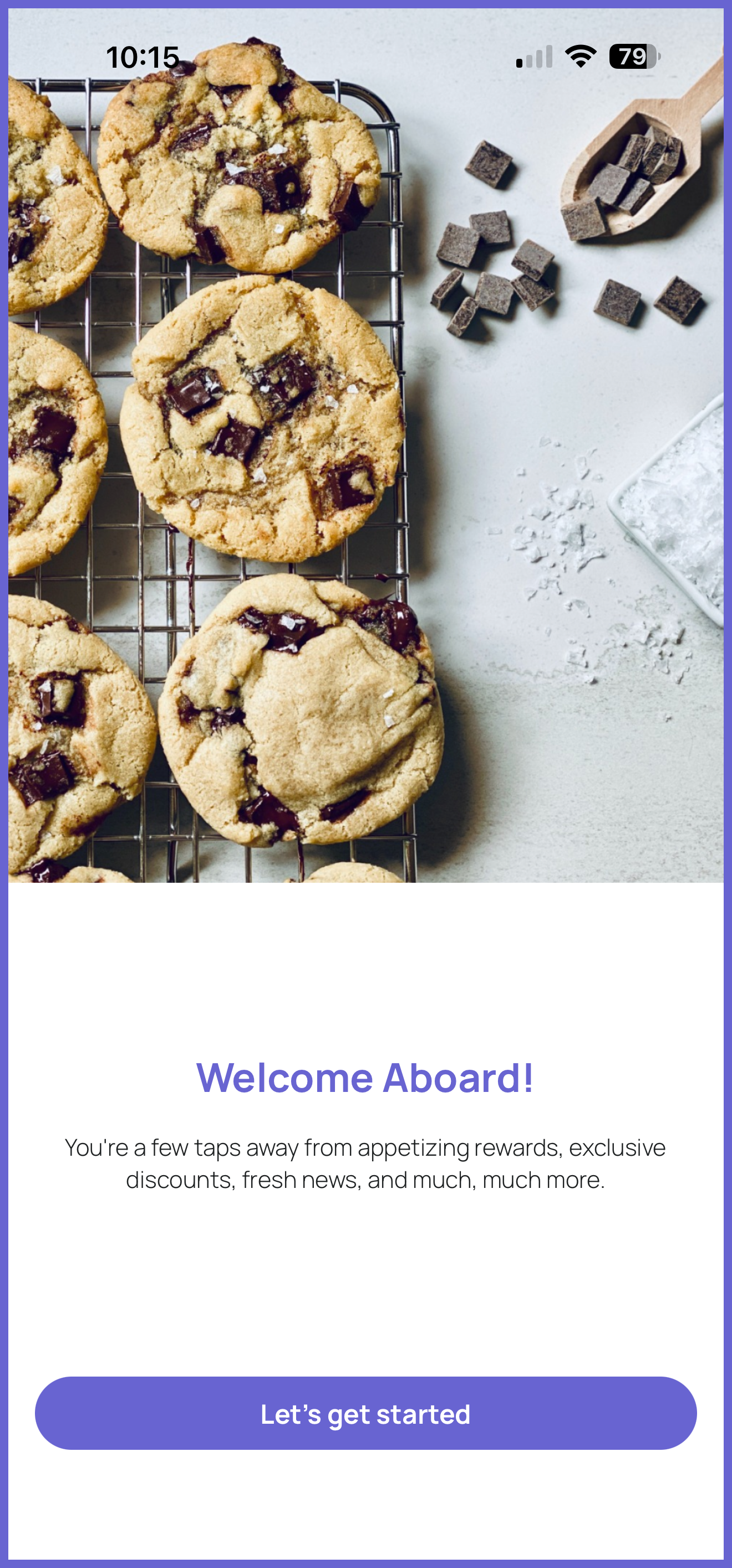
This is used on the Welcome Screen, which is the first interactive screen for new (logged out) users in the mobile app.
Spec and File Format:
- Recommended specs vary by layout:
- Half Image Layout: 1125px X 1050px
- Full Image Layout: 1125px X 2436px
- PNG file
Best Practices and Additional Information:
- Since phone screen size varies, it is recommended not to put important elements within 150px of the image border.
Where to Add Asset:
- In the PAR App Studio under Welcome & Onboarding Tutorial > Welcome Screen
Tutorial Slides (Optional)
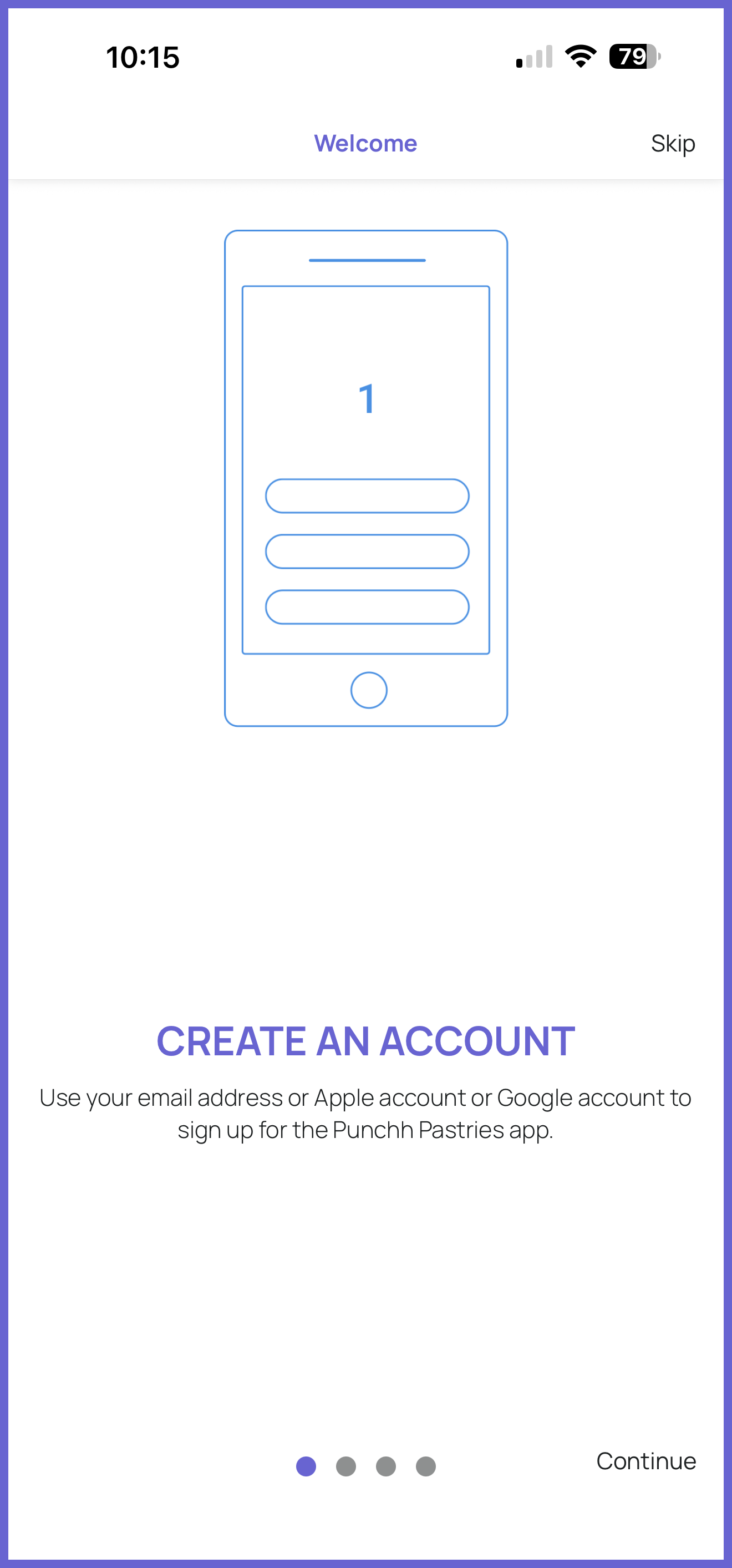
The images used for the onboarding tutorial (logged out users), if enabled.
Spec and File Format:
- 503px X 880px
- PNG file
Best Practices and Additional Information:
- Only used if Display onboarding tutorial is enabled
- Provide as many assets as you have slides
Where to Add Asset:
- In the PAR App Studio under Welcome & Onboarding Tutorial > Onboarding Tutorial
Common Sign-Up Screen Image
The main image on the app's signup screen.
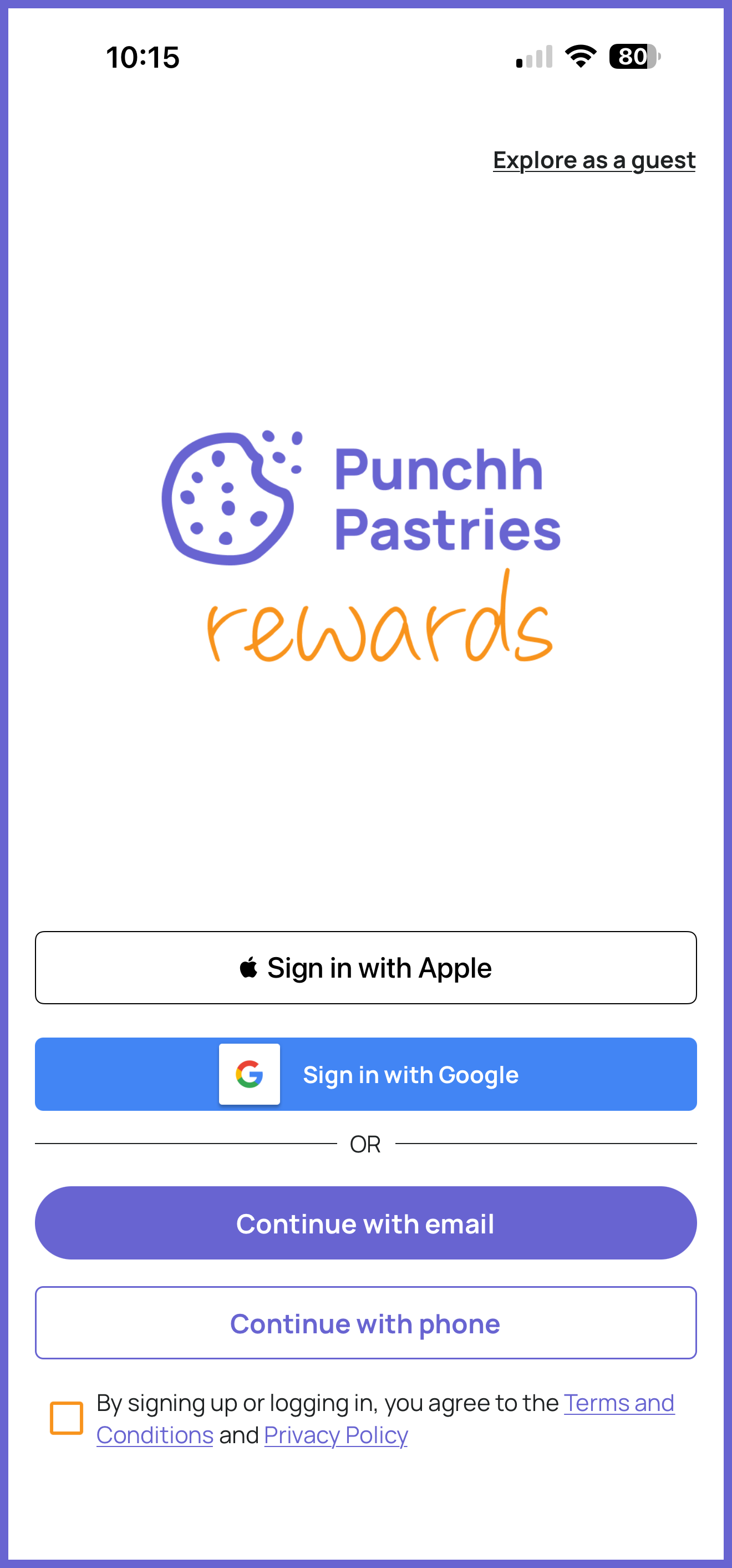
Spec and File Format:
- Recommended specs vary by layout:
- Logo with Background: 1125px X 1050px
- Half Image: 1125px X 1050px
- Full Image: 1125px X 2001px
- PNG file
Best Practices and Additional Information:
- Logo with Background: Background color should match app background or be transparent
- Half Image: Use a smaller image with a transparent background for best results
- Full Image: Avoid adding heavy elements close to the edges since the image may be cropped on different devices/screen resolutions
Where to Add Asset:
- In the PAR App Studio under Login & Signup > Common SignUp (Entry Screen)
Congratulations Screen Animation (Optional)
The image used on the screen that appears after a user completes a successful checkin.
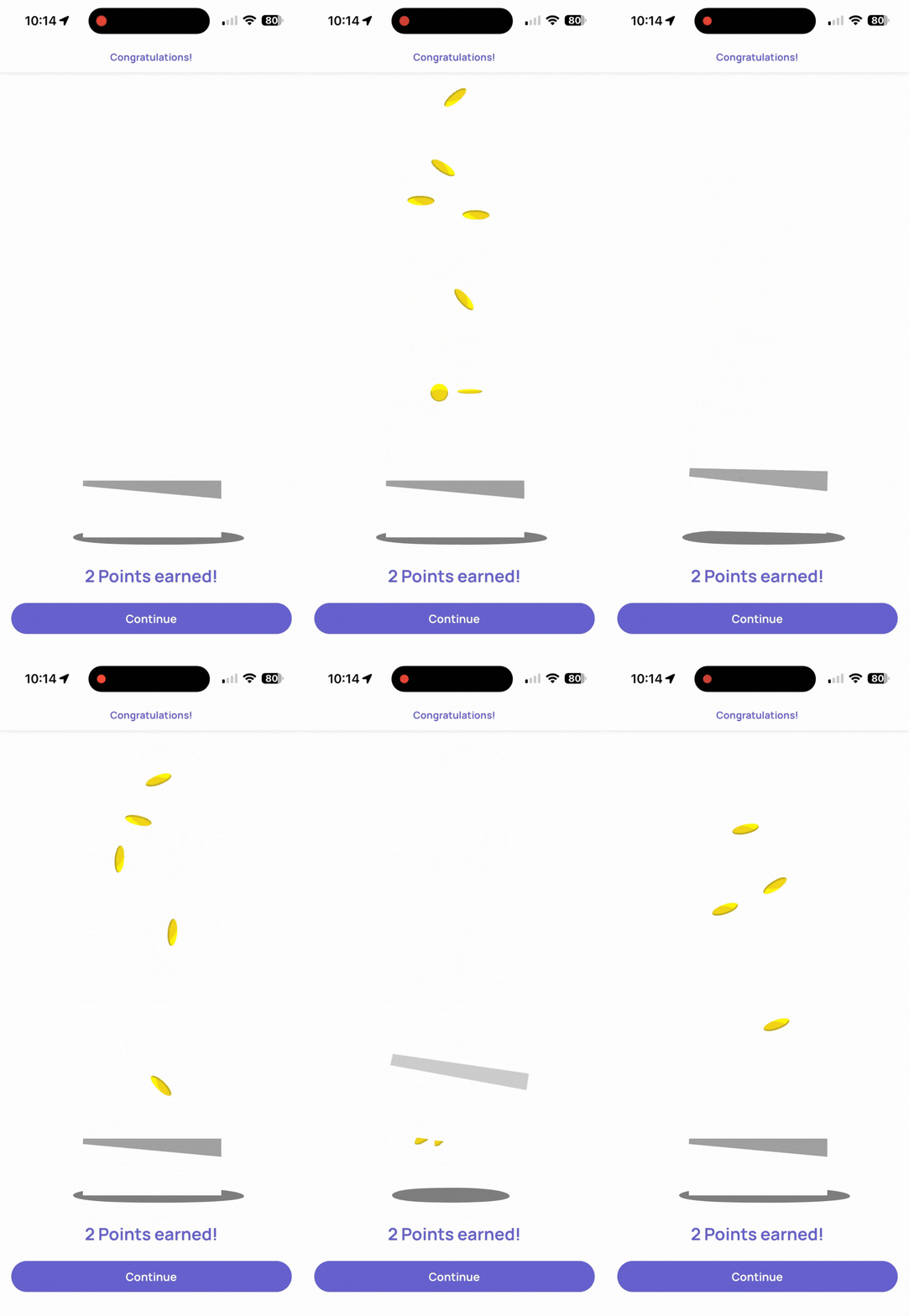
Spec and File Format:
- 196px X 430px
- Lottie/JSON file
Where to Add Asset:
- In the PAR App Studio under Earn & Check-In (Single Scan) > Congratulations (Post Check-In)
Invite Friends Screen Image (Optional)
The image used on the screen that displays the user’s referral code.
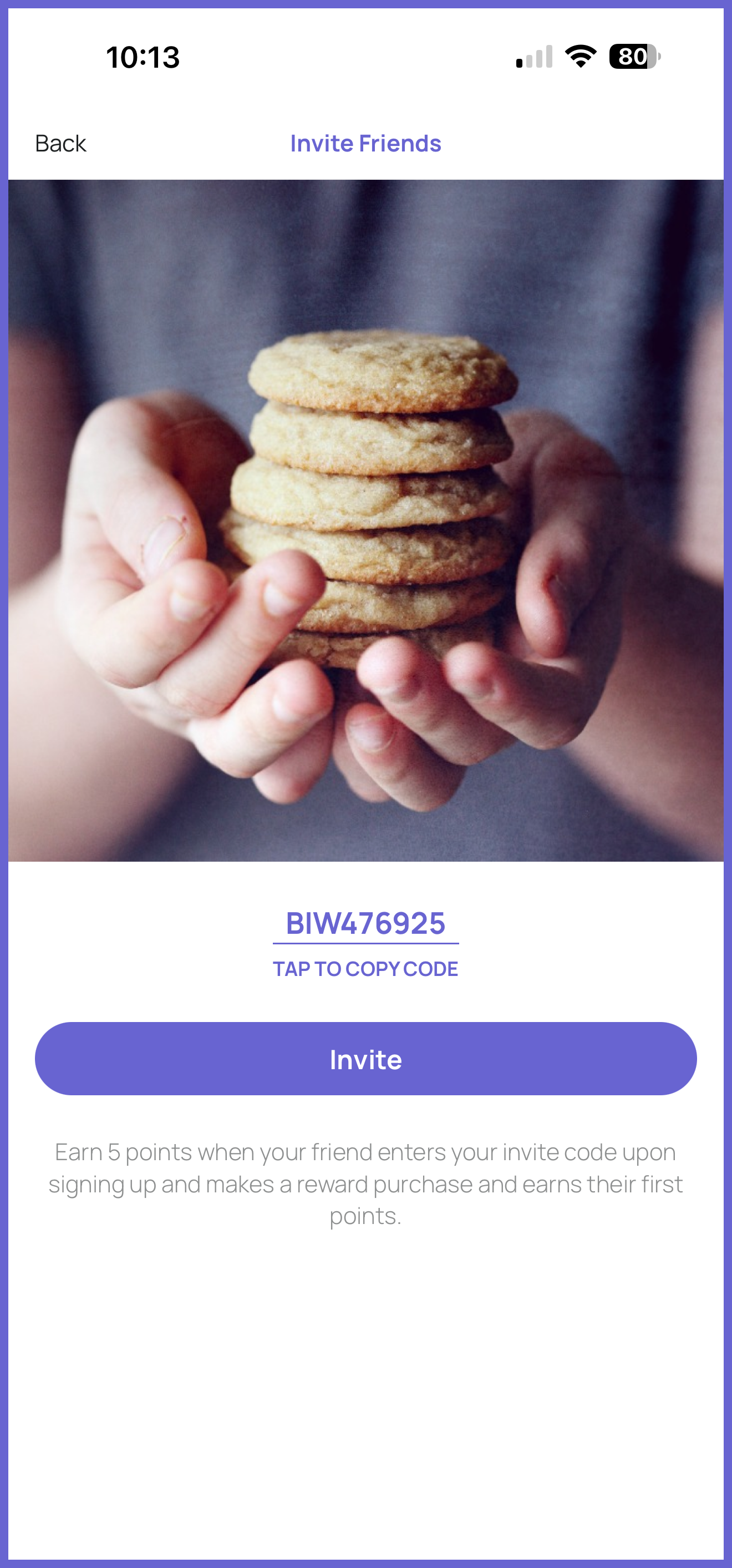
Spec and File Format:
- 1125px X 1050px
- PNG file
Where to Add Asset:
- In the PAR App Studio under More Section > Invite Friend
About Us Screen Image (Optional)
The image used on the screen that provides additional information about your brand.
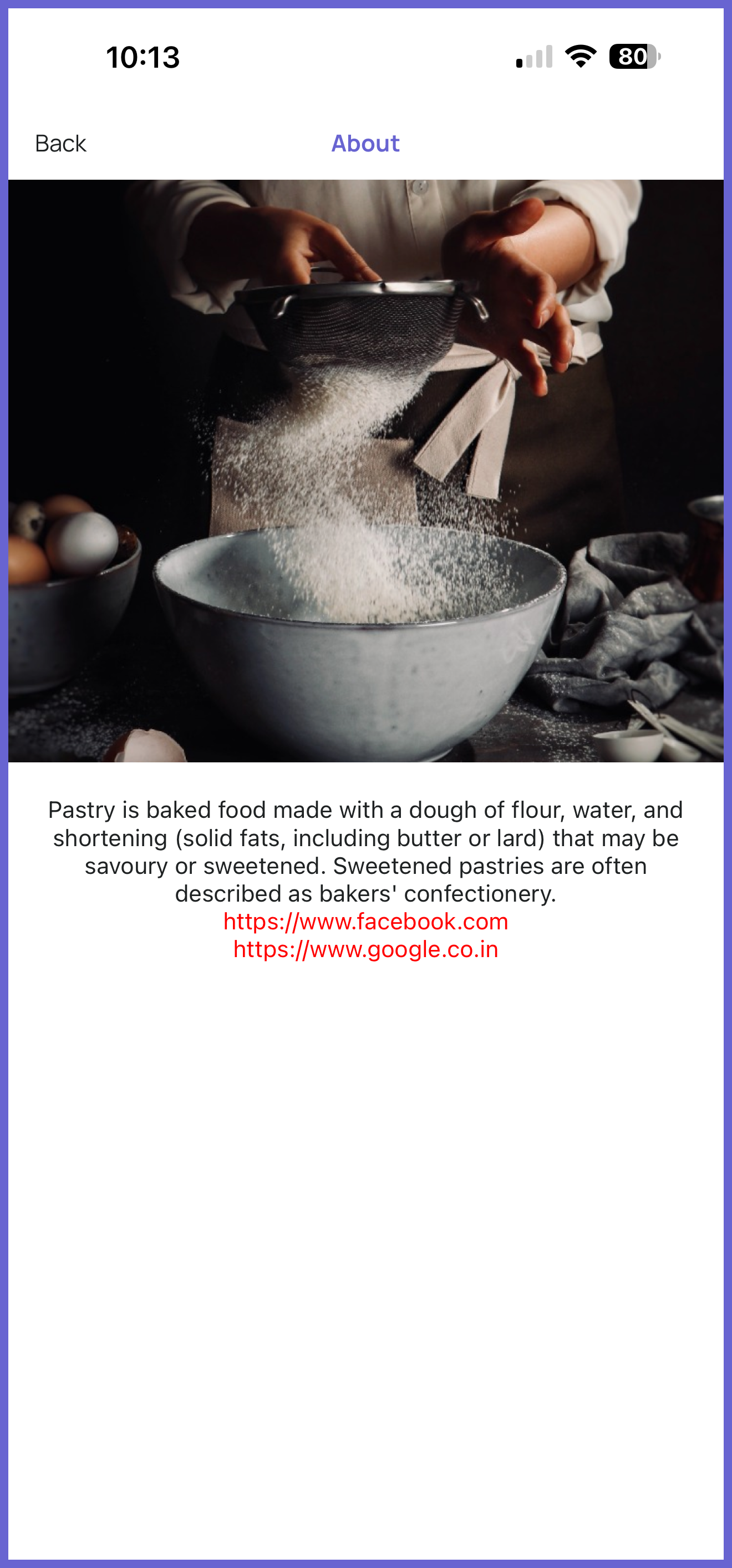
Spec and File Format:
- 1125px X 1050px
- PNG file
Where to Add Asset:
- In the PAR App Studio under More Section > About
Migration Screen Image (Optional)
The visual used for the onboarding screen used to onboard existing users from a previous loyalty program. Only used if migration is enabled/configured.
Spec and File Format:
- 1125px X 1050px
- Lottie/JSON or PNG file
Best Practices and Additional Information:
- Asset will be sized to fit 70% of the screen
Where to Add Asset:
- In the PAR App Studio under Migration > Migration Info
Bottom Navigation Icons
The icons used in the bottom navigation tab of the mobile app.
Spec and File Format:
- Square
- 24px X 24px
- Up to 50KB
- SVG file
Best Practices and Additional Information:
- Not required, but commonly customized
- Keep overall design consistent between icons
Where to Add Asset:
- During first-time setup in step 4 of the form
- In the PAR App Studio under App-wide > Navigation
