PAR Games: Webhooks Overview
The PAR Games platform offers robust webhook capabilities, enabling seamless integration of game experiences with external services. When an event occurs in the PAR Games system, a webhook triggers an HTTP request (typically POST or GET) to the specified URL. This request contains essential details, such as event information, player data, win results, and other key metrics.
Overview
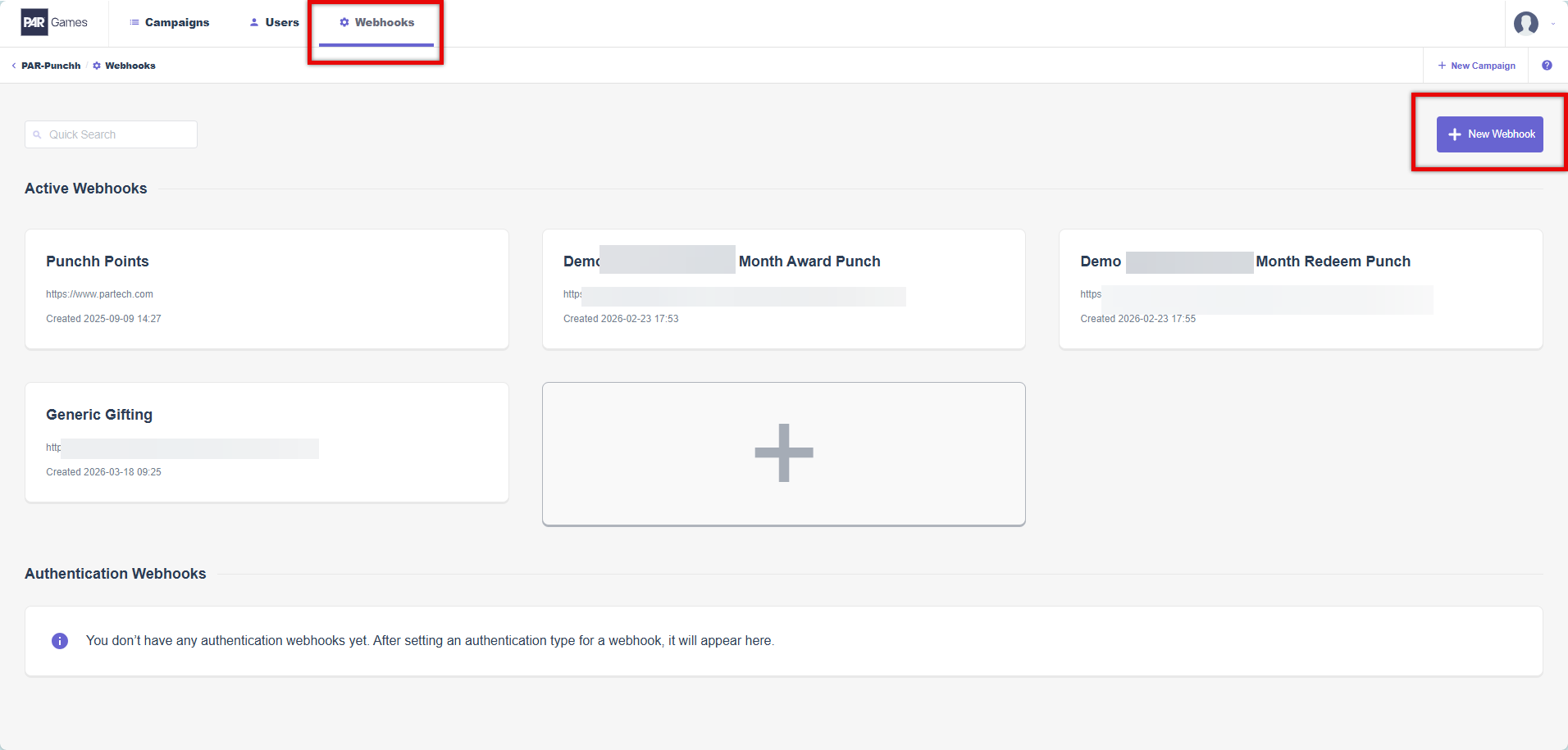
Webhooks are created at the account level and are available for every mechanic or game within that account. You can access webhooks by selecting Webhooks in the top navigation.

Within PAR Games, there are two types of webhooks: Active Webhooks and Authentication Webhooks.
- Active Webhooks are API/HTTP requests (typically POST or GET). Common APIs added as webhooks include user lookup, reward gifting, coupon redemption, and more.
- Authentication Webhooks are special webhooks designed to perform the OAuth2.0 Client Credentials process for webhooks if your API requires it over static tokens.
- These are only used in specific use cases. Reach out to the PAR Games team for help with these webhooks.
Webhooks in PAR Games
In PAR Games, a webhook is made up of 4 sections (End Point, Headers, Body, Map to Context) to accommodate simple and complex API/HTTP requests. Some fields in these sections are always required, while others may or may not be used depending on your API/HTTP request.
The 5th section (Campaigns) shows any mechanics or games that use the webhook as a trigger. Nothing is configured in this section.
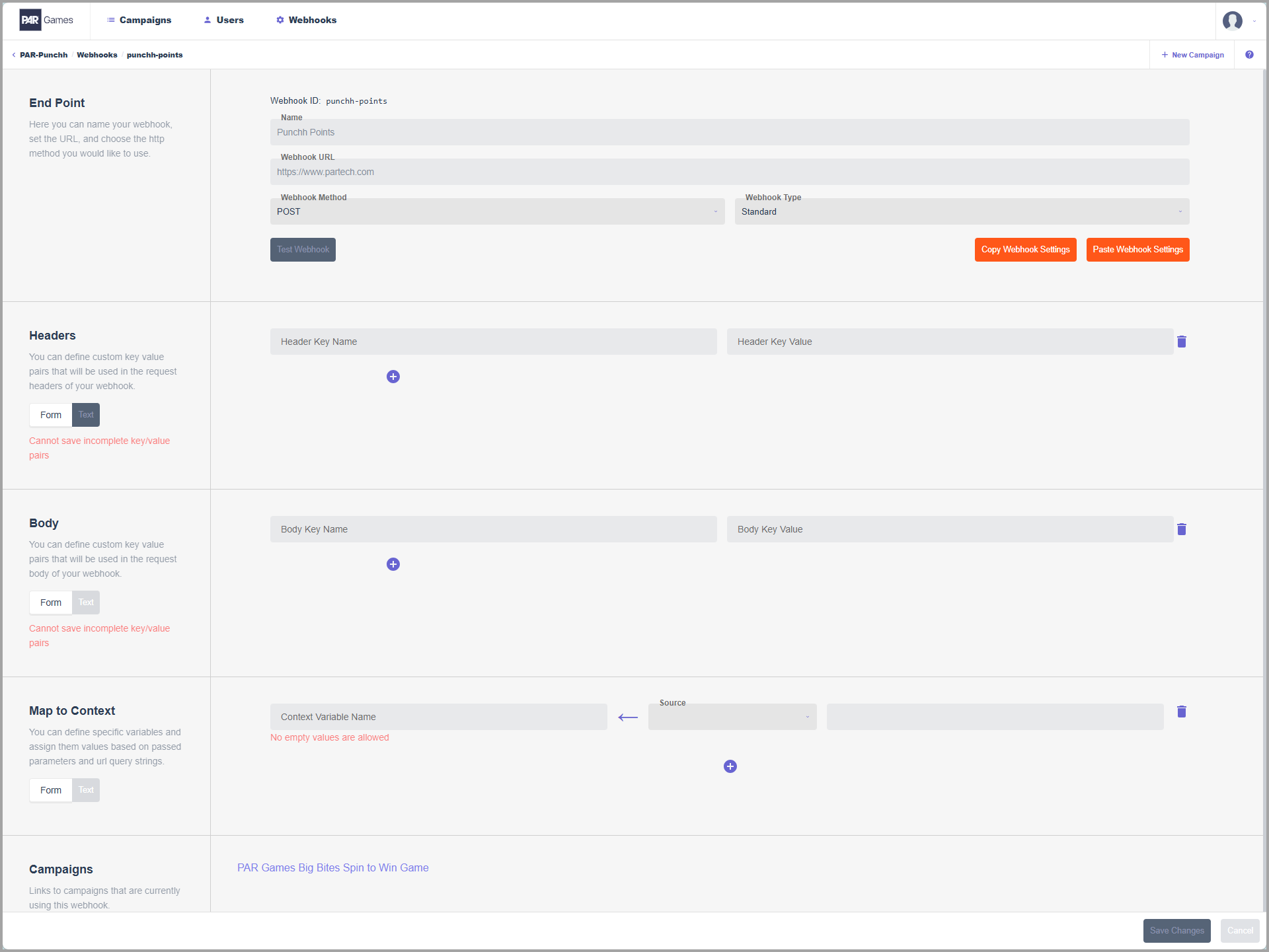
End Point
The fields in the End Point section are the first fields to be filled out. These are the only fields required for all webhooks. This section includes the following fields:
- Name: The name of your webhook. This can be anything and will appear in the trigger dropdown on a game
- Webhook URL: URL of your API/HTTP request
- Webhook Method: The request method of the webhook. POST and GET are the most common, but PUT, PATCH, and DELETE are also supported
- Webhook Type: Sets the type for the webhook, either Standard (Active) or Auth (Authentication)
Headers
This section determines what information is passed as the header values in the request. Keys can be added using the plus icon in the Headers section.
- Header Key Name: Name of the variable
- Header Key Value: Value passed, either dynamic or static
Body
This section determines what information is passed as the body values in the request. Keys can be added using the plus icon in the Body section.
- Body Key Name: Name of the variable
- Body Key Value: Value passed, either dynamic or static
Map to Context
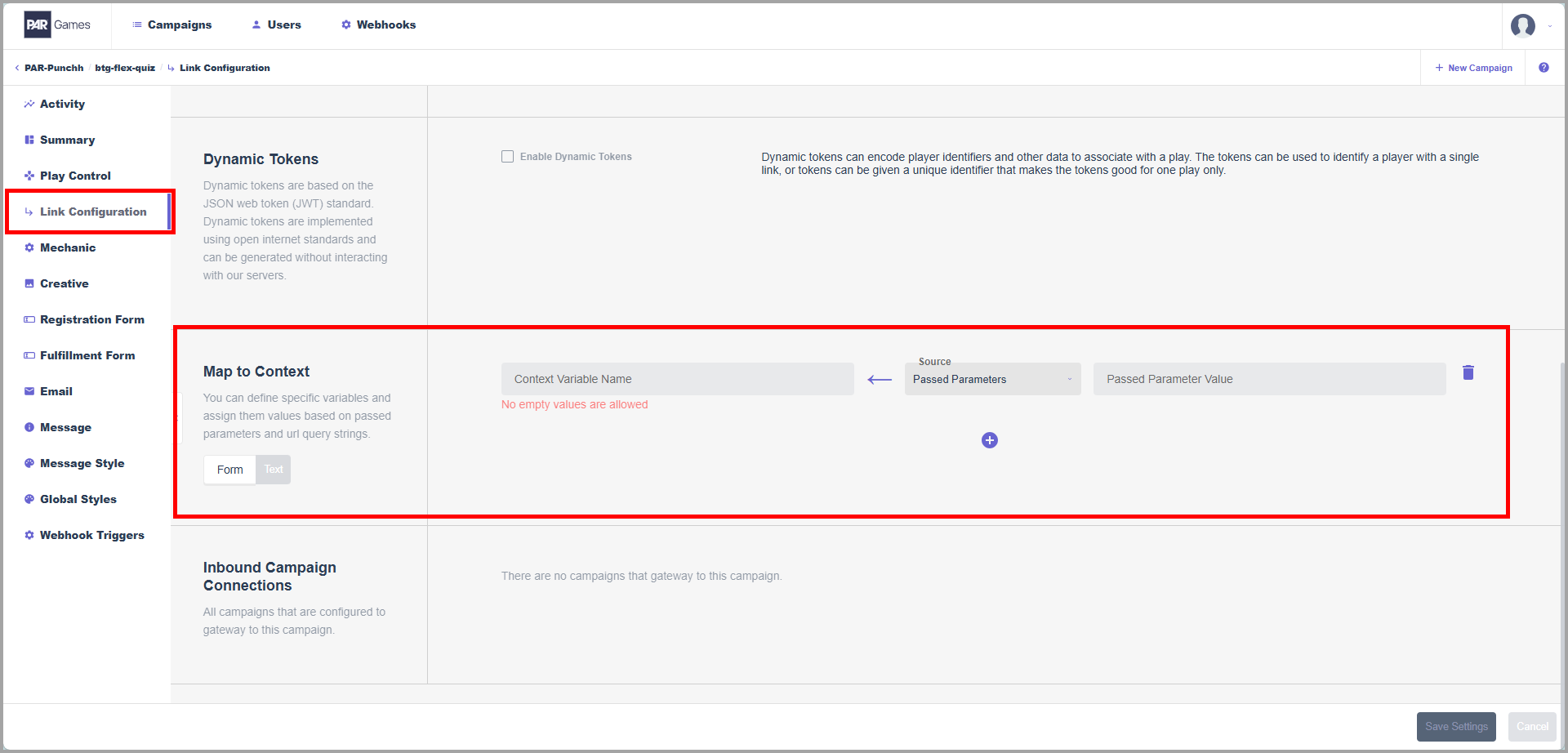
This section allows you to define variables and values based on passed parameters and/or URL query strings for use within the PAR Games platform. New variables can be added using the plus icon in the Map to Context section.
- Content Variable Name: Variable referenced and used within the PAR Games platform
- Source: Where to look up the value (body, header, or status)
- Content Variable: Value passed, either dynamic or static
System Variables
The following system variables are available during gameplay. These variables can be used as dynamic key values in a webhook. To activate, use the format {{system variable}} (Ex: {{sys.playerid}}).
All Games
| Name | System Variable | Description |
|---|---|---|
| Campaign ID | sys.campaign.id | ID of the game or mechanic |
| Campaign Name | sys.campaign.name | Name of the game or mechanic |
| Play Code | sys.play.code | Unique play code for each game play |
| Time Stamp | sys.play.timestamp | Time stamp of play in UTC |
| Player ID | sys.playerid | ID of player, also referred to as AccountID |
Chance Games
| Name | System Variable | Description |
|---|---|---|
| Win Level | sys.winlevel | Win level of a play (string value from 0 to 10) |
| Prize Link | sys.prize.link | Link field on timed prize page (prize based) |
| Prize Code | sys.prize.code | Code field on timed prize page (prize based) |
| Prize Pin | sys.prize.pin | Pin field on timed prize page (prize based) |
| Prize Description | sys.prize.description | Description field on odds page (prize based) |
Skill Games
| Name | System Variable | Description |
|---|---|---|
| Pick Choice | sys.play.pickchoice | Pick choice field, an array of information |
| Play Result | sys.play.playresult | Game information, such as questions right |
Illustrations and Examples
Simple POST Webhook
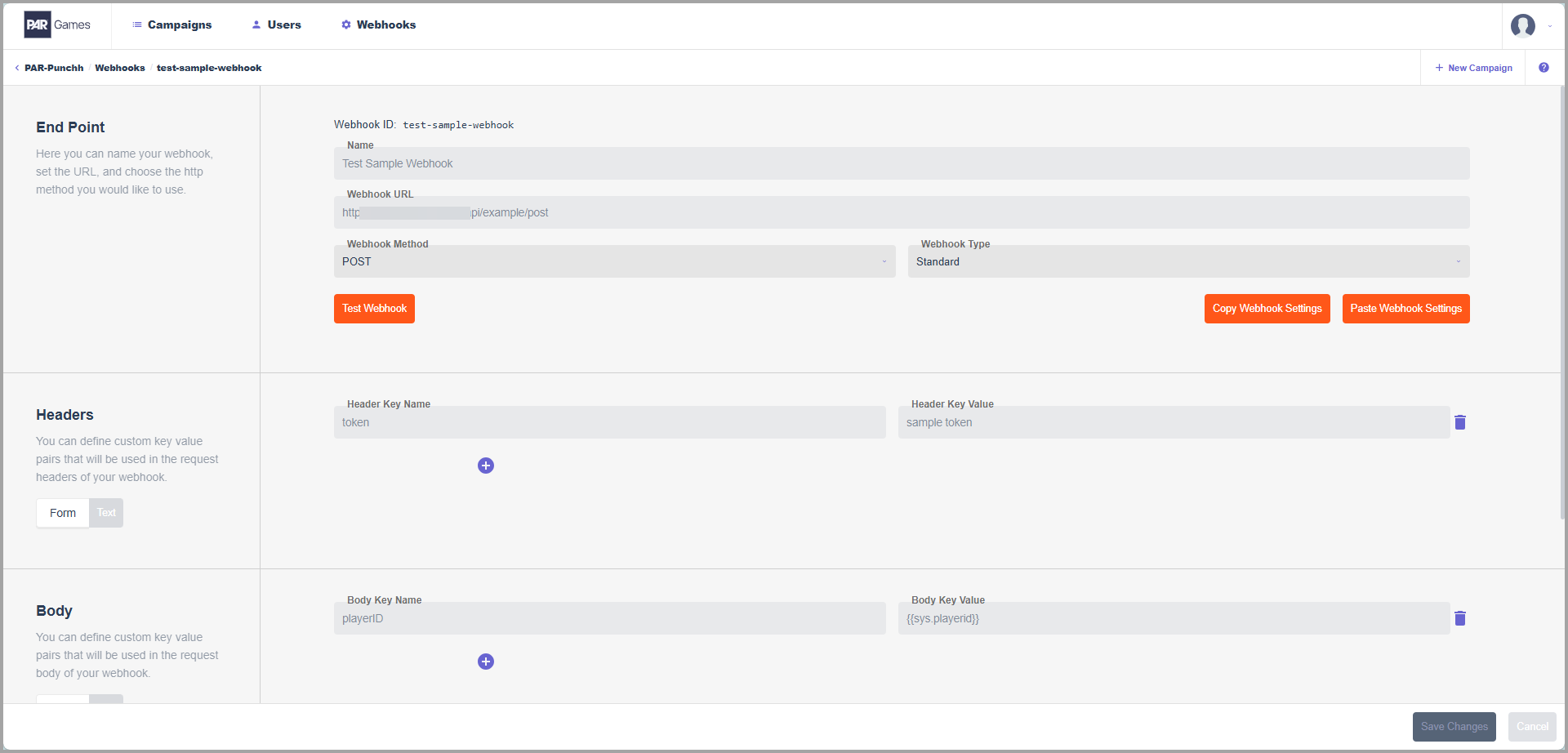
The following example demonstrates a basic webhook designed for testing purposes. This webhook returns POST data. When triggered, it posts the token: sample token as the header and the playerID: sys.playerid as the body payload.
PAR Games Collect and Win POST Webhook
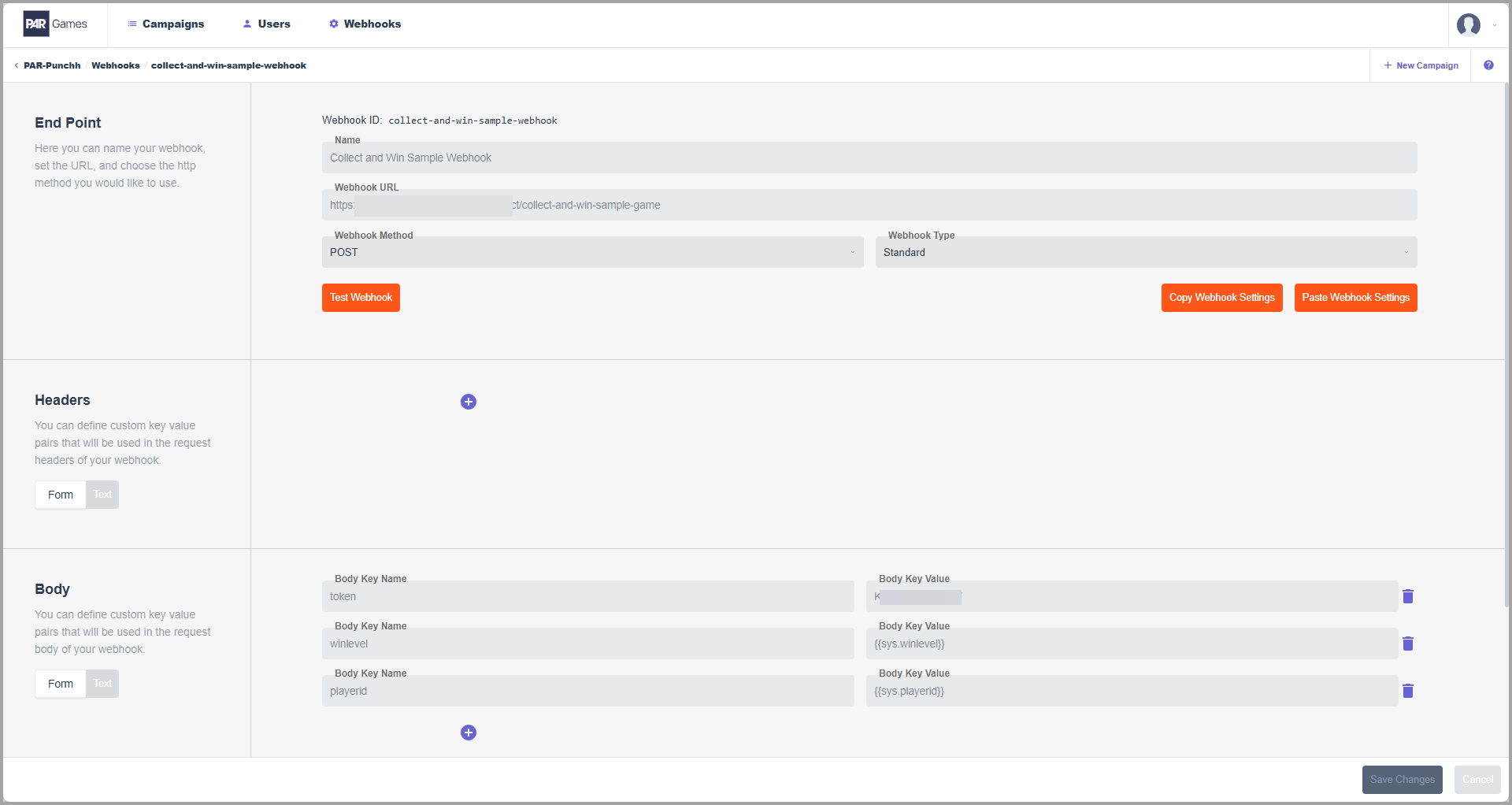
The following example demonstrates a webhook attached to the Collect and Win with API Redeem mechanic. This webhook is a POST API requiring a token, playerid, and winlevel as a body payload. When triggered, it posts playerid and winlevel using PAR Games defined system variables. The resulting webhook posts a piece collected on a PAR Games Collect and Win game.
Context Variables
PAR Games provides a way to map passed and form variables, called Context Variables. These variables can also be used as dynamic key values in a webhook. You can find and map context variables in a campaign using the Link Configuration page.
The context variable name is the name used in the webhook. To activate, use the format {{context variable}} within a webhook.
Create Gifting Webhooks
The generic gifting webhook is critical for a game to work properly. This webhook is responsible for gifting rewards to all game winners. This webhook can be reused for games with the same deployment and prize type. The first webhook is created during implementation.
An additional generic gifting webhook can be created for gifting points as a prize for a game. These webhooks can be used independently or together. Instructions for setting up both of these webhooks are outlined below.
Prerequisites
Before we begin, there are some things that you need to have available for reference:
-
The Asynchronous Support Gifting API Endpoint (
/api2/dashboard/users/support_gifting)- Additional details about this API can be found on the Asynchronous Support Gifting page in the PAR Developer Portal
-
The Punchh dashboard URL for your business
https://SERVER_NAME_GOES_HERE.punchh.com

-
An Admin Key from the Punchh brand admin account
- If you already have an admin key generated and saved, you can use that. If not, navigate to Administration > All Users, Roles, and Permissions within the Punchh platform and select the admin user you wish to generate a key for. Scroll to the bottom of the page and click Generate Business Admin Key. Save the key generated for the webhook and future use. If you regenerate a Business Admin Key, the previously generated key will stop working.
The name of this admin will appear in the guest timeline for every gifting entry created by this webhook.
Creating the Webhook
There are multiple factors that determine how the generic gifting webhooks need to be configured. The first 6 steps are always the same. For the remaining steps, refer to the section for the type of gifting (rewards or points) and the deployment method you will be using.
-
Have the Asynchronous Support Gifting API Endpoint, Punchh Dashboard URL, and Business Admin Key saved and handy
-
Navigate to the PAR Games dashboard (Custom > Games > Open Games Dashboard)
-
Select Webhooks from the top navigation, then click New Webhook
-
Fill in the initial Create Webhook pop-up.
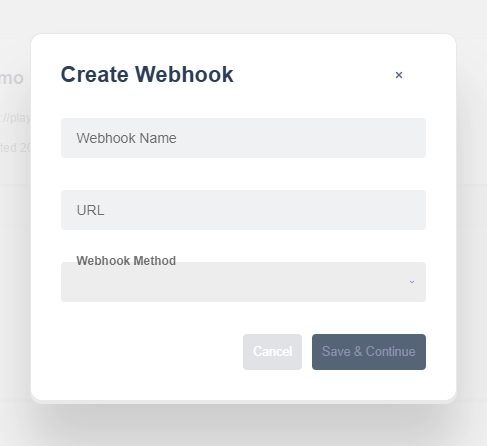
- Webhook Name: This can be anything, but it is recommended to include the deployment method and what is being distributed (rewards or points) in the title
- URL: This is the Punchh Dashboard URL plus the Asynchronous Support Gifting API Endpoint
https://SERVER_NAME_GOES_HERE.punchh.com/api2/dashboard/users/support_gifting
- Webhook Method: POST
-
Click Save & Continue
Header Key
All gifting webhooks require an authorization key as a header key. Other header keys may be required depending on your brand's configurations, integrations, etc.
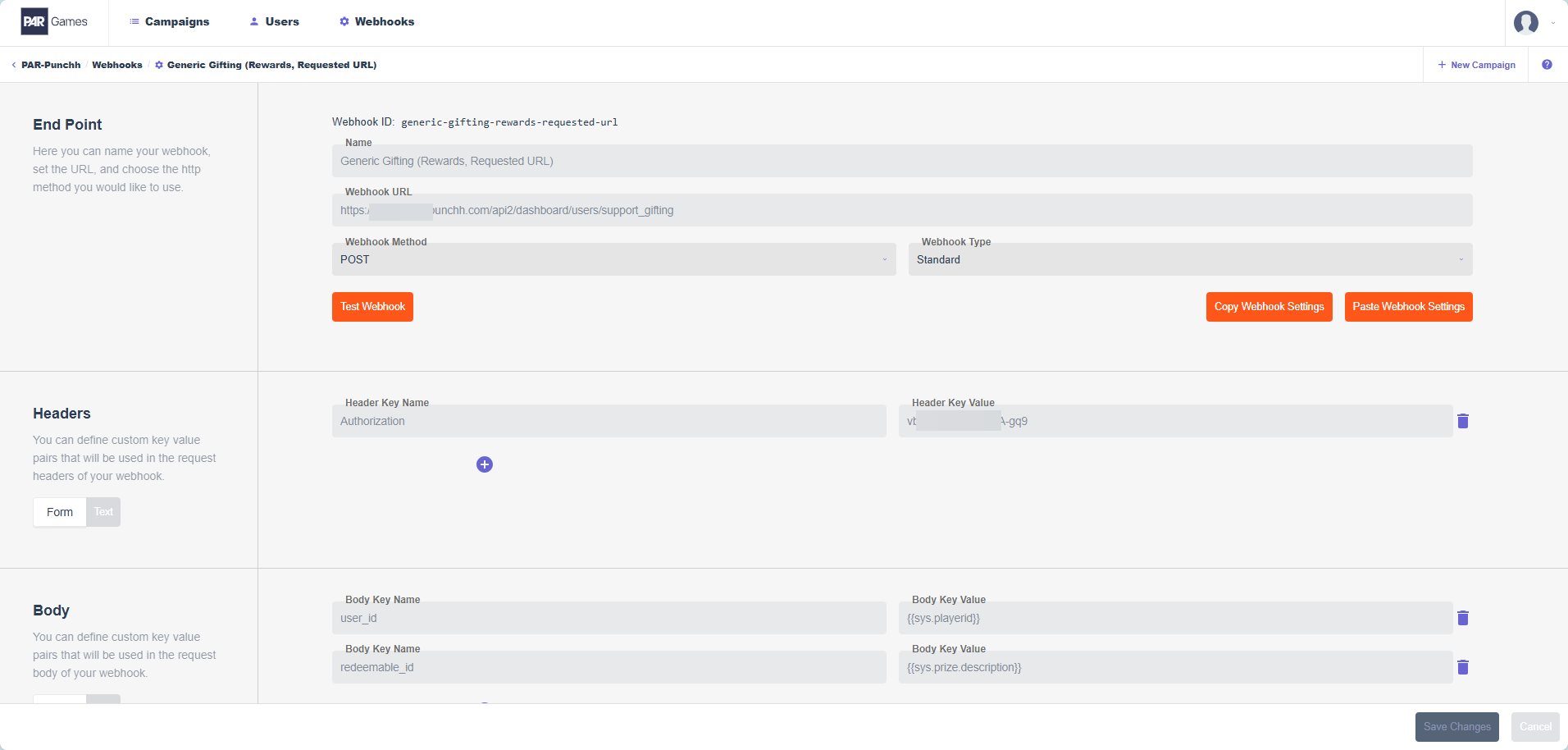
- In the Headers section, click the plus icon to add a header
- Header Key Name: Authorization
- Header Key Value: Paste the Business Admin Key here

Body Keys
The gifting webhook will require different body keys depending on the deployment method, prize distribution method, and the prizes being gifted. Refer to the keys that match the game(s) you are deploying. If you are using multiple games or a game uses multiple prize types/prize distribution methods, create multiple gifting webhooks.
- In the Body section, click the plus icon twice to add two body keys
- The first body key designates the user, or the guest playing the game
- Body Key Name:
user_id - Body Key Value:
- Dynamic JWT Deployment:
{{user_id}} - Requested URL Deployment:
{{sys.playerid}}
- Dynamic JWT Deployment:
- Body Key Name:
- The second body key designates the prize the user has earned
- Body Key Name:
- Reward:
redeemable_id - Points:
gift_count
- Reward:
- Body Key Value:
- Odds-Based Prizes:
{{sys.prize.description}} - Timed Prizes:
{{sys.prize.code}}
- Odds-Based Prizes:
- Body Key Name:
- Click Save Changes
- The first body key designates the user, or the guest playing the game
You have successfully created a gifting webhook! Below is an example of what a gifting webhook may look like for a game with reward prizes that is deployed using a Requested URL:
Testing Your Webhook
Now that you've created the generic gifting webhook, let's test it to make sure it works.
You Will Need
In order to fully test the webhook, you will need the following:
- The
user_idof a test guest in the Punchh dashboard - (Rewards only) The
redeemable_idof the redeemable you want to test with
Start Testing
-
From the webhook's page in the PAR Games dashboard, click Test Webhook
-
Add the testing IDs to the Webhook Test Context
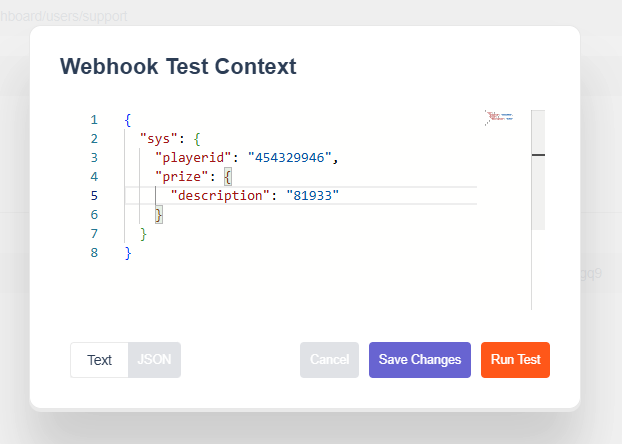
- For "playerid"/"user_id", provide the test guest's
user_id - For "description", provide the
redeemable_id(for testing a rewards webhook) or the number of points you want to gift (for testing a points webhook)
- For "playerid"/"user_id", provide the test guest's
-
Click Save Changes, then click Run Test
You will now see the response generated from the test request. If the generated request payload does not match what was provided in the Webhook Test Context, run the test again and the request payload should update and match the provided information/IDs.
If it ran successfully, you will get a 202 status and a blank response payload. The redeemable/points will also be added to the account associated with the user_id. If it did not run successfully, a different status and response payload will be displayed. Refer to the response payload as well as the error responses documented in the Asynchronous Support Gifting page in the Developer Portal for detailed information regarding these statuses.
Below are some common responses and what they mean:
- 202: Success; the webhook is working as expected
- 400: Missing parameter; a test ID was not provided, the response payload will indicate what was missing
- 401: Missing authorization; the Admin Key provided is invalid or is formatted incorrectly, double check that the Admin Key provided is correct and the Header Key Name is "Authorization"
