PAR Games: Adding Webhooks
Once you have created your gifting webhook(s), the webhook will need to be connected to the game you are deploying. The configurations vary depending on the prize being distributed and the deployment method being used for the game. Refer to the section for the deployment method you are using.
For information on setting up gifting webhooks, refer to PAR Games: Webhooks Overview.
Dynamic JWT Deployment: Game Setup Steps
First, we will set up the prizes we want to gift for this game.
Step 1: Configure Prize Options
Odds-Based Prizes
From the Summary page, open Prize Options and click Prize Control and Odds Setup. Determine which prizes you want distributed for each prize level.
- For points: Enter the number of points you want to give in the Description field
- For rewards: Enter the
redeemable_idyou want to give in the Description field
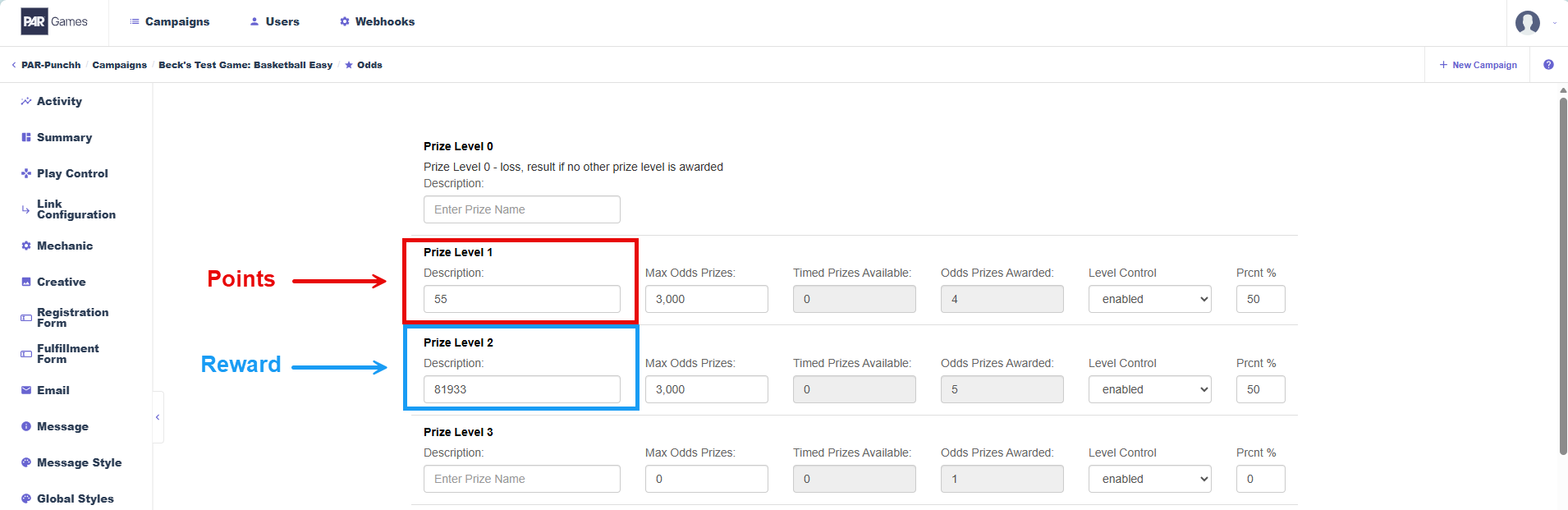
After, click Save Prize Changes.
Timed Prizes
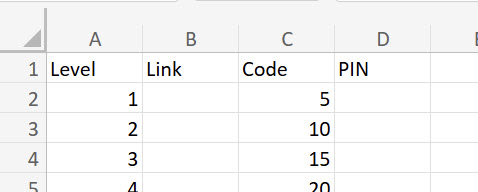
Determine which prizes you want distributed for each prize level. Create a CSV with the following columns:
- Level: Set level you want prize to be used for
- Link: Leave blank
- Code: Number of points or
redeemable_idyou want to gift - PIN: Leave blank
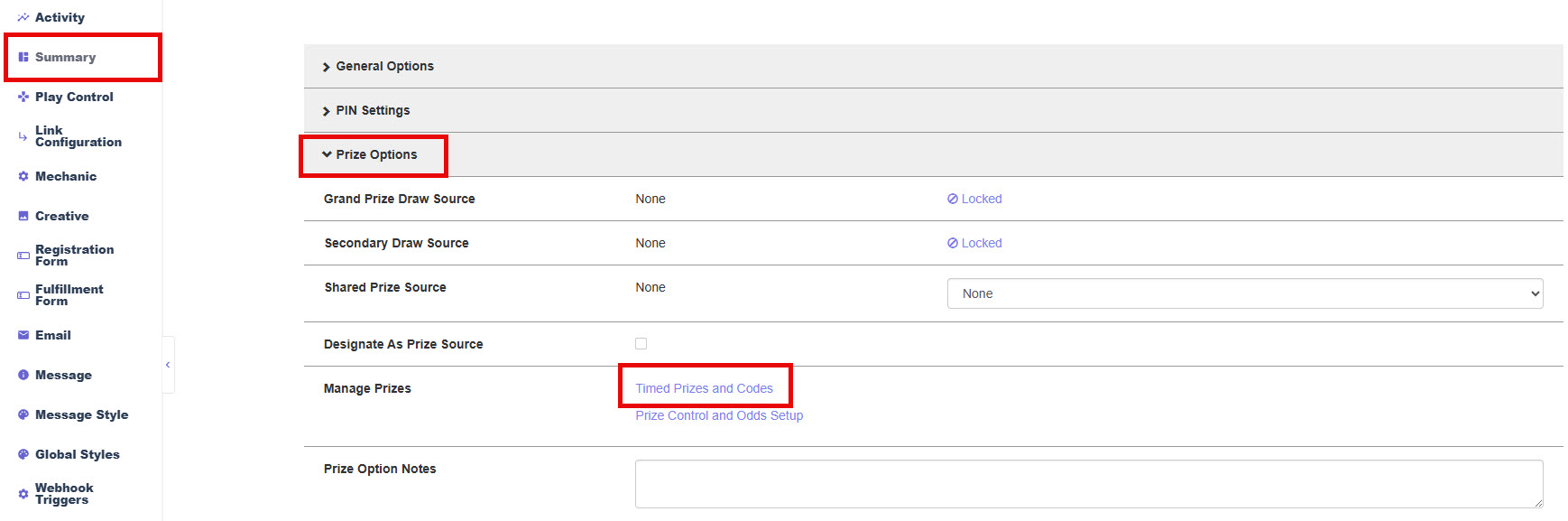
To upload the CSV, navigate to the Summary page, open Prize Options and click Timed Prizes and Codes.
-
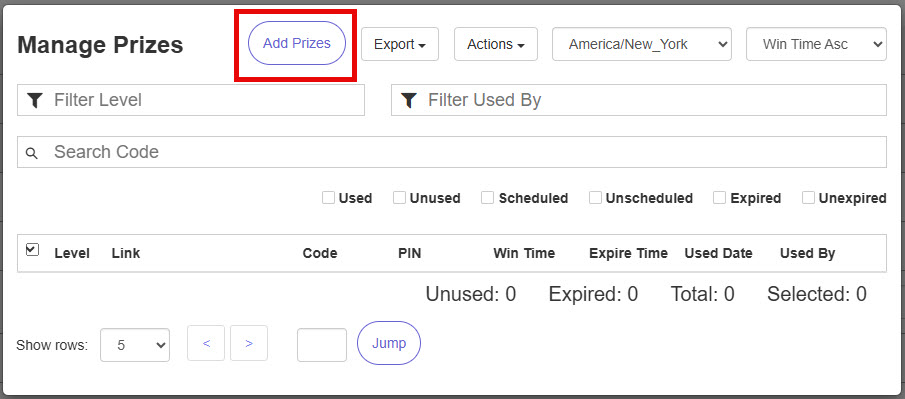
Click Add Prizes
-
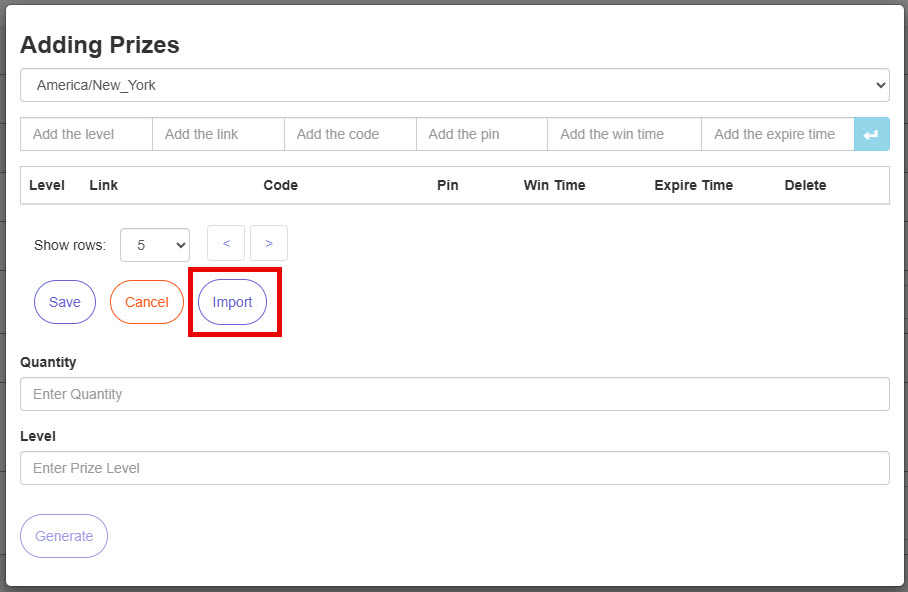
Click Import
-
Select the CSV file and click Save
-
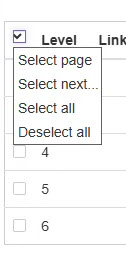
In the table heading, click the dropdown box next to Level and click Select All
-
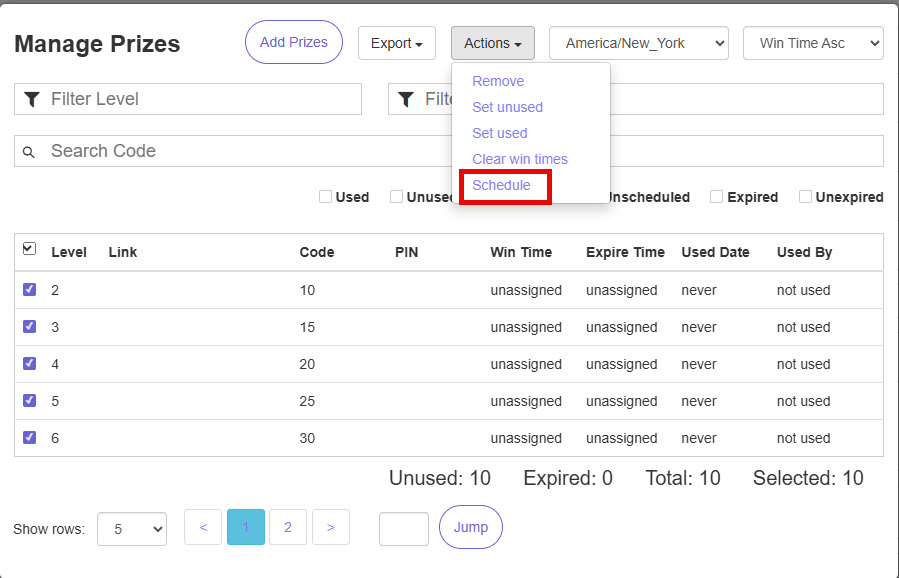
Click Actions and select Schedule
-
Fill out the Schedule Prizes pop-up
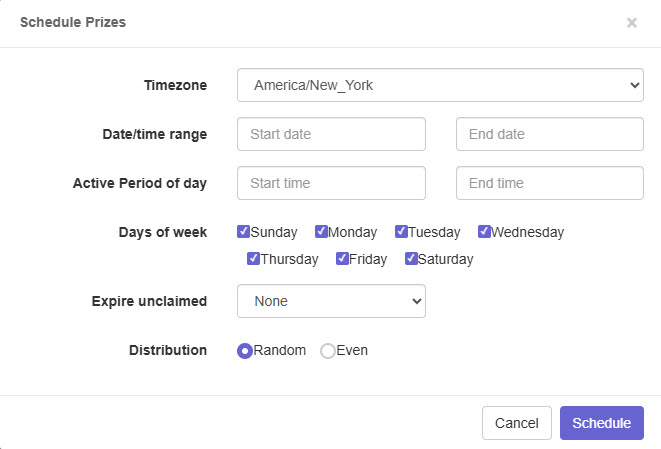
- Date/time range: Match start and end date and times with what is in official rules/game campaign settings
- For most games, this is the only configuration that will be used
- Active Period of Day: Set prizes to be scheduled only during certain times of the day. Good if you’re not anticipating plays during certain hours (i.e. overnight)
- Days of week: Sets prizes to be scheduled only on certain days of the week
- Expire unclaimed: Set prizes to expire at end of day, after X number of hours, or never
- Distribution: Random or Even
- Date/time range: Match start and end date and times with what is in official rules/game campaign settings
-
Click Schedule
-
Exit the Timed Prizes and Codes pop-up and click Save Changes
Next, we will enable our Dyanmic JWT URL and the Map to Context fields required for our webhook to work properly.
Step 2: Configure Dynamic Token and Map to Context Fields
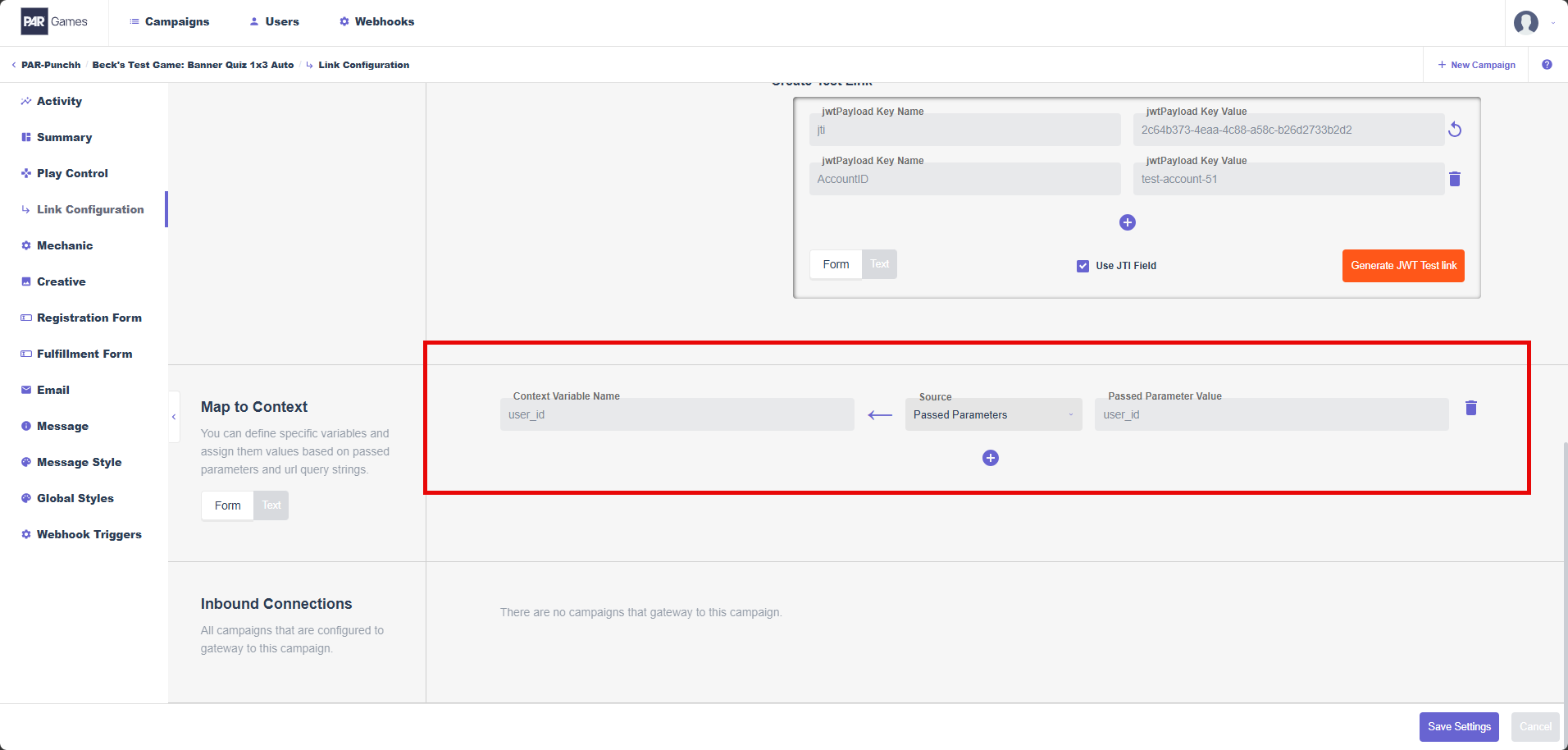
Navigate to Link Configuration from the left navigation panel.
-
Enable and set up the Dynamic Tokens deployment method (see Game Deployment and Testing)
-
In the Map to Context section, use the plus icon to add a context variable and set it as the following:
user_id<--- Passed Parameters |user_id
-
Click Save Settings
Next, we will connect the gifting webhook to our game and determine what will trigger the webhook.
Step 3: Configure Webhook Triggers
Navigate to Webhook Triggers from the left navigation panel.
Gifting Points Webhook
-
Click Add Trigger
-
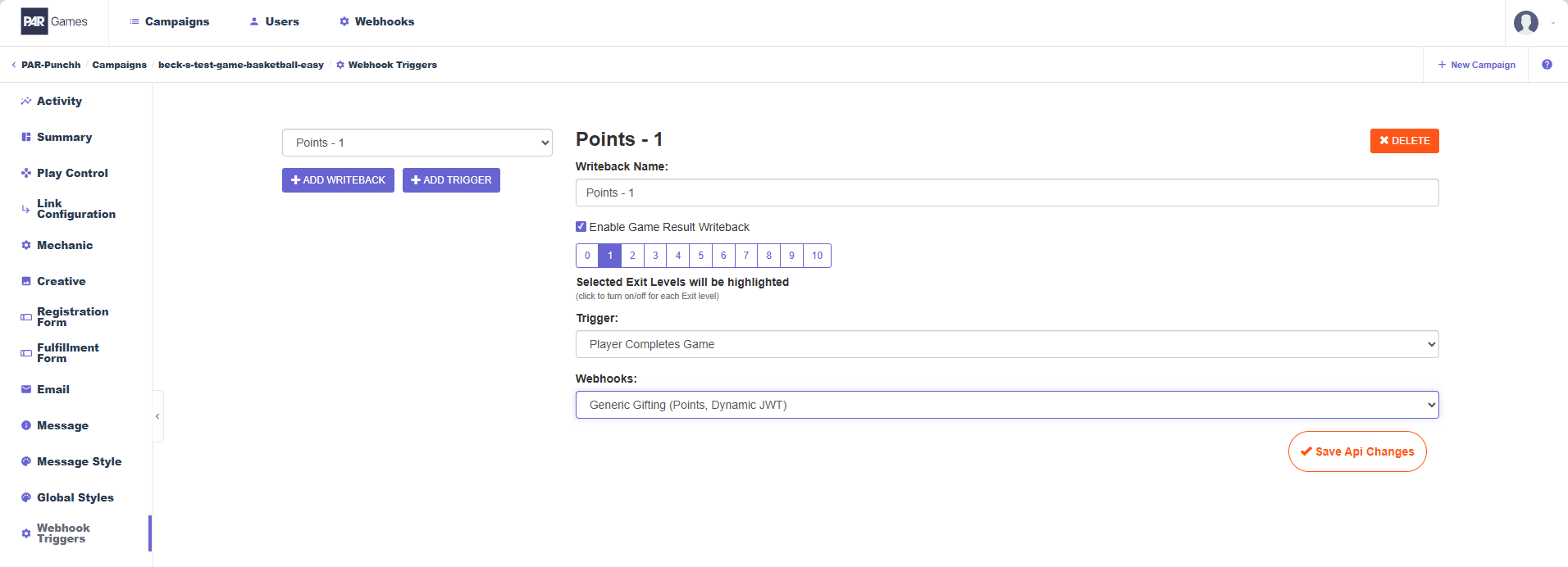
The Webhook Trigger Name can be anything, but it is recommended to use a name that makes it clear this is for the points gifting webhook
-
Click Enable Webhook Trigger by Winlevel
-
Set the Exit Levels that will be gifting points (this must match what was configured in Step 1)
- Ex: If win levels 1–4 have a number of points in the description, select these win levels for the webhook
-
Set Trigger to Player Completes Game
-
Under Webhooks, select the points gifting webhook for the Dynamic JWT deployment method
-
Click Save API Changes
Gifting Rewards Webhook
-
Click Add Trigger
-
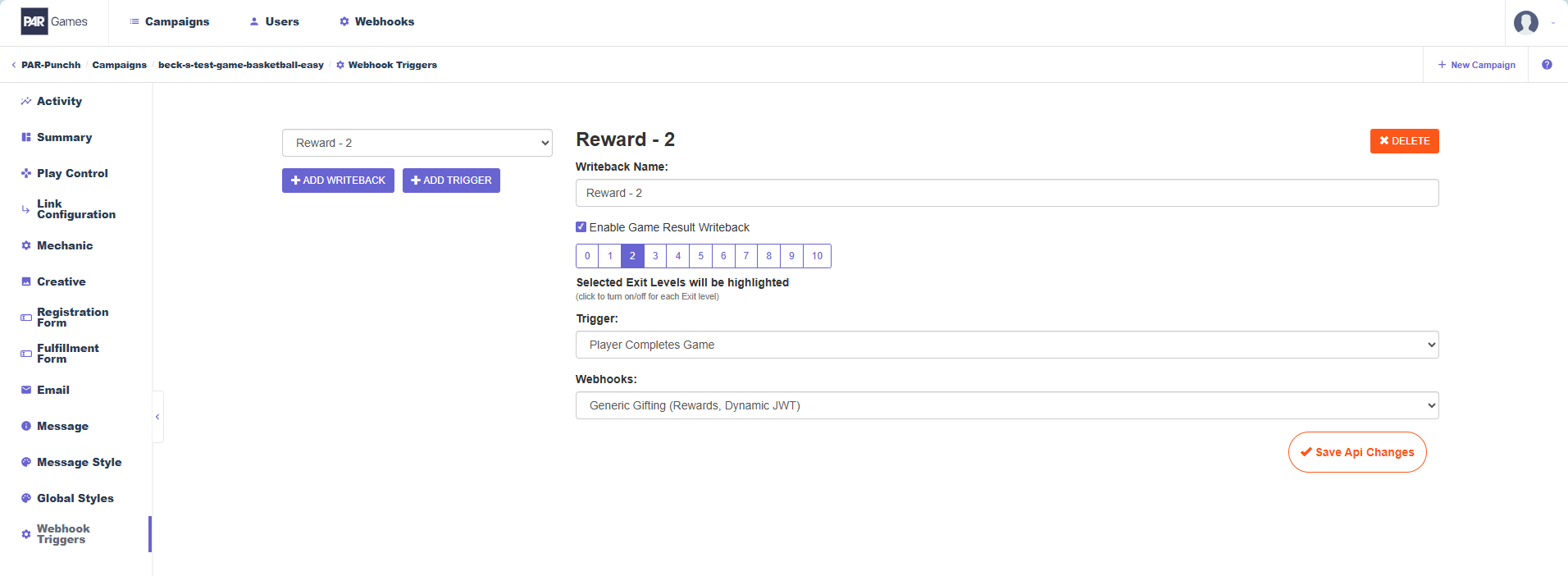
The Webhook Trigger Name can be anything, but it is recommended to use a name that makes it clear this is for the rewards gifting webhook
-
Click Enable Webhook Trigger by Winlevel
-
Set the Exit Levels that will be gifting rewards (this must match what was configured in Step 1)
- Ex: If win levels 5–10 have a redeemable_id in the description, select these win levels for the webhook
-
Set Trigger to Player Completes Game
-
Under Webhooks, select the rewards gifting webhook for the Dynamic JWT deployment method
-
Click Save API Changes
Finally, we will test our gifting webhook to ensure everything is working properly.
Step 4: Test Prize Distribution
Navigate to Link Configuration from the left navigation panel.
-
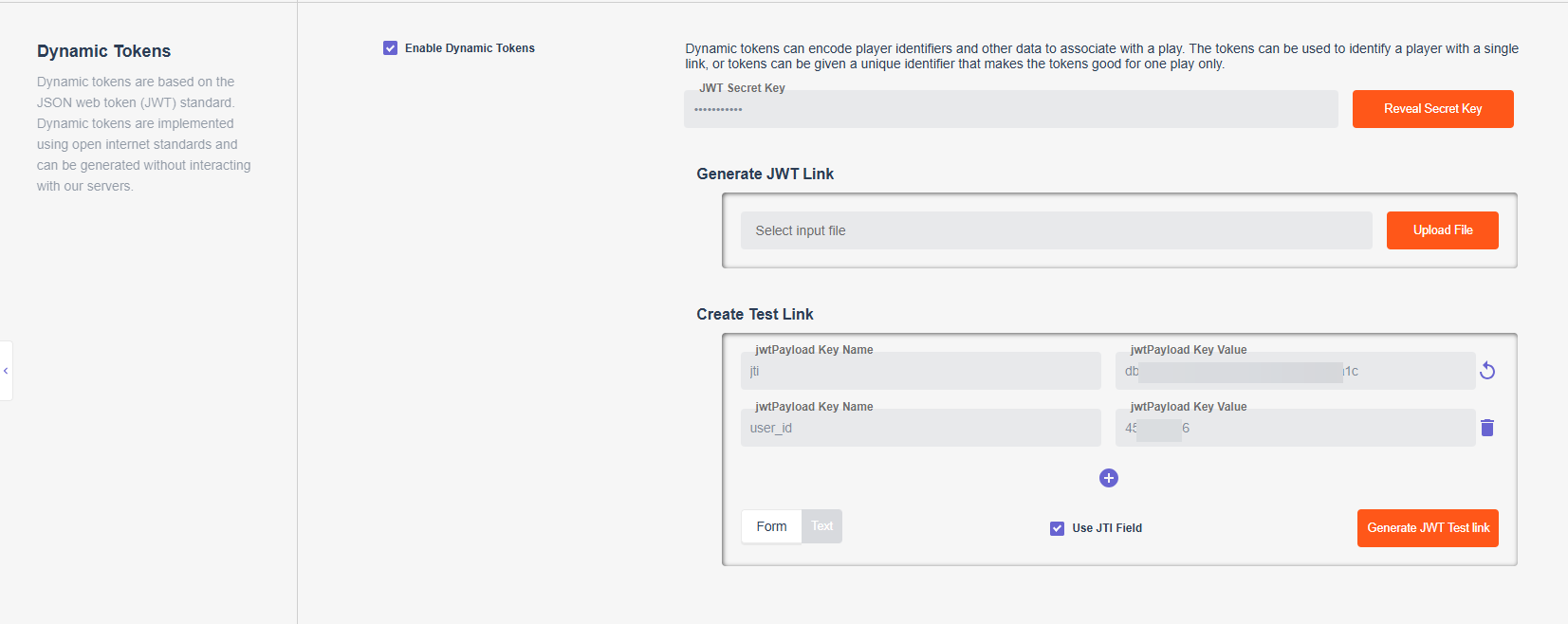
In the Create Test Link box in the Dynamic Tokens section, set the second jwtPayload Key to the following:
- jwtPayload Key Name:
user_id - jwtPayload Key Value: The
user_idof the test guest you want to use
- jwtPayload Key Name:
-
Click Generate JWT Test link
-
Copy the generated URL and play the game. Note the win level and confirm the corresponding points or reward for that win level was gifted to the test account
If using points and rewards: Repeat steps 1–3 to test both webhooks. If the first test game resulted in a win level that gifted points, try to achieve a win level that gifts a reward in the second play. If the webhooks do not appear to be working as expected, or if you want to see what information is passed in these webhooks, navigate to Activity from the left navigation panel and click Create Webhook CSV. This will generate an Excel spreadsheet with information about the recent plays and API calls including request/response payloads and statuses.
Requested URL Deployment: Game Setup Steps
First, we will set up the prizes we want to gift for this game.
Step 1: Configure Prize Options
Odds-Based Prizes
From the Summary page, open Prize Options and click Prize Control and Odds Setup. Determine which prizes you want distributed for each prize level.
- For points: Enter the number of points you want to give in the Description field
- For rewards: Enter the
redeemable_idyou want to give in the Description field
After, click Save Prize Changes
Timed Prizes
Determine which prizes you want distributed for each prize level. Create a CSV with the following columns:
- Level: Set level you want prize to be used for
- Link: Leave blank
- Code: Number of points or
redeemable_idyou want to gift - PIN: Leave blank
To upload the CSV, navigate to the Summary page, open Prize Options and click Timed Prizes and Codes.
-
Click Add Prizes
-
Click Import
-
Select the CSV file and click Save
-
In the table heading, click the dropdown box next to Level and click Select All
-
Click Actions and select Schedule
-
Fill out the Schedule Prizes pop-up
- Date/time range: Match start and end date and times with what is in official rules/game campaign settings
- For most games, this is the only configuration that will be used
- Active Period of Day: Set prizes to be scheduled only during certain times of the day. Good if you’re not anticipating plays during certain hours (i.e. overnight)
- Days of week: Sets prizes to be scheduled only on certain days of the week
- Expire unclaimed: Set prizes to expire at end of day, after X number of hours, or never
- Distribution: Random or Even
- Date/time range: Match start and end date and times with what is in official rules/game campaign settings
-
Click Schedule
-
Exit the Timed Prizes and Codes pop-up and click Save Changes
Next, we will connect the gifting webhook to our game and determine what will trigger the webhook.
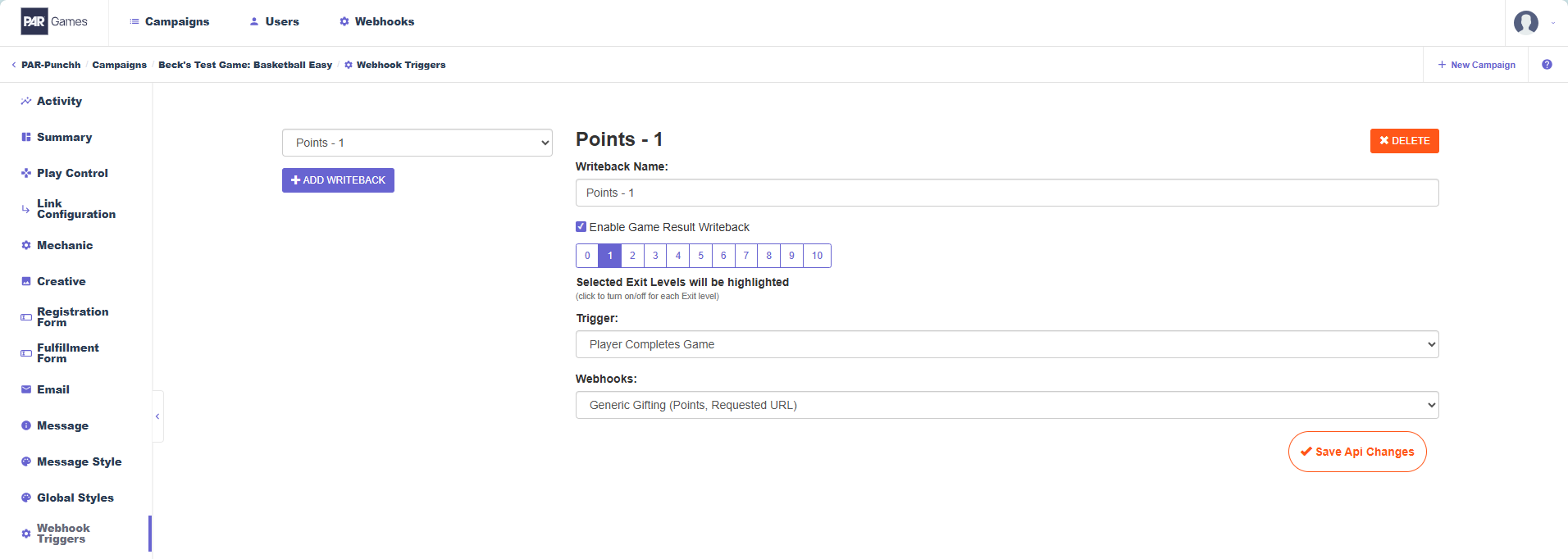
Step 2: Configure Webhook Triggers
Navigate to Webhook Triggers from the left navigation panel.
Gifting Points Webhook
-
Click Add Trigger
-
The Webhook Trigger Name can be anything, but it is recommended to use a name that makes it clear this is for the points gifting webhook
-
Click Enable Webhook Trigger by Winlevel
-
Set the Exit Levels that will be gifting points (this must match what was configured in Step 1)
- Ex: If win levels 1–4 have a number of points in the description, select these win levels for the webhook
-
Set Trigger to Player Completes Game
-
Under Webhooks, select the points gifting webhook for the Requested URL deployment method
-
Click Save API Changes
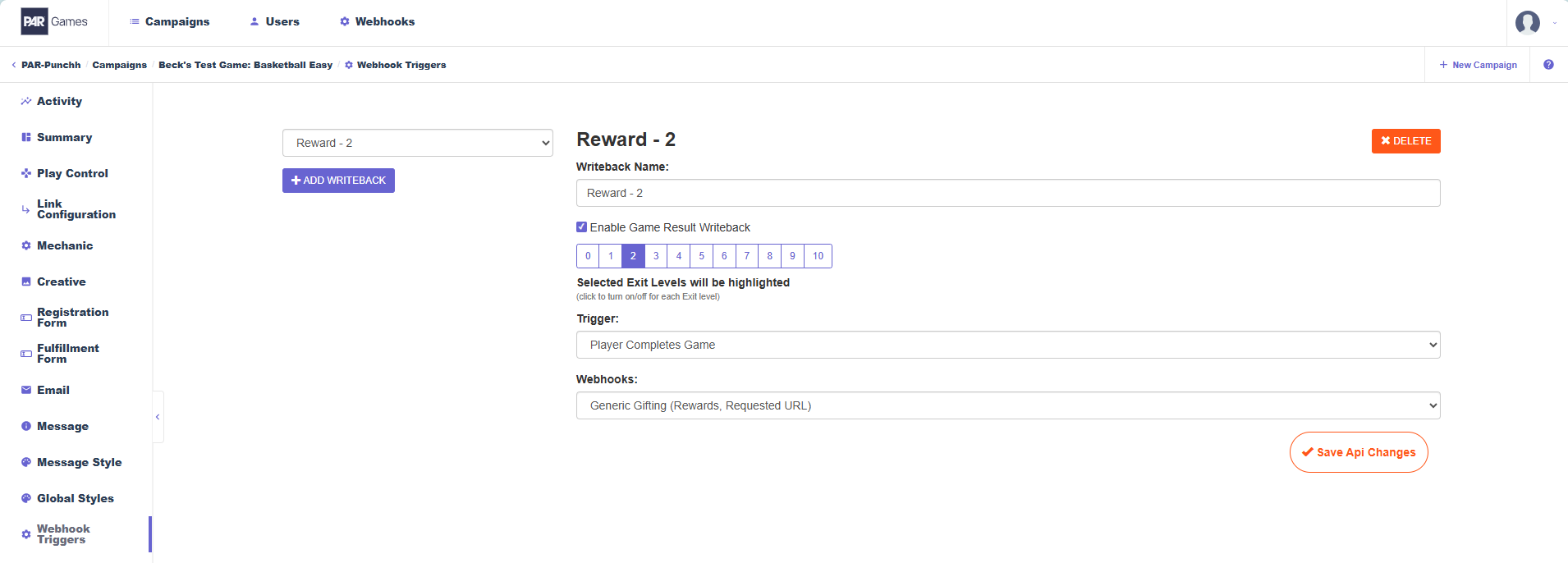
Gifting Rewards Webhook
-
Click Add Trigger
-
The Webhook Trigger Name can be anything, but it is recommended to use a name that makes it clear this is for the rewards gifting webhook
-
Click Enable Webhook Trigger by Winlevel
-
Set the Exit Levels that will be gifting rewards (this must match what was configured in Step 1)
- Ex: If win levels 5–10 have a redeemable_id in the description, select these win levels for the webhook
-
Set Trigger to Player Completes Game
-
Under Webhooks, select the rewards gifting webhook for the Requested URL deployment method
-
Click Save API Changes
Finally, we will test our gifting webhook to ensure everything is working properly.
Step 3: Test Prize Distribution
Navigate to Link Configuration from the left navigation panel. If it is not enabled yet, click Enable Request Unique URL API and Save Settings.
-
Copy the Unique URL generated in the Request APIs section

-
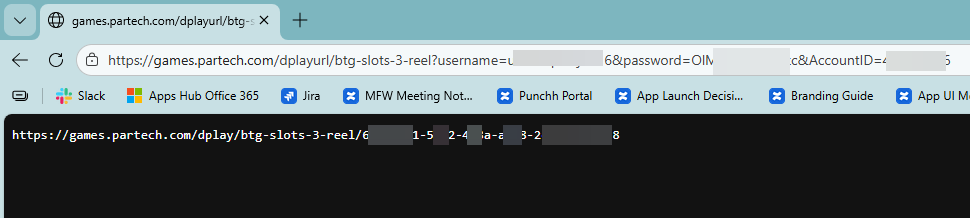
Paste the URL in a text editor and add the following to the end of the URL:
&AccountID=(user_id), replacing(user_id)with a test user's ID- Ex:
&AccountID=12345678
- Ex:
-
Copy the updated URL and paste it into a web browser
-
Copy the new game link and paste it in a new tab
-
The game will now be displayed. Play to completion and note the win level and confirm the corresponding points or reward for that win level was gifted to the test account
-
Go back to the tab with the updated URL from step 3 and refresh to generate a new game link
If using points and rewards: Go back to the tab with the updated URL from step 3 and refresh to generate a new game link. Repeat steps 4 and 5 to try to achieve a different win level and prize. If the first test game resulted in a win level that gifted points, try to achieve a win level that gifts a reward in the second play. If the webhooks do not appear to be working as expected, or if you want to see what information is passed in these webhooks, navigate to Activity from the left navigation panel and click Create Webhook CSV. This will generate an excel spreadsheet with information about the recent plays and API calls including request/response payloads and statuses.
