PAR App Studio: App Preview and Testing
The PAR App Studio is currently available to select brands as part of a pilot program. Contact your Punchh representative to ask about your brand's eligibility.
The PAR App Studio provides multiple ways for you to test your mobile app project before publishing the build to your live mobile app. This includes the built-in visualizer, the PAR App Studio Preview App, and test devices on the live production build of the mobile app.
Visualizer
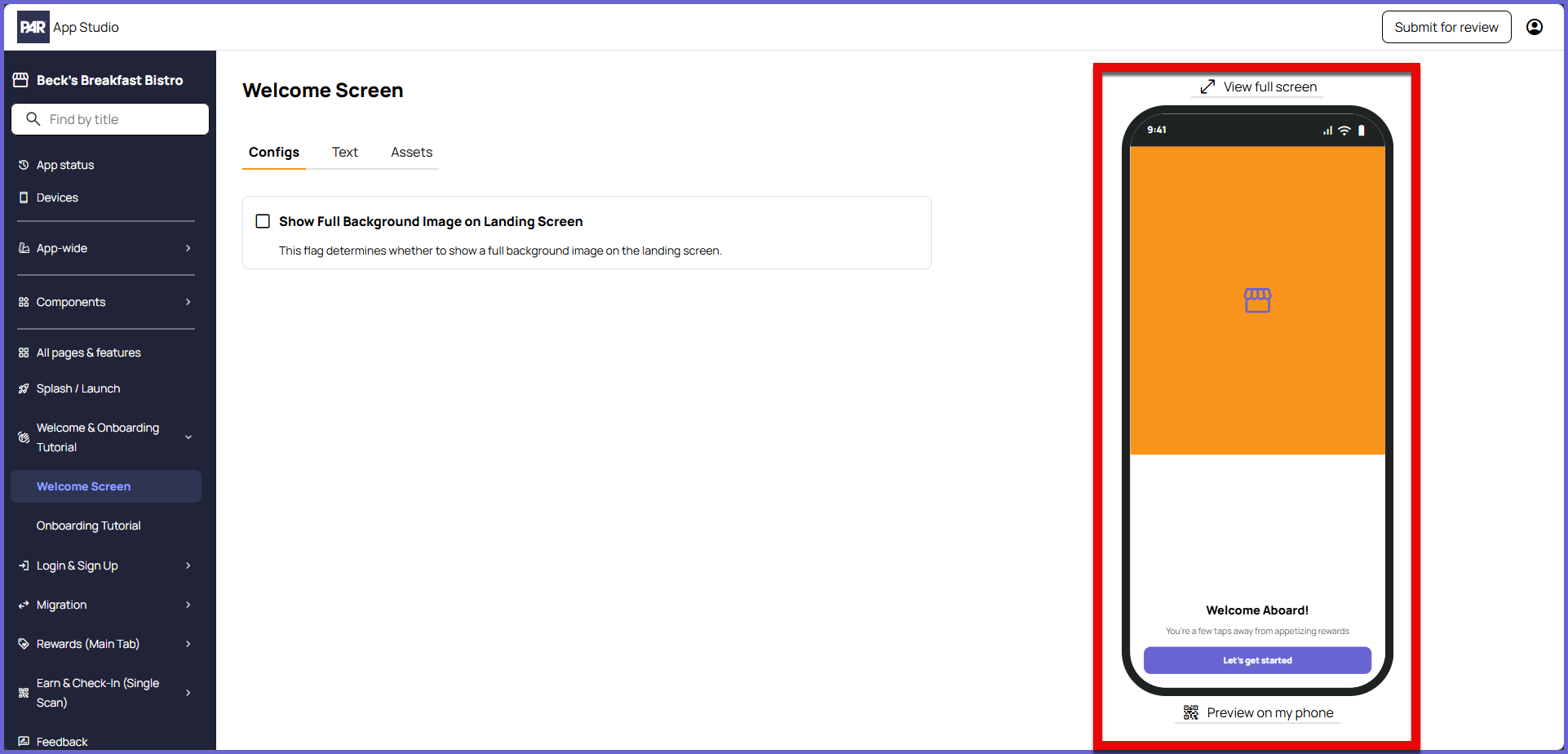
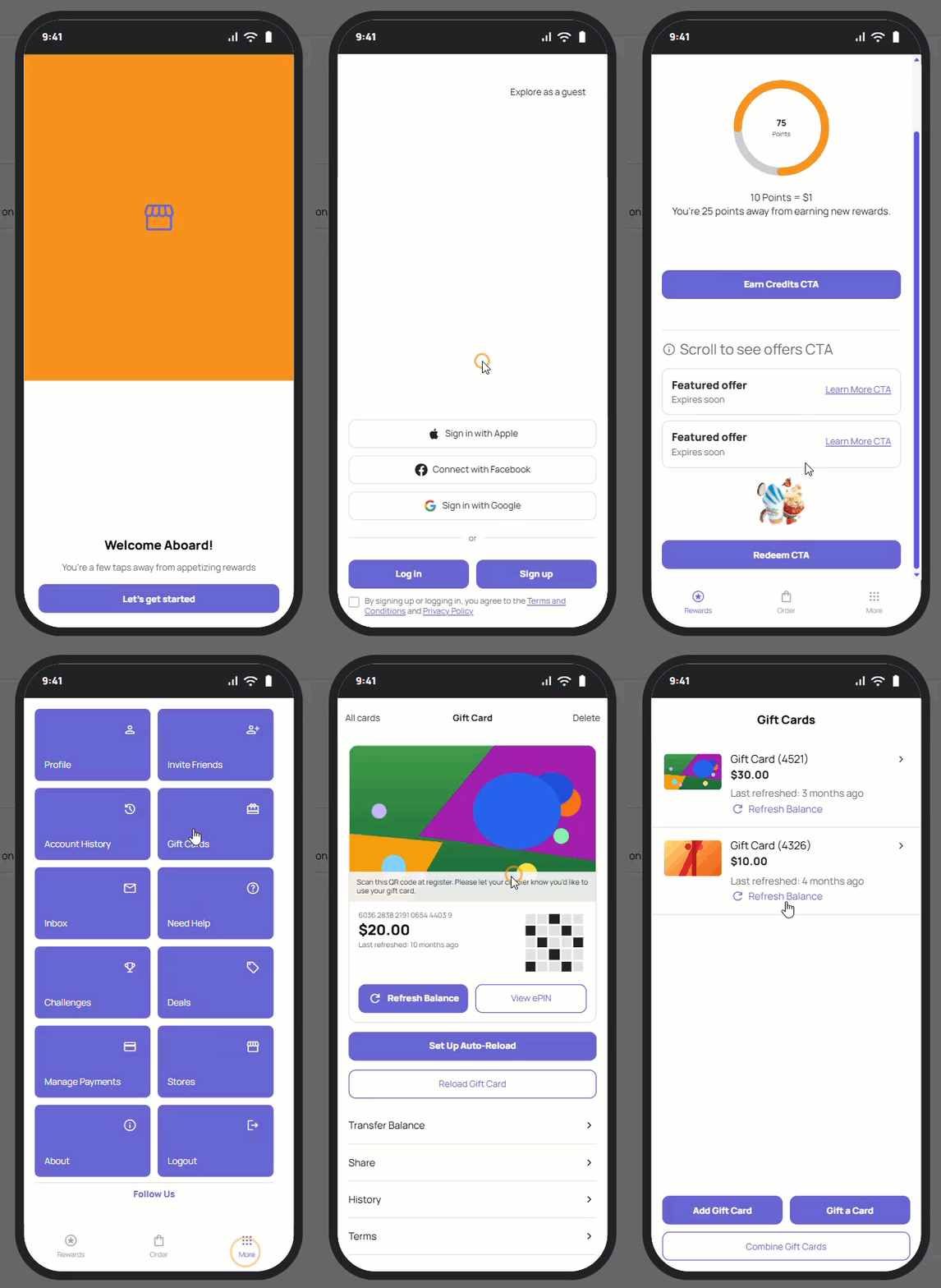
Within a mobile app project, an app visualizer can be found on the right side of the screen when customizing an app screen. This visualizer shows a simplified version of your mobile app, allowing you to easily see what you are changing and how it impacts the general look of the app.
The visualizer displays a generic, simplified version of the app screens. Exact elements may differ from your actual mobile app.
| Benefits | Limitations |
|---|---|
|
|
Expand for visuals
| Visualizer Location | Using the Visualizer |
|---|---|
|
|
Preview App
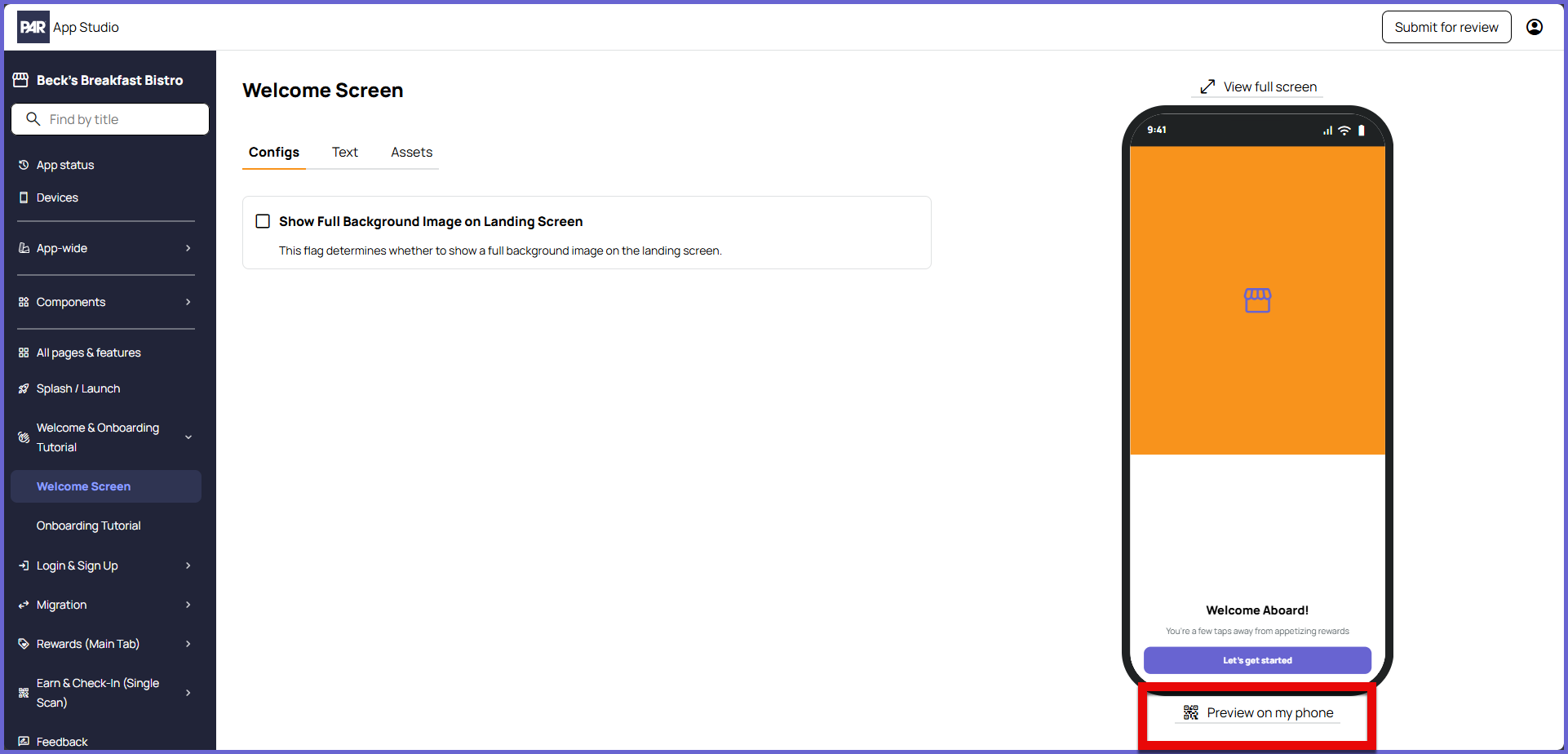
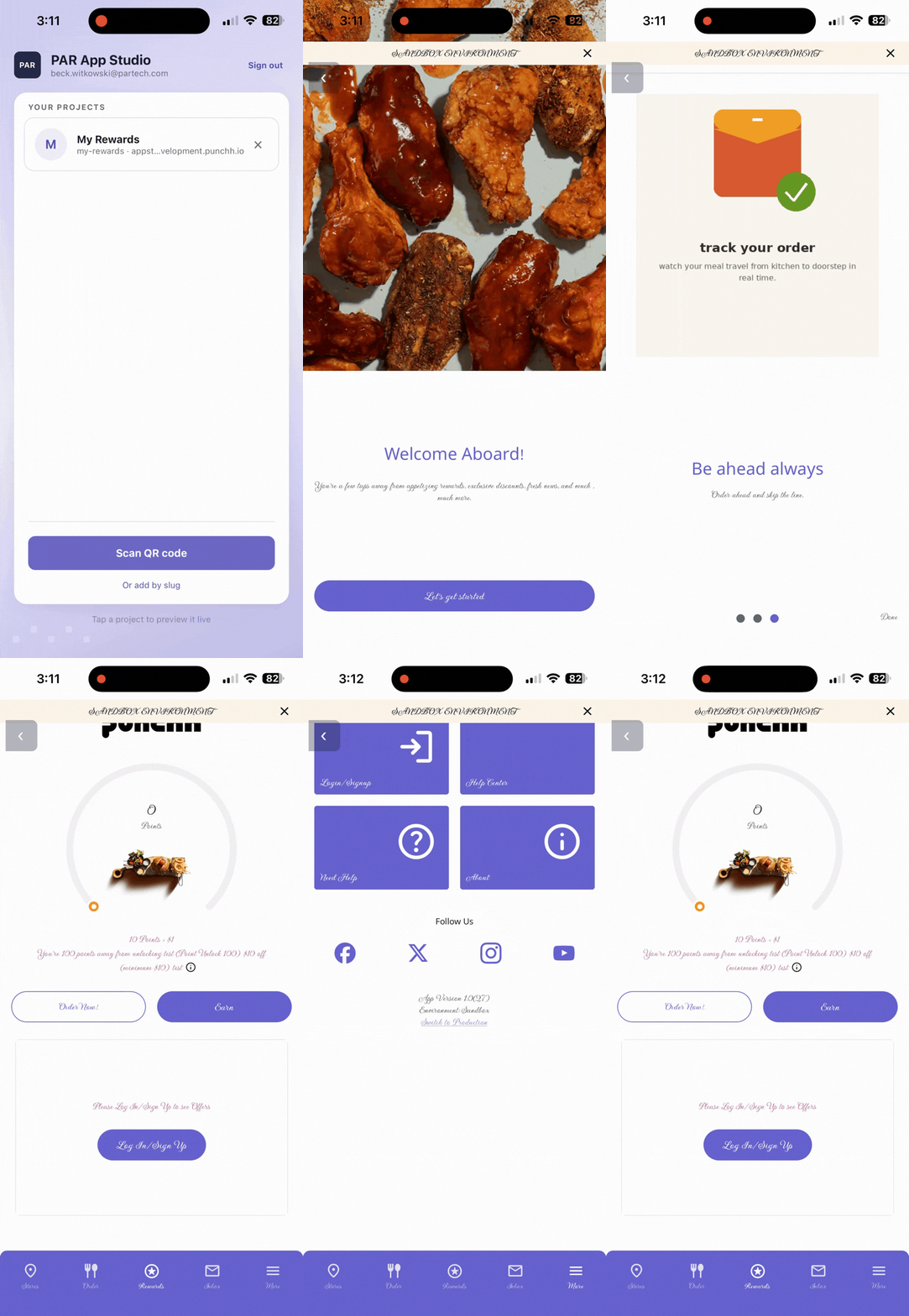
The PAR App Studio Preview App allows you to see changes as they are saved from within an app environment on your mobile device. The preview app allows you to access the full UI/UX for your project, giving you the ability to view screens not featured in the PAR App Studio. Features such as ordering and earning do not work in the preview app as they would in a live build, meaning orders will not be placed and no points will be earned for checkins or other actions.
Instructions for downloading the preview app and adding your project can be found within PAR App Studio.
| Benefits | Limitations |
|---|---|
|
|
Expand for visuals
| Preview App Button | Using the Preview App |
|---|---|
|
|
Test Devices
Once a project has submitted changes for review, test devices can be used to review the changes from within the live build of the mobile app. Regular app users will continue to see the current live build. This allows you to test the full experience of your mobile app without any restrictions.
Using a test device requires a live, functioning build of your mobile app. Test devices are not supported for onboarding/initial app creation.
| Benefits | Limitations |
|---|---|
|
|
Registering a Test Device
There are two ways to register a test device. You can register a test device using the Devices section in PAR App Studio or through the sandbox environment of a live mobile app. For both of these methods, you will need:
- A mobile device with the live mobile app installed
- A loyalty account configured as a test user
- To make a loyalty account a test user, open the account's guest profile in the Punchh platform. Click Edit Profile and enable the Test User flag
Once a device is registered as a test device, it does not need to stay logged in to the test user's loyalty account. Logging out, creating a new account, or logging in to a different account will not change the registration status of the device. The device will continue to see the current build submitted for review in the PAR App Studio until it is removed as a test device.
Registering with PAR App Studio
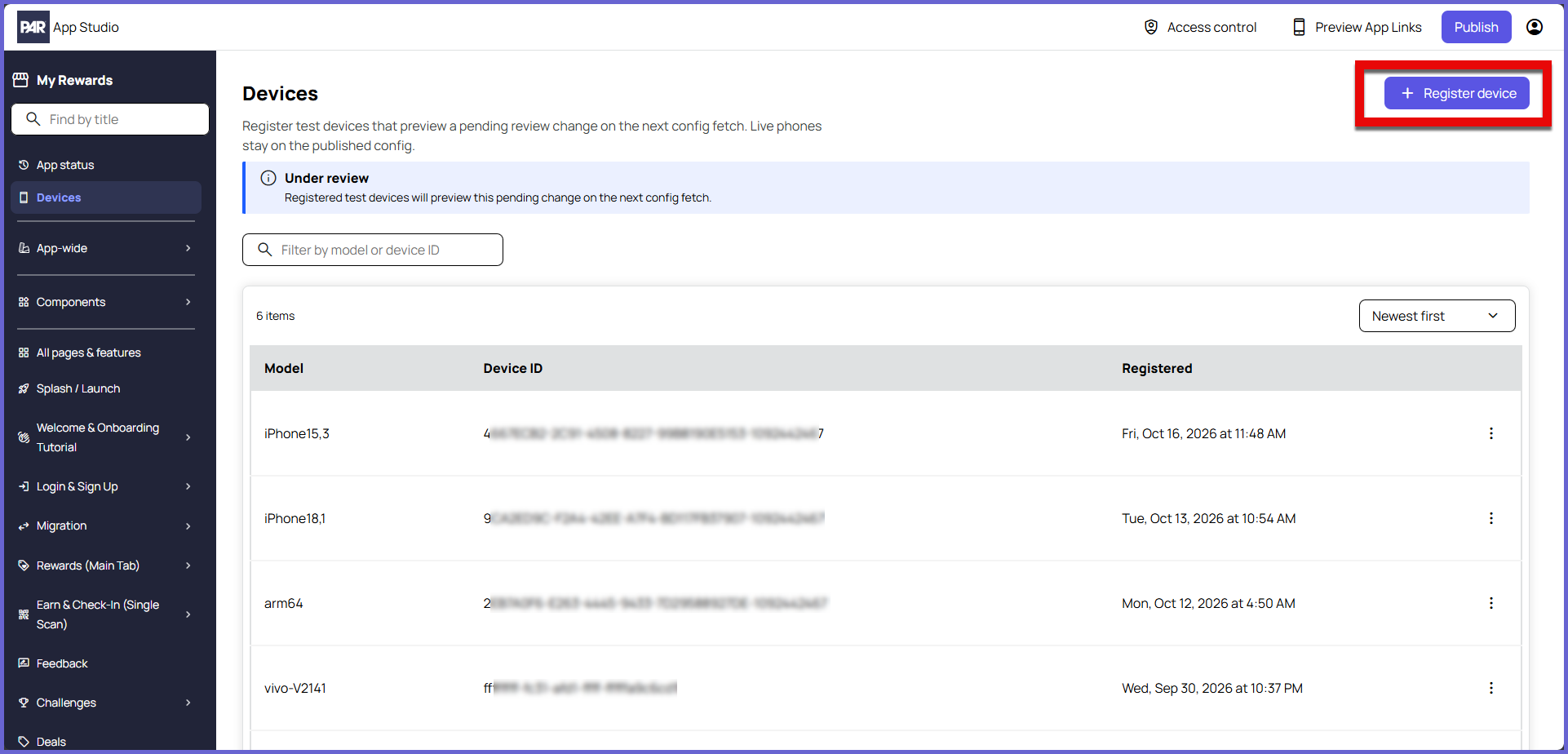
To register a test device within PAR App Studio, navigate to the Devices section of your project in PAR App Studio.
- Click the + Register device button
- Provide the Device ID and Model name
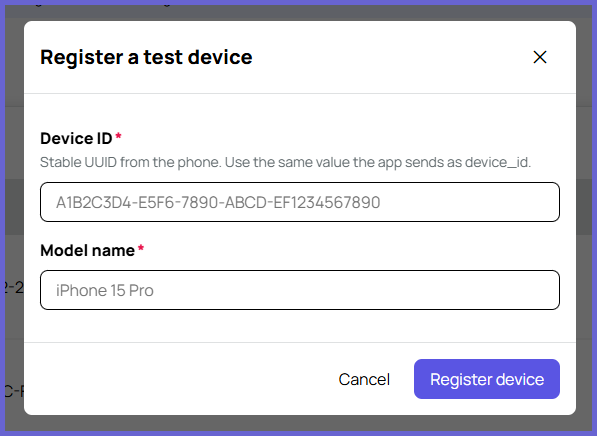
- Click Register device
Registering with a Live App
To register a test device from a live app, the device must be logged in to an account configured as a test user.
- Open the live app
- Navigate to the More Menu Screen
- Scroll to the bottom of the screen and confirm which environment the app is using
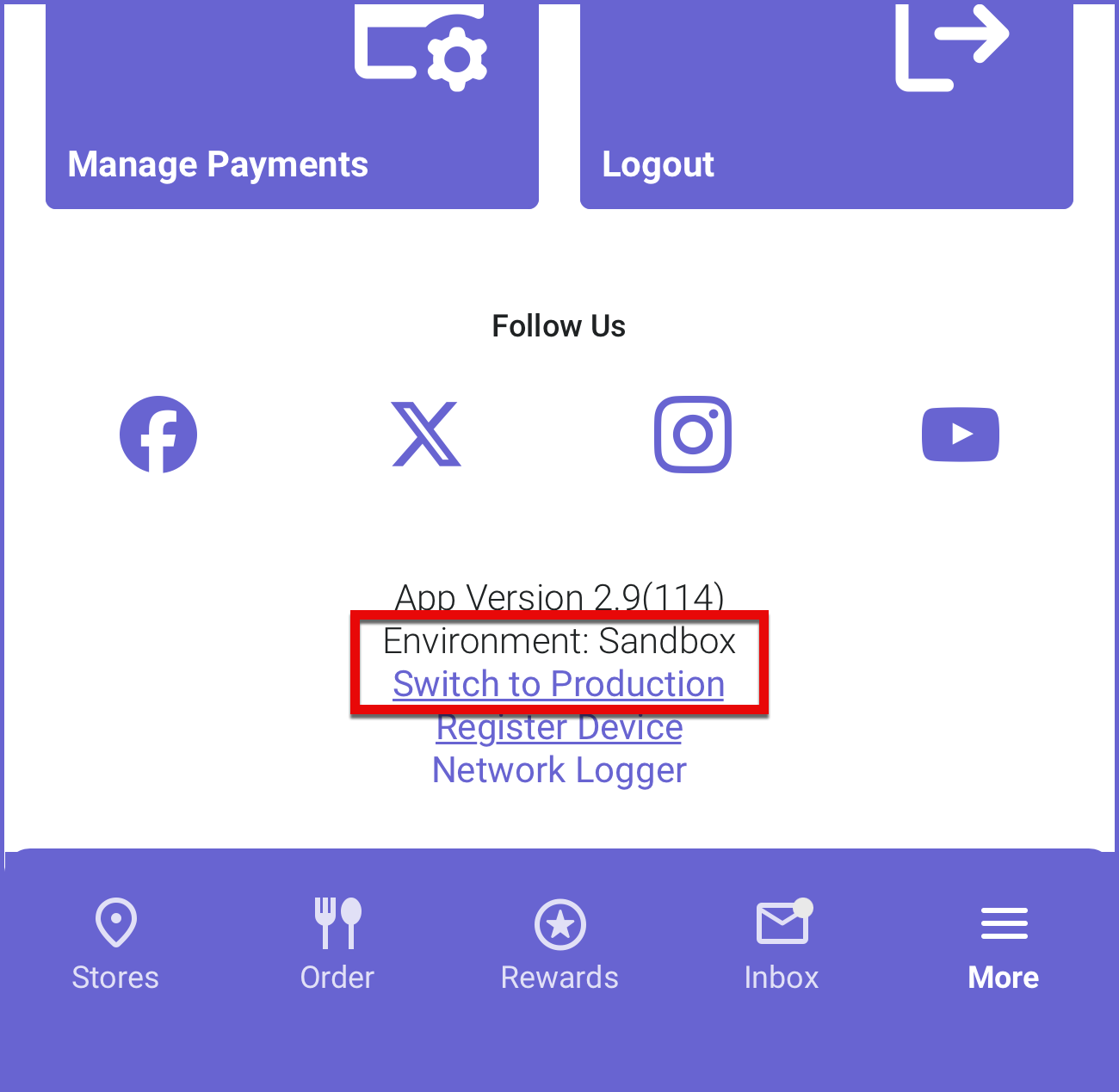
- If the environment is set to Live, tap Switch Environment, select Sandbox, then relaunch the app and repeat steps 1 and 2
- If the environment is set to Sandbox, then proceed to step 4
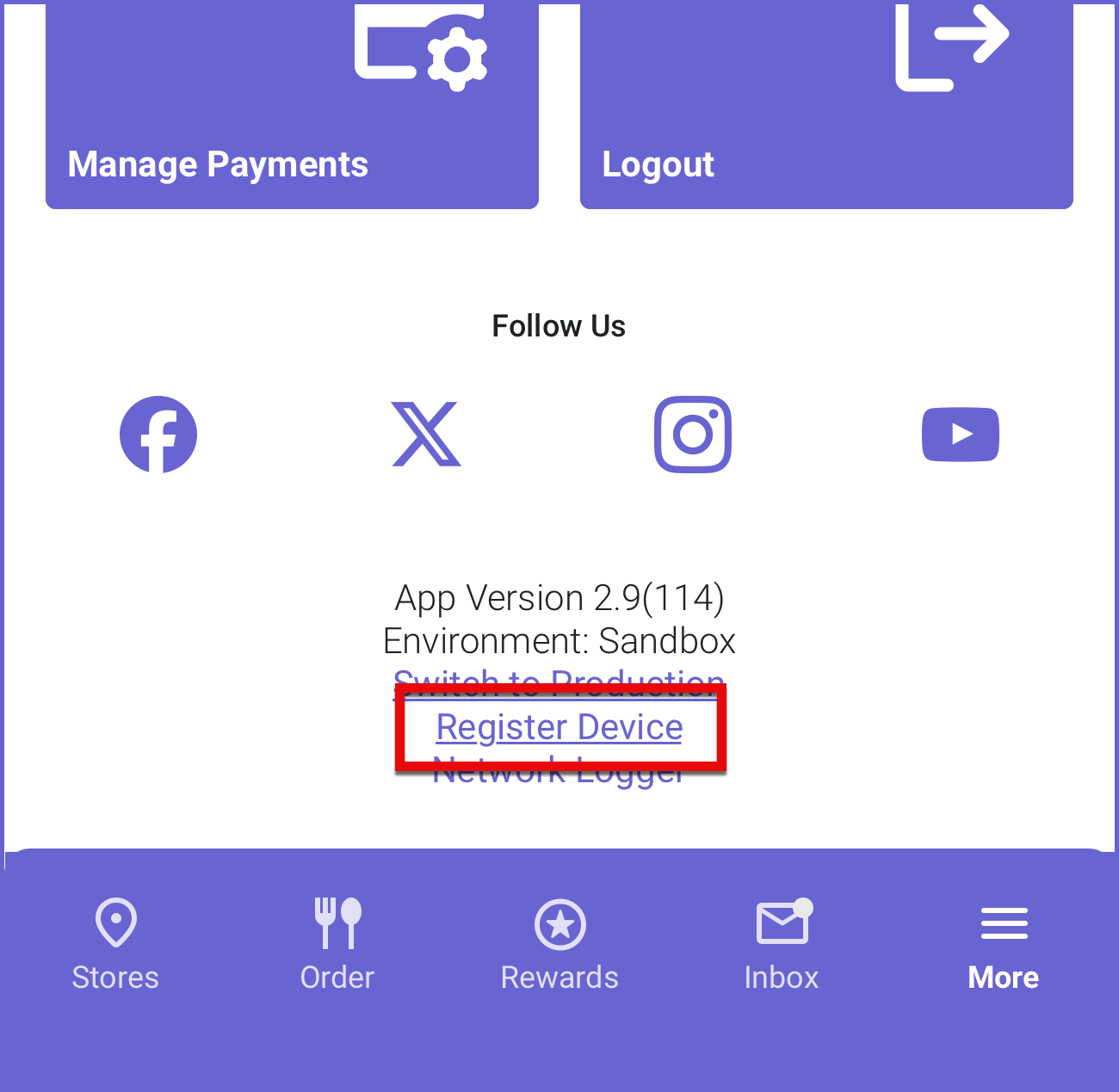
- Select Register Device