PAR Games: Requested URL Deployment Method
Games can be distributed through a Requested URL. This is the main deployment method for games being distributed through third-party messaging platforms. Currently, Requested URLs cannot be distributed through the Punchh platform.
Configure the Requested URL
- Navigate to Link Configuration in the left navigation.
- In the Request APIs section, click the Enable Request Unique URL API checkbox.
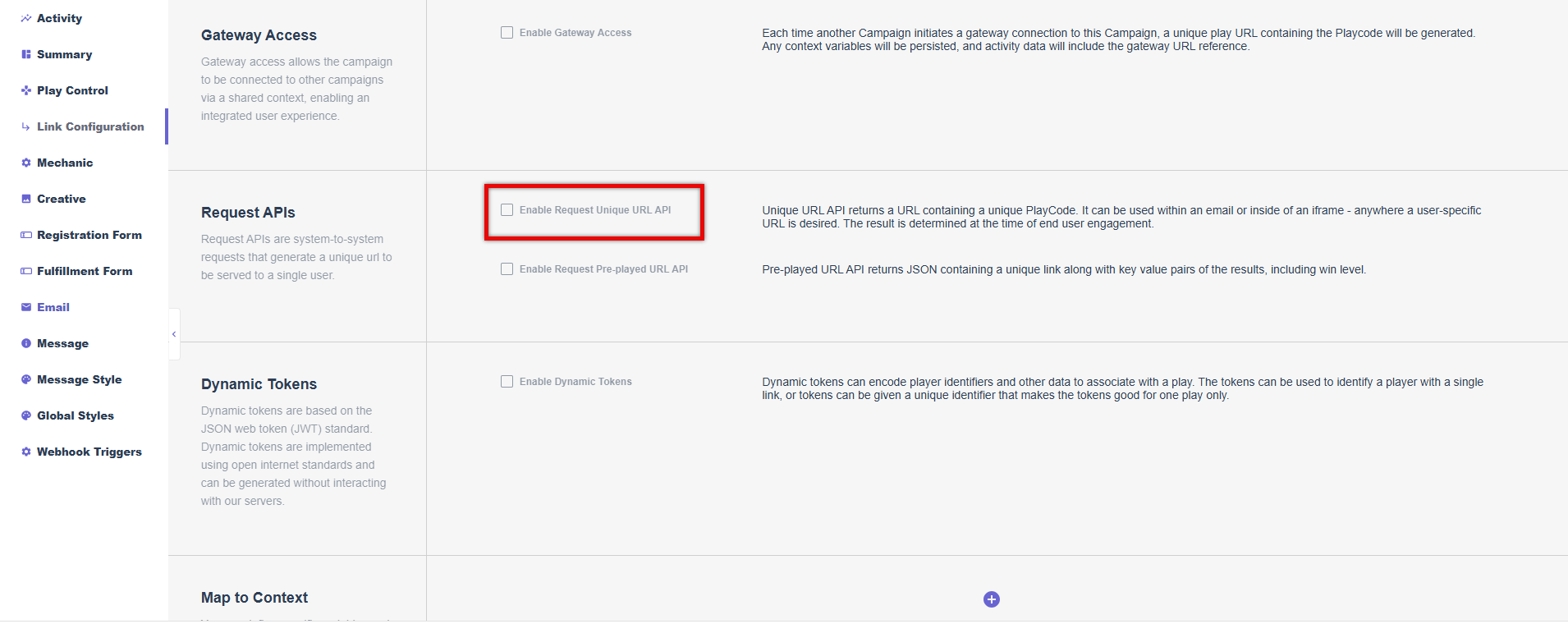
- Click Save Settings at the bottom of the page to generate the unique URL.

Create a Test Link
- Copy the unique URL generated above.
- Identify the test user you want to use for testing and copy their user_id.
- Paste the URL into a text editor and add the following to the end of the URL: &AccountID=user_id
- For example, if the user_id is "12345678", then the URL would look like the following:
https://games.partech.com/dplayurl/game_name?username=abcDEfgH&password=iJKlmnOP&AccountID=12345678
- For example, if the user_id is "12345678", then the URL would look like the following:
- Copy the appended URL and paste it into your browser. A new game link will be displayed.
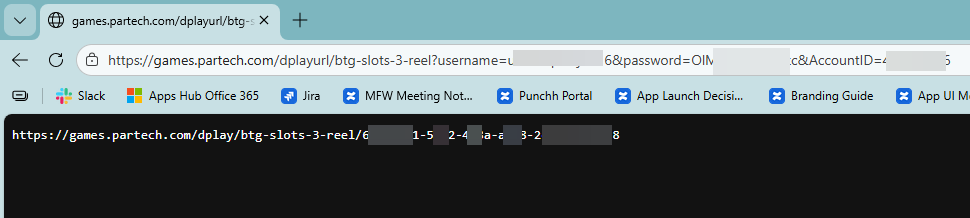
- Copy the new game link and paste it into a new tab.
- The game is now launched in the browser. Play the game and earn a prize.
- Check if the reward is successfully credited to the test account after a win.
- For additional support, navigate to Activity in the PAR Games dashboard and click Create Webhook CSV. This will create a report that details any errors or missing parameters within the call to Punchh.
For games using multiple types of prizes (e.g. points and rewards), play the game multiple times to ensure both types of prizes are being sent to the test account.
Game Distribution via Third-Party
Adding the URL to your messaging will vary depending on the integration you are using. Contact your third-party representative for assistance with this step.