Feedback Manager
This article was previously titled "Feedback."
The Feedback Manager page shows the number of feedback posts from guests they have submitted through your loyalty program's mobile app. You can filter this feedback by location, dates, those shared on social media, and those with a negative or low rating.
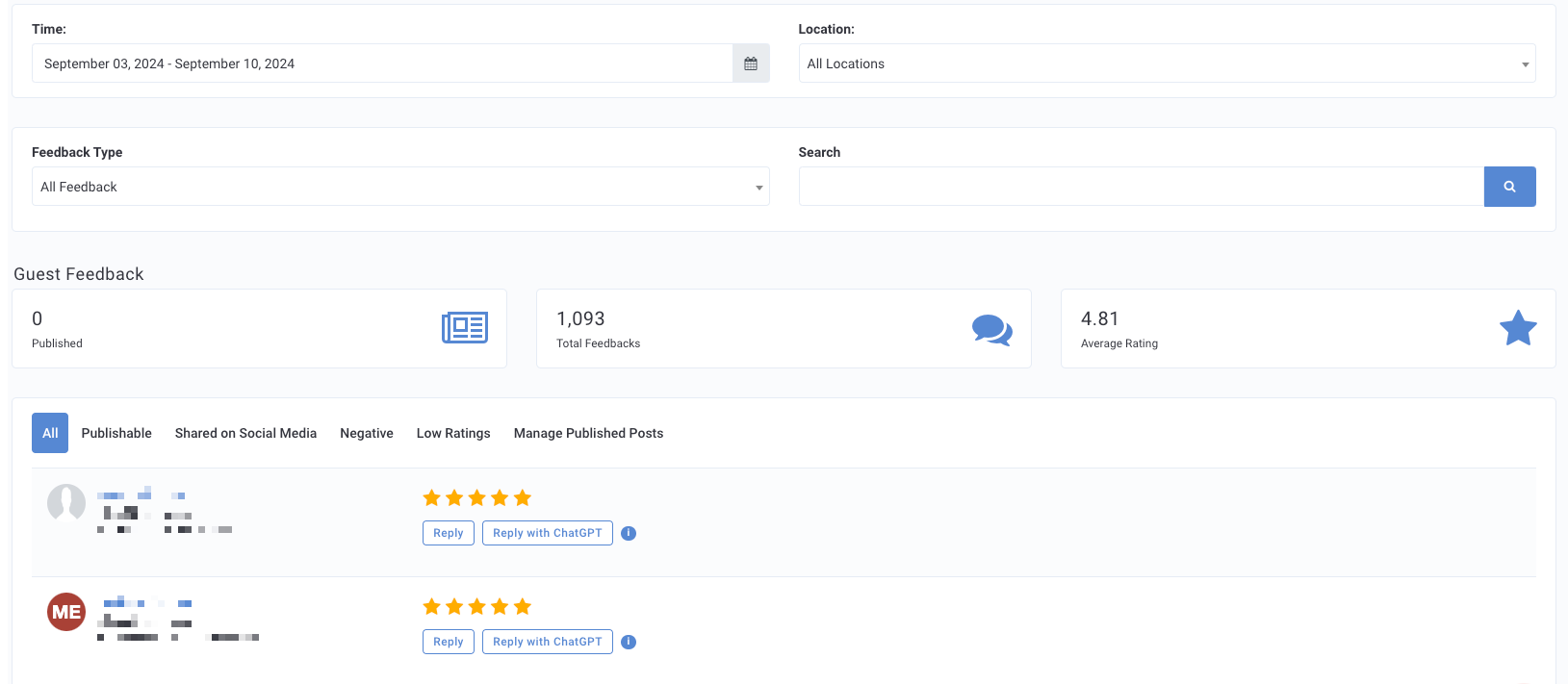
From Store Locations > Feedback Manager, you can see information about the total feedback your business has received, as well as your overall average customer rating.
- Click the Time field to change the period of time the feedback data is pulled from.

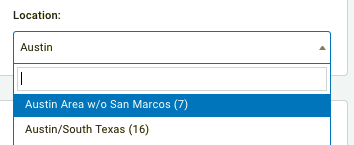
- Click the Location drop-down to focus on a particular location or location group. Changing the location allows you to see the average customer rating for that store.
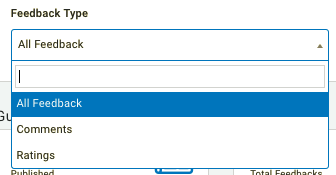
- Click the Feedback Type drop-down to sort your feedback results between Comments with ratings, Ratings only, or All Feedback.
Replying to Feedback
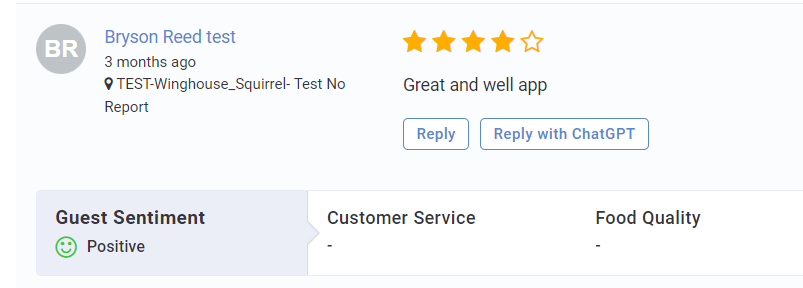
You have two options for replying to feedback: Reply and Reply with ChatGPT.
Reply
To write a reply to feedback, click the Reply button under the feedback you want to respond to. This will open the customer's profile and allow you to write and send a message to the feedback. You can also attach a gift with your reply.
Reply with ChatGPT
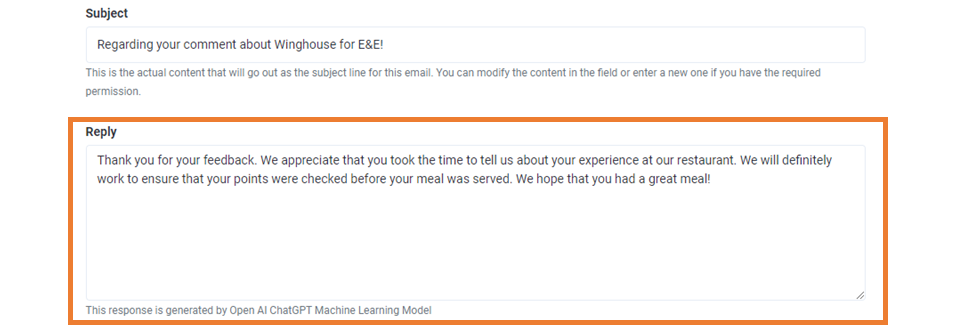
The Feedback Auto-Responder is a time-saving tool that allows you to leverage pre-generated responses for replying to written guest feedback in the context of managing guest relations. The responses are generated through the ChatGPT Machine Learning Model, a publicly available open-source tool published by Open AI.
The “Reply with ChatGPT” button is available along with the standard “Reply” button. When selecting the “Reply with ChatGPT” button, the pre-generated response ChatGPT will be provided in the Reply text box. You can edit the pre-generated response before submitting the reply to the guest, similar to the basic Reply feature.
Pursuant to OpenAI’s API Terms, OpenAI has agreed not to use the data entered by our customers into this feature to develop or improve its services. Consistent with your agreement with Punchh, you are responsible for ensuring that your organization’s use of Punchh’s products and services complies with applicable law, including usage of Feedback Sentiment and the Feedback Auto-Responder. To that end, please ensure that your users do not submit any personal information of individuals who reside in locations where OpenAI is subject to regulatory restrictions. This feature can be disabled if needed to comply with regional regulatory restrictions by contacting your Customer Success Manager.
Publish Positive Guest Feedback
Did a guest leave a glowing review that you'd like to share publicly? In the Feedback screen in the mobile app, guests are given the option to allow your business to publish their feedback on your social media page(s); this feedback is listed in the Publishable tab. Guests are also given the option to share their feedback on their own social media page directly; this feedback is listed in the Shared on Social Media tab. If a guest has authorized either type of social publishing for their review, you can share it on your social media page(s) through the Punchh dashboard. To publish positive guest feedback:
- Navigate to Store Locations > Feedback Manager.
- Click on the Publishable tab or the Shared on Social Media tab.
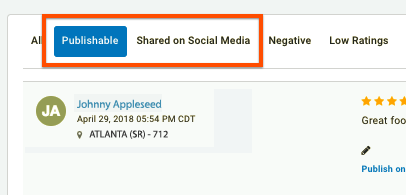
- Under the guest's rating and review, click either Publish on business page or Public on location page.
"Business page" refers to your company's top-level Facebook page, whereas "Location page" refers to the location-specific page you may have added in your location settings.
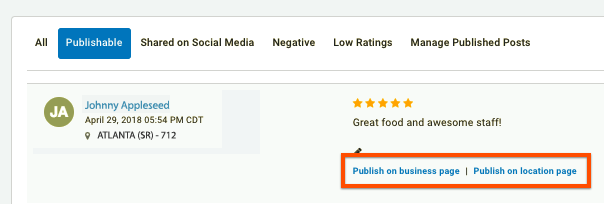
If you need to remove a published post, click the Manage Published Posts tab. From there, you can review and remove any post you've published to your social channels through Punchh.
Negative Feedback
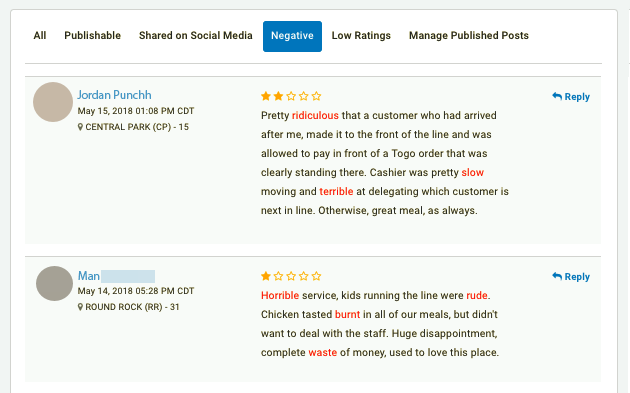
Through sentiment reading, Punchh can identify negative comments that include profanity or words that signify the customer did not have a great experience. These negative words are signified by red text in the customer's review. Negative language includes words such as "slow", "worst", "bad", "burnt", etc.
Once negative feedback has been identified, you can reply directly to guests who commented via email and/or text notifications and can gift them punches/points to resolve any issues they may have had. Click Reply next to their comment to open the Message/Gift screen to craft your message.
Add or Edit the Negative Words List
To add more negative words that may be specific to your brand, location, or type of business in order to improve recognition of negative feedback posts:
- Navigate to Administration > Business.
- Click on the Feedback tab.

- In the Negative List field, enter any negative words you'd like Punchh to filter for when determining negative sentiment.
- Click Save when finished.
Notification Settings
Whenever one of your locations receives negative feedback, whoever you designated as the contact for that location (in location settings) will receive notifications alerting them of a bad review. Additionally, you can select to be notified as well when any of your locations receives negative feedback. We classify feedback as "Negative" based on the scoring preferences your business chose during the initial setup (for example, you can specify 3 out of 5 counts as negative, or have it start at 2 out of 5). For businesses with Deep Sentiment enabled, admins will not be notified if a positive or neutral review contains negative words, rather they'll be notified only based on the review score.
- Navigate to Administration > Business.
- Click on the Feedback tab.
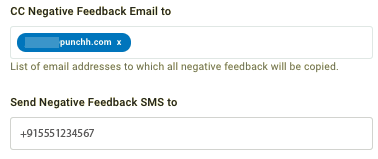
- Enter one or more email addresses to receive notifications in the CC Negative Feedback Email to field.
These addresses will be CC'd on any negative feedback alert emails, with the location's point of contact as the primary recipient. - Enter a phone number in the Send Negative Feedback SMS to field to receive text messages alerting you to negative feedback.
You must include the country code in this phone number. - Click Save once you've made your changes.
Private Feedback - When a customer chooses not to make a comment public, you cannot publish their comment, but you can still reply to them as well as gift them punches/points. You can tell if feedback is private if you can see the Reply icon but not the "Publish on business page" link.
Export User Feedback Data
You can export a summary report of your company's user feedback using the Data Export function in the Data Sharing section of your dashboard. To export a feedback report:
- Navigate to Data Sharing > Data Export.
- Enter a Name, Date Range, and Location(s) for your report.
To immediately export your report, schedule your report period to end at a date/time in the past. Setting a future date will export the data at that later date. - Scroll down to the User Feedback pane and click the checkbox.
- Click the box to expand your feedback export options.
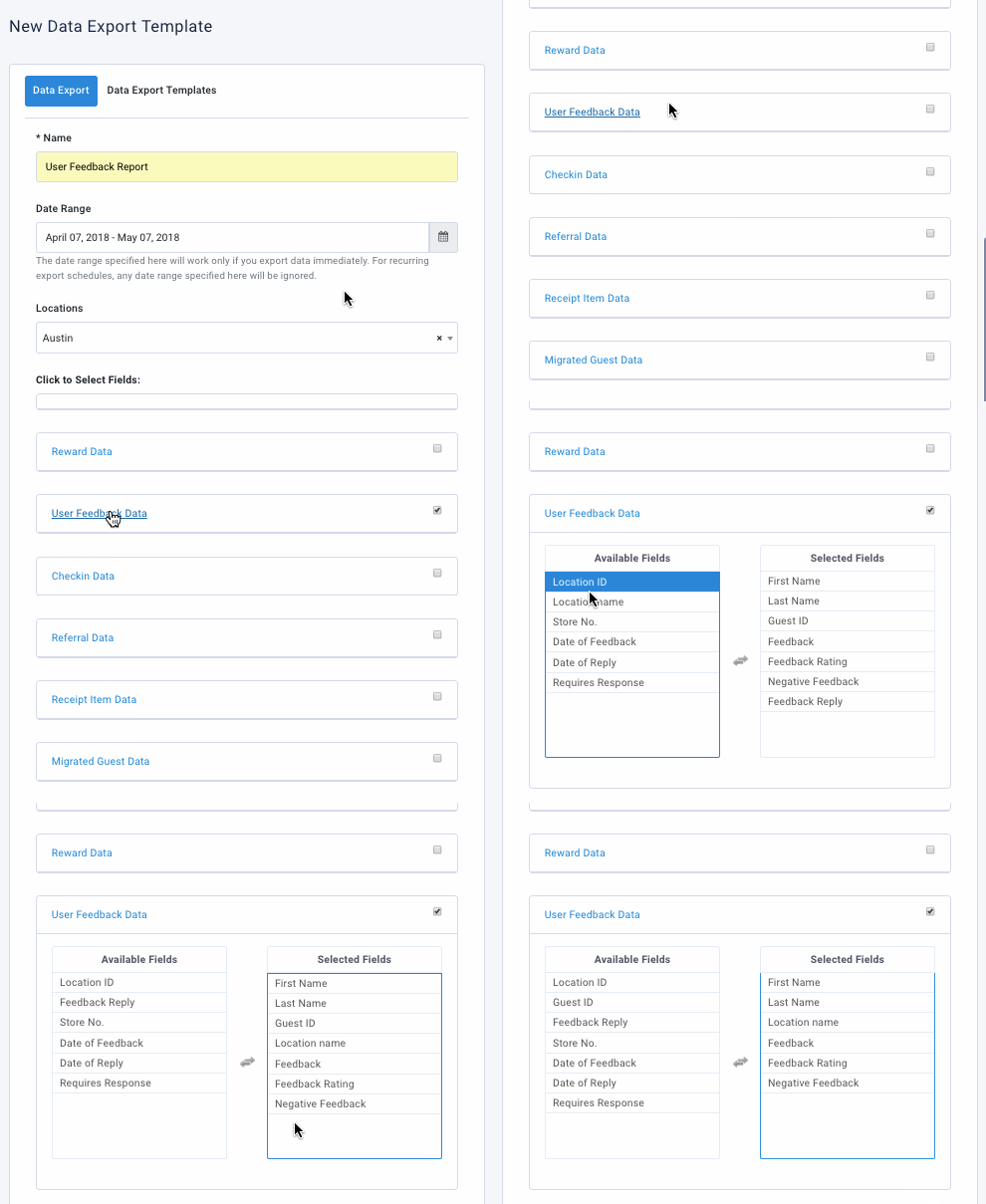
- Click the types of information to include in the report, such as guest name and date and location data.
Click the metrics in the Available Fields list to add them to the report. Click metrics in the Selected Fields list to remove them from your report. - When finished, click Save and Create Schedule.
- You'll be taken to the Diagnostics > Schedules page to further edit your scheduling settings. You must schedule your report in order for it to export.
