Campaign Priorities
This article was previously titled "Campaign Sets."
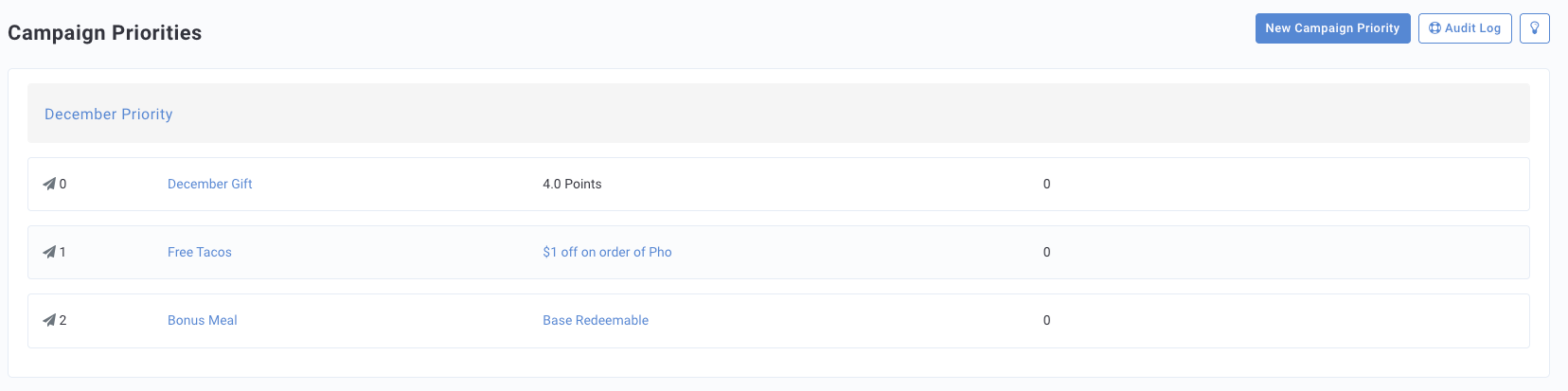
Campaign Priorities are a great way for your company to run simultaneous Mass Offer or Mass Message Campaigns without overlap between segments. It allows prioritization of campaign triggering and encourages guests to try other items on your menu.
When creating a campaign priority list, you'll order your campaigns from top to bottom, first to last. In this way, you're essentially creating an IF NOT, THEN operator between each campaign level. If a guest is a part of the segments required for Campaigns 1, 2, and 3, then that guest will be included in Campaign 1 only, since that campaign fires first. If a guest is not part of either segment required for Campaigns 1 or 2 but does belong to the segment required for Campaign 3, then that guest will be included in Campaign 3, the last campaign to fire.
Please note that Campaign Priorities will not function if your company has any Franchisee configurations applied.
Example Setup
Let's take a look at a typical example of how you might use a campaign priority list. In this scenario, we want to let our guests know about a new product (a Veggie Burrito available at all of our Austin locations) and we want to advertise this by sending unique messaging based on guest attributes. By creating a list ordering campaigns that use segments, we can send messaging in an order starting from most to least specific guest segments while ensuring that each guest in our overall bucket is targeted only once.
Before creating a campaign priority list you'll first want to create two or more Mass Offer or Message campaigns in such a way that they complement and supplement each other. Each individual campaign needs to be set to DRAFT stats. Scheduling a campaign priority list will activate all campaigns associated with that priority.
Let's set up three campaigns to achieve our goal, as shown below:
- Campaign 1
Name: Free veggie burrito for health nuts
Our top-level campaign. This has the best redeemable (free veggie burrito with the purchase of a "healthy menu item") and a restrictive segment that includes high-frequency guests.
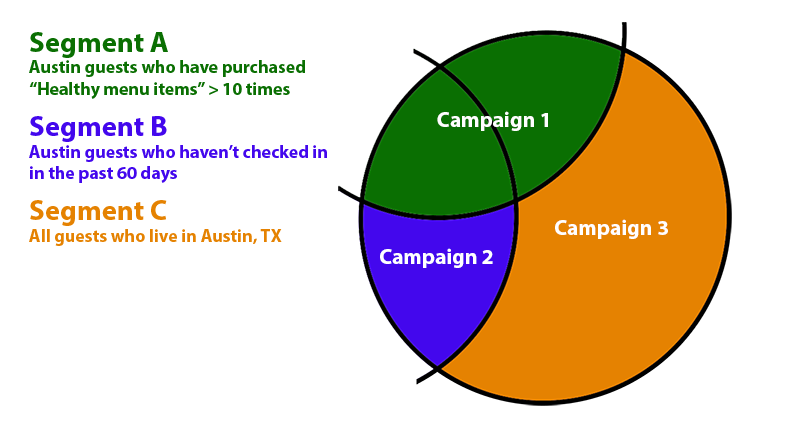
(Segment A - Austin guests who have purchased "healthy menu items" >10 times).
- Campaign 2
Name: $3 off veggie burrito for 60-day lapsed guests
Our 2nd-level campaign. This redeemable is not as good as free, but is still very good ($3 off veggie burrito on next checkin) and a restrictive segment aimed to re-engage with lapsed guests.
(Segment B - Austin guests who haven't checked in for the past 60 days).
- Campaign 3
Name: Double points on purchase of veggie burrito
Our 3rd and lowest-level campaign. This redeemable is good (double points on burrito purchases) and has the least restrictive segment of the three campaigns.
(Segment C - All guests who live in Austin).
Based on the above example, our final guest breakdown will look like this:
Create a Campaign Priority List
After you've created multiple complementary campaigns, grouping them into a new campaign priority is easy. To do so, follow the steps below:
- Navigate to Marketing Automation > Campaign Priorities.
- Enter a Name for the campaign priority.
Ideally, this should reflect the larger marketing campaign that these specific campaigns are focused on. - Use the Campaign 1 drop-down to choose your highest-level campaign.
This is the first campaign that will fire.
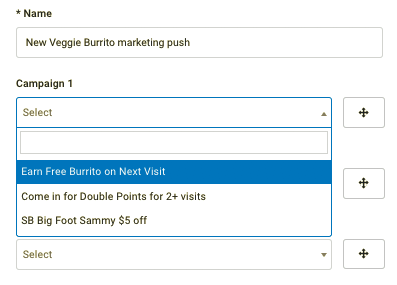
- Click the Campaign 2 drop-down to choose the next campaign in the order, after Campaign 1.
Repeat for Campaigns 3, 4, and 5, if needed. - Click and drag a campaign to reposition it higher or lower in the order.
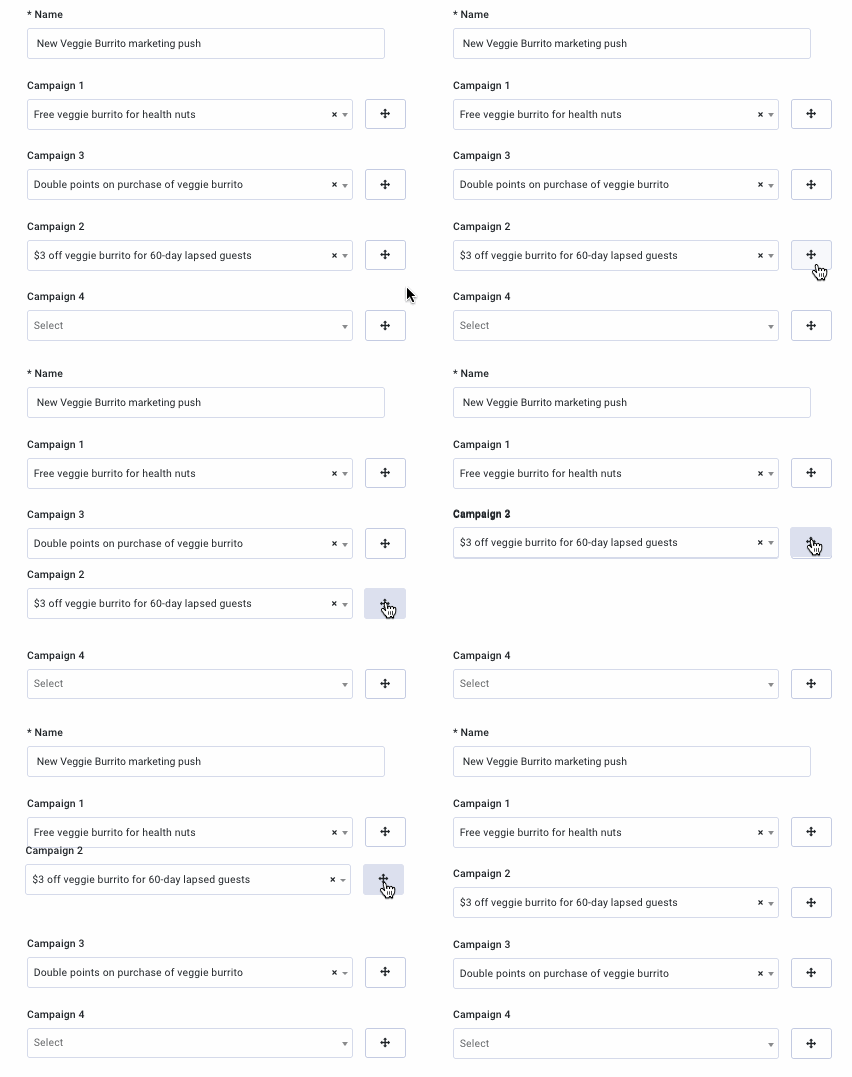
- When finished adding your campaigns, click the Save and Preview or Save button at the bottom.
- Clicking Save and Preview takes you right to the scheduling page to schedule when your priority list will activate.

Scheduling
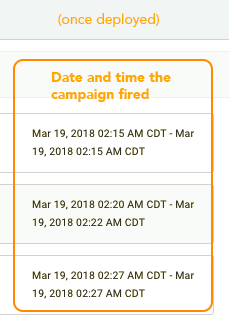
Because campaign priorities may only include campaigns that will fire one time (i.e., not ongoing), the start time you select for your priority will first fire off Campaign 1, then 5 minutes later fire off Campaign 2, then 5 minutes later fire off Campaign 3, etc. In order for your campaign priority to fire, all included campaigns must be in Draft status (I.e., not scheduled). Including any campaign in scheduled or active status will stop the campaign priority from firing at its scheduled time.
- Click the Start time and Timezone drop-downs to select a time in the future when the campaign priority list will fire.
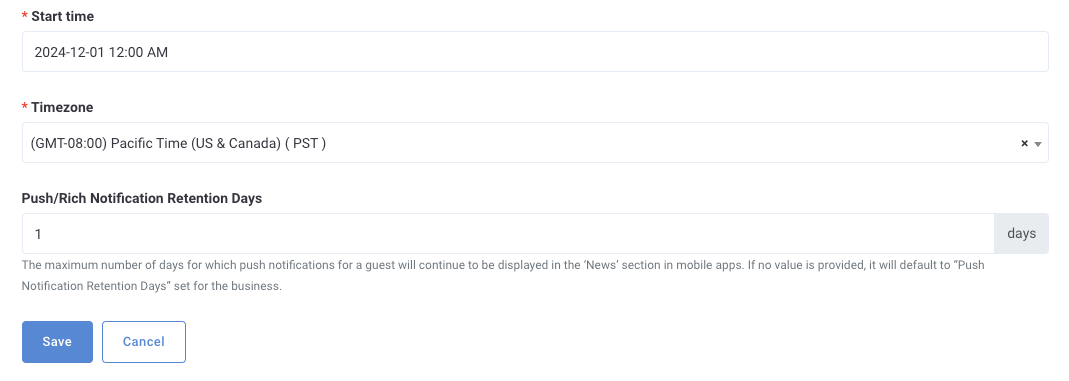
- In the Push Notification Retention Days field, enter the number of days the notification will be displayed in the News section of the guest's mobile app before disappearing.
- Click Schedule to finish.
Workflow Management Limitation
Because of permissions limitations for Franchisee users, campaign priorities currently do not work for businesses with Workflow Management enabled.
Campaign Priorities Details
You can view your campaign priorities on the Marketing Automation > Campaign Priorities page. As long as the priority hasn't yet fired, you can click the name of a campaign priority to make changes. Once your campaign priority has deployed, you can view the total guests targeted by each campaign, and the date/time each one fired.