Blackout Dates
Blackout Dates are a way for your company to block off specific time periods/date ranges, prohibiting certain users from running Mass Notification or Mass Offer campaigns during that window. For example, this may be useful for when your company is deploying a global campaign with a message targeted to all of your loyalty users at all of your locations and you want to make sure there won't be any local Franchisee running a messaging campaign at the same time, causing a conflict or simply overloading guests with too many messages.
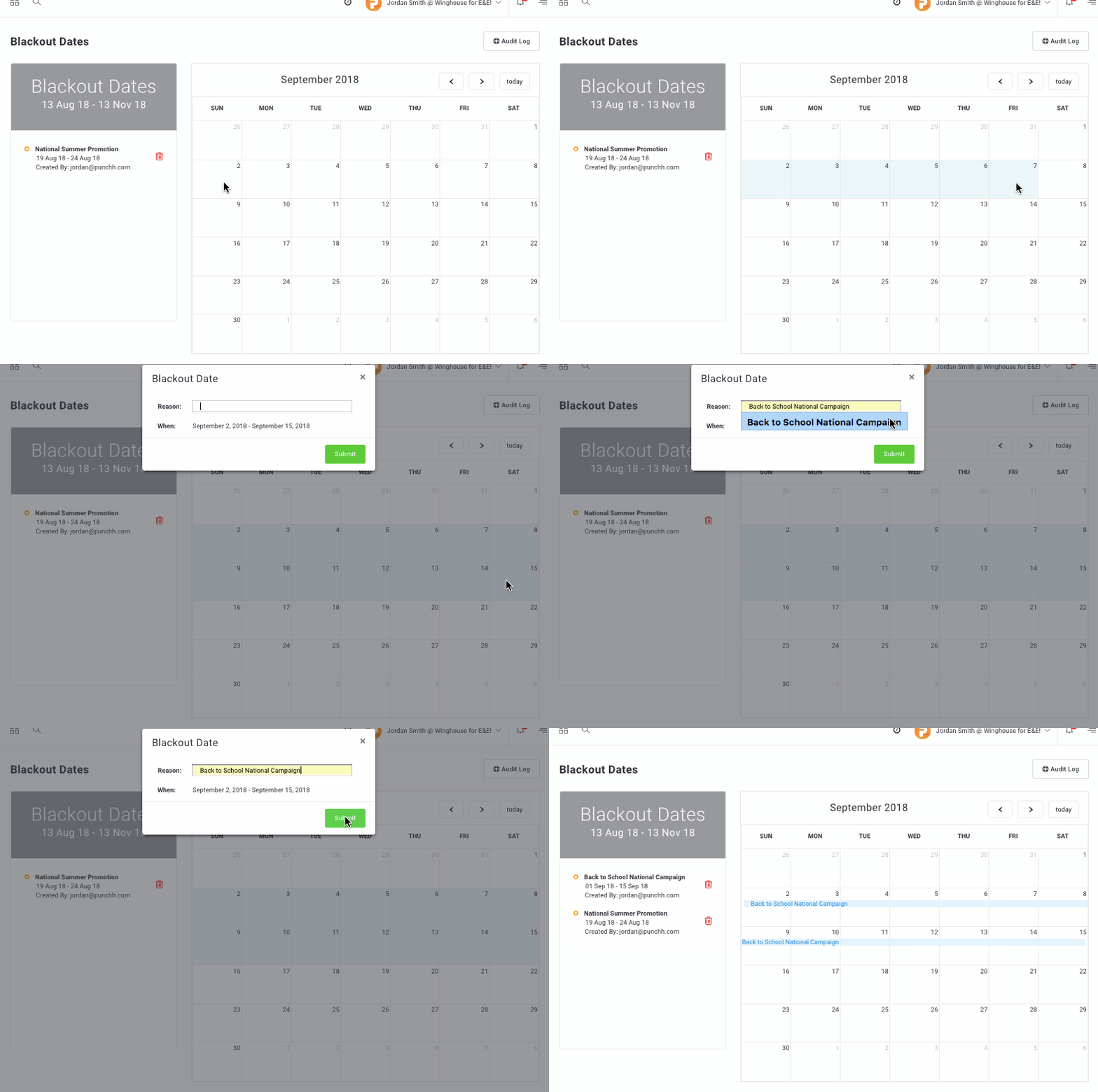
Create Blackout Dates
Blackout dates may only be created by admin users who have been granted the proper "Create/Delete Blackout Dates" permission. (See more about permissions below)
To set Blackout Dates:
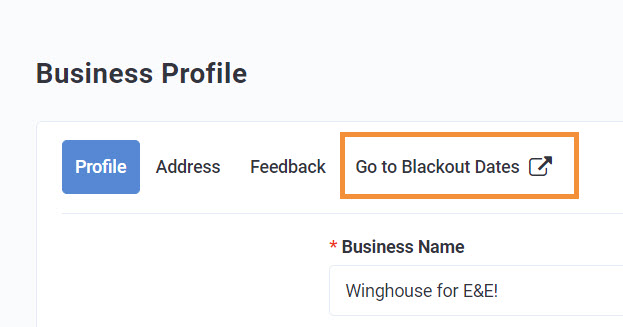
- Navigate to Administration > Business Profile.
- Click the Go to Blackout Dates tab.
- Click and drag your mouse across the calendar to choose the date(s) you want to block off. You can click on a single day or select multiple days by clicking and dragging your cursor.
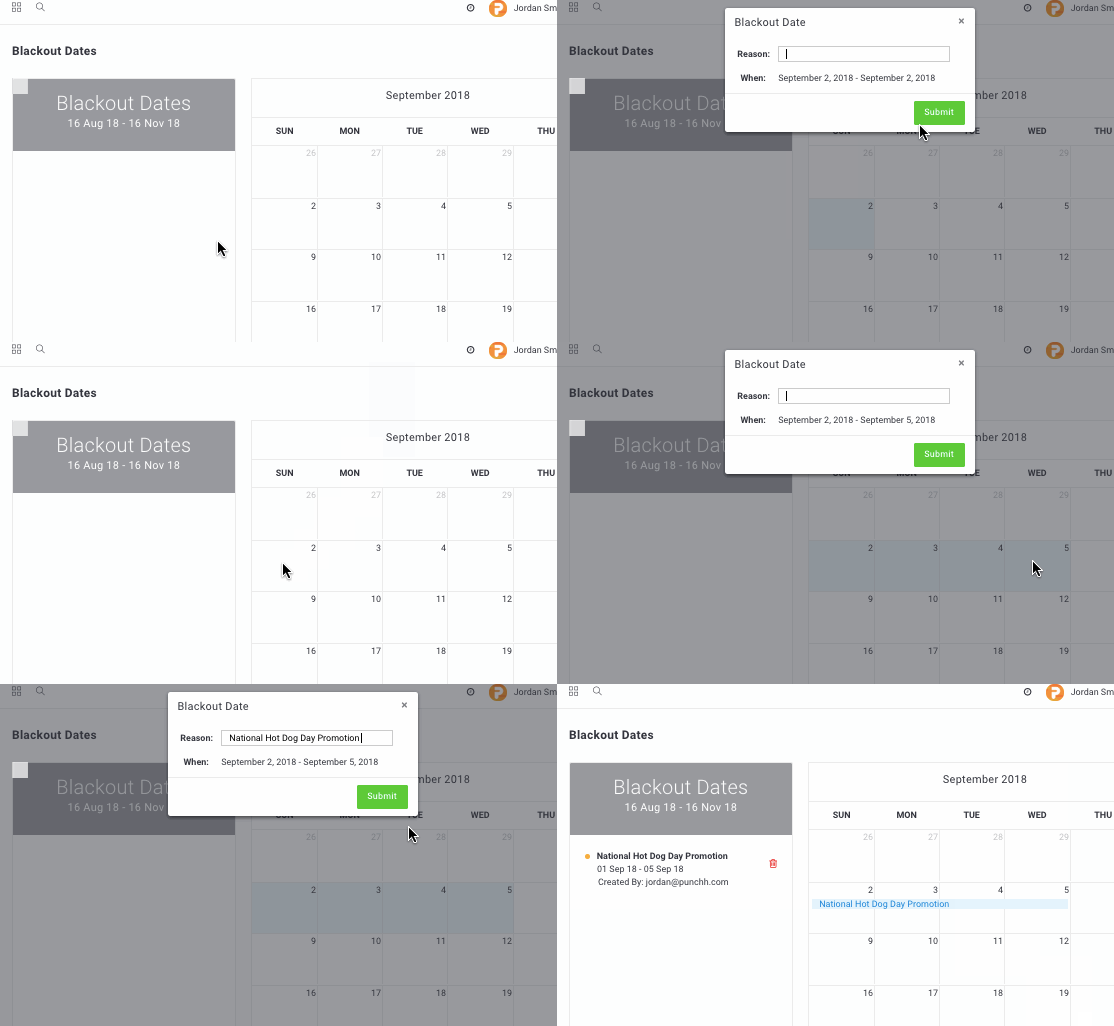
- Enter a description for the blackout dates in the Reason field, then click Submit.
What types of campaigns can I restrict with blackout dates?
Blackout dates can be used only with Mass Notification and Mass Offer campaigns. This is because other types of campaigns, such as Ongoing campaigns such as Anniversary campaigns or Postcheckin campaigns that are triggered by a guest's actions don't create significant conflicts with mass messaging campaigns.
Delete Blackout Dates
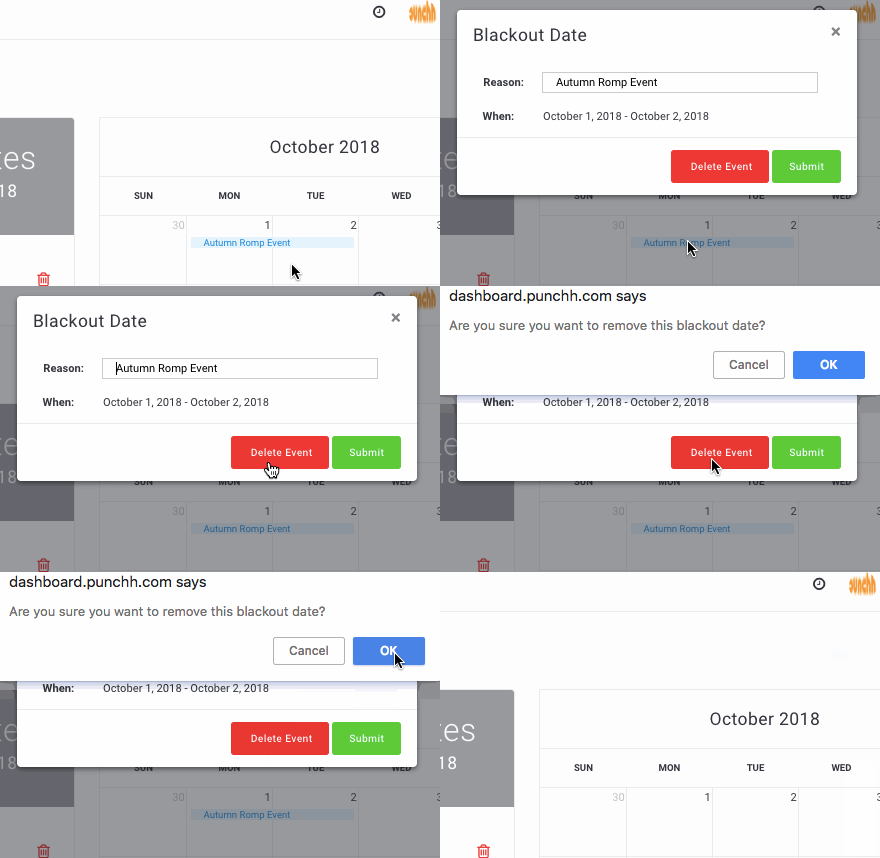
Blackout dates may only be edited or deleted by the admin user who originally created them. To delete blackout dates:
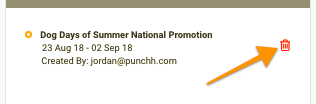
Click the red trashcan icon next to its description in the blackout days list, or
Click on the event's date range in the calendar and select Delete Event.
Blackout Date permissions
The following permissions may be set for your company admins who will be creating or managing campaigns and blackout dates:
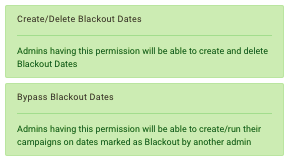
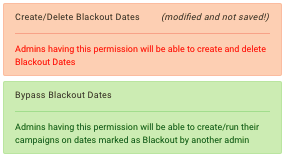
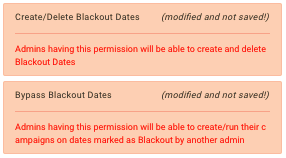
Create/Delete Blackout Dates
Admins with this permission may create blackout dates. They may run campaigns during blackout dates they've created (though not during blackout dates created by other company admins, unless they also have the "Bypass Blackout Dates" permission turned on). They may edit or delete their own blackout dates but may not edit or delete blackout dates created by other company admins.

Bypass Blackout Dates
Admins with this permission may still run campaigns during blackout dates that have been created by other company admins, regardless of whether or not the admin can create or delete blackout dates.

Set permissions
To set these permissions:
- Navigate to Administration > All Users, Roles, and Permissions > Roles.
- Click the User Role to be modified. (Or click New Role to create a new role if you want to assign different permission levels to different admins).
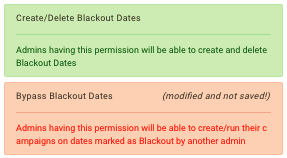
- Click to toggle the Create/Delete Blackout Dates and/or Bypass Blackout Dates permissions on (green) or off (red).
- Click Save to set your changes.
Assign permissions (user roles) to admin users
From here, you may assign the User Role to one of your company admins by editing their account settings:
- Navigate to Administration > All Users, Roles, and Permissions.
- Click the name of the company admin to open their account settings.
- Click the Role drop-down and select the appropriate User Role.
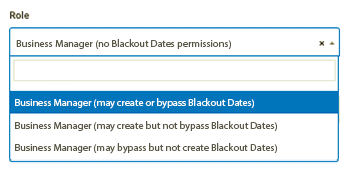
- Click Update to finish (or Create if inviting a new admin user).
Permission combinations
There are four possible combinations of the two Blackout Date permissions turned on/off, each one allowing a unique set of available actions for company admins they've been set for.
| Permission Combination | Description |
|---|---|
 |
Admins with this combination of permissions:
|
 |
Admins with this combination of permissions:
|
 |
Admins with this combination of permissions:
|
 |
Admins with this combination of permissions:
|
Notifications for affected campaigns
When a new blackout date is created, franchisee users or company admins who had previously scheduled a campaign(s) to run during the blackout date time period will receive an email notification alerting them.
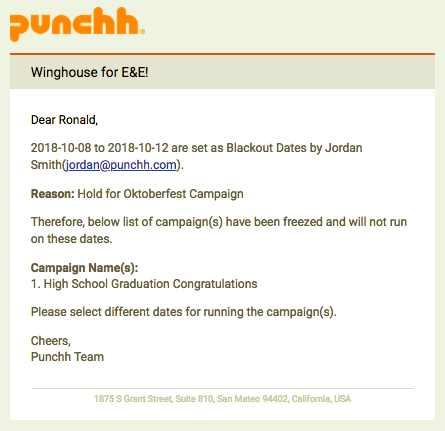
Additionally, a message will appear on their dashboard page for increased visibility.
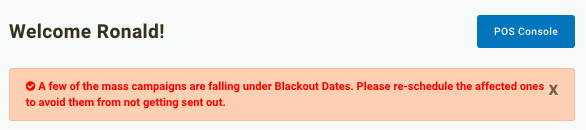
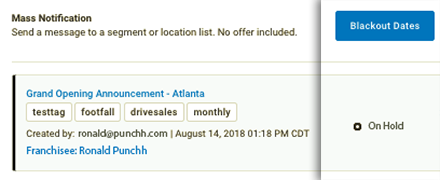
Any previously scheduled campaign that falls during the blackout date period will be frozen, restricting it from firing. Campaigns frozen by blackout dates will appear in the list of campaigns as "On-Hold" with a black strip indicating its scheduling conflict.
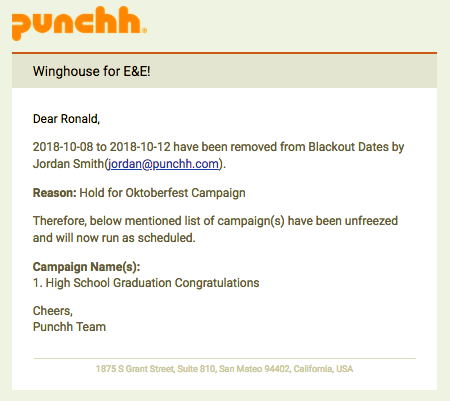
If the admin deletes blackout dates that had affected a campaign's scheduling, the creator of the affected campaign will receive another email notifying them of that the blackout dates have been removed.
How Blackout Dates appear to other users
Users such as franchisees and other admin without proper permissions may not schedule or run any campaigns during blackout dates. There are a couple ways users can check for blackout dates before/when creating a campaign. Other users in your company can view blackout dates...
...at any time, prior to creating a campaign:
- Navigate to Marketing Automation > Campaign Management.
- Click the Mass Tab.
- Click the Three Dot button next to the Manage Tags button.
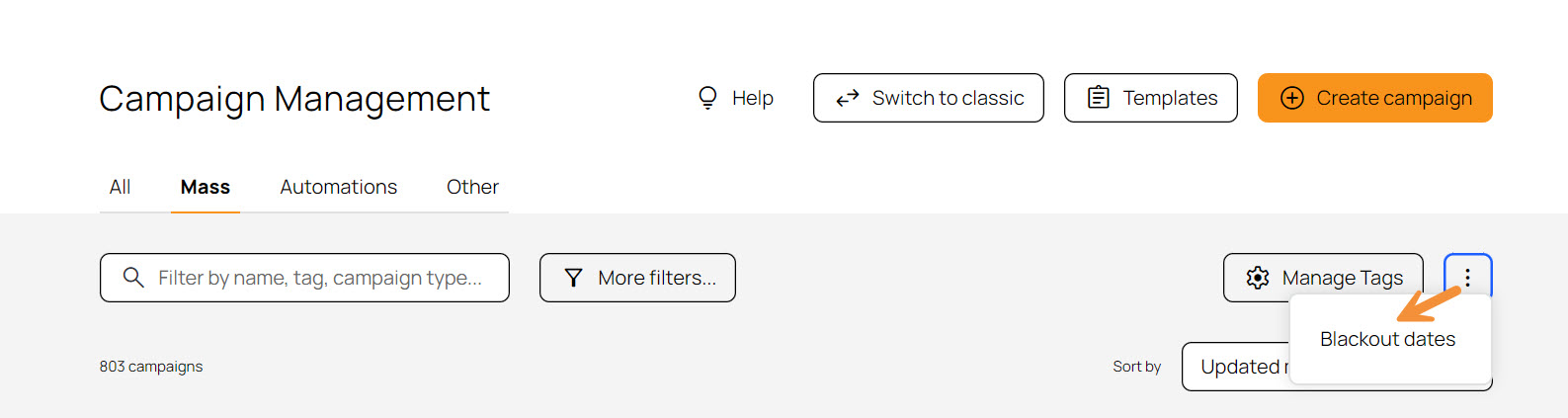
From here, the user can view all upcoming blackout dates but cannot create or edit any dates.
...at the time of scheduling a new campaign:
- Creating a new Mass Notification or Mass Offer campaign,
- In the final step, click the Start Time field to open the date picker calendar. Blackout dates (as well as dates in the past) are shown with a strikethrough, unavailable to select.
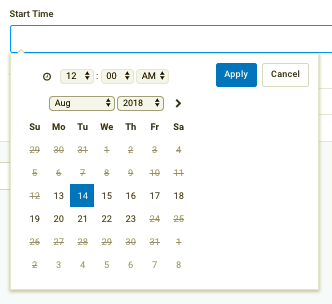
Admins with the Bypass Blackout Dates permission will not see any strikethrough dates.
