Troubleshooting Tip: Testing Qualification Criteria with Menu Item Strings
There may be times when you’re testing an offer you built and find that it’s not working as expected when you test it. For example, you may have created a redeemable for a free drink, gifted it to your test account and went to apply it to an online order but it’s not discounting the drink as expected.
One aspect to troubleshooting is ensuring your QC is configured correctly. To do this, you can use the menu item strings from your transaction to test your QC and determine if the solution is adjusting your QC setup.
Here are some steps to follow when troubleshooting the QC attached to your offer.
Step 1: find the menu item string from your test transaction. There’s 2 ways to get the menu item strings:
- Utilize the redemption logs (Diagnostic>Redemption Log) and filter down to the date and location of your test transaction. The menu item strings will be between the brackets after "menu_items"= >
- Complete the transaction by fully checking out if you’re using a testing lab or credit card for your online order. Then, find the checkin on your account timeline. Click the camera icon, then click the eye icon in the top left of the receipt to see the menu item strings. Check out the screenshots here of the receipt visible after clicking the camera icon next to the checkin channel "Mobile" and the menu item strings after clicking the eye icon in the top left of the receipt.
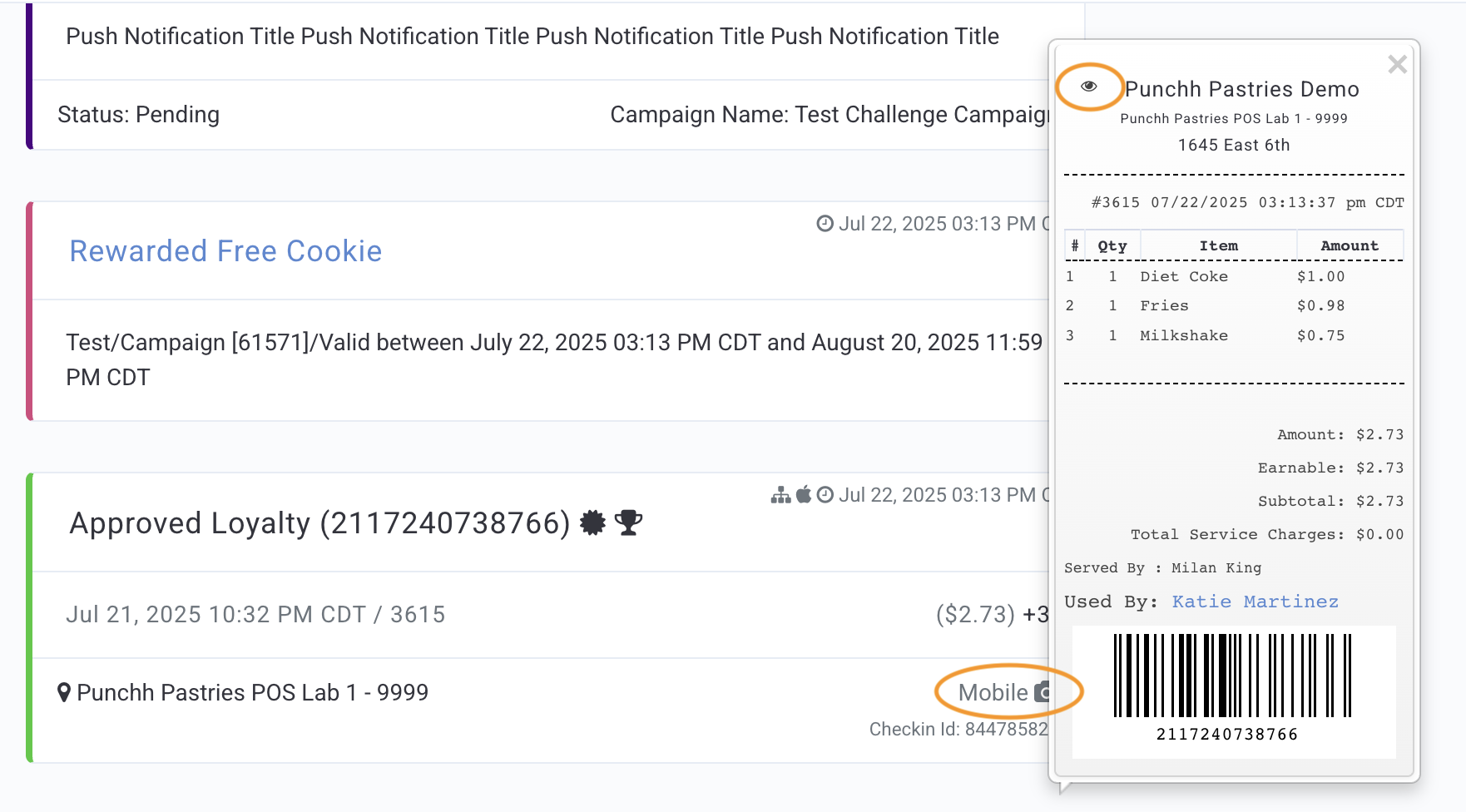
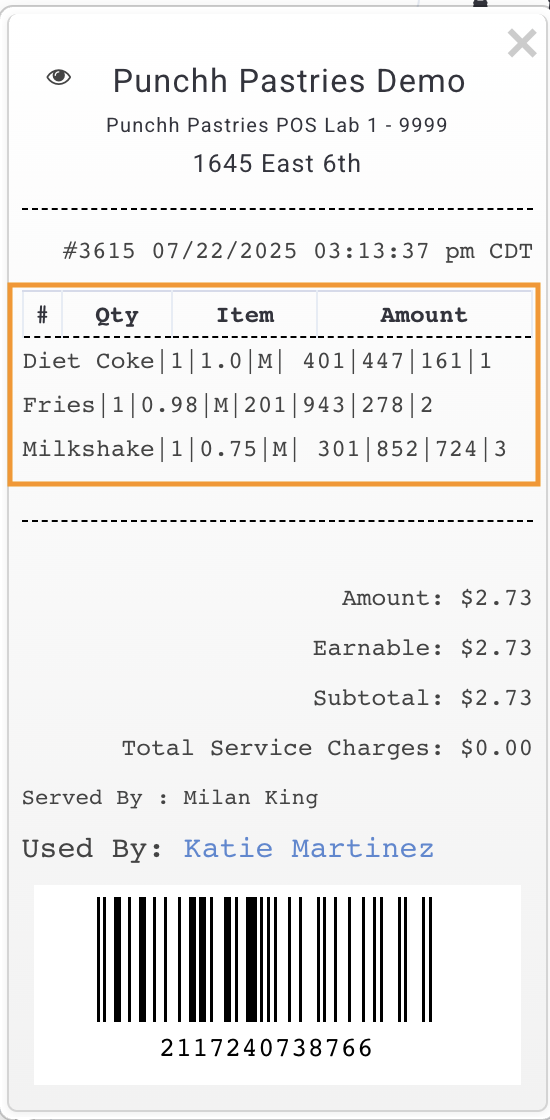
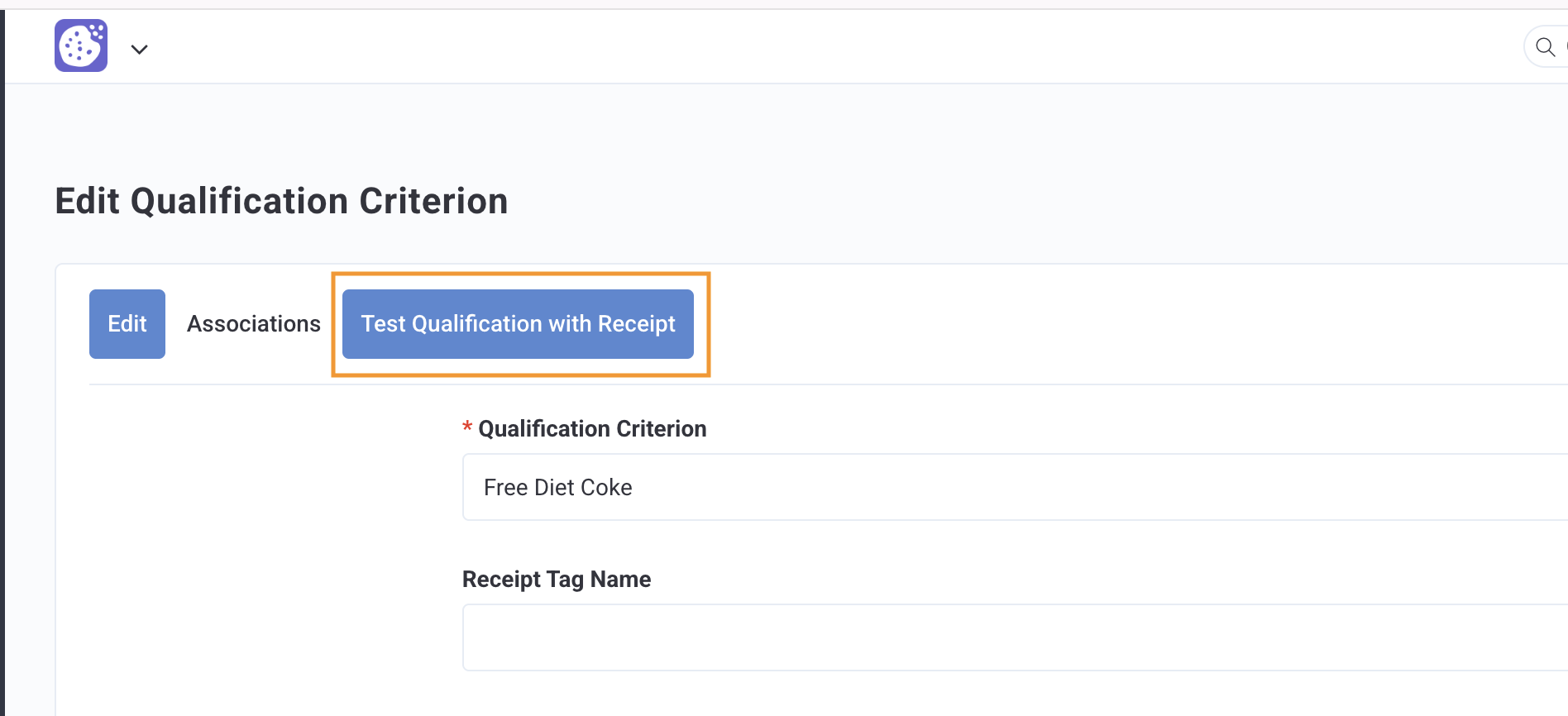
Step 2: copy the menu item strings from the redemption log or the account timeline. Then navigate to the QC of the offer you’re testing. In this example, our redeemable is using a QC titled Free Diet Coke.
Step 3: click "Test Qualification with Receipt"
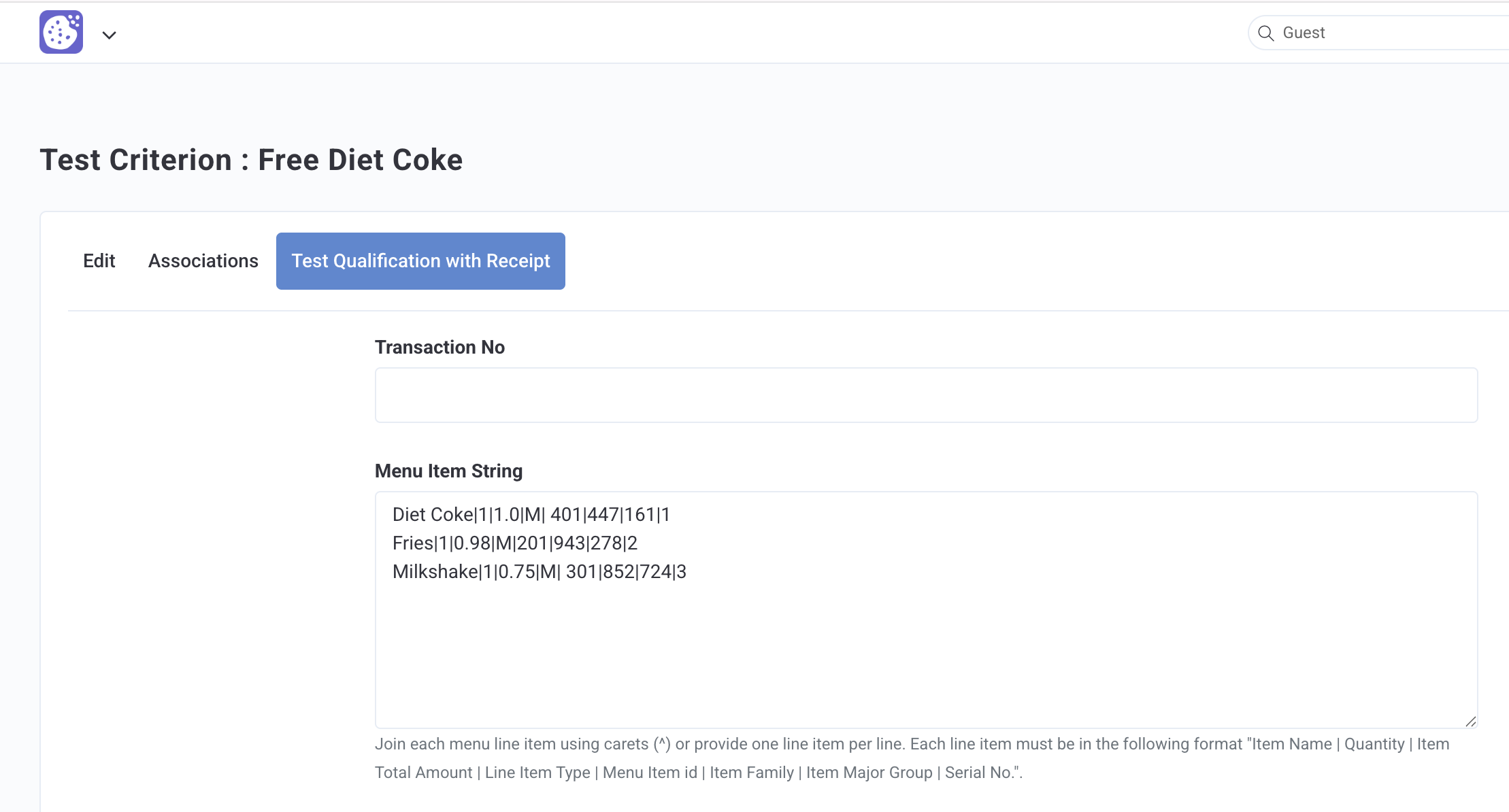
Step 4: paste the menu item strings from your transaction into the Menu Item String box
- If your QC has other receipt qualifiers like the subtotal amount, channel, etc, make sure to enter that information into those qualifier fields manually for a proper test
Step 5: click the "Evaluate" button at the bottom of the page.
- The result will indicate a couple things.
- First, the result will indicate whether the input information qualifies for the discount. It’ll be green if the transaction qualifies and it’ll be red if it does not qualify.
- If the transaction does qualify, you’ll see the processed value, which in the case of a QC attached to an offer, will be the discount amount the offer should apply and what line item is being discounted.
In this example, once we click Evaluate, we can see this transaction doesn't qualify when we run the menu item strings through the QC. There's likely something wrong with our QC configuration or the line item selectors we're using in the QC.

Step 6: if your transaction does not qualify when testing the QC, try checking the below elements
- Double check the configuration of the item and receipt qualifiers to see if your transaction is missing a required menu item, doesn't come from the proper channel, etc.
- Double check the configuration of your line item selectors to ensure they include all applicable ids.
- Make sure you’re using “in (case sensitive)” or "in (case insensitive)" for the operator in your line item selector(s) if you have a list of ids configured.
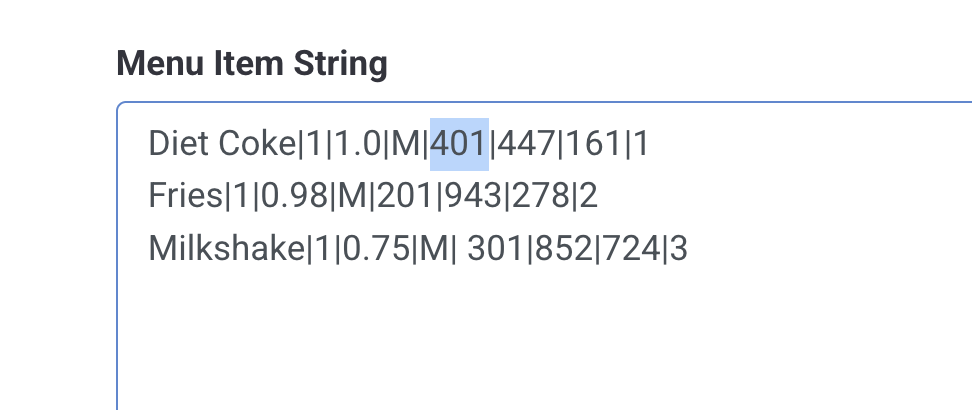
In this example, we see that the diet coke line item from our transaction is item id 401.
- Remember, each menu item string follows the format: Item Name | Quantity | Item Total Amount | Line Item Type | Menu Item id | Item Family | Item Major Group | Serial No
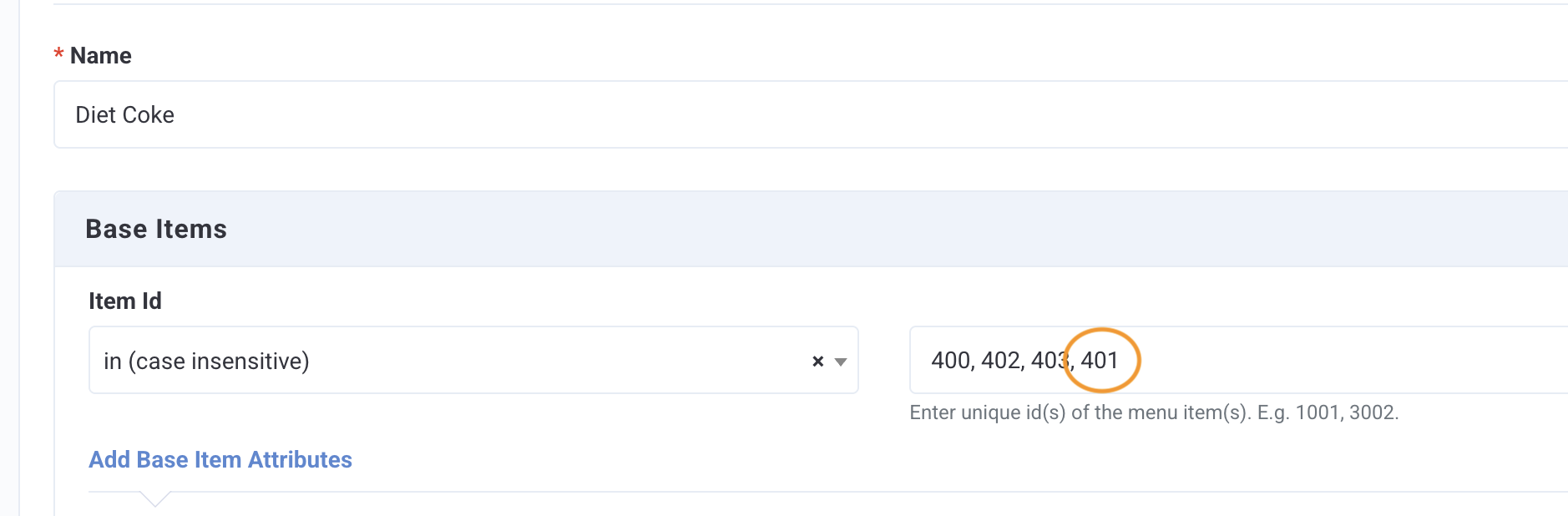
However, when we check the list of ids in our line item selector, 401 is not currently listed as part of the line item selector.

Since id 401 is missing from our line item selector, we'll address this by adding it to the list of ids in our Diet Coke line item selector and clicking "Update" to save our changes.
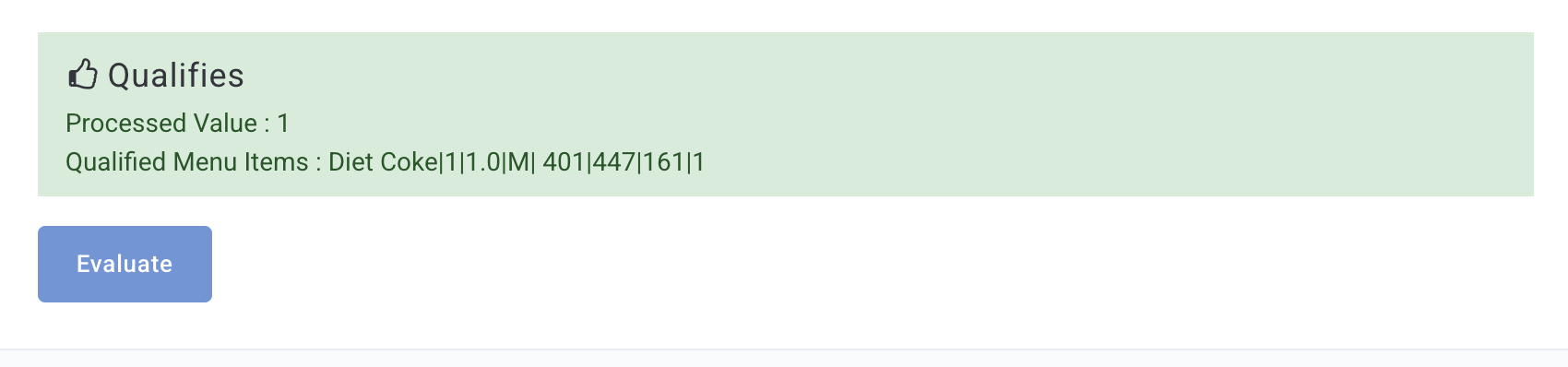
Now, we can navigate back to the QC test and click "Evaluate" again. The transaction now qualifies and we can see the price of the diet coke (1.00) is the amount being discounted!
Now that testing the QC helped show the configuration change needed, the redeemable can be tested again at the POS lab or via an online order to ensure it works at checkout as expected!
