How to Reset Your Punchh Account Password
If you are unable to access your Punchh Platform or Support Center account because you have forgotten your password, you can easily reset it by following the steps below.
Rest Your Password
- Navigate to PAR Punchh
- Click on the Forgot Password link on the login page.
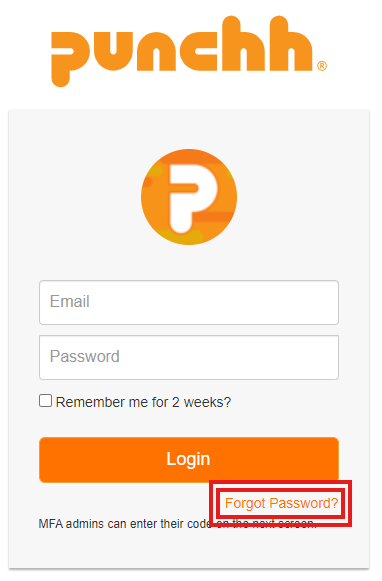
- You will receive an email containing a link to reset your password.
- Click the link in the email. Enter your new password and click Change my password.
- Once your password has been changed, you can log in to the Punchh Platform and Support Center using your updated credentials.
Troubleshooting
“Reset Password Token is Expired” Error
If you see an error message stating that the “reset password token is expired,” this means that the password reset link has expired. The reset token is valid for 2 hours from the time the email is sent. If more than 2 hours have passed, you will need to repeat the password reset process by clicking Forgot Password again and following the instructions above.
"1 error prohibited this admin from being saved: Email not found" Error
If you receive an error stating "email not found," try the same reset your password steps on the following website: https://dashboard.us-west.punchh.com/admins/sign_in - if you continue to receive the error, please reach out to Punchh Support at punchhsupport@partech.com.
