How to Recover Access to Your Punchh Account (Password and MFA Lockouts)
Use the following instructions if you become locked out of your Punchh account. There are two main types of lockouts: Password Lockout and Multi-factor Authentication (MFA) Lockout.
Password Lockout
A password lockout occurs after five consecutive incorrect password attempts. You will see a pink banner at the top of the page stating: "Your account is locked."
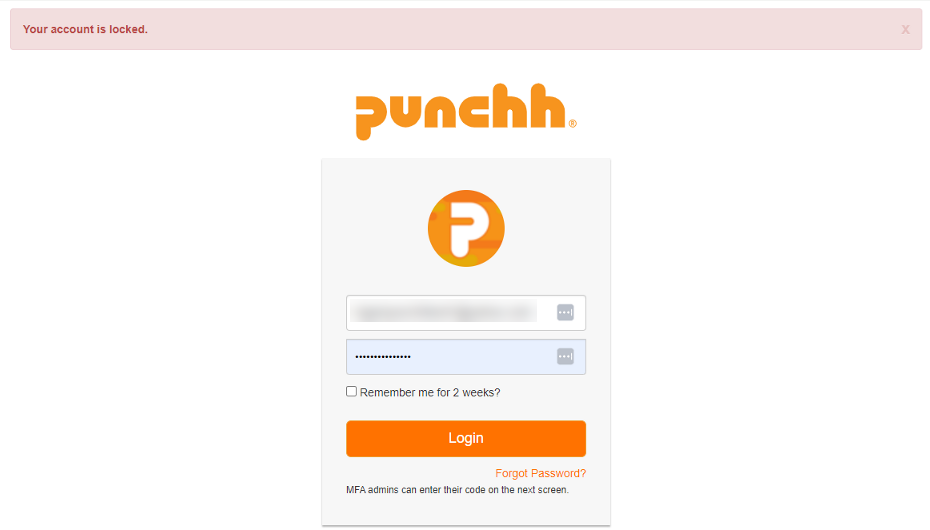
- Check Your Email: After your account is locked, you will receive an email from help@punchh.com with the subject "Unlock Instructions." This email contains a link to unlock your account.
- Click the Unlock Link: Open the email and click the "Unlock my account" link. You will see a confirmation message: "Your account has been unlocked successfully. Please sign in to continue."
Note: If you use an old unlock email, you may see an "Unlock token is invalid" error. Always use the most recent email.
- Wait for Automatic Unlock (if needed): If you do not use the unlock link, your account will automatically unlock after 24 hours.
- Forgot Your Password? If you do not remember your password, use the "Forgot Password" option on the sign-in page. You will receive a password reset email with a link valid for 2 hours.
Tip: If you see the message "You will be locked out on your next failed login attempt," it is best to use the Forgot Password option immediately to avoid being locked out.
- Support Limitations: Punchh Support cannot unlock accounts locked due to failed password attempts. You must use the unlock email or wait 24 hours.
Multi-factor Authentication (MFA) Lockout
An MFA lockout occurs after five consecutive incorrect MFA code entries. You will see a message: "Access completely denied as you have reached your attempts limit = 5."
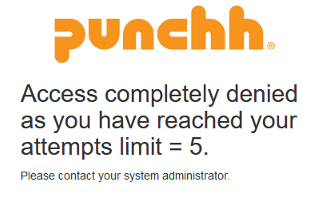
- Contact a Brand Admin: Only an admin from your brand can reset the MFA on your Admin profile in Punchh. You will not receive an email for this type of lockout.
- Wait for MFA Reset: Once your brand admin resets your MFA, you can attempt to sign in again. You will be prompted to set up MFA as part of the login process.
- Support Limitations: Punchh Support cannot reset MFA on admin accounts due to privacy and security policies.
If you have any questions or need further assistance, please contact your brand administrator.
