Promotions
A promotion can be applied to an order to reduce, or alter, the price of order items. Promotions differ from discounts in that they can contain qualifiers and can make use of codes.
-
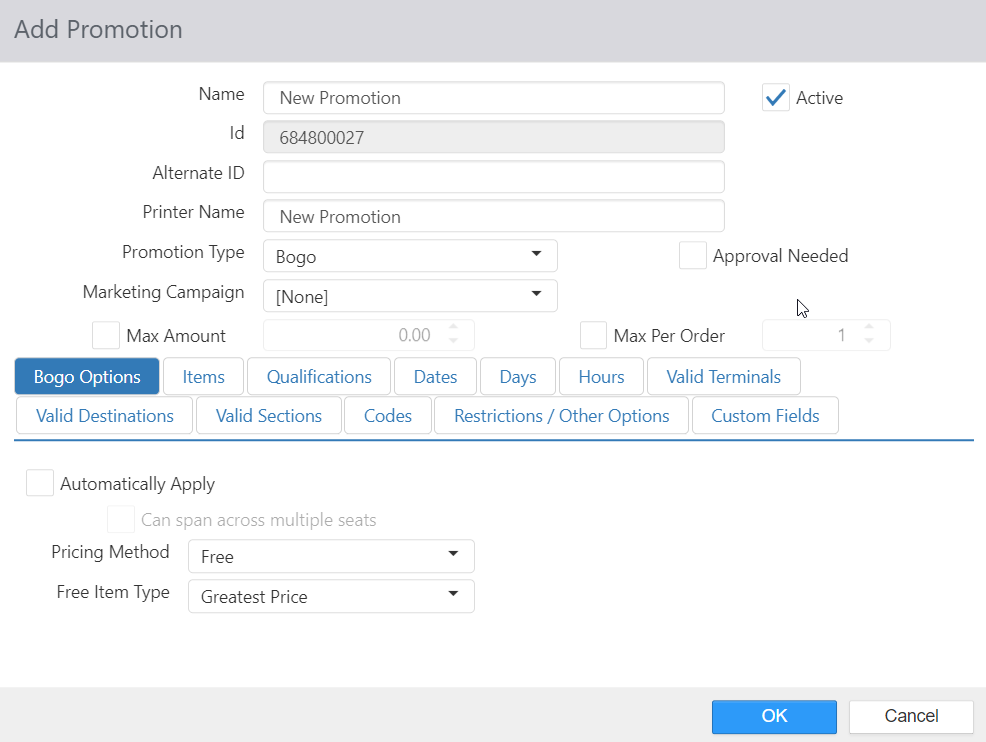
Name: Name of the promotion.
-
Active: Promotion can be applied to orders.
-
Printed Name: Name to be printed on the order receipt.
-
Promotion Type:
- Bogo: Requires one or more qualifying item be ordered along with the discounted item; order items need to be selected first. When this option is selected, the first tab is called Bogo Options.
- Combo: This promotion type is no longer being used.
- Coupon: One or more items are discounted; order items do not need to be selected first. When this option is selected, the first tab is called Coupon Options.
- Gift Card: Reduces the price of items that are gift card issues or reloads. When this option is selected, the first tab is called Gift Card.
- Order Reduction: One or more items are discounted; order items do not need to be selected first. When this option is selected, the first tab is called Order Reductions Options.
-
Approval Needed: Promotion can only be applied/authorized by an employee with Security Level > Approve Promotion enabled.
-
Marketing Campaign: Marketing campaign to assign to the order when the promotion is applied.
-
Max Amount: Maximum total dollar value of the promotion per order.
-
Max Per Order: Maximum number of times the promotion can be applied to a single order.
-
Allow Prior Item Promotions: Can be applied to order items that have already had another promotion applied.
-
Bogo Options tab:
- Automatically Apply: Automatically apply the promotion when qualifying items are ordered.
- Can span across multiple seats: Controls whether an automatically applied promotion should look at all items in an order (checked) or only items for a specific seat (unchecked) before being applied.
- Pricing Method:
- Discounted Price: Reduce the discounted item to a specific price. Use the field below the drop-down list to enter the price.
- Dollar Discount: Reduce the price of the discounted item by a specific dollar amount. Use the field below the drop-down list to enter the discount amount.
- Free: Reduce the price of the discounted item to zero.
- Free Item Type:
- Greatest Price: Highest priced item will be discounted.
- Lowest Price: Lowered priced item will be discounted.
- Free Item Type:
- Percent Discount: Reduce the price of the discounted item by a specific percentage. Use the field below the drop-down list to enter the percentage.
- Automatically Apply: Automatically apply the promotion when qualifying items are ordered.
-
Combo Options tab: NO LONGER USED.
-
Coupon Options tab:
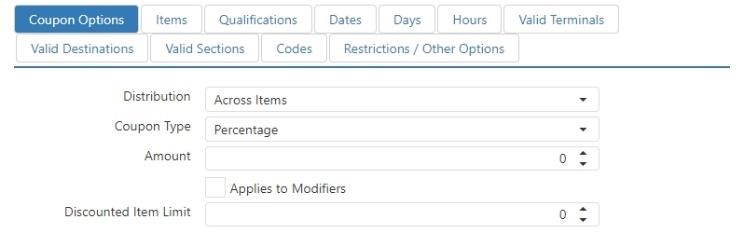
- Distribution:
- Across Items: Discount amount is distributed equally across the qualifying items.
- Each Item: Discount amount is applied to each qualifying item.
- Coupon Type:
- Dollar Amount: Order item is discounted by a specific dollar amount. Use the field below the drop-down list to enter the discount amount.
- Percent: Order item is discounted by a specific dollar amount. Use the field below the drop-down list to enter the percentage.
- Applies to Modifiers: Promotion applies to modifiers as well as base items.
- Discounted Item Limit: Maximum number of items that can be reduced by the promotion.
- Distribution:
-
Gift Card tab:
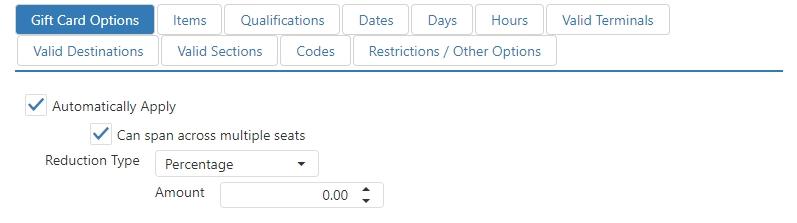
- Automatically Apply: Automatically apply the promotion when qualifying items are ordered.
- Can span across multiple seats: Controls whether an automatically-applied promotion should look at all items in an order (checked) or only items for a specific seat (unchecked) before being applied.
- Reduction Type:
- Amount: Gift card item is discounted a specific dollar amount. Use the field below the drop-down list to enter the discount amount.
- New Price: Gift card item price is set to a specific amount. Use the field below the drop-down list to enter the price.
- Percent: Gift card item is discounted a specific percentage of its current price. Use the field below the drop-down list to enter the percentage.
- Automatically Apply: Automatically apply the promotion when qualifying items are ordered.
-
Order Reductions Options tab:
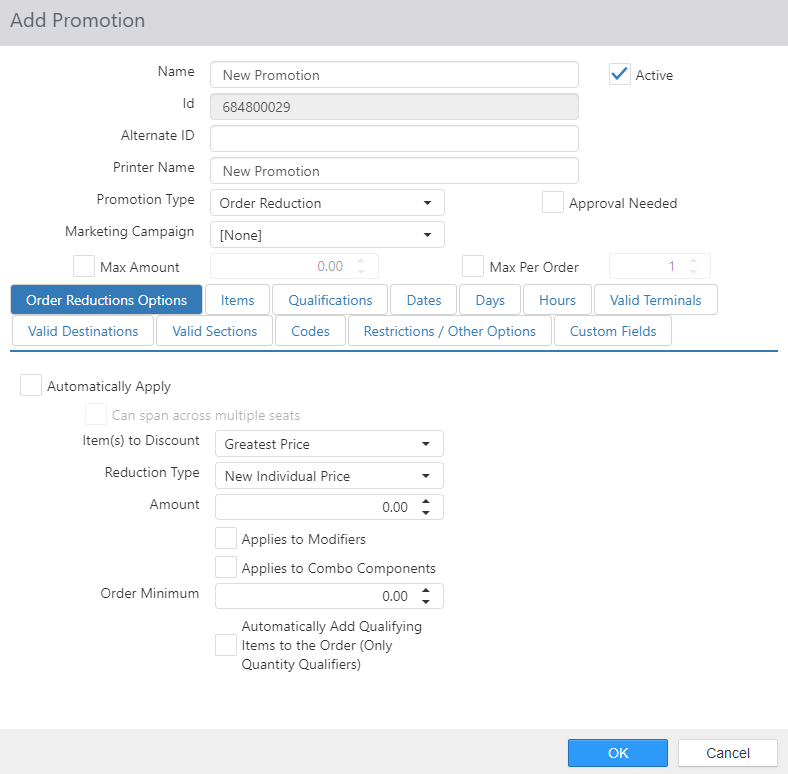
- Automatically Apply: Automatically apply the promotion when qualifying items are ordered.
- Can span across multiple seats: Controls whether an automatically applied promotion should look at all items in an order (checked) or only items for a specific seat (unchecked) before being applied.
- Limit # of Discounted Items: Maximum number of items that can be reduced by the promotion.
- Item(s) to Discount:
- Greatest Price: Highest priced item will be discounted.
- Lowest Price: Lowered priced item will be discounted.
- Item(s) to Discount:
- Reduction Type:
- Amount: Item is discounted a specific dollar amount. Use the field below the drop-down list to enter the discount amount.
- New Individual Price: Item price is set to a specific amount. Use the field below the drop-down list to enter the price.
- New Total Price: Total order price is set to a specific amount. Use the field below the drop-down list to enter the price.
NOTE: This setting is best used along with promotion qualifications, as set on the Qualifications tab. - Percentage: Gift card item is discounted a specific percentage of its current price. Use the field below the drop-down list to enter the percentage.
- Applies to Modifiers: Promotion applies to modifiers as well as base items.
- Applies to Combo Components: Promotion applies to combo components.
- Order Minimum: Minimum order subtotal required before any items qualify.
- Automatically Add Qualifying Items to the Order (Only Quantity Qualifiers): Allows items assigned to the promotion to be ordered automatically when entering the promotion code or using the Promotion button.
- Automatically Apply: Automatically apply the promotion when qualifying items are ordered.
-
Items Tab:
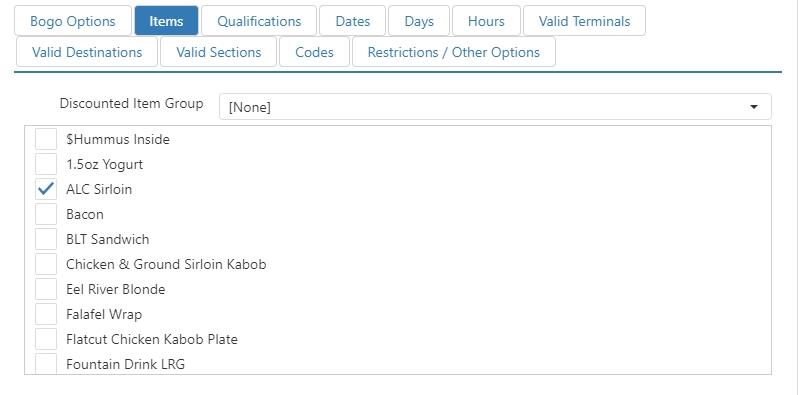
- Discounted Item Group: Item group containing the items that qualify. If left as [None], then only the items selected in Discounted Items qualify for the promotion.
- Discounted Items: Checked items qualify for the promotion.
-
Qualifications tab:
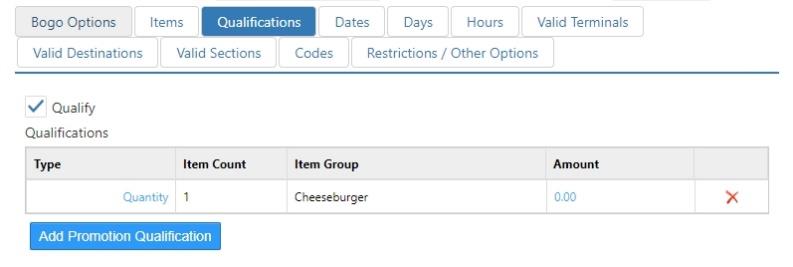
-
Qualify: Additional items must be ordered before the qualifying item can be discounted.
-
Type:
- Amount: Additional qualifying items must exceed a specific dollar amount.
- Quantity: A specific number of additional qualifying items must be ordered.
-
Item Count: The number of individual items that qualify for the promotion.
-
Item Group: Item group containing the additional qualifying items.
-
Amount: Dollar amount or count that must be satisfied.
-
'Add' button: Opens the Add dialog.
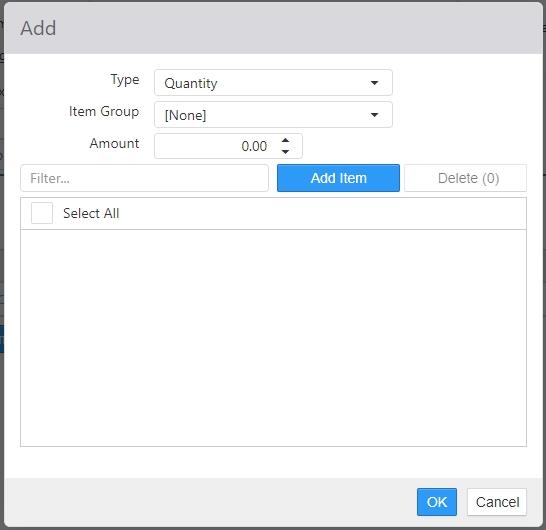
- Type:
- Amount: Additional qualifying items must exceed a specific dollar amount.
- Quantity: A specific number of additional qualifying items must be ordered.
- Item Group: Item group containing the additional qualifying items. If left at [None], then only items in the right pane of the item list count as qualifying items.
- Amount: Dollar amount or count that must be satisfied.
- Item list: Items in the right pane count as qualifying items.
- Type:
-
-
Dates tab:
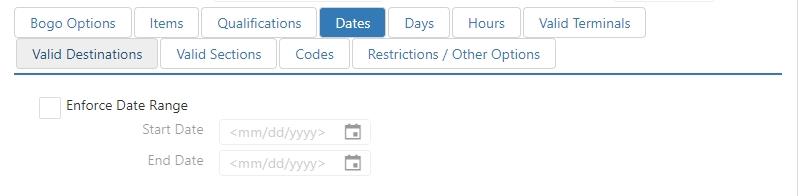
- Enforce Date Range: Promotion can only be applied within the specified date range, set using the StartDate and EndDate fields.
-
Days tab:
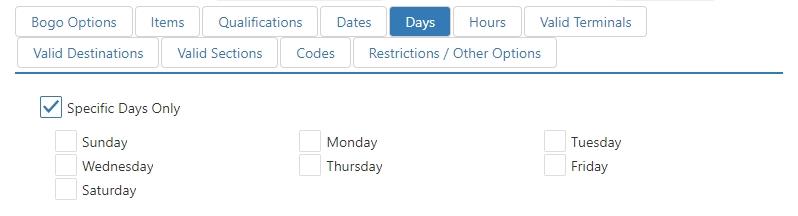
- Enforce Days: Promotion can only be applied on the checked days of the week.
-
Hours tab:
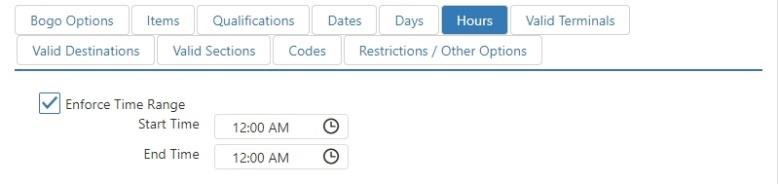
- Enforce Time Range: Promotion can only be applied within the specified time period, set using the StartTime and EndTime fields.
-
Valid Terminals tab:
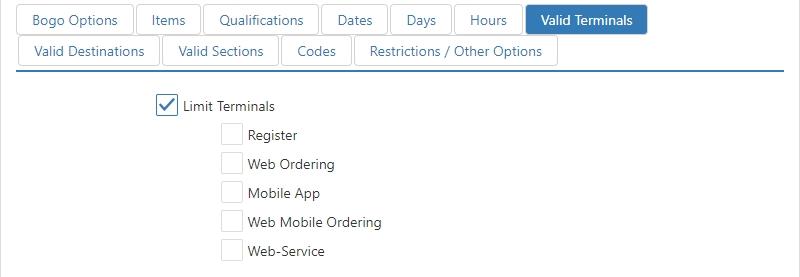
- Limit Terminals: Promotion can only be applied on the checked terminal types.
-
Valid Destinations tab:
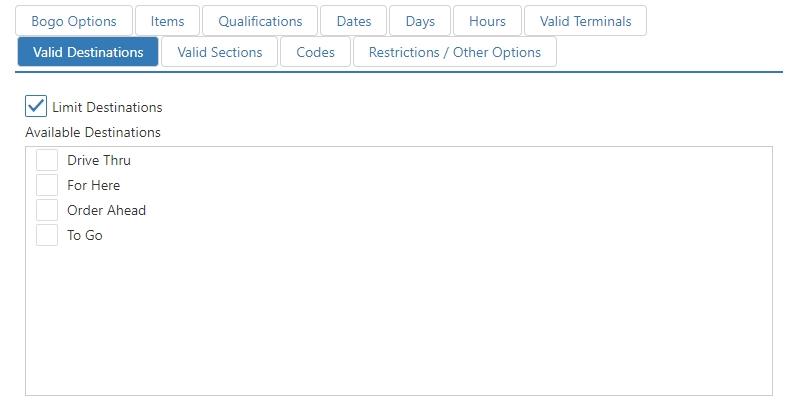
- Limit Destinations: Promotion can only be applied to orders of the selected destination.
-
Valid Sections tab:
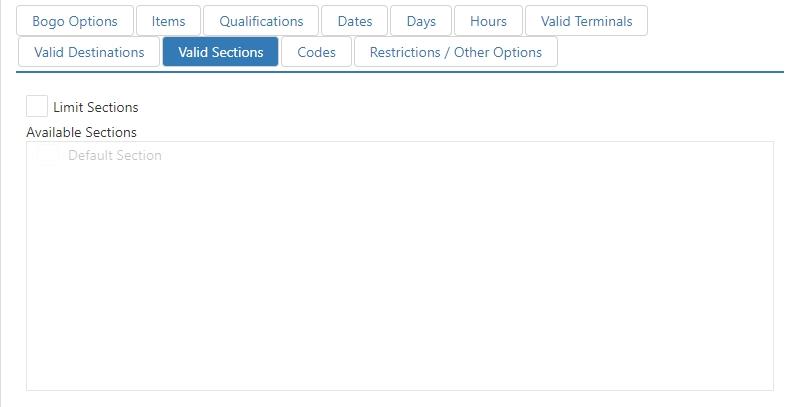
- Limit Sections: Promotion can only be applied when the order is in any of the checked sections.
-
Codes tab:
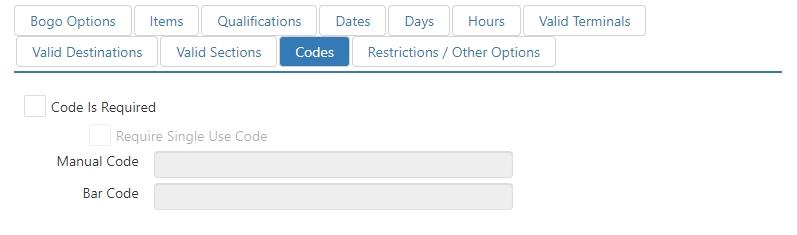
- Code Is Required: Promotion can only be applied be entering or scanning a code.
- Require Single Use Code: Promotion can only be applied by using a single use promotion code.
- Manual Code: Code that can be manually entered to apply the promotion when not using single use codes.
- Bar Code: Bar code value that can be scanned to apply the promotion when not using single use codes.
-
Restrictions / Other Options tab:
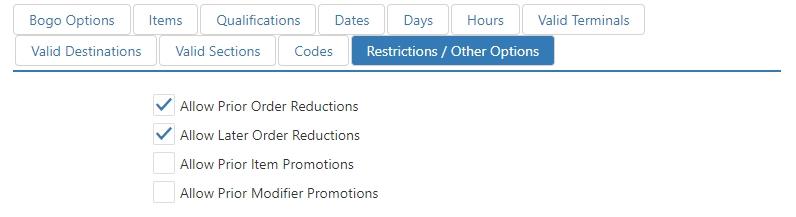
- Allow Prior Order Reductions: The promotion can be applied to orders that already have a promotion or discount applied to them.
- Allow Later Order Reductions: Other promotions and discounts can be applied to orders that already have this promotion applied to them.
- Allow Prior Item Promotions: This promotion can be applied to items that already have a promotion applied to them.
- Allow Prior Modifier Promotions: This promotion can be applied to modifiers that already have a promotion applied to them.
-
Custom Fields Tab: Allows the user to create/define custom fields for promotions to leverage customer-specific data and provide cleaner data management and usage.
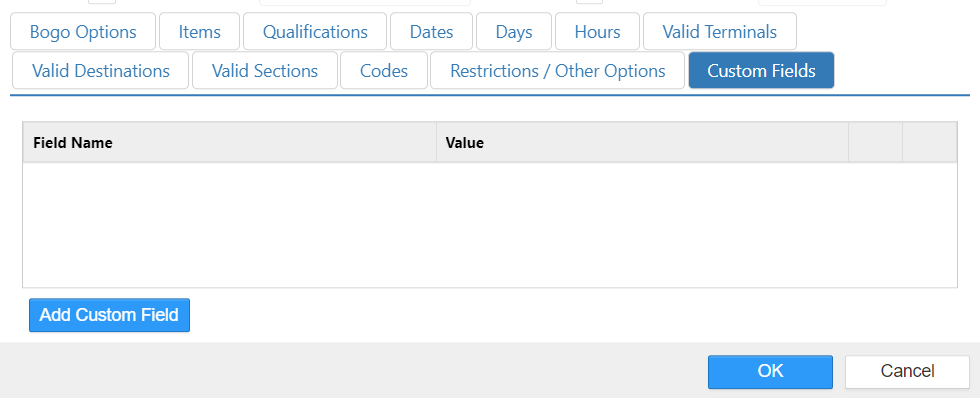
To add a custom field:
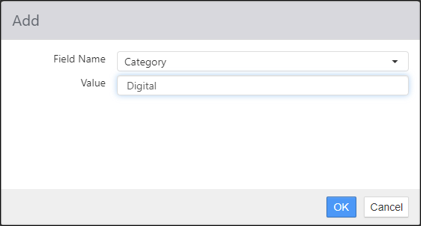
- Select the Add Custom Field button.
- Select a Field Name from the provided dropdown.
- Enter the desired text in the Value field.
- Click OK to save.