Printers
Printers define the physical printers that are part of the POS system.
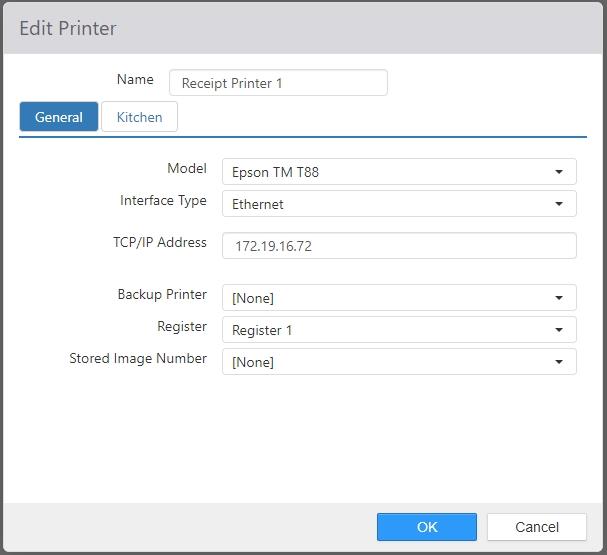
- Name: Enter a name for the new printer.
- General tab:
- Model: Select the printer model in the drop-down list.
- Epson TM-L90, NCR 7197, PAR M3876, Partner RP-320, Star TSP100, or Zebra TTP 2000: The following controls appear when any of these printers is selected:
- Parity: Select Odd or Even.
- Handshake: Select DTR/DSR or XOnXOff.
- COM Port: Enter the com port number used by the printer.
- BaudRate: Set the baud rate with the drop-down list.
- Epson TM T88, Epson TM T88 ReStick, or Epson TM U200: The following controls appear when either Epson TM T88, Epson TM T88 ReStick, or Epson TM U200 is selected:
- Interface Type:
- Ethernet:
- TCP/IP Address: Enter the IP address of the printer.
- Serial:
- Parity: Select Odd or Even.
- Handshake: Select DTR/DSR or XOnXOff.
- COM Port: Enter the com port number used by the printer.
- BaudRate: Set the baud rate with the drop-down list.
- Windows:
- Printer Name: Enter the Windows printer name.
- Ethernet:
- Interface Type:
- OPOS or Pos for .NET: The following controls appear when OPOS is selected:
- OPOS Device Name: Enter the name of the printer in the field.
- Printer Width: Set the printer width in the field.
- Epson TM-L90, NCR 7197, PAR M3876, Partner RP-320, Star TSP100, or Zebra TTP 2000: The following controls appear when any of these printers is selected:
- Backup Printer: Use the drop-down list to select a backup printer.
- Register: Select the register that the printer is attached to.
- Stored Image Number: Use the drop-down list to select the image number.
- Model: Select the printer model in the drop-down list.
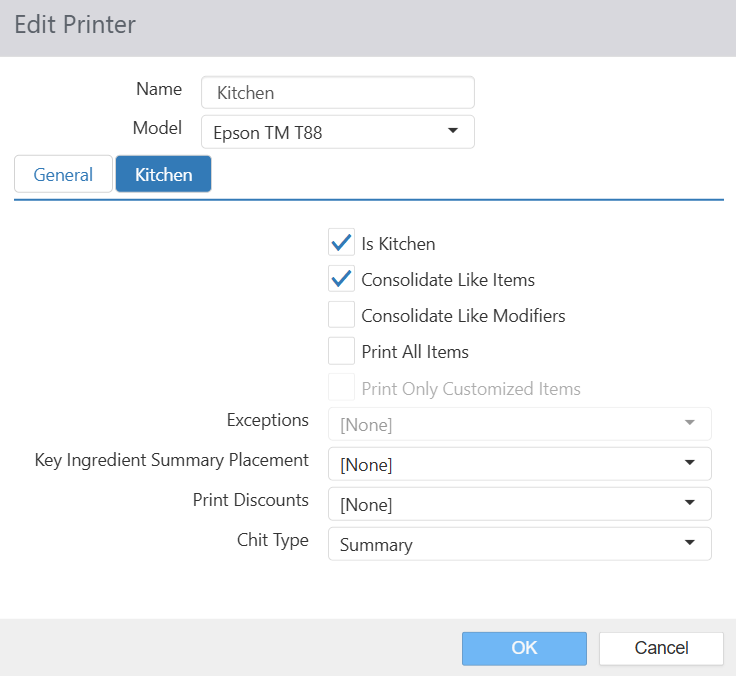
- Kitchen tab (most printers): The Kitchen tab for most printers contains the following controls:
- Is Kitchen: Can be included in printer groups.
- Consolidate Like Items: Order items of the same item, with the same modifiers, are printed as a single line item on the chit with a quantity to the left.
- Consolidate Like Modifiers: Identical modifiers are printed as a single line item on the chit with the quantity to the left (as opposed to individual line items for the each modifier).
- Print All Items: All items sent are printed, including items routed to other printers.
- Print Only Customized Items: Chits are printed only for items that have been customized (by adding or removing modifiers, upsizing or downsizing, etc.).
NOTE: This check box is only active when Chit Type (below) is set to Single or Both.- Exceptions: When Print Only Customized Items is checked, this drop-down list can be used to select an item group for which all items will have chits printed, regardless of whether or not they have been customized.
- Key Ingredient Summary Placement: Prints a total count for each qualifying key ingredient summary for the sent order items.
NOTE: This will NOT print when Chit Type (see below) is set to Single. - Print Discounts: Prints discount total each discount applied to the sent order items.
- Chit Type:
- None: No chit is printed.
- Summary: One chit listing all sent order items is printed.
- Single: Individual chits are printed for each sent order item.
- Bag: Prints simplified bag chit with no modifiers.
- Both: Both single chits and a summary chit is printed.
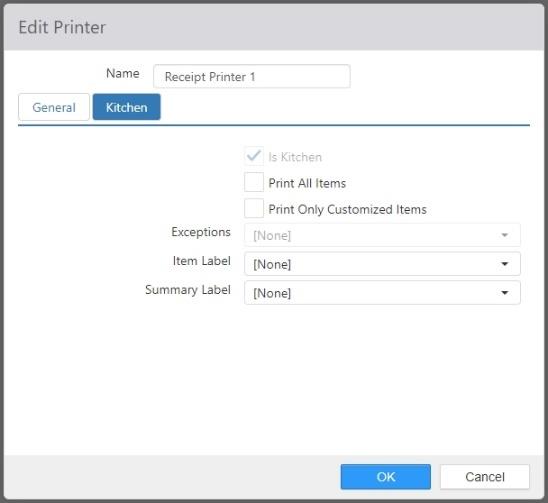
- Kitchen tab (Epson TM-L90): The Kitchen tab for the Epson TM-L90 contains the following controls:
- Is Kitchen: Can be included in printer groups.
- Print All Items: All items sent are printed, including items routed to other printers.
- Print Only Customized Items: Chits are printed only for items that have been customized (by adding or removing modifiers, upsizing or downsizing, etc.).
NOTE: This check box is only active when Chit Type (below) is set to Single or Both.- Exceptions: When Print Only Customized Items is checked, this drop-down list can be used to select an item group for which all items will have chits printed, regardless of whether or not they have been customized.
- Item Label: Select an Item label from the drop-down list.
- Summary Label: Select a Summary label from the drop-down list.
