Petty Accounts, Price Changes & Price Levels
Petty Accounts
Petty accounts are used to group paid in/out transactions and map those transactions to a particular general ledger account.
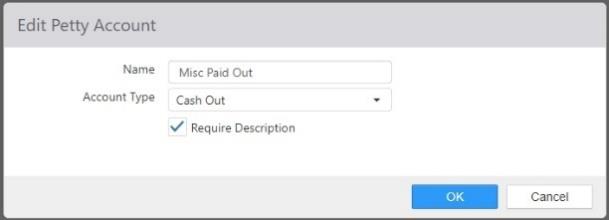
- Name: Name of the petty account.
- Account Type:
- Cash In: Displays as an option when paid in is performed, increases calculated cash in the drawer.
- Cash Out: Displays as an option when paid out is performed, decreases calculated cash in the drawer.
- Require Description: Prompts employee to enter a description when performing a paid in/out.
Price Changes
The Price Changes function is used to set up automatic price changes for specific items. This can be used, for example, to create happy hour pricing for beverages and appetizers that only apply during specific times or on specific days.

- Name: Enter the name of the price change.
- Active: When checked, the price change is active.
- Id: The ID number is filled in by the system and cannot be changed.
- Items tab:
- Update prices to __% of regular price: Enter a percentage and press GO to automatically update all of items' New Price values to that percentage of the Original Price.
- Note: Banker's rounding is used to calculate new prices.
- Items list:
- Item: The names of the items to which the price change applies.
- Original Price: The price of the item as set in the Edit Item dialog.
- New Price: The new price of the item. This can be set manually or calculated using the Update prices to... control.
- NOTE: The Price Change function affects item prices directly. Menu pricing, price levels, and discounts and promotions that set a new price will continue to take priority over item prices on items that they are configured for.
- Update prices to __% of regular price: Enter a percentage and press GO to automatically update all of items' New Price values to that percentage of the Original Price.
Modifier Groups tab
Modifier group pricing is now supported within the Price Change feature. Users can define price overrides for modifier group items directly in the Settings Editor, and those overrides are applied at the POS, validated through the backend, and accessible via the External API with full documentation.
The tab includes a tree-list interface with support for:
- Bulk price updates by percentage or fixed amount
- Adding and deleting modifier group price change entries
- Price validation and confirmation workflows
The Modifier Group screen now loads and reflects active price change data and automatically cleans up price change entries when a modifier item's price method is changed to a non-editable state.
- Only changed (delta) data is saved per operation, improving efficiency.
Modifier item prices at the POS now respect active Price Change overrides, taking into account modifier group ID, item ID, destination, and date range, instead of always using the base configured price.
- When multiple overrides could apply, the system uses the lowest ID as a tiebreaker.
- Alternate modifier prices can now be configured and retrieved on a per-DSP (sales point) basis through the PriceChange APIs.

-
Valid Destination tab:
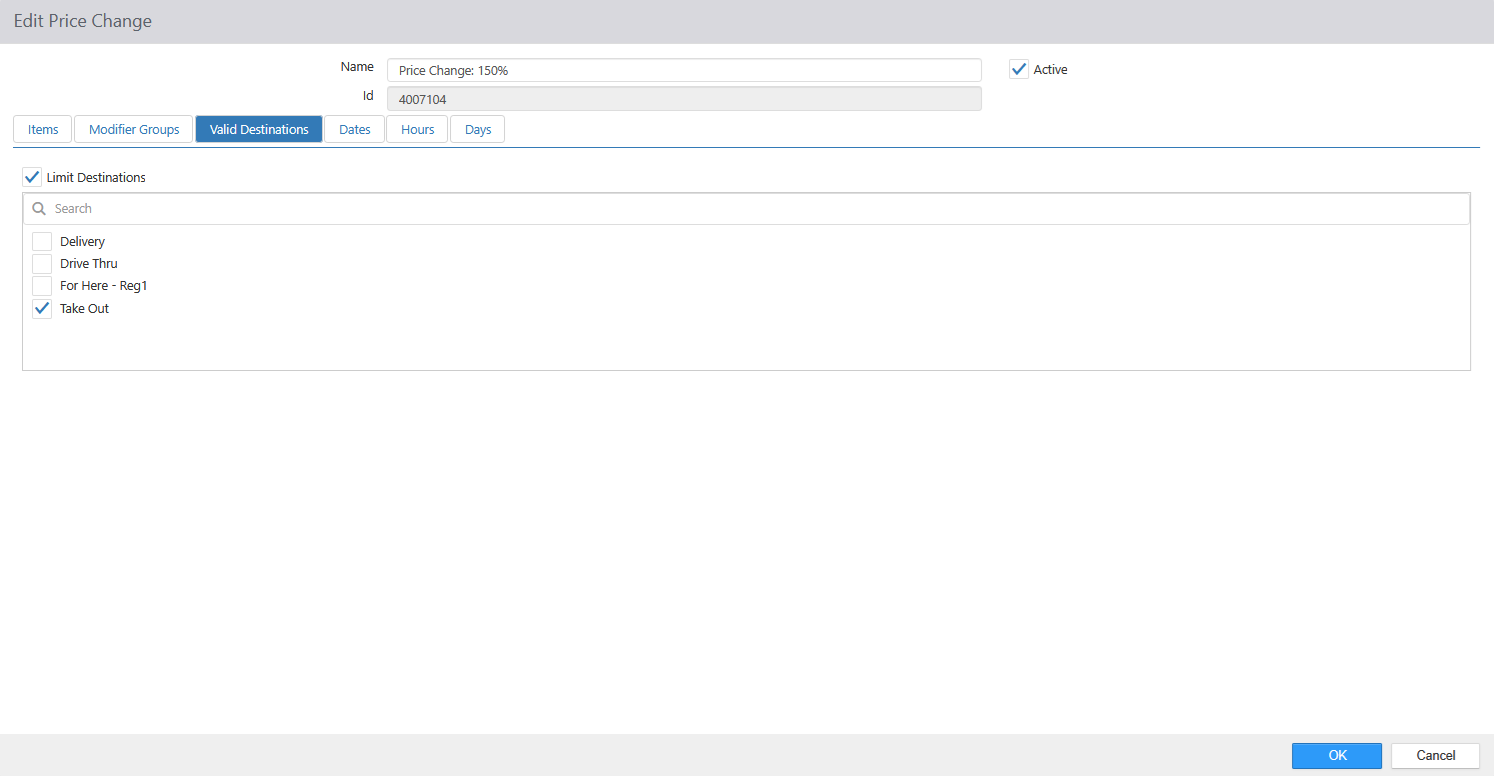
- Limit Destinations: Check this box to limit the price change to specific destinations.
- Available Destinations: The list of destinations as configured on the Destinations page (see Destinations).
- Limit Destinations: Check this box to limit the price change to specific destinations.
-
Dates tab:
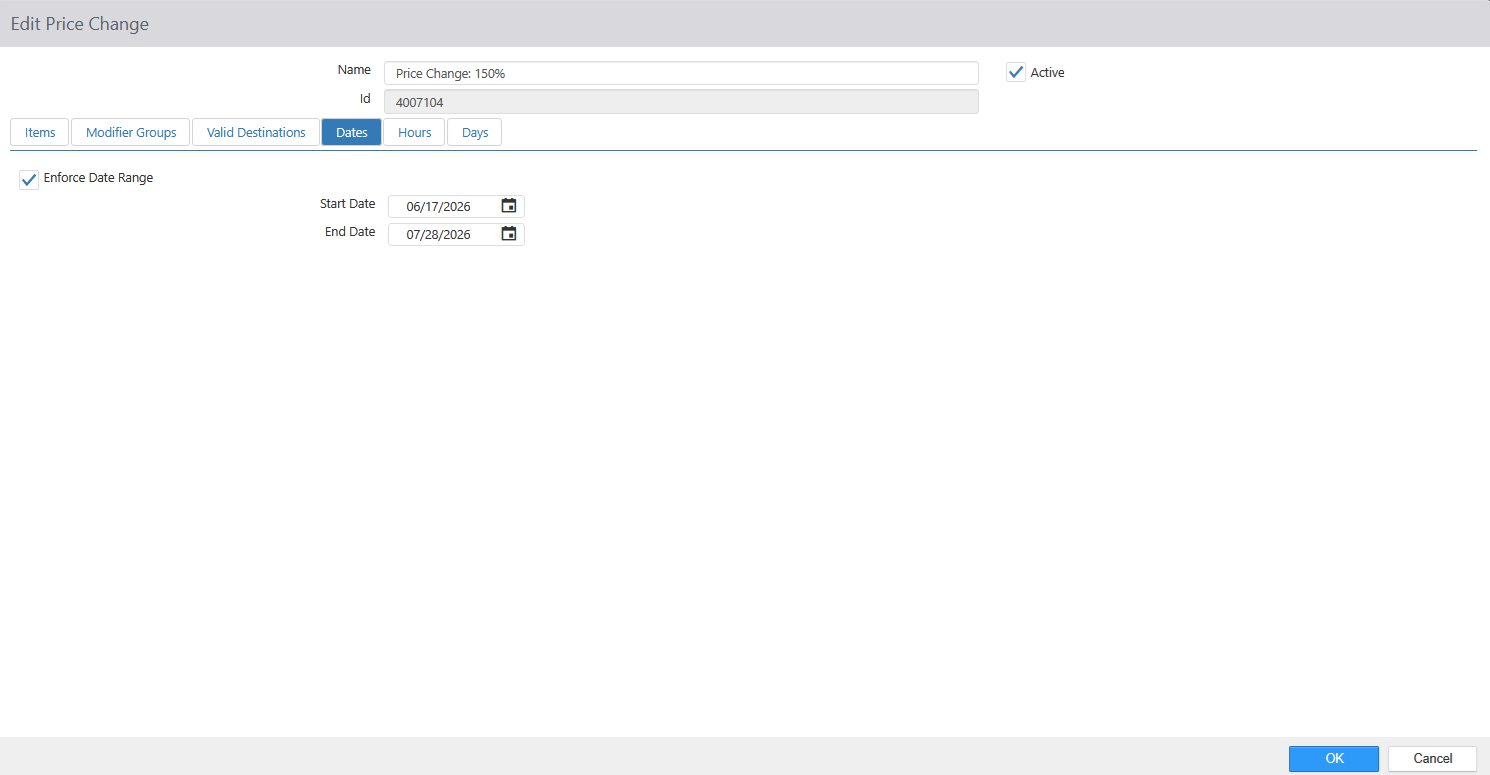
- Enforce Date Range: Check this box to limit the price change to a specific range of dates as set in the Start Date and End Date fields.
-
Hours tab:
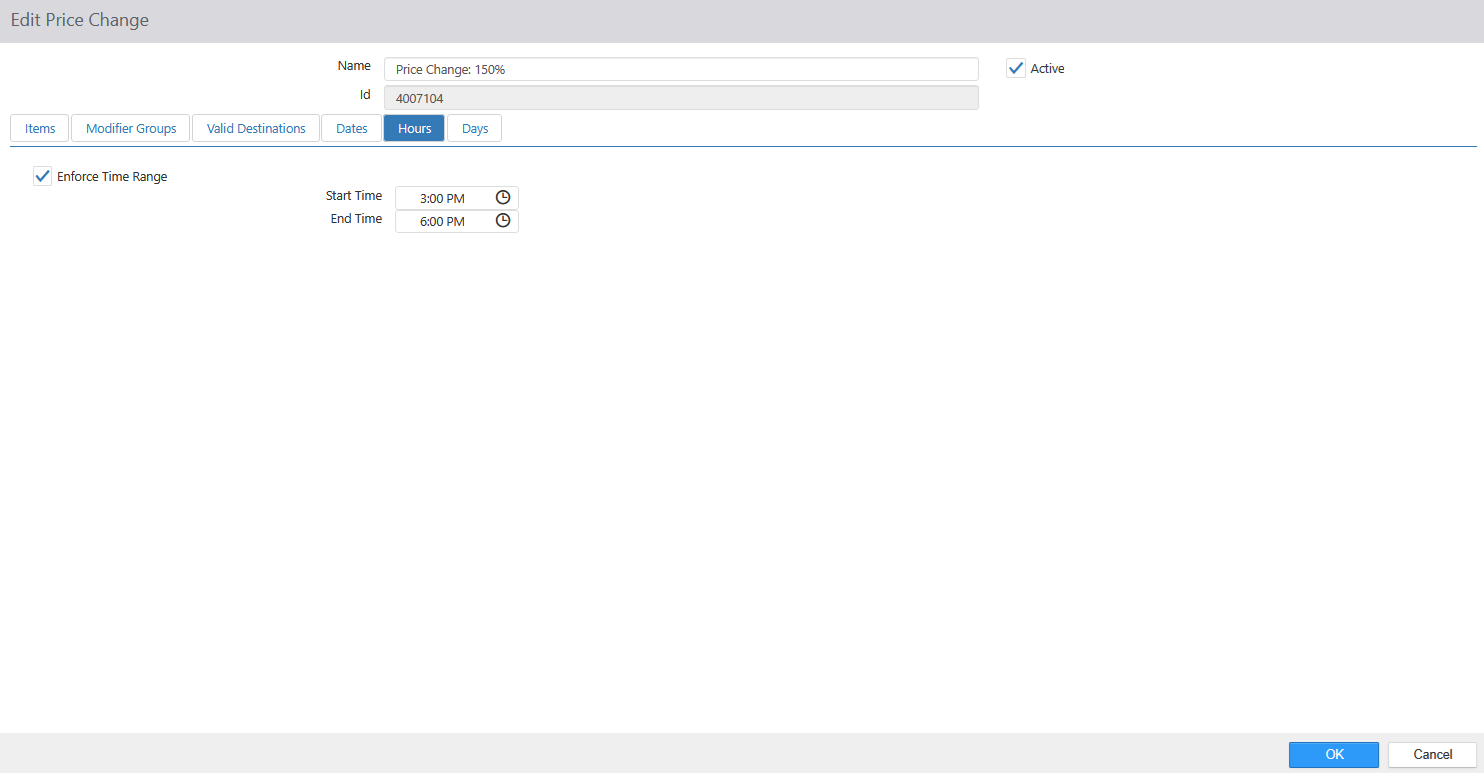
- Enforce Time Range: Check this box to limit the price change to a specific time period during the day, as set in the Start Time and End Time fields.
-
Days tab:
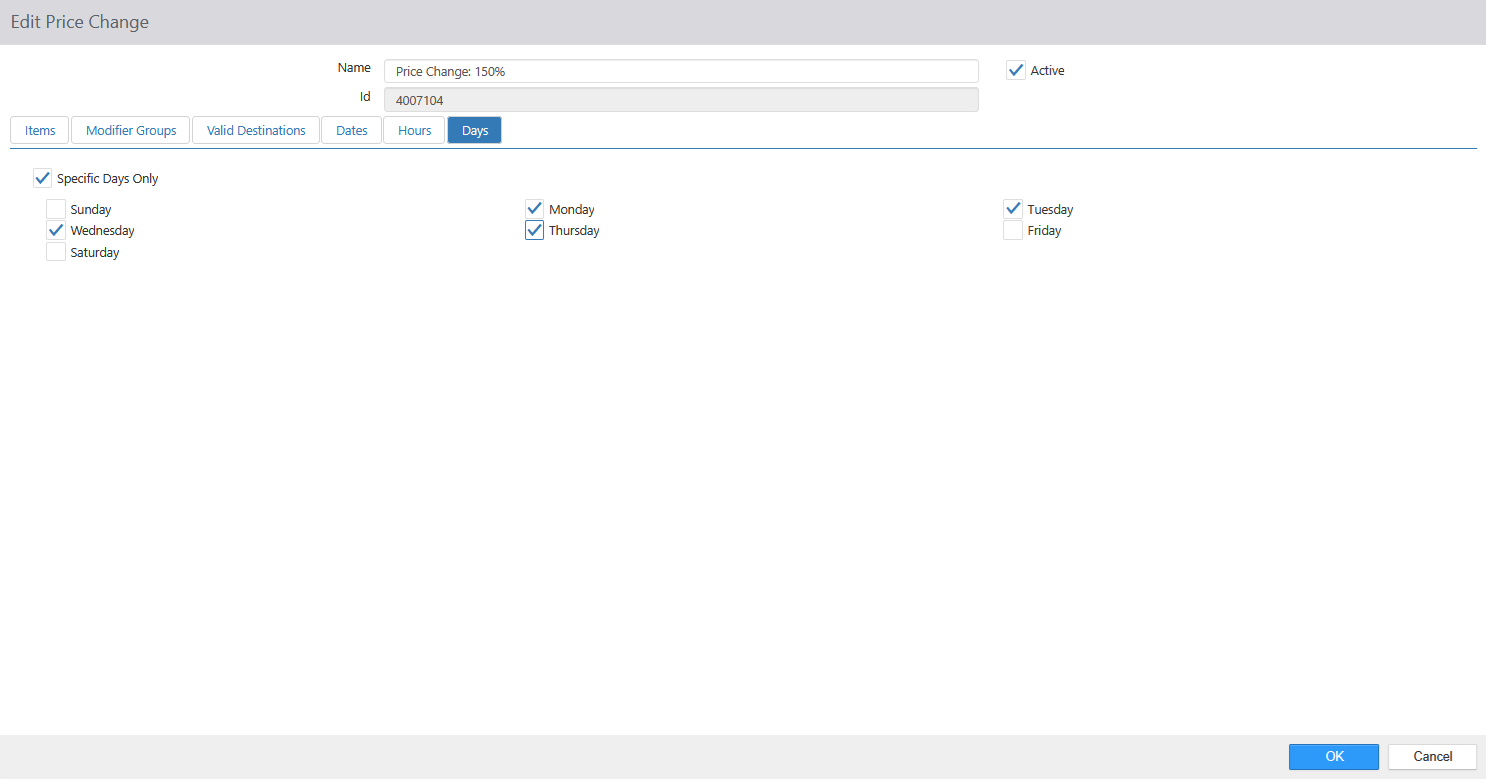
- Enforce Days: Check this box to limit the price change to specific days of the week using the check boxes below.
Price Levels
Price levels are used to define the price of like items in a single place.
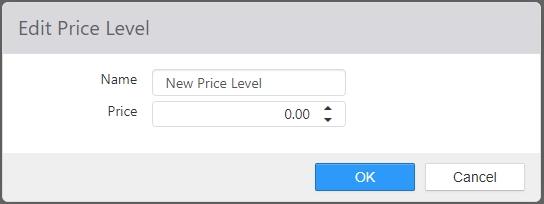
- Name: Name of the price level.
- Price: Price assigned to items of this price level.
