Modifier Bulk Price Update - Modifier Code Pricing & Modifier Codes
Modifier Bulk Price Update
A new Modifier Bulk Price Update screen has been added to Settings Editor, allowing users to view and update modifier group pricing in bulk. This feature mirrors the existing item bulk price update workflow and includes Excel import/export support, flexible price adjustment options, and role-based access control.
Modifier Bulk Price Update Screen
- A dedicated Modifier Bulk Price Update page is now available in Settings Editor for users with the appropriate button permission.
- The pricing grid displays modifier group name, modifier item name, price method, item price, modifier price, and any active price-change promotion columns.
- Prices can be edited directly in the grid, with support for filtering, sorting, and paging across large data sets.
- A bulk update modal allows users to apply a percentage-based or fixed-amount price adjustment across multiple modifiers at once.
IMPORTANT Note:
- All currency calculations use banker's rounding for accuracy.
Excel Import & Export
- Users can export the current modifier pricing to an Excel file — either the full list or a filtered subset — with price method options included as dropdown selections in the file.
- Click on the Excel Export button to export
- Users can import an updated Excel file back into the system, with automatic validation and clear error reporting for any issues found in the file.
- Click on the Excel Import button to import
Access Control
- A new permission — Modifier Bulk Price Update — has been added to the role management system.
- Found in the Admin Portal -> Configuration ->Roles
- Modifier Bulk Price Update Role option is automatically disabled.
- Administrators can grant or restrict access to this feature on a per-role basis.
Workflow
- Navigate to Settings Editor
- Click Modifier Bulk Price Update
- Use filters to filter down to the desired modifiers
- Edit the Modifier Price or the desired Price Change column
- Save and Publish

Modifier Code Pricing
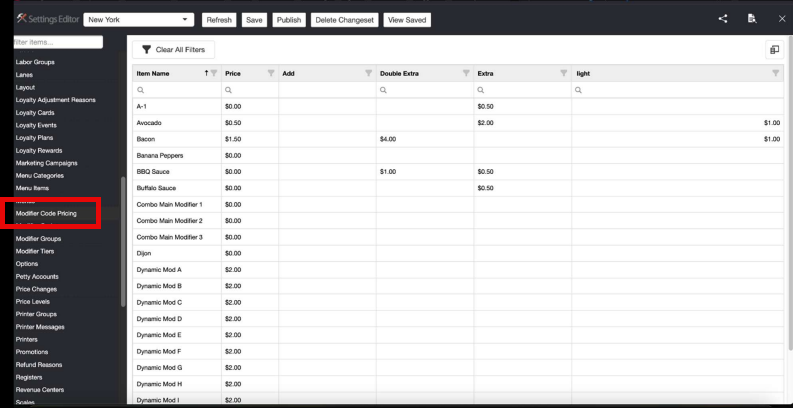
To simplify the work of quickly changing prices for modifiers across all codes ("Heavy, Extra, Light, Add," etc.) the Modifier Code Pricing page draws in all items while only displaying the items that have been previously grouped into a modifier group in Settings Editor. The only items displayed are modifiers, and the columns match the ones from the items themselves. This ensures that if a modifier does not have a price defined on a code, the user can add or remove a price as needed without needing to find the item separately.
Modifier Codes
Modifier codes are used to communicate to the kitchen how to handle modifiers, such as adding or removing particular items. The modifier code can also determine if the is a charge associated with the modifier. To create a new modifier code, click Add. To edit an existing modifier code, click its name in the list.
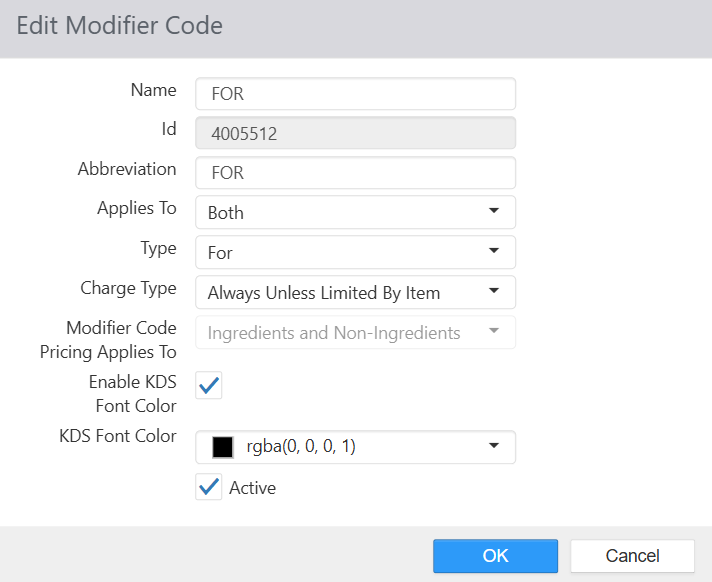
- Name: Name of the modifier code.
- Id: Modifier Code ID
- Abbreviation: Text to be added to the beginning or end of the modifier name.
- Applies To:
- Ingredients: Only for modifiers that are listed in the parent item's list of ingredients.
- Non Ingredients: Only for modifiers that are not listed in the parent item's list of ingredients.
- Both: Available for all modifiers.
- Type:
- Normal: Modifier is considered to be added to the parent item.
- No: Modifier is considered to be removed from the parent item.
- Sub: Modifier is considered to be added to the parent item, must be used in conjunction with a modifier that has a For modifier code.
- For: Modifier is considered to be removed from the parent item, must be used in conjunction with a modifier that has a Sub modifier code.
- On Side: Modifier is considered to be already included in the parent item, and not removed.
- Charge Type:
- Always Unless Limited By Item: Price of the modifier is determined by the price of its associated item.
- Never: Price of the modifier is always set to zero.
- Charge for Non-Ingredients: Price of the modifier is determined by the price of its associated item, only when not listed in the parent item's list of ingredients.
- Enable KDS Font Color: Controls whether the Modifier Code is seen on the KDS in a specified color.
- KDS Font Color (when "Enable KDS Font Color" is checked): Controls what color the Modifier Code is displayed in on the KDS.
- Active: Modifier code can be used with the `Order Modifier' button behavior.
