Kitchen Queues
A kitchen queue is a collection of order items that are to be displayed on one or more kitchen views. Order items are routed to kitchen queues by video groups. To create a new kitchen queue, click the Add New Kitchen Queue button. To edit a kitchen queue, click its name in the list.
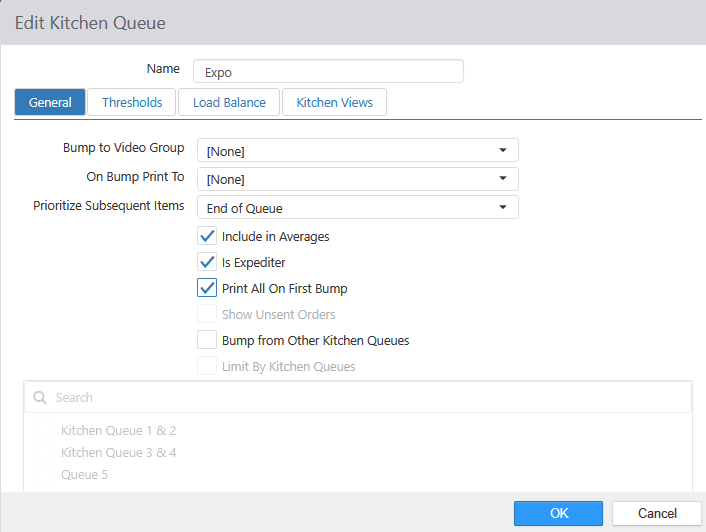
- Name: Name of the kitchen queue.
General tab:
- Bump to Video Group: Video Group to add order items to when they are bumped from this kitchen queue.
- On Bump Print To: Printer to print a kitchen chit to when the order is bumped from this kitchen queue.
Note: This setting MUST be set to a printer when using the Print on First Bump setting
-
Prioritize Subsequent Sends: Subsequent sends of an order will be displayed next to the original order on kitchen views, even if new orders have been sent prior to the subsequent send.
- If the order is sent to only one kitchen queue and the kitchen queue is an expediter and the kitchen view mode is order mode, then the order should be moved ahead of orders that do not meet the criteria above (but behind other orders that do meet the criteria).
-
Include in Averages: Include kitchen bump times in kitchen performance reports.
-
Is Expediter: Displays check marks beside order items that have been bumped from all kitchen queues that do not have Is Expediter enabled.
-
Print All on First Bump : Batch-prints all order labels and chits when a kitchen operator first bumps an item. It also adds a complementary option to suppress kitchen chit and label printing when orders are sent to the kitchen, preventing duplicate prints when both features are used together.
Note: This setting is used with Print on First Bump setting. Both MUST be setup correctly in order for the Print All on First Bump feature to work
-
Show Unsent Orders: Order items are displayed immediately on the kitchen display, prior to being sent.
- Can Bump Unsent Orders: Order can be bumped as it is completed whether sent or unsent.
- Display One Behind: Ensures items do not display in the kitchen until a second item is ordered (original item is complete with all modifiers included), or full order has been sent.
-
Bump From Other Kitchen Queues: Bumping from this queue bumps from all other queues.
- Limit By Kitchen Queues: Enables the list of queues. Only checked queues will have items bumped from them when they are bumped from this queue.
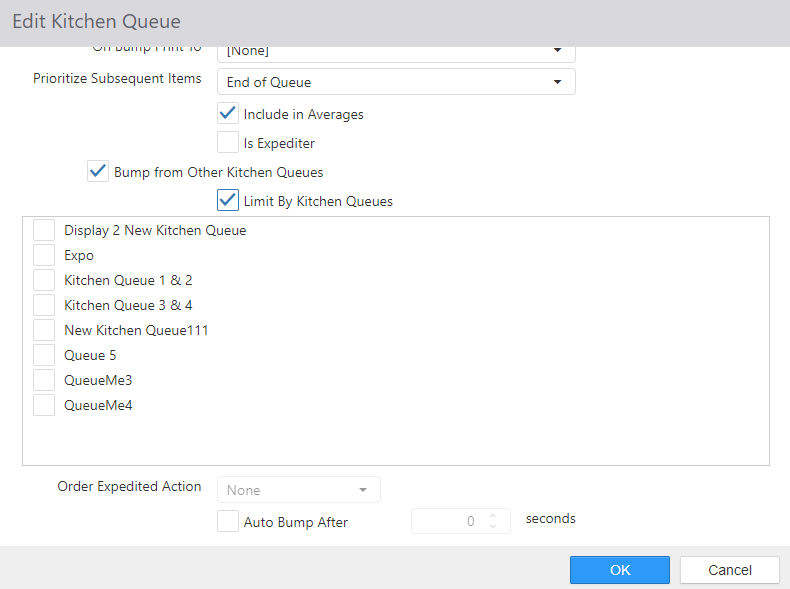
- Limit By Kitchen Queues: Enables the list of queues. Only checked queues will have items bumped from them when they are bumped from this queue.
-
Order Expediter Action: Action to perform when order is bumped from queue when Is Expediter is enabled.
-
None (default) is a valid options.
-
Send Email

- Email Template: Email template to be sent. Email Templates setup in the Email Templates entity in Settings Editor.
-
Send Page
-
Send SMS
- Message: Content of the text message to be sent.
-
-
Auto Bump After: The number of seconds before items not yet bumped from this queue will be automatically bumped.
- If not selected, items/orders will not be automatically bumped from this queue
Thresholds tab:
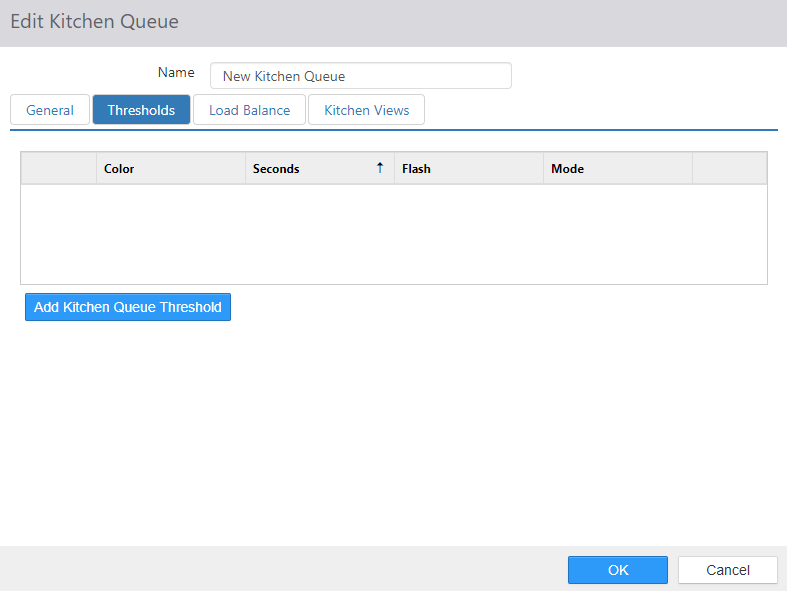
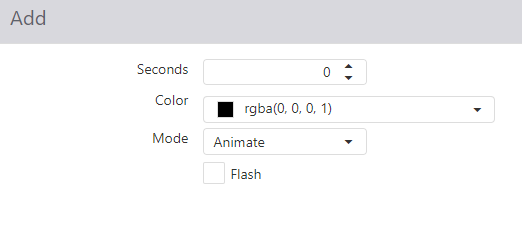
- Color: Color of the order card border.
- Seconds: Number of seconds after the order appears in the queue to apply the threshold style.
- Flash: Flash the order card timer.
- Mode:
- Animate: Change order card border color with animation effect.
- Switch: Change order card border color without any affects.
- Add Kitchen Queue Threshold button: Select to add a new threshold.
Load Balance Tab
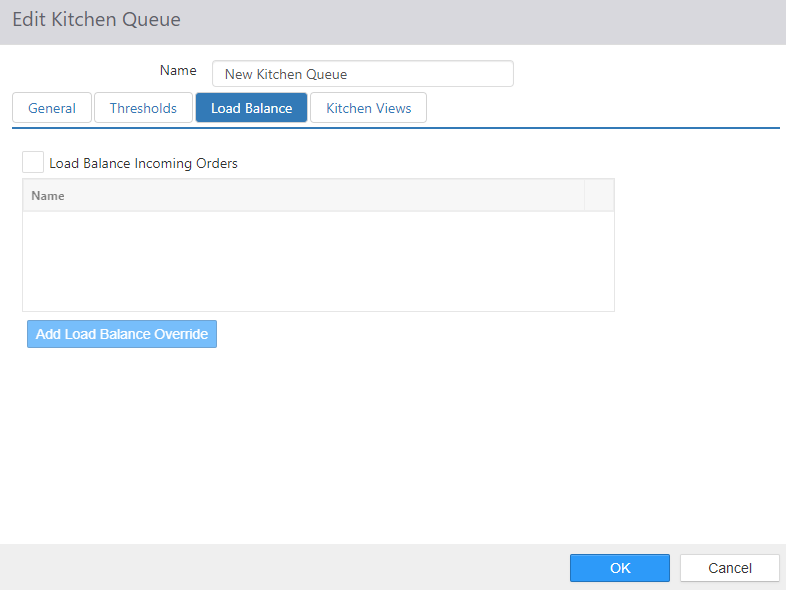
Controls designed to help evenly distribute incoming orders in the queue to multiple Kitchen Displays.
-
Load Balance Incoming Orders: Distribute incoming orders to multiple Kitchen Views based on the rules set in one or more Overrides.
-
Overrides: List of rules for distributing orders to multiple Kitchen Views. The current load balance Override is displayed on the bottom of all kitchen views that this kitchen queue is disbursing orders to.
- Enabled when Load Balance Incoming Orders selected.
-
To add an override, click the Add Load Balance Override button.
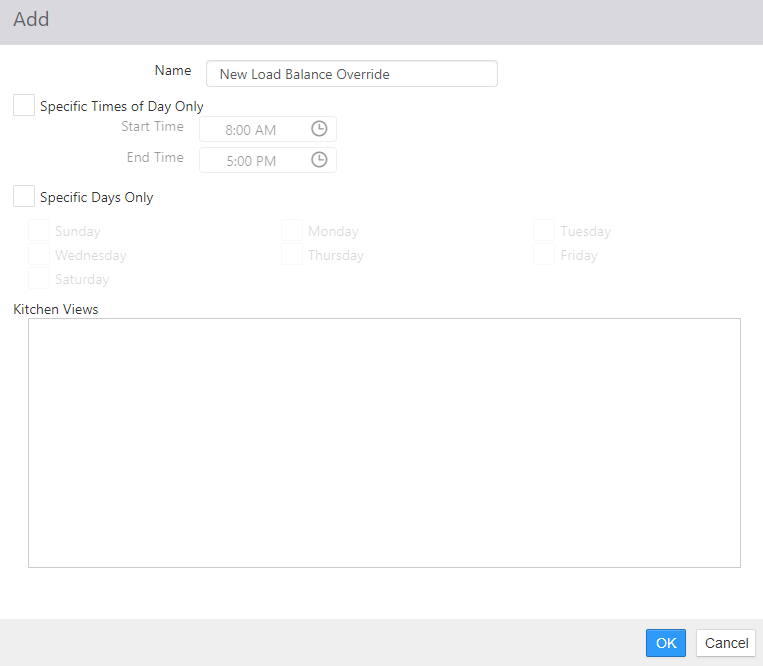
- Name: The name of the override.
- Specific Time Only: The override is automatically activated between the configured Start Time and End Time.
- Specific Days Only: If Specific Time Only is enabled, the override is only activated on the selected days of the week.
- Kitchen Views: The views to which the orders in the queue are evenly distributed.
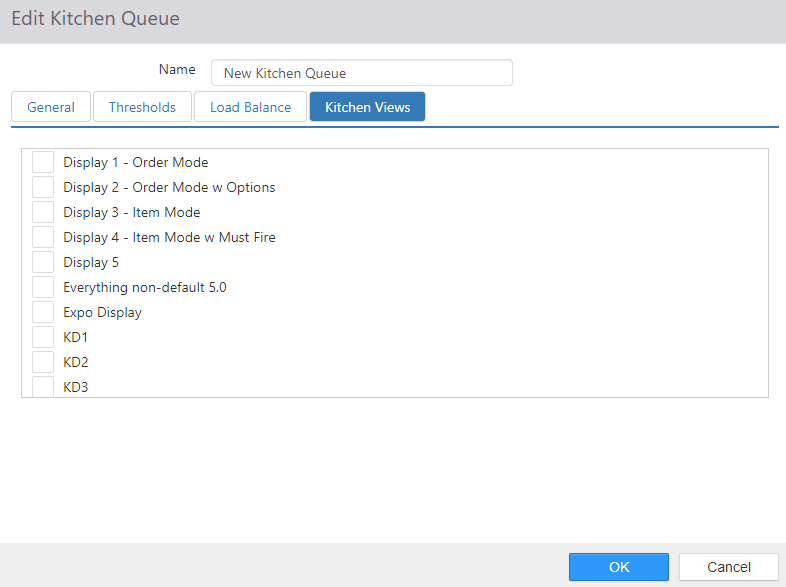
Kitchen Views Tab
List of Kitchen Views that can be assigned to this kitchen queue.