Kitchen Views
Kitchen views are a way to allow two different kitchen stations to display on one kitchen display terminal. A kitchen display can have one or two kitchen views displaying. If two display, they can be configured to display horizontally (one on top of the other) or vertically (side by side). This sharing of the kitchen display is referred to as "Split Screen."
To create a new kitchen view, click Add New Kitchen View. To edit an existing kitchen view, click its name.
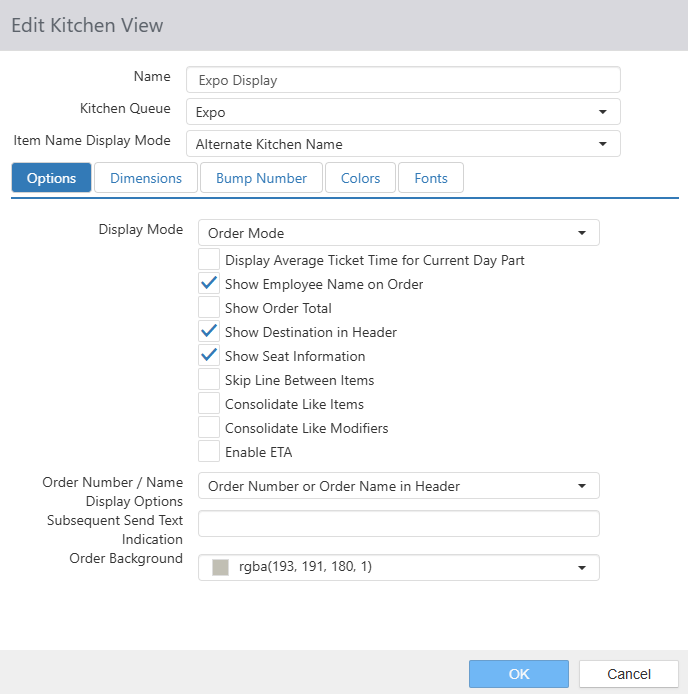
Options Tab
- Name: Name of the Kitchen View
- Kitchen Queue: The kitchen queue from which to display and bump order items.
- Item Name Display Mode: Can select how you want the item name to display.
- Alternate Kitchen Name: The "Kitchen Name" of the item, found in Items.
- Full Item Name: The "Name" of the item, found in Items.
- Display Mode:
- Order Mode: Displays order items grouped by order in grid format.
- Item Mode: Displays order items in list format.
- Display Average Ticket Time for Current Day Part: Displays the average amount of time between an order being sent to the kitchen and being bumped from the kitchen queue for the current day part (as configured on the Day Parts page) at the bottom of the current kitchen view.
- The following options are available only when Display Mode is set to Order Mode:
- Show Employee Name on Order: Displays the name of the employee who owns the order at the bottom of the order card.
- Show Order Total: Displays the total order amount at the bottom of the order card.
- Show Destination in Header: Displays the order destination at the top of the order card.
- Show Seat Information: Displays table and seat numbers
- NOTE: Group Items by Seat must be checked on the Table Service tab of the Edit Job dialog for this setting to work. See Jobs.
- NOTE: This setting uses the Seat Label Override and Party Label Override values found on the Details tab of the Edit Destination dialog, if any. See Destinations.
- Skip Lines Between Items: Adds an extra space between order items.
- NOTE: This does not affect the spacing between modifiers.
- Consolidate Like Items: Order items of the same item, with the same modifiers, are displayed as a single item on the kitchen display with a quantity to the left.
- NOTE: Prior to version 5.0g of the software, this setting was in Options > Kitchen.
- Consolidate Like Modifiers: Displays like modifiers on a single line with quantity on the KDS as opposed to single line items for each modifier.
- Enable ETA: Shows the guest's ETA to the store on the KDS.
- NOTE: The following prerequisites apply to this option:
- Guest must be signed up to the store's loyalty program
- Guest must have a cell phone with them and be logged into the loyalty program.
- Store must be running Windows build 14393 or higher on the primary register.
- Store must be running .Net8 on the primary register.
- Store must have a Radar account.
- NOTE: The following prerequisites apply to this option:
- Order Number/Name Display Options: Controls where the Order Number and Order Name is displayed on the KDS. Options include:
- Order Number or Order Name in Header
- Order Number & Order Name in Header
- Order Number in Header, Order Name in Body
- Order Number Only in Header
- Subsequent Send Text Indication: Text to be displayed in the header of subsequent sends of an order on kitchen views. This text can be up to 25 characters in length.
- Order Background: Sets the background color of the order display area.
Dimensions Tab
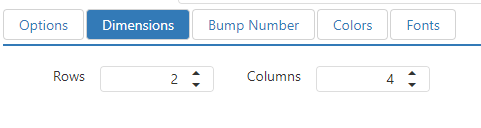
- Rows: Number of rows to display when Display Mode is set to Order Mode.
- Columns: Number of columns to display when Display Mode is set to Order Mode.
Bump Number Tab
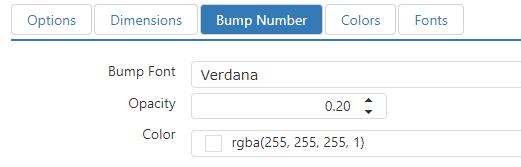
- Bump Font: Font of the bump number that appears in the background of the order card.
- Opacity: Transparency of the bump number that appears in the background of the order card.
- Color: Color of the bump number that appears in the background of the order card.
Format Tab
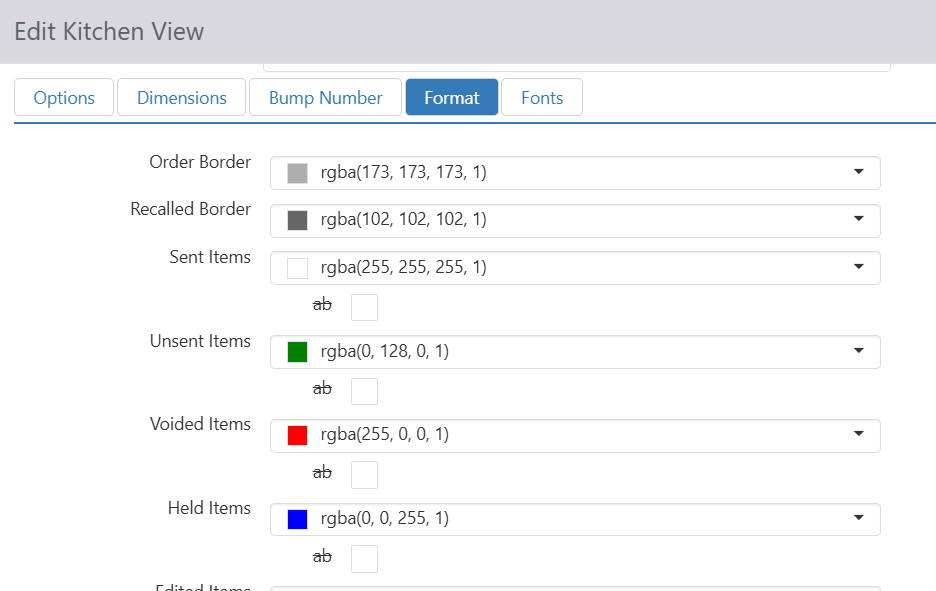
- Order Border: Color of the border surrounding the order card.
- Recalled Border: Color of the border surrounding orders that have been recalled.
- Sent Items: Color of order items that have been sent to the kitchen.
- Unsent Items: Color of order items that have not been sent to the kitchen.
- Voided Items: Color of order items that have been voided.
- Held Items: Color of order items that are currently being held.
- Edited Items: Color of order items that have been edited after being sent to the kitchen.
- Editing Items: Color of order items that are in the process of being edited after being sent to the kitchen.
- Modifiers: Color of modifiers attached to order items.
- ab checkbox: Displays the text on the KDS in strikethrough format.
Fonts Tab
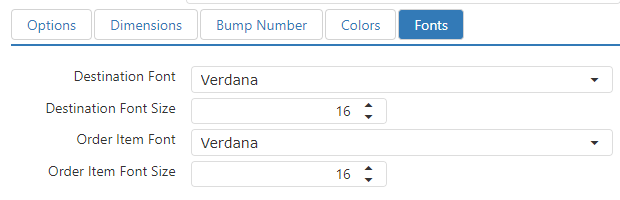
- Destination Font: Font face of the destination displayed at the top of the order card.
- Destination Font Size: Font size of the destination displayed at the top of the order card.
- Order Item Font: Font face of the order items.
- Order Item Font Size: Font size of the order items.
