Brands, Cash Drawers & Charities
Brands
Item sales can be allocated to multiple concepts, allowing reporting sales of common items across brands.
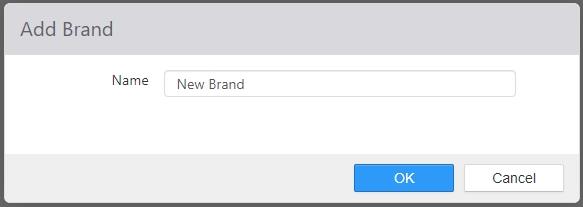
The brands set here can be used in Items, Brand Allocations tab. In addition, your Product Mix report shows items grouped by brand.
Cash Drawers
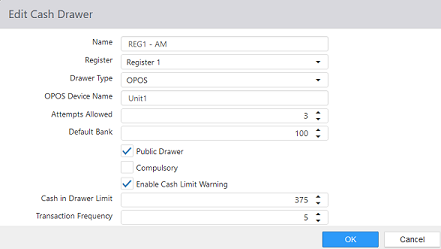
The Cash Drawers page lists the physical cash drawers at the location.
-
Name: Name of the cash drawer.
-
Register: Terminal that the cash drawer is associated with.
-
Drawer Type: Interface type of the cash drawer.
- None
- OPOS
- OPOS Device Name: Logical device name in the OPOS driver.
- POS for .Net
- Printer Interface
- Printer: Printer the cash drawer is physically connected to.
NOTE: This cannot be an OPOS printer.
- Printer: Printer the cash drawer is physically connected to.
- Serial Interface
- Serial Port: COM port the cash drawer is physically connected to.
-
Attempts Allowed: Number of times the system will allow an invalid declared cash amount when cash drawer is checked out.
-
Default Bank: Default starting bank amount when cash drawer is assigned.
-
Public Drawer: Allows cash drawer to be assigned as public, allowing any employee to utilize the cash drawer.
-
Compulsory: Requires the cash drawer to be closed before any further functions can be performed.
-
Open Status Phase:

-
Enable Cash Limit Warning: Enables Cash Skims which allows configurable excess cash warnings. The cashier will be notified and a clear visual signal for the manager will also be displayed. This feature will reduce the risk of cash handling errors and help prevent the risk of robbery due to known high levels of cash on hand.
- A Skim Detail Report has also been added for restaurant management/operators. It provides the insight needed to ensure the cash skim is completed in a timely manner.
-
Cash in Drawer Limit: Set to the maximum dollar amount the drawer can hold before warning a skim must be performed.
- It is required to include the default bank when using the skim feature. All cash taken from the drawer in a drawer skim will include the starting bank, no way around this.
- Red border on the Register will persist until the amount of cash in the drawer is below the limit
-
Transaction Frequency: Once the drawer limit has been reached, this setting determines the number of orders that can be taken before the cashier is given another warning.
- Default is 5
- A Transaction is completed when an order is closed
- Auto-Close Destination excluded from calculation
Charities
Charities can be assigned to orders and financially accounted for as donations on the Sales Summary reports and Donation summary report. Donations are not included in reported sales.
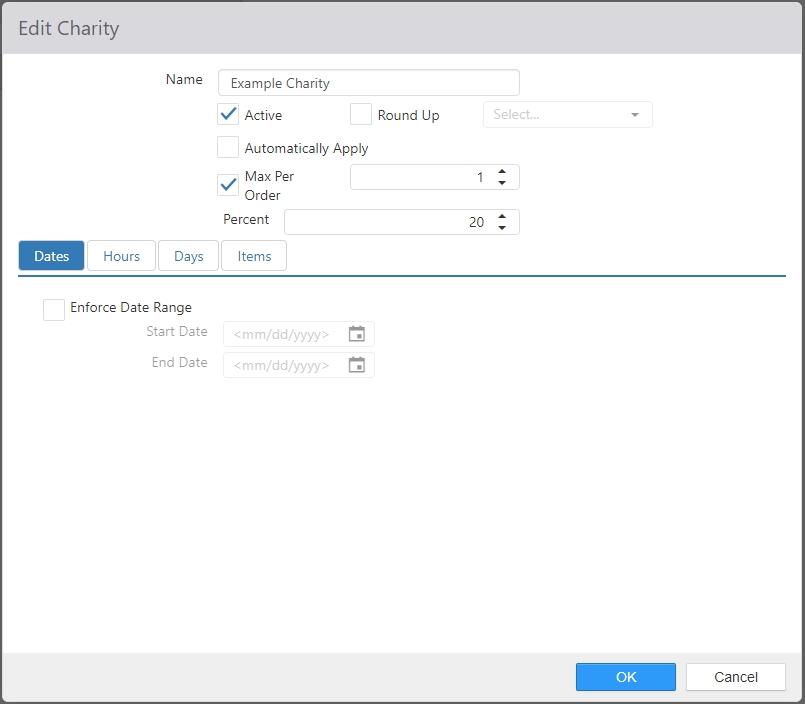
- Name: Name of the charity.
- Active: Charity can be assigned to orders.
- Round Up: Activate the "round up for charity" feature. Use the drop-down list to select the non- revenue, zero-priced item associated with the round up feature. See Items.
- Automatically Apply: Automatically apply the charity to all orders that qualify.
- Max Per Order: Limits the number of times the charity can be assigned to an order.
- Percent: Charity amount to be applied as a percent of the order sub-total.
- Date: Limits the date(s) on which the charity can be applied.
- Time: Limits the time of day during which the charity can be assigned.
- Days: Limits the day(s) of the week on which the charity can be assigned.
- Items: Items in the Selected Items list will have their sales counted towards the charity.
NOTE: It is recommended that any items sold for charity be non-revenue items. See Items.
