Accounting & Export
Accounting
Accounting allows you to access budgets, deposits and royalties.
Budgets
Sales and labor budgets can be defined on a per day and per location basis for the purpose of reporting sales and labor as a percent of budget on the Admin Portal Dashboard.
Budget page
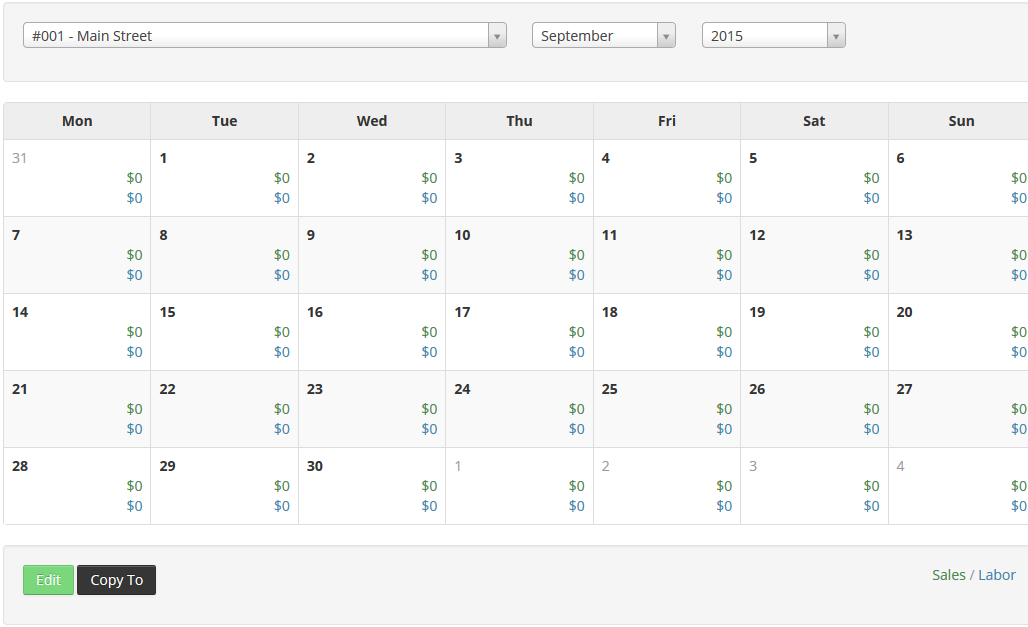
Use the Edit button at the bottom of the page to enable edit mode on the calendar.
Budget page edit mode
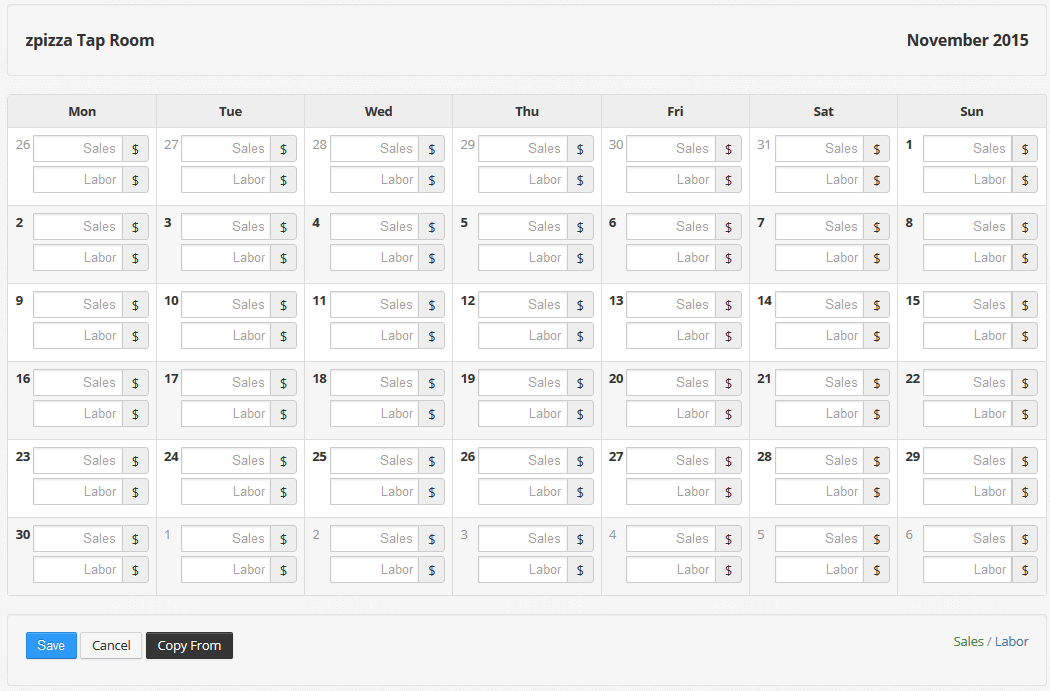
Once in edit mode, you can enter daily budget amounts or use the Copy From button to copy budget values for other months/locations.
You can also use the Copy To button to copy the visible month to another month and/or location.
Deposits
Bank deposits are used to report cash variances on the Daily Sales Summary report in the Admin Portal, and any variance is also included in any GL account exports.
Deposits page
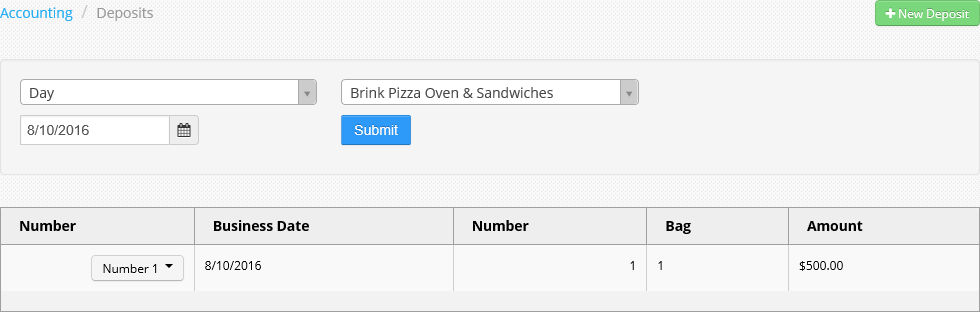
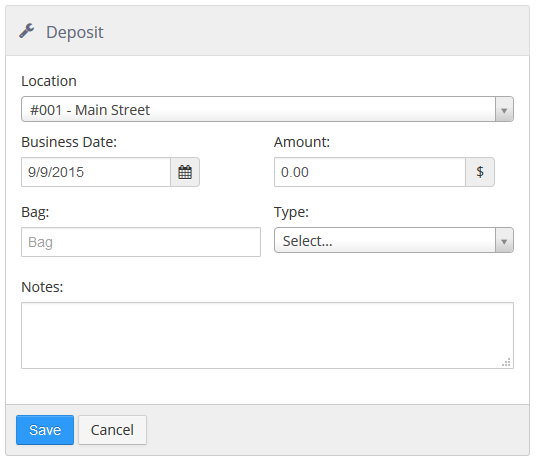
New deposits are created by clicking the +New Deposit button to open the Deposit entry screen. Existing deposits can be edited by selecting Edit in the deposit's drop-down list.
Deposit entry screen
-
Location: Location of the bank deposit. This can be selected using the drop-down list for a new deposit, but cannot be edited.
-
Business Date: Business date on which to report the bank deposit. This can be changed when creating a new deposit, but cannot be edited.
-
Amount: Dollar amount of the bank deposit.
-
Bag: Name or number on the physical bag, for auditing purposes.
-
Type: Type of bank deposit, lists the Deposit Types defined in Settings Editor for the selected location.
-
Number: The number of the deposit. This is only displayed when editing a deposit, not when creating a new one.
-
Notes: Any pertinent notes for auditing purposes.
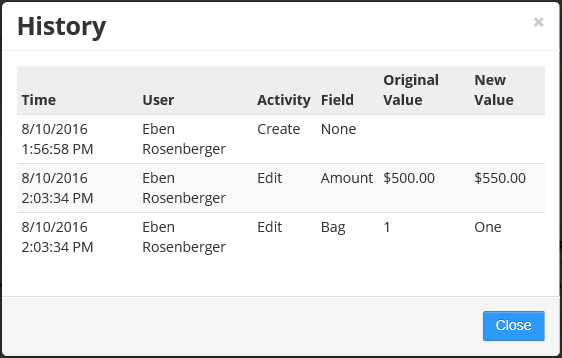
Selecting History in the deposit's drop-down list shows the history of the deposit.
History dialog
Royalties
Royalties can be defined for the calculation of royalties reported on the Royalties by Location report.
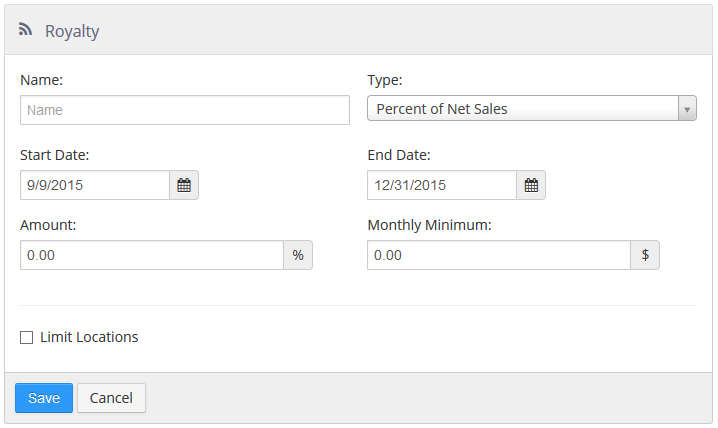
Royalty entry dialog
-
Name: Name of the royalty.
-
Type:
-
Percent of Net Sales:
-
Amount: Percent of the net sales that is due as a royalty.
-
Monthly Minimum: Minimum amount due per month, regardless of percent of net sales.
-
-
Fixed Per Month:
- Amount: Dollar amount of the royalty per month.
-
-
Start Date: First business date the royalty is effective.
-
End Date: Last business date the royalty is effective.
-
Limit Location: Royalty is only to be paid by the selected locations.
Export
The Export section provides tools for exporting customers, sales, labor, settings, and surveys.
Customers
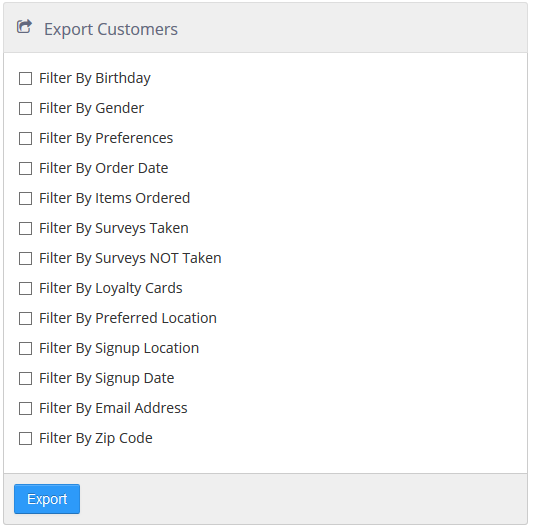
The Export Customers tool produces a CSV file for download which contains customer records that match the selected filters.
Export Customers tool
-
Filter By Birthday: Filter customer to those whose birthday is within a given date range.
-
Filter By Gender: Filter the customers by one or more gender options.
-
Filter By Preferences: Filter the customers by one or more communication preferences.
-
Filter By Order Date: Filter the customers to those who ordered within a given date range.
-
Filter By Items Ordered: Filter customer to those who have ordered one or more particular items.
-
Filter By Surveys Taken: Filter customers to those who have completed one or more particular surveys.
-
Filter By Surveys NOT Taken: Filter customers to those who have not completed one or more particular surveys.
-
Filter By Loyalty Cards: No longer supported as of March 31st, 2024.
-
Filter By Preferred Location: Filter customers to those who prefer a particular location.
-
Filter By Signup Location: Filter customer to those whose account was created at a particular location.
-
Filter By Signup Date: Filter customer to those that were created within a given date range.
-
Filter By Email Address: Filter customer to those whose email address is in a given list of email addresses.
-
Filter By Zip Code: Filter customer to those that have an address with a zip code is in a given list of zip codes.
Sales
The Export Sales tool produces a file that can be imported into a third-party accounting or inventory system. The format and file type of the export is dependent on the export type that is selected. For example, the file format for QuickBooks is IIF.
Export Sales tool
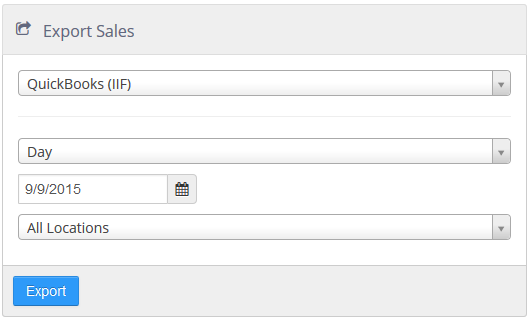
Data formatting is based on the general ledger account mapping defined in Settings Editor at Options > Accounting > GL Export. Contact your third-party software provider for details on how to import the exported file.
Labor
The Export Labor tool produces a file that can be imported into a third-party payroll system. The format and file type of the export is dependent on the export type that is selected.
Export Labor tool
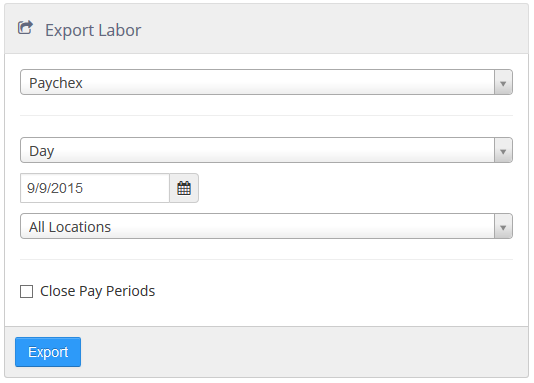
Data formatting and file name is based on the settings defined in Settings Editor at Options > Labor > General.
When Close Pay Periods is checked, the status any pay periods included in the export will be set to Closed.
Contact your third-party software provider for details on how to import this file.
Settings
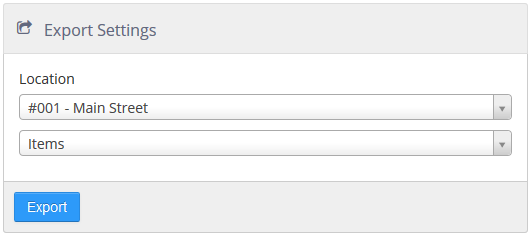
The Export Settings tool produces a CSV file containing records of the selected settings type from the selected location. Currently, only items can be exported.
Export Settings tool
Surveys
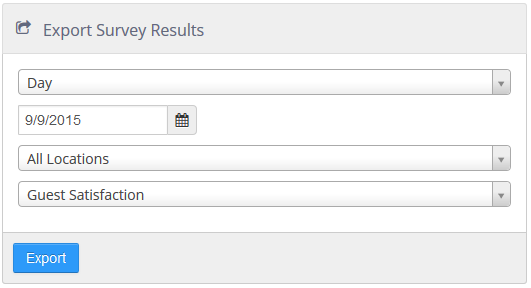
The Export Survey Results tool produces a CSV file containing survey responses for the selected survey completed within the selected date range.
Export Survey Results tool