PAR POS Order Ready Board Configuration Guide
Version 01
What is the PAR POS Order Ready Board
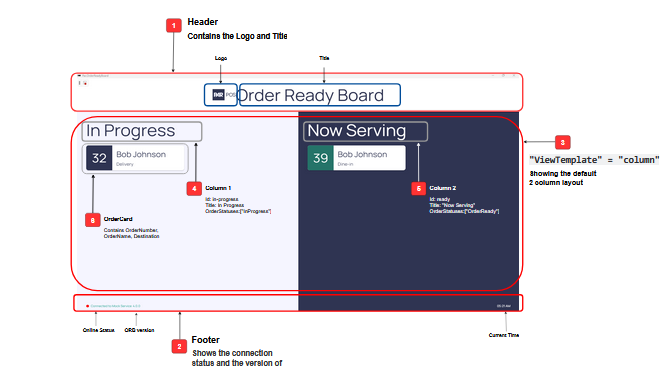
A new customer-facing display, the Order Ready Board, has been introduced for installation inside the store, near the front counter. This screen provides real-time order status updates to guests, eliminating the need for staff to manually communicate order progress.
Each order displayed on the board includes the order number, guest name, and order destination.
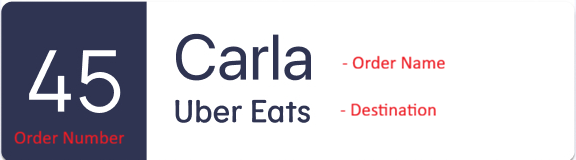
Order Status
- In Progress -- The order has been received and is currently being prepared by the kitchen.
- Now Serving -- The order has been completed, bagged, and is ready for guest pickup.
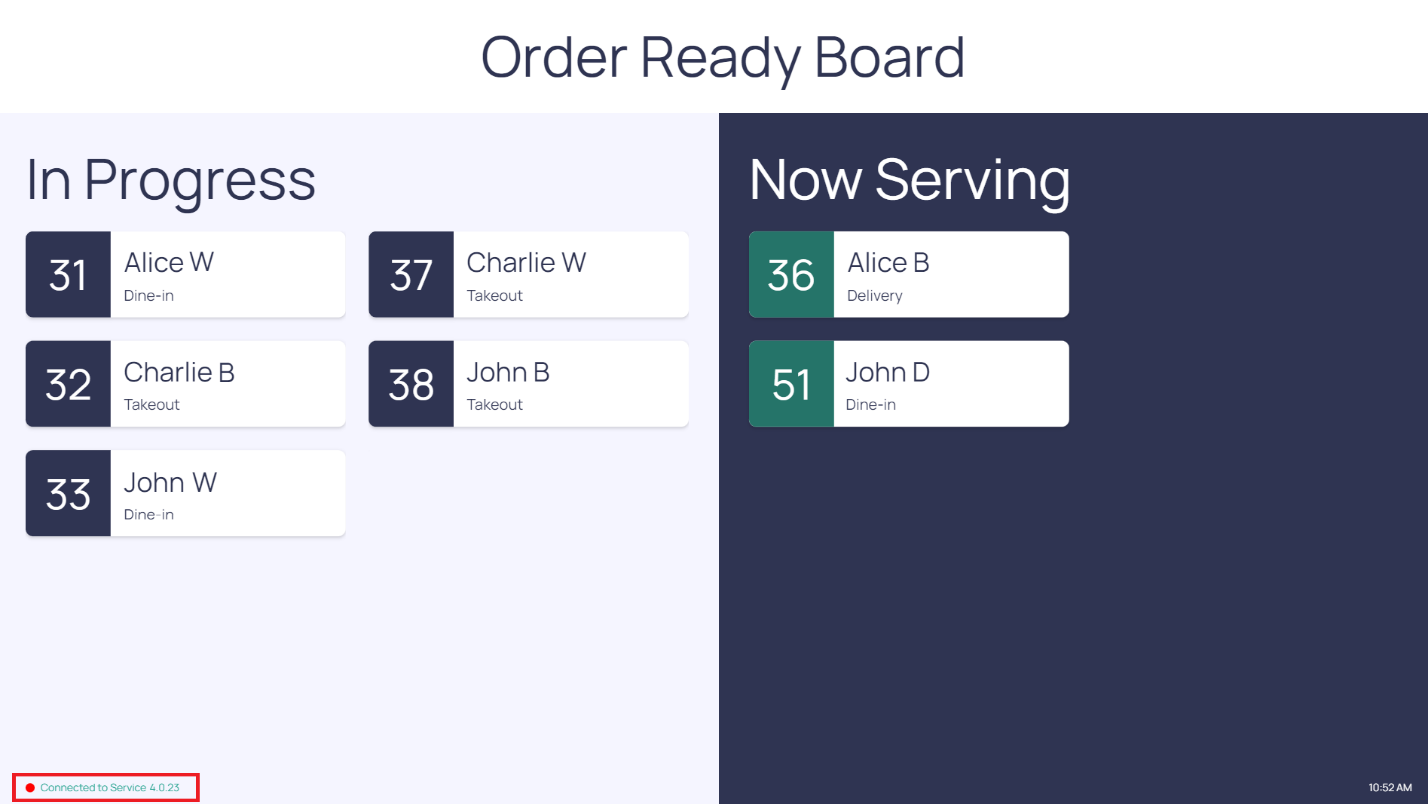
Connection Status
Shown in the bottom left corner of the screen, indicating connectivity to the Primary Register.
- Green = ORB is online and communicating with the Primary Register
- Red = ORB is offline and is not communicating with the Primary Register
- Yellow = Limited connectivity, meaning the MQTT server is online, but unable to communicate with register 1
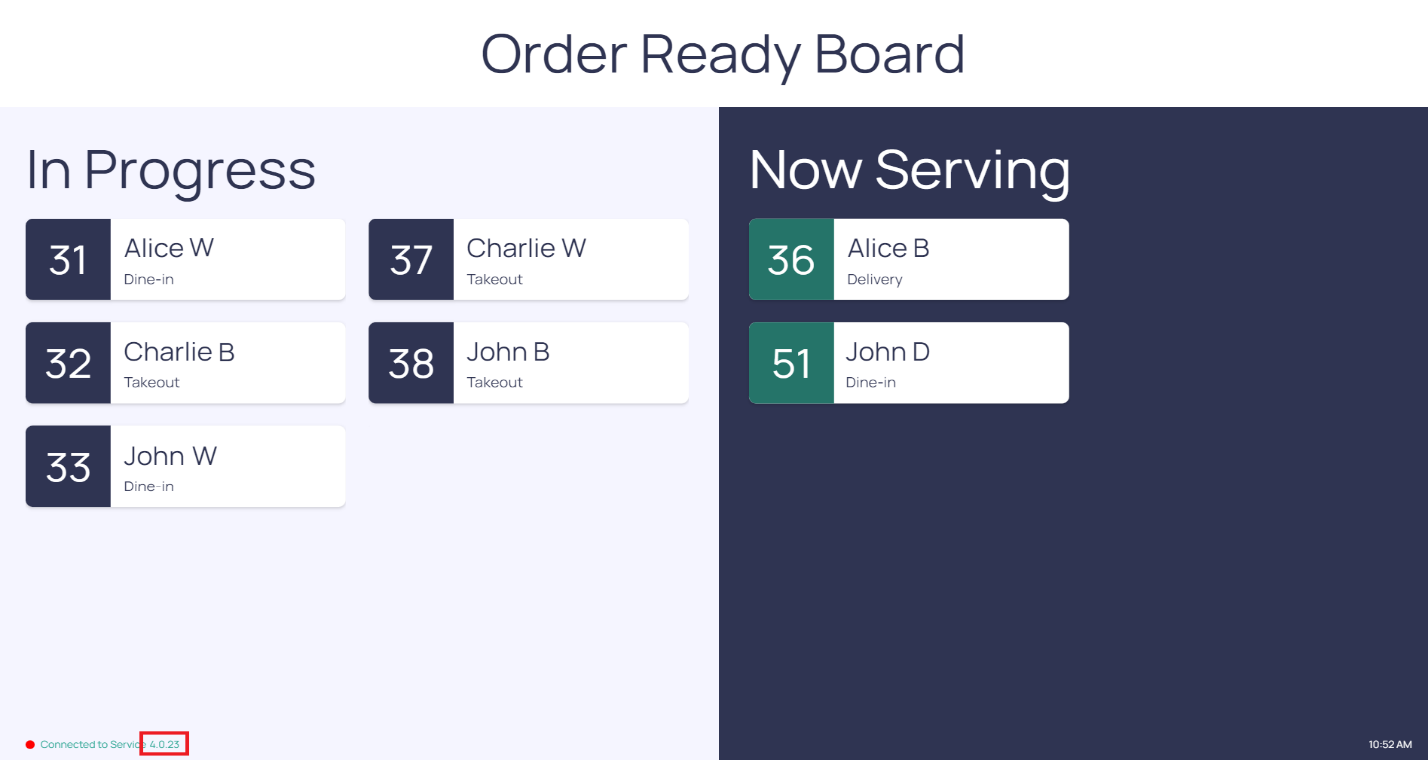
Current Version
The current version of the ORB is displayed in the bottom left corner of the ORB screen.
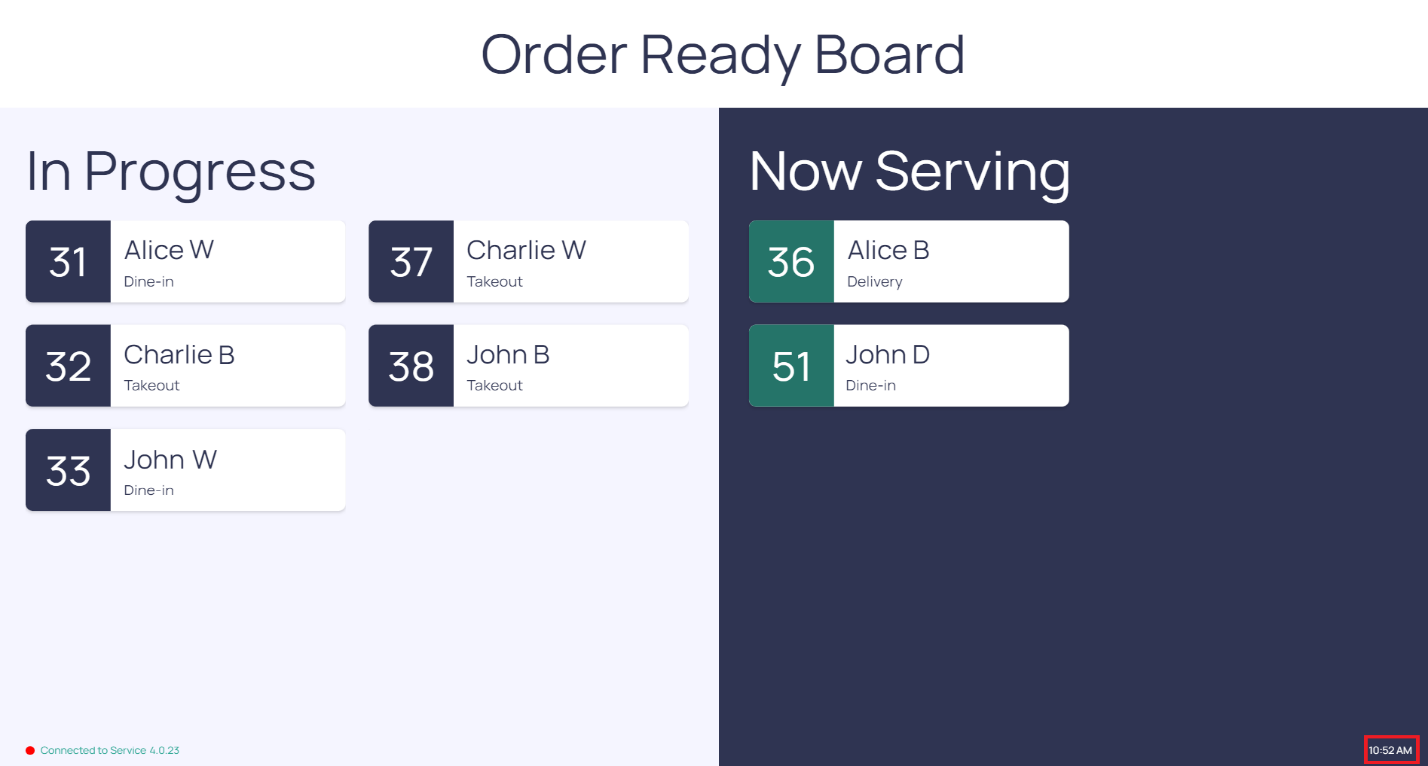
Current Time
The system time is displayed in the bottom right corner of the ORB screen.
Supported Order Types (Destinations)
The Order Ready Board supports orders placed through the following channels:
- In-store register
- Self-service kiosk
- Digital ordering platforms
- Third-party delivery applications (e.g., DoorDash, Uber Eats)
Communication
The Order Ready Board (ORB) listens to events being broadcast from the Primary register using the In-store API MQTT service.
Order Ready Board (ORB) Requirements
Hardware Requirements
| Component | Details | Part Number |
|---|---|---|
| M4712 Controller | M4712-01, Windows 11 IoT LTSC v24H2 | CS2345 |
| 32" Display | M3708 | |
| HDMI Cable | Controller to display | |
| Network Cable |
Software Requirements
| Requirement | Details |
|---|---|
| PAR POS | Version 5.16 or higher |
| ORB Image | Pre-installed on M4712 (CS2345) controller |
| Feature Flag | Register.EnableInStoreApi must be enabled |
| Orbit | Must be enabled on the Primary Terminal |
Network / Whitelisting Requirements
Refer to the PAR POS Network Connectivity guide for the full list of required URLs and ports.
Important: The order ready board requires a primary terminal and at least 1 KDS video.
Configuration
There are two configuration files to consider when setting up the ORB:
C:\Brink\ORB\appsettings.json-- This application configuration file (how the ORB runs)c:\Brink\ORB\ORBUIConfigurations.json-- The User Interface setup (how the ORB looks)
Setting up the appsettings.json File
Logging -- This section is automatically configured and requires no changes.
App Config -- Core settings
| Key | Value | Description |
|---|---|---|
Environment |
"Production" |
Deployment environment. Affects error handling, logging verbosity, and feature flags. |
LocationId |
"8c6be83e-f321-..." |
Unique GUID for this physical restaurant/location. Identifies which Order Ready Board is serving which site. |
ServiceType |
"mqtt" |
Data service implementation to use for receiving order data. |
Display |
{} |
Reserved for future display-related settings. Leave as empty object. |
MQTT settings
Connection settings for the Message Queue Telemetry Transport protocol used to receive live order events.
| Key | Value | Description |
|---|---|---|
Host |
broker address | MQTT broker server address. |
Port |
1883 |
Standard MQTT port (unencrypted). |
ClientId |
"OrderReadyBoard-MQTTClient" |
Unique identifier for this MQTT client connection. |
OrderTopic |
"Orb/Events" |
Topic for receiving order events. ⚠ Do not change |
StatusTopic |
"Orb/Upgrade" |
Topic for upgrade/maintenance messages. ⚠ Do not change |
PrimaryRegisterStatusTopic |
"Status/Register/Primary" |
Primary POS register status updates. ⚠ Do not change |
AutoReconnectDelaySeconds |
5 |
Seconds to wait before attempting reconnection after a disconnect. |
MaxReconnectAttempts |
10 |
Maximum reconnection attempts before giving up. |
Important:
- Port must be set to 1883.
- MQTT uses port 1883 to communicate.
- If the port is set to a different number, the ORB will show Offline.
IncludedEvents
This setting controls which events the ORB listens to. Add or remove events based on your setup:
| Event | What it does | When to use it |
|---|---|---|
ApplyPaymentEvent |
Triggers when a payment is applied to an order | Use this to show orders in the In Progress section of the ORB |
BumpOrderEvent |
Triggers when an order is marked complete/bumped from the kitchen | Required so orders are removed when bumped from the expo or configured screen |
SendOrderEvent |
Triggers when a new order is sent to the kitchen | Use this for orders placed via digital platforms (e.g. ordering app, DoorDash, UberEats) |
NameOrderEvent |
Triggers when a cashier enters the customer's name on an order | Use this instead of ApplyPaymentEvent if you prefer orders to appear on the ORB when the name is entered rather than when payment is taken |
ExcludedDestinations
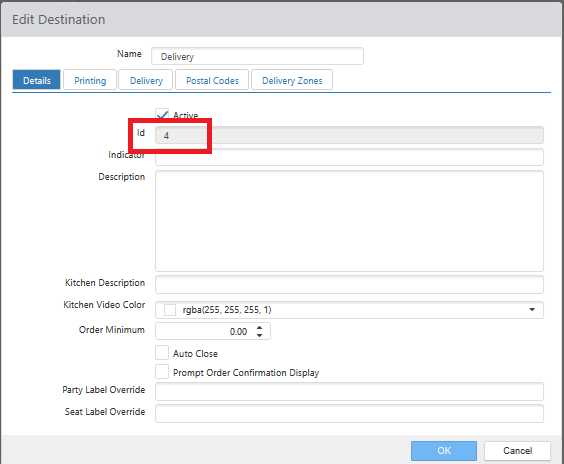
By default, the ORB displays orders from all destinations. Add destination IDs here for any destinations you want to hide from the ORB.
- Example: Adding your Drive Thru destination ID will prevent drive-thru orders from appearing, since most customers only want to display orders for guests entering the store.
How to find a Destination ID:
- Log in to the Admin Portal.
- Click Configuration > Settings Editor > Destinations.
- Click the desired destination.
- The ID is listed in the ID field on the Details tab.
App Config -- IncludedKitchenQueueIds
The kitchen queue ID(s) that the ORB monitors to determine when an order is complete. When the specified queue is bumped, the order automatically moves from In Progress to Now Serving.
- Example: The Front Counter Expo is typically the last screen to be bumped, signaling that the order is bagged and ready for the customer.
How to find Kitchen Queue IDs:
If you do not have Admin Portal access, contact Support or reach out to the person who manages your menu updates -- they typically have Admin access.
If you have Admin access:
- Log in to the Admin Portal.
- Access your Lab location.
- Click the dropdown on the location > Tools > Download Settings > Download.
- Open the downloaded
Settings.zipfile (format:Settings - Location Name.zip). - Open
Settings.xmlusing Notepad (format:Settings - Location Name.xml). - Press Ctrl+F and search for
KitchenQueues. - Locate the ID in the result -- for example:
<KitchenQueue Id="4004617" Name="Expo" ...>- The number in the
Idfield is what you'll enter here. Name="Expo"-- This is the name of the Kitchen Queue that is set up in Settings Editor.
- The number in the
App Config -- BlacklistedCharacters
Characters entered here will be automatically stripped from customer order names.
- Example: Entering
0123456789-will convertJohn-123toJohn.
Application -- Order Removal Settings
This section controls when orders are automatically removed from the ORB:
| Setting | What it does | Best Practice |
|---|---|---|
MaxElapsedInProgressTimeInSeconds |
Maximum time an order can remain in the In Progress section before being automatically removed | Set based on your average service time |
MaxElapsedNowServingTimeInSeconds |
Maximum time an order can remain in the Now Serving section before being automatically removed | Set based on your average pickup time |
RemovalCheckIntervalInSeconds |
How often the ORB checks for orders that have exceeded their time limits | 5 seconds |
PromoteInProgressOrdersToReady |
Whether orders automatically move from In Progress to Now Serving | True (automatic promotion) |
The Mock sections and the BMS Upgrade Patch Configuration sections should be left at default settings.
Localization Configuration
This area of the file controls the display language for the ORB screen. The following languages are currently supported:
| Code | Language |
|---|---|
en-US |
English |
fr-CA |
Canadian French |
Setting up the ORBUIConfiguration.json File
This section lists all keys in the ORBUIConfiguration.json file, their possible values, and their purposes. If any field is removed, misspelled, or incorrectly set, the default value will apply automatically.
ViewTemplate
This setting controls the overall layout mode of the ORB screen. All other display settings are driven by the value set here.
| Value | Description | Default |
|---|---|---|
"column" |
Displays orders in separate vertical columns (e.g., In Progress and Now Serving), each with independent styling for backgrounds, text colors, fonts, and accents | Yes |
"grid" |
Displays orders in a uniform grid layout with a defined number of cards per row and status badges to indicate order states | No |
ShowHeader
Controls whether the header is displayed on the ORB screen. This setting works independently of the ViewTemplate -- header visibility remains consistent in both column and grid view.
| Value | Description | Default |
|---|---|---|
true |
Renders the header using all styling and content defined in the Header section | No |
false |
Header is not displayed | Yes |
ShowFooter
Controls whether the footer is displayed on the ORB screen. This setting works independently of the ViewTemplate -- footer visibility remains consistent in both column and grid view.
| Value | Description | Default |
|---|---|---|
true |
Renders the footer using all styling and content defined in the Footer section | No |
false |
Footer is not displayed | Yes |
Header
Defines the appearance and the content of the ORB header. All fields below can be overridden.
| Key | Default Value | Description |
|---|---|---|
Title |
"Order Ready Board" |
The text displayed in the header. Note: overriding this value will remove localization support for that text. |
TextAlignment |
"Center" |
Horizontal alignment of the header title. Accepted values: "Center", "Left", "Right". |
LogoPath |
"ms-appx:///Assets/Logo/PAR-POS-Logo.png" |
File path to the logo image. Can be pointed to any other PNG logo file. |
ShowLogo |
true |
Controls whether the logo is displayed. Accepted values: true or false. |
Background |
"#FFFFFF" |
Background color of the header (white). Must be a 6-character hex color code. |
TitleColor |
"#2F3452" |
Text color of the header title (dark blue). Must be a 6-character hex color code. |
FontFamily |
"Manrope-Regular.ttf" |
Font used for header text. See available fonts below. |
Footer
Defines the appearance of the ORB footer. All fields below can be overridden.
| Key | Default Value | Description |
|---|---|---|
ShowVersion |
true |
Controls whether the application version number is displayed in the footer. Accepted values: true or false. |
OnlineIndicatorColor |
"#34C679" |
Color of the online/connection status indicator (green = connected). Must be a 6-character hex color code. |
FontFamily |
"Manrope-Regular.ttf" |
Font used for footer text. See available fonts below. |
GridViewSettings
Defines the appearance of the ORB when ViewTemplate is set to "grid". All fields below can be overridden.
| Key | Default Value | Description |
|---|---|---|
CardsPerRow |
7 |
Number of order cards displayed per row. Maximum supported value is 10. Recommended: 7 for optimal alignment. |
BodyBackground |
"#F5F5F5" |
Background color behind the order cards. Must be a 6-character hex color code. |
CardTextColor |
"#2F3452" |
Primary text color on order cards. Must be a 6-character hex color code. |
CardSubTextColor |
"#C2C2C2" |
Secondary/subtitle text color on order cards. Must be a 6-character hex color code. |
CardBorderColor |
"#E0E0E0" |
Border/outline color for order cards (light gray). Must be a 6-character hex color code. |
FontFamily |
"Manrope-Regular.ttf" |
Default font for general grid view text. See available fonts below. |
OrderNumberFontFamily |
"Manrope-Regular.ttf" |
Font used specifically for order number display. |
CardTextFontFamily |
"Manrope-Regular.ttf" |
Font used for primary card text. |
CardSubTextFontFamily |
"Manrope-Regular.ttf" |
Font used for secondary card text. |
StatusBadges |
See below | Defines badge appearance for different order statuses. |
GridViewSettings -- Status Badges
Status badges are used in grid view to visually indicate the state of an order. Each badge maps one or more system order statuses to a single visual badge displayed on the order card.
| Key | Example Value | Description |
|---|---|---|
Id |
"In-Progress" |
Unique identifier for the badge |
BadgeColor |
"#2F3452" |
Background color of the badge. Must be a 6-character hex color code |
BadgeText |
"In Progress" |
Text displayed on the badge |
OrderStatuses |
["InProgress", "OrderSent"] |
List of order status values that will display this badge. Multiple statuses can share the same badge |
The ORB includes two default status badges:
"StatusBadges": {
  "InProgress": {
    "Id": "In-Progress",
    "BadgeColor": "#2F3452",
    "BadgeText": "In Progress",
    "OrderStatuses": [ "InProgress", "OrderSent" ]
  },
  "OrderReady": {
    "Id": "Ready",
    "BadgeColor": "#257469",
    "BadgeText": "Ready",
    "OrderStatuses": [ "OrderReady", "Ready" ]
  }
}
Columns
Defines the column layout when ViewTemplate is set to "column". Each entry in the array represents one column rendered on the ORB screen. A maximum of 3 columns is supported.
| Key | Example Value | Description |
|---|---|---|
Id |
"in-progress" |
Unique identifier for the column |
Title |
"In Progress" |
Text displayed in the column header |
OrderStatuses |
["InProgress", "OrderSent"] |
List of order status values that appear in this column. Multiple statuses can be grouped into a single column |
BackgroundColor |
"#F5F5FF" |
Background color of the column area. Must be a 6-character hex color code |
HeaderTextColor |
"#2F3452" |
Text color of the column header. Must be a 6-character hex color code |
CardBackgroundColor |
"#FFFFFF" |
Background color of individual order cards. Must be a 6-character hex color code |
CardTextColor |
"#2F3452" |
Primary text color on order cards. Must be a 6-character hex color code |
CardSubTextColor |
"#2F3452" |
Secondary/subtitle text color on order cards. Must be a 6-character hex color code |
CardBorderColor |
"#E0E0E0" |
Border/outline color for order cards. Must be a 6-character hex color code |
AccentColor |
"#2F3452" |
Color used for accent elements or highlights within the column. Must be a 6-character hex color code |
HeaderFontFamily |
"Manrope-Regular.ttf" |
Font used for the column header text. See available fonts below |
OrderNumberFontFamily |
"Manrope-Regular.ttf" |
Font used for order number display |
CardTextFontFamily |
"Manrope-Regular.ttf" |
Font used for primary card text |
CardSubTextFontFamily |
"FlameSans-Regular.ttf" |
Font used for secondary card text |
The ORB includes two default column configurations:
"Columns": [
  {
    "Id": "in-progress",
    "Title": "In Progress",
    "OrderStatuses": [ "InProgress", "OrderSent" ],
    "BackgroundColor": "#f5f5ff",
    "HeaderTextColor": "#2F3452",
    "CardBackgroundColor": "#FFFFFF",
    "CardTextColor": "#2F3452",
    "CardSubTextColor": "#2F3452",
    "CardBorderColor": "#E0E0E0",
    "AccentColor": "#2F3452",
    "HeaderFontFamily": "Manrope-Regular.ttf",
    "OrderNumberFontFamily": "Manrope-Regular.ttf",
    "CardTextFontFamily": "Manrope-Regular.ttf",
    "CardSubTextFontFamily": "FlameSans-Regular.ttf"
  },
  {
    "Id": "ready",
    "Title": "Now Serving",
    "OrderStatuses": [ "OrderReady", "Ready" ],
    "BackgroundColor": "#2F3452",
    "HeaderTextColor": "#FFFFFF",
    "CardBackgroundColor": "#FFFFFF",
    "CardTextColor": "#2F3452",
    "CardSubTextColor": "#2F3452",
    "CardBorderColor": "#E0E0E0",
    "AccentColor": "#257469",
    "HeaderFontFamily": "Manrope-Regular.ttf",
    "OrderNumberFontFamily": "Manrope-Regular.ttf",
    "CardTextFontFamily": "Manrope-Regular.ttf",
    "CardSubTextFontFamily": "FlameSans-Regular.ttf"
  }
]
Available Fonts
When overriding any FontFamily field, you must use one of the following supported fonts:
| Font File | Style |
|---|---|
Flame-Bold.ttf |
Flame -- Bold |
Flame-Regular.ttf |
Flame -- Regular |
FlameSans-Regular.ttf |
Flame Sans -- Regular |
Manrope-Regular.ttf |
Manrope -- Regular |
Manrope-VariableFont.ttf |
Manrope -- Variable |
- All color values must be provided as a 6-character hexadecimal color code (e.g., "#FFFFFF"). If any field is omitted, misspelled, or set to an invalid value, the default will apply automatically.
Name of ORB Sections
Version History
| Version | Date | Updates |
|---|---|---|
| 1.0 | 4/13/26 | Initial Release |
| 2.0 | 5/15/2026 | Addition of Feature Flag and Orbit Requirements |
