Employee Timecard Report
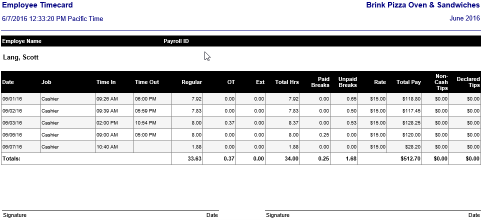
The Employee Timecard Report is a multi-page report which shows the times of each clock-in and clock-out, the job clocked in for, hours worked, pay rate, total pay, and tips for each employee at a designated location for the selected reporting period. The report is run on the Admin Portal by going to the Reports screen, selecting Labor, and then selecting Employee Timecard.
The report is organized by employee in alphabetical order by last name. Although an individual employee's information may extend onto multiple pages, each new employee's information starts on a new page.
Example Employee Timecard report
Report Options: Filtering
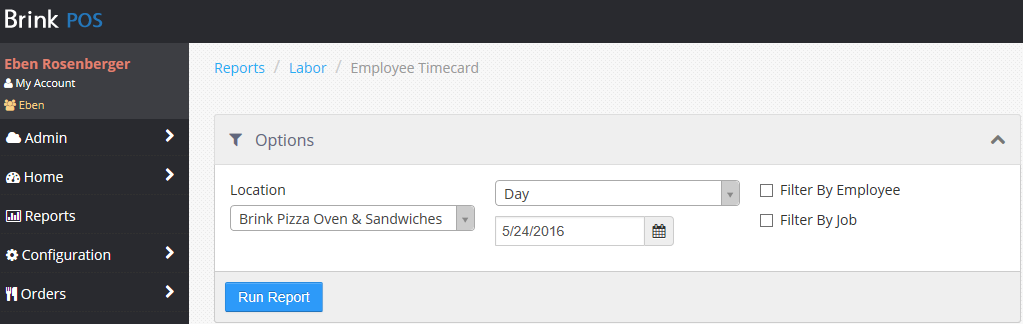
The Employee Timecard Report is highly configurable. In addition to specifying location and time period, you can filter the report by Employee and by Job.
Employee Timecard Report options
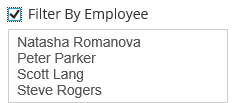
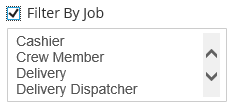
Checking the Filter By Employee check box or the Filter By Job check box allows you to narrow the scope of the report to specific employees, specific job functions, or both. The lists allow multiple selections. Select a range by Shift-clicking. Select multiple individual items in the list by Ctrl-clicking.
Filter by Employee (left) and Filter by Job (right)
Employee Timecard Report Fields
| Field | Calculation |
|---|---|
| Employee Name | The name of the employee to which this block of timecard information applies. This is configured in Settings Editor in the upper part of the Edit Employee dialog box. |
| Payroll ID | The payroll identification for this employee. This is configured in Settings Editor on the HR tab of the Edit Employee dialog box. |
| Date | The date to which the line of information applies. Dates on which the employee did not log hours are not shown. |
| Job | The job function that the employee performed for this line of information. If an employee performed multiple jobs on a given date, there will be a line for each job performed, in chronological order. |
| Time In | The time that the employee clocked in on that date for that job. |
| Time Out | The time that the employee clocked out on that date for that job. NOTE: It is possible for the Time Out field to indicate a time on the following date. This is normal for any shifts that go past midnight, and any hours worked after midnight are still counted on the same Date line. |
| Regular | The number of regular hours worked by the employee for that shift. |
| OT | The number of overtime (x1.5) hours worked by the employee for that shift. |
| Ext | The number of extended overtime (x2) hours worked by the employee for that shift. |
| Total Hrs | The sum of Regular + OT + Ext. |
| Paid Breaks | The amount of time the employee spent on paid breaks for that shift. |
| Unpaid Breaks | The amount of time the employee spent on unpaid breaks for that shift. |
| Rate | The employee's rate of pay for the job function performed. |
| Total Pay | (Total Hrs − Unpaid Breaks) × Rate. |
| Non-Cash Tips | The total amount of non-cash tips collected by the employee for that shift. |
| Declared Tips | The total amount of tips declared by the employee for that shift. If the Must Declare Tips check box is not checked on the General tab of the Edit Job dialog in Settings Editor, this field is always $0.00. |
| Signature/Date | Places for the employee and his or her supervisor to sign off on the hours listed, if necessary. |
