Wallet Loyalty Setup Guide
What is Wallet Loyalty?
Wallet Loyalty is a feature offered by Apple that allows a store to provide customers with a one-tap experience. With a single tap of their phone, customers may pay for purchases and redeem/accrue loyalty points/offers.
Note: Once the Payment Device button is selected and the customer taps their phone for payment, the payment type cannot be changed. If the customer would like to change the method of payment, the cashier must delete the payment entirely and proceed with a new payment method.
Prerequisites
Important: Ensure all prerequisites are met prior to proceeding with setup.
Wallet Loyalty is supported by PAR when the following conditions are met:
- PAR Pay must be the payment middleware
- Payment devices must be Ingenico Tetra Lane devices
- Loyalty provider must be Punchh
- Apple Keys for the payment device must be ordered and configured on the device prior to setup.
PAR POS Configuration
Note: The PAR Pay EMV device must be set up prior to Wallet Loyalty configuration — see PAR Pay EMV Setup Guide for detailed information.
-
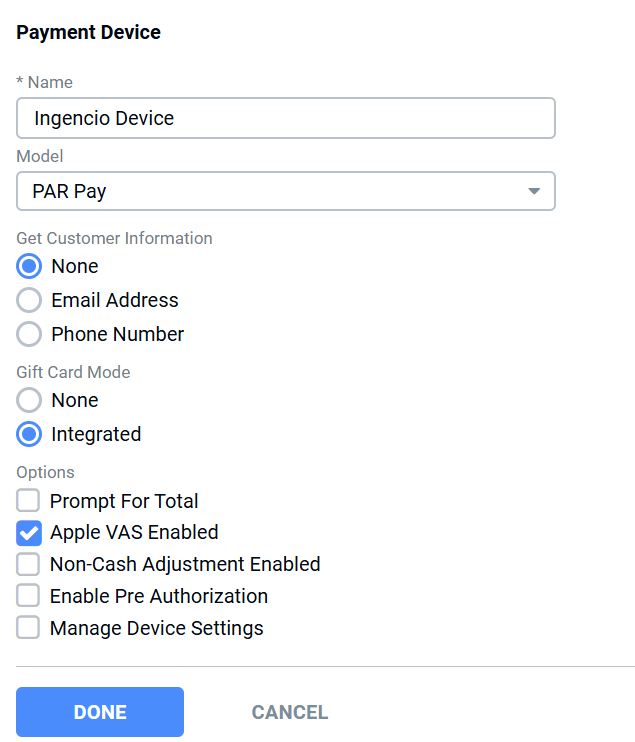
Navigate to Integrations Portal > Payment Devices and select the payment device on which to use Wallet Loyalty.

-
Check the "Apple VAS Enabled" checkbox for the device and click "Done".
Punchh Configuration
Applying Rewards to an Order
- Navigate to Settings Editor > Options > Loyalty > Punchh > "Edit Loyalty"
- Populate the following values:
- Allow PAR POS Customer Usage: Allows non-PAR POS loyalty providers to utilize the PAR POS customer database (should be checked).
- Base URL 1: Provided by Punchh.
- Base URL 2: Provided by Punchh.
- Location Key: Provided by Punchh.
- Choose a Discount: Select which discount to use from the dropdown menu.
- Timeout (seconds): Communication timeout for Punchh (default = 8).
Creating and Editing the Apple Pass
For information regarding Apple Pass setup and configurations, refer to the PAR Punchh Apple Passes article.
FAQ
Q: Is there a minimum iPhone that supports Wallet Loyalty?
A: iPhone 6 or higher supports this feature.
Q: What are the customer iPhone requirements for this feature?
A: Customer must have Apple Pay enabled on their phone and ideally would have a loyalty pass added to their wallet.
Q: How is the feature triggered on the POS?
A: The Payment Device button on the POS triggers the Wallet Loyalty flow:
- Cashier enters the items for a customer order into the POS.
- Cashier hits the "Payment Device" button.
- Customer taps phone on payment device.
