How Do I Add or Edit a Shift for the Current Date?
There are several reasons why you may need to edit a shift, such as an employee forgetting to clock in or clock out. This guide will demonstrate two options in the Edit Shifts menu: how to add a shift, and how to edit a shift.
Open Edit Shifts
-
Once logged in to the register, select the Manager button
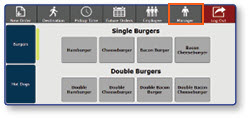
-
Select Edit Shifts
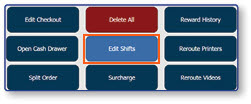
Option 1: Add a Shift
-
Select the desired Employee
-
Select New
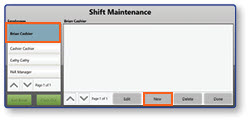
-
Select the blank Date field
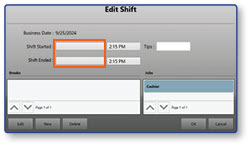
- Use the popup windows to enter Start Date and End Date
- Select Done

-
Select the blank Time field
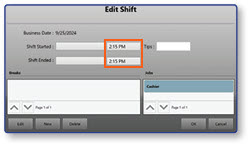
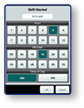
- Use the popup windows to enter Start Time and End Time
- Select OK
-
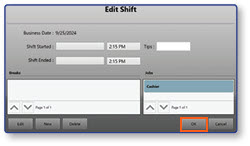
Select OK
-
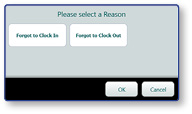
Select a Reason for the edit from the pre-configured list
-
Select OK
Option 2: Edit a Shift
-
Select the desired Employee
-
Select New
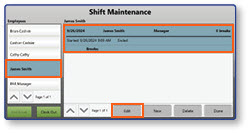
-
Select the blank Date field
- Use the popup windows to enter Start Date and End Date
- Select Done
-
Select the blank Time field
- Use the popup windows to enter Start Time and End Time
- Select OK
-
Select OK
-
Select a Reason for the edit from the pre-configured list
-
Select OK
