What Information is Shown on the Admin Portal Dashboard?
There are a few functions on the Admin Portal that you may want to review. This guide will cover two options for settings on the dashboard: choosing which widgets to display, and viewing information for a different day.
Log in and Select Location
-
Log in to the Admin Portal using your Username and Password credentials
-
Select Sign In
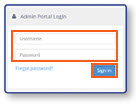
-
Select a Location
-
Select the Update button
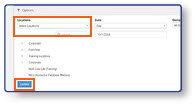
Note: This will display the Admin Dashboard for the current date, which provides a snapshot of the day's sales and other information based on the widgets displayed.
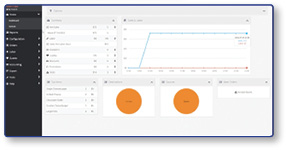
Option 1: Choose Widgets to Display
-
Expand the Options tab
-
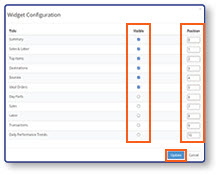
Select the Gear Icon to open the Widget Configuration Menu
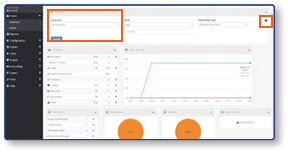
-
Toggle the check boxes in the Visible column to choose which widgets appear on the dashboard
-
Enter a number in the Position column to set the order in which widgets appear on the dashboard
-
Select Update
Option 2: View Information for a Different Day
-
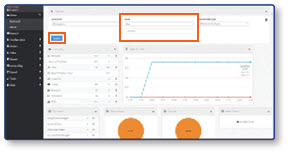
Expand the Options tab
-
Select a new date or date range from the Date dropdown
-
Select Update
Note: The dashboard will update to show the sales information from the requested business period.
