How Do I Apply a Discount to an Order?
Discounts can be applied to an order to reduce the cost of items by a cash or percent amount. This guide will cover four different methods to apply a discount to an item or order.
Method 1: Apply a Pre-Configured Discount
-
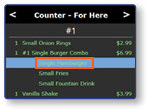
Select the Item in the order Window
-
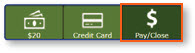
Select Pay/Close from the bottom bar
-
Select the pre-configured Discount Button
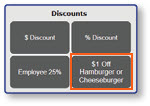
Note: Pre-configured item discounts can only be applied to eligible items.
Method 2: Apply a Discount for a $ Amount
-
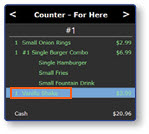
Select the Item in the order Window
-
Select Pay/Close from the bottom bar
-
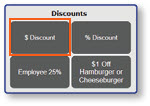
Select the $ Discount button
-
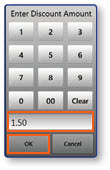
Enter the Discount Amount
-
Select OK
Method 3: Apply a Discount for a % Amount
-
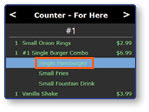
Select the Item in the order Window
-
Select Pay/Close from the bottom bar
-
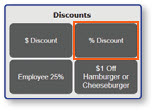
Select the % Discount button
-
Enter the Discount Percentage
-
Select OK
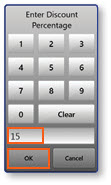
Note: Enter the numeric value for the discount amount. For example, to discount an order by 15%, enter 15.
Method 4: Apply an Employee Discount
-
Select Pay/Close from the bottom bar. Select the Employee Discount Button
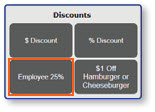
-
Select the employee that you wish to apply the discount to
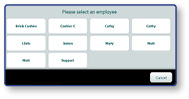
-
Select the Discount to use with the order from the list of available Employee Discounts
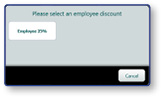
Note: The discount options available for each employee are based on their job or setup. When using an employee discount, the employee's name will print out on the receipt.
