How Do I Share an Employee?
Sharing provides the option to share Staff data with one or more target locations. Sharing now also provides the ability to share a PIN across multiple locations. See Employee PIN Sharing Information for more information on sharing PINs.
Share an Employee
From the Employee landing page:
-
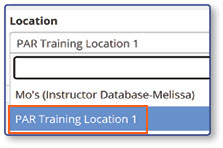
Select the Location with the Employee to Share
-
Select the box next to the Name of the Employee

-
Select Share

-
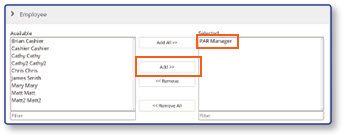
Select the Employee to be shared
-
Select the target Location(s) for the Employee
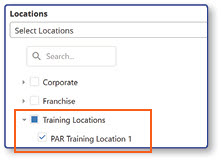
Note: If Jobs, Security Levels, or Permissions applied to the Employee do not exist in the target location, they will be noted in Dependencies.
-
Select Save

Note: The Employees landing page will be displayed with a message stating Share Started Successfully. The Employee and any Dependencies will now show in the target location.
Employee PIN Sharing Information
Once an employee is shared, the employee's PIN will carry over to the location(s) that the employee is shared to. Because the record is shared as an overwrite, any blank fields in the source record will be overwritten as blank on the target record.
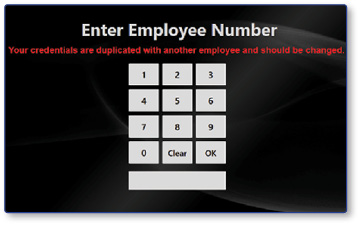
Note: If a shared PIN already exists for another employee at a target location, when either employee logs into the register first, they will receive a warning stating Your credentials are duplicated with another employee and should be changed. To correct the issue, assign the employee a new PIN.