How Do I Add an Employee?
Employees, unlike Admin Portal Users, can log into the register application for order entry or time and attendance tracking. In this guide, we'll cover the fields required to create an Employee, then we'll cover optional fields.
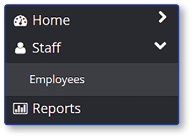
Navigate to Employees
- Expand Staff
- Select Employees
Add an Employee
-
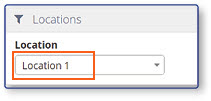
Select a Location
-
Select +New Employee

-
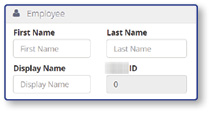
Enter the Name of the New Employee
- First Name
- Last Name
- Display Name
Select Profile Tab Options
-
Under Jobs, select Add Job

-
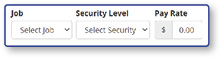
Select a Job and Security Level from the drop down lists
-
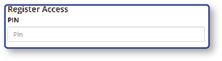
Under Register Access, enter the PIN the employee will use to log into the register
Save the Employee
- Select Save

Note: Selecting Save will create the new Employee and return you to the Employees landing page.
Optional Employee Settings
The following settings are not required to create a new Employee, but can be configured for business needs.
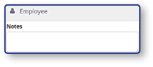
Employee
- Notes - any notes associated with the employee
HR
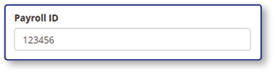
- Payroll ID - a Payroll ID may be necessary when exporting employees to payroll providers