How Do I Set Item Availability?
The Item Availability function is used for when items become unavailable. This guide will demonstrate two options for Item Availability: how to make an item unavailable, and how to limit a quantity of items remaining.
Open Item Availability
-
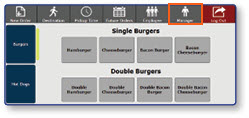
Once logged in to the register, select the Manager button
-
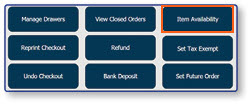
Select Item Availability
Locate the Desired Item
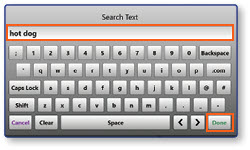
- Select the Search Bar
- Enter Item Name
- Select Done
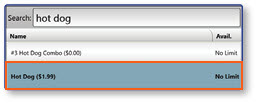
Select the Desired Item
- Select the Item from the search results
Option 1: Make an Item Unavailable
- Check the box next to Not Available
- Select Save Item
- Select Done
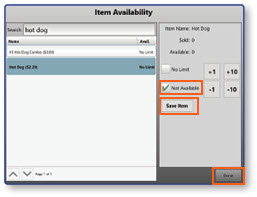
Note: To make the item available again when it comes back into stock, return to the Item Availability screen and uncheck the box next to Not Available.
Option 2: Limit a Quantity of Items Remaining
-
Select the +1 or +10 Button
Note: The box next to No Limit will uncheck and the total number of items available will update and display in the Available field.
-
Select Save Item
-
Select Done
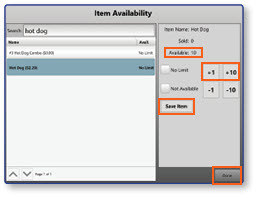
Note: To make the item available again when it comes back into stock, return to the Item Availability screen and check the box next to No Limit.
