How Do I Refund an Order?
Open the Refund Menu
-
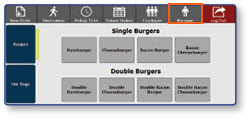
Once logged in to the register, select the Manager button
-
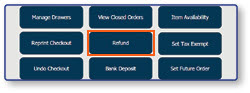
Select Refund
Ring In the Items to Refund
-
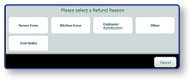
Select a Refund Reason from the pre-configured list
-
Ring in the items to be refunded
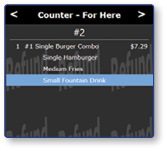
Note: The background of the order window will change to reflect that the system is now in Refund Mode.
Select a Payment Type
-
Select Pay/Close to enter the Tender screen

-
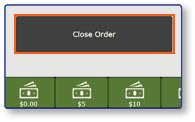
Select Close Order
-
Select a Payment Type for the refund
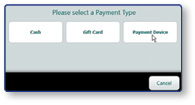
Note: When refunding to a credit card, select the payment device option, but only if the credit card is presented at the store.
Complete the Refund
-
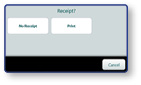
Select a receipt option
-
A screen will appear with the amount refunded to the customer