How Do I Run Reports in Admin Portal?
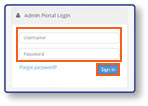
Log In
- Log in to the Admin Portal using your Username and Password credentials
- Select Sign In
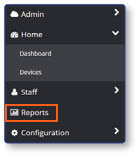
Open the Reports Screen
- From the sidebar, select Reports
Select a Desired Report
-
Select a Report Category
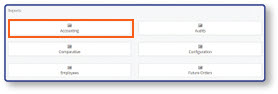
-
Select a Report
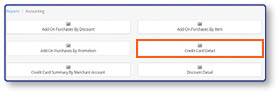
Note: This guide uses the Credit Card Detail Report found under the Accounting category, but you can use this process to run any report on the register.
-
Enter Report Parameters
- Select a Location
- Select a Day
-
Select View Report
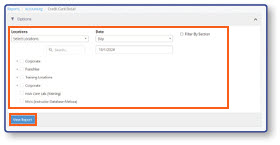
View Report
- View the populated report from the View Reports Screen.
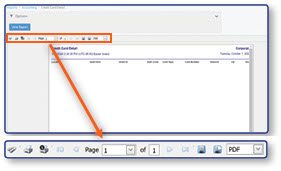
Note: The Toolbar on this screen allows you to Search, Print, Save, and Export your report to a new screen. It also displays the current page number.
