PAR POS™ v5.16 Release Notes & Feature Guide
Version 2.0
5.16 Enhancements
New API Release
API Build 0.2.135 Release Notes
Release Resources
Operating Systems
Version 5.16 of our software requires an updated system component called .NET, which powers many of our new features. As a result, some older versions of Windows may no longer be compatible with this update. Please refer to the table below to see if your current version of Windows is affected.
| Status | Windows Versions |
|---|---|
| Recommended | Windows 11 2024 IoT Enterprise LTSC v24H2 Windows 10 2021 IoT Enterprise LTSC 64-bit (version 21H2 build 19044) |
| Supported, but Shorter Lifecycle | Windows 10 2019 IoT Enterprise LTSC 64-bit (version 1809 build 17763) Windows 10 2016 IoT Enterprise LTSB (version 1607 build 14393) |
| Not Supported | Windows 10 2015 IoT Enterprise LTSB version 1507 build 10240 Windows 10 version 1511 build 10586 (both commonly referred to as Windows 10 2015 LTSB or LTSC), or lower Windows 7 Windows 8 |
New PAR POS Features in 5.16 (build 5.0.16346)
Admin Portal
AI Chatbot – AVA Beta (BRNK-56970)
We are excited to release our new AI-powered chatbot, AVA Beta! AVA Beta provides instant, on-demand assistance to help users quickly find answers, complete tasks, and navigate the POS system more efficiently. Available 24/7, it reduces reliance on support, accelerates staff training, and delivers consistent, accurate guidance – helping teams save time and stay focused on delivering great customer experiences.
Feature Enablement
The feature will be automatically turned on with the 5.16 release.
Workflow
You can find AVA Beta in the top right-hand corner of the Admin Portal, once you have logged in. Look for this icon on the top right-hand side of the screen (next to the Logout button):

- Log in to the Admin Portal
- Click on the AVA Beta icon on the top right-hand side of the screen (next to Logout)
- In the Ask Anything text box, enter a question and press Enter.
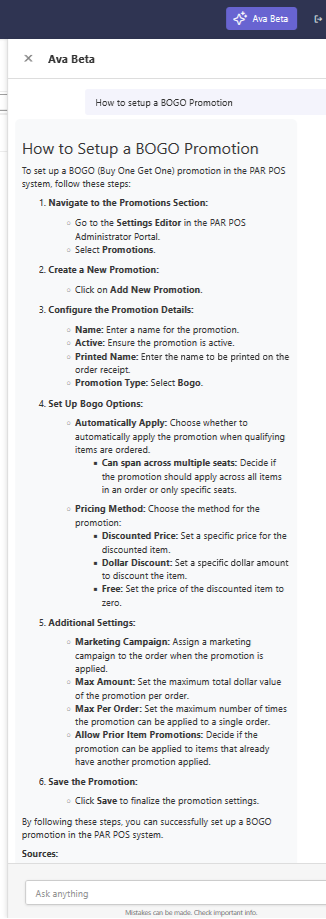
In the example below, I asked the AVA Beta `How to set up a BOGO Promotion'.
Language Localization – French First (In-Store) (BRNK-41758)
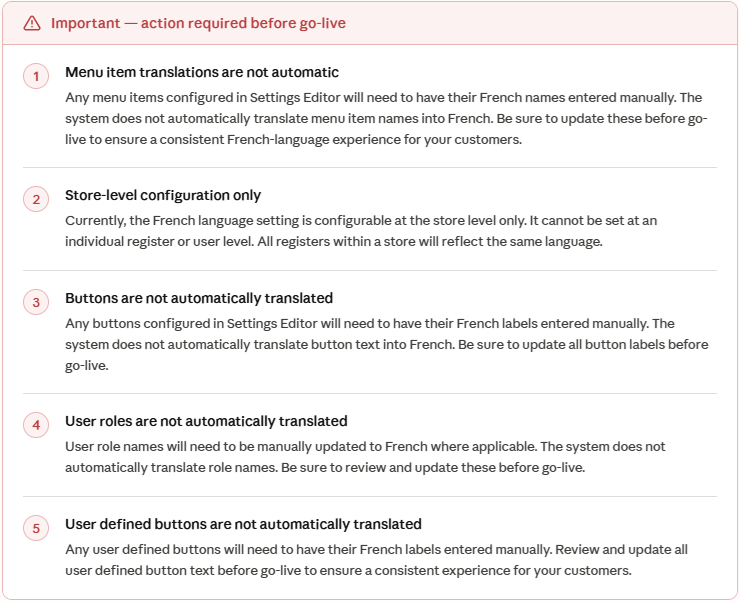
To better serve French-speaking customers and staff, French is now available as a supported language. When enabled, the Language Localization feature automatically updates all customer-facing screens and register displays to French. Enabling French is simple and can be done directly from the Admin Portal.
How to Enable French on Admin Portal
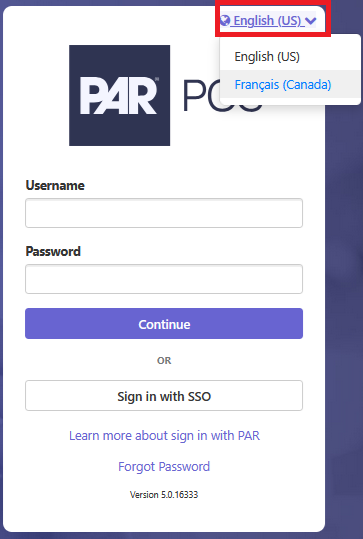
The language setting is available directly on the Admin Portal login screen. Changing it to French will also update the language across Reports and Settings Editor.
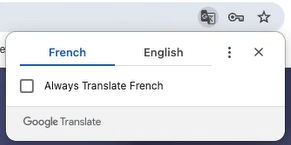
- Please note that some browsers may attempt to override and translate
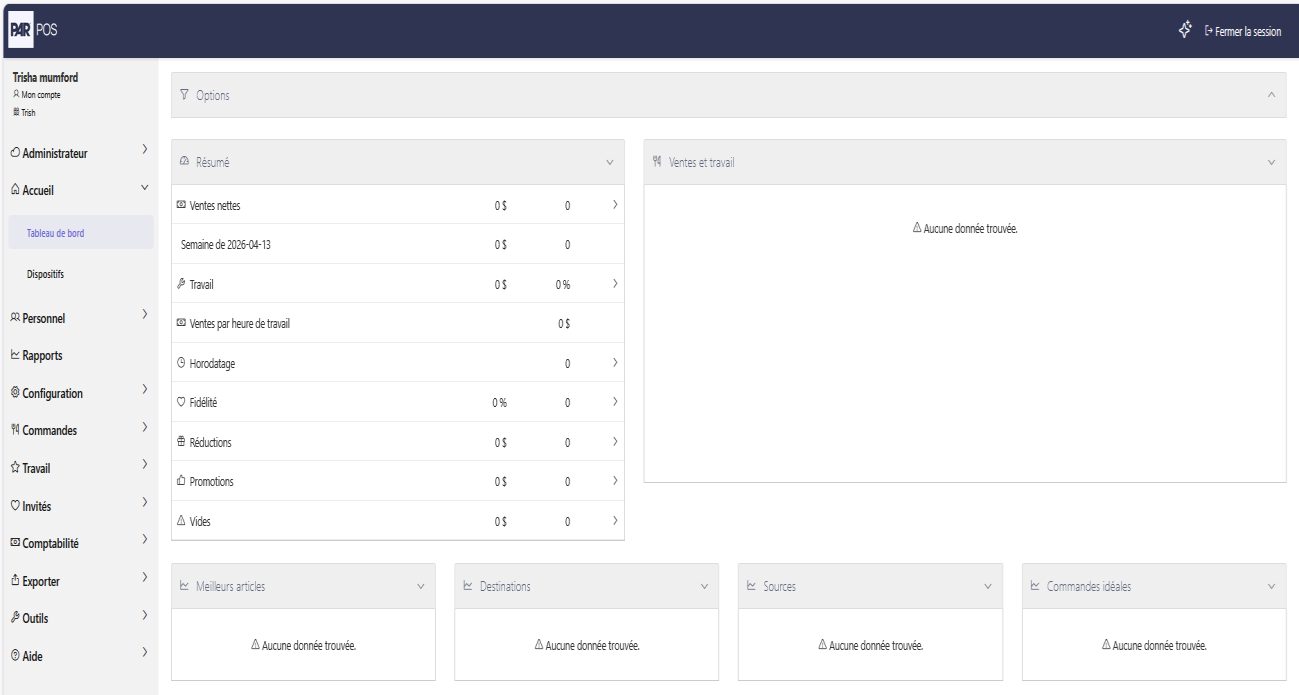
Once Logged in to the Admin Portal
Settings Editor
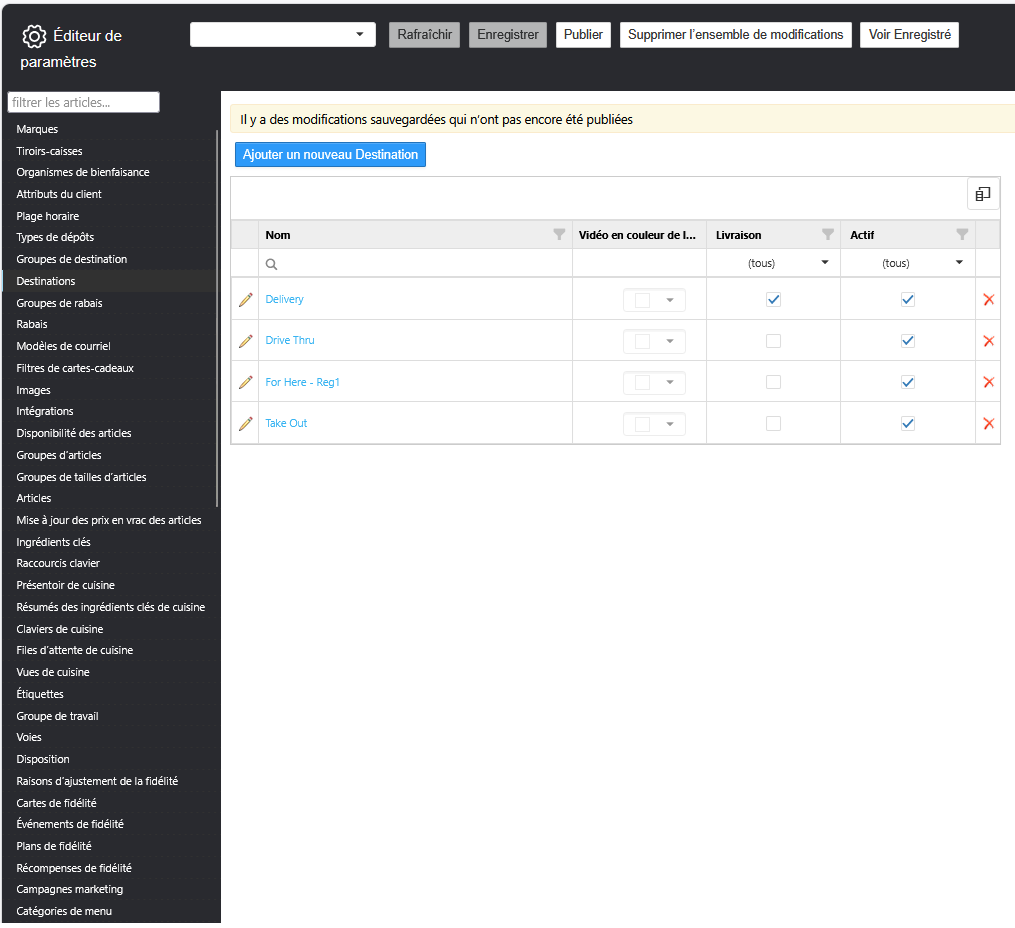
-
IMPORTANT: Please note that the system screens are in French, but any user-entered information is not translated automatically.
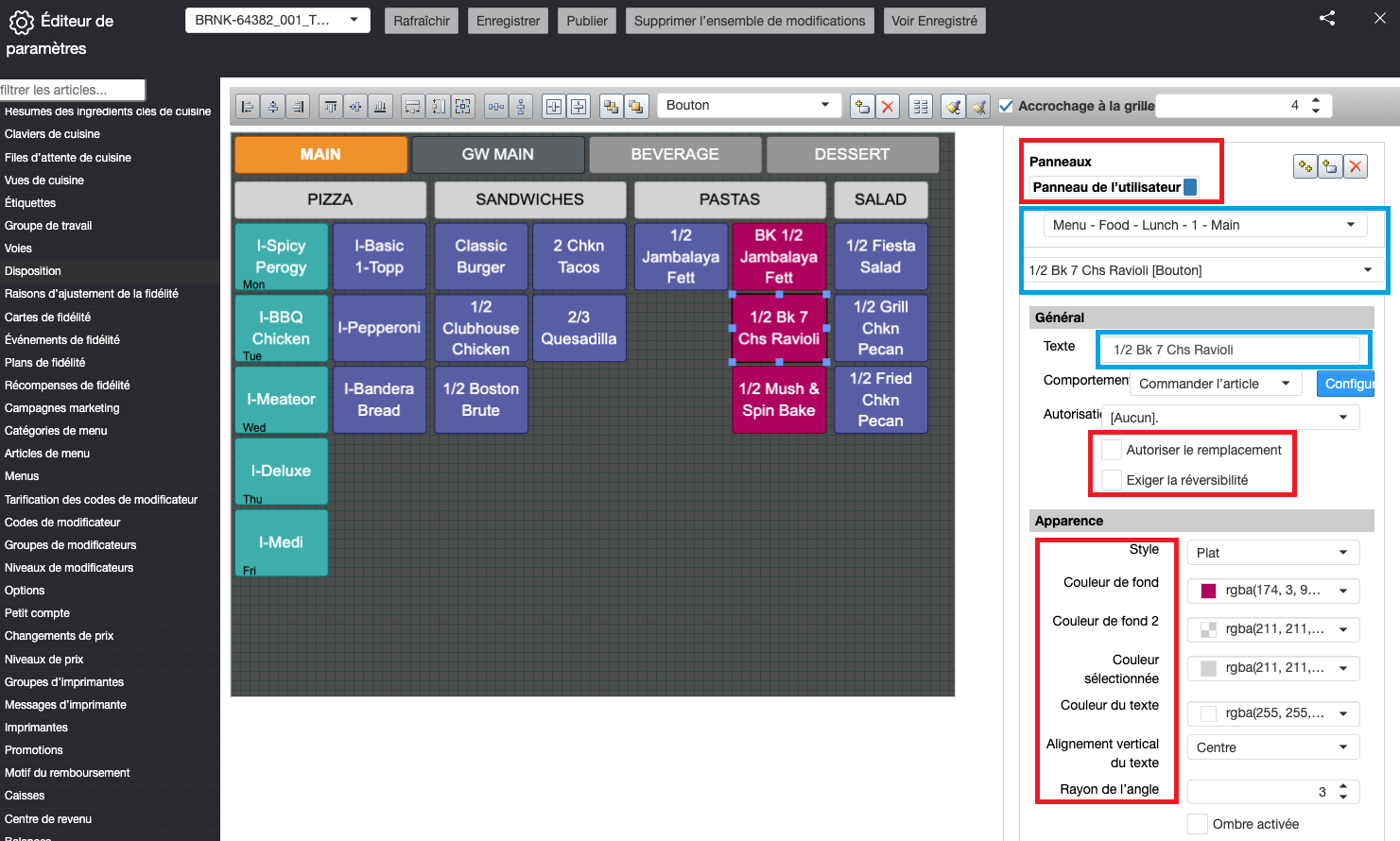
- In the red boxes are examples of how the system has automatically translated the software portion of the screens.
- In the blue boxes are examples of how the user inputted information is NOT automatically translated.
Reports
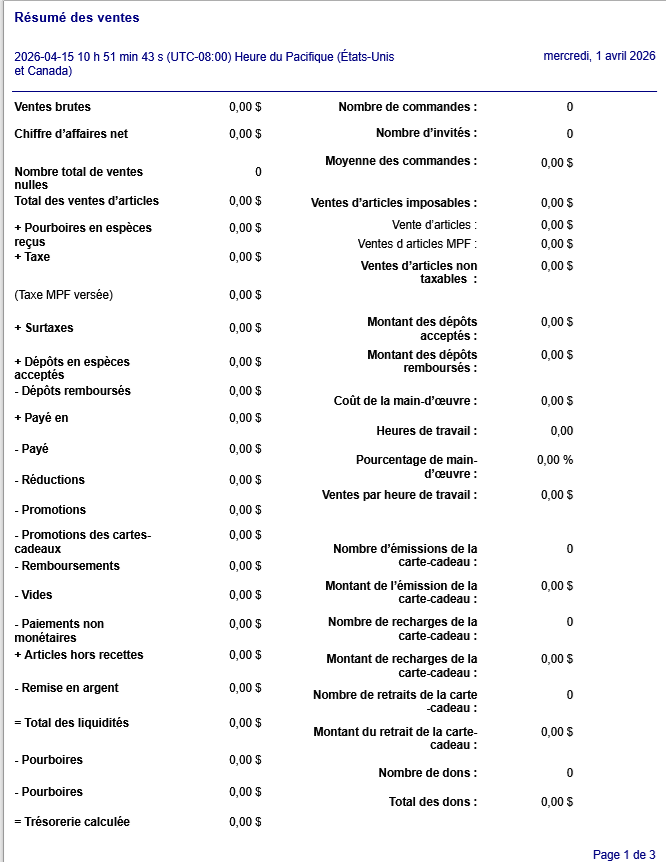
What's Included on the Register
The following register elements will automatically display or print in French when the feature is enabled:
- Prompts – All on-screen prompts will display in French
- Error Messages – System error messages will display in French
- Receipts – Customer Receipts will print in French
- Reports – Generated reports from the register will print in French
Number and Currency Formatting
Enabling French Localization will also change the currency format to align with French language standards. The table below shows how values will appear in English vs French:
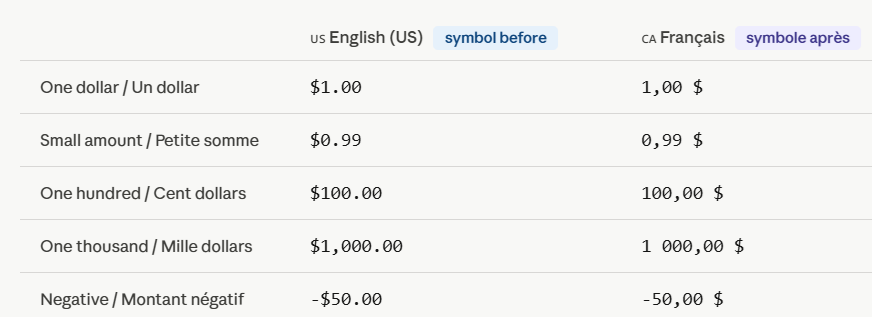
*Note the placement of the $
*Note the comma and the period differences
Date Format –
The date format is also different when the French language is enabled. The format is:
- YYYY-MM-DD
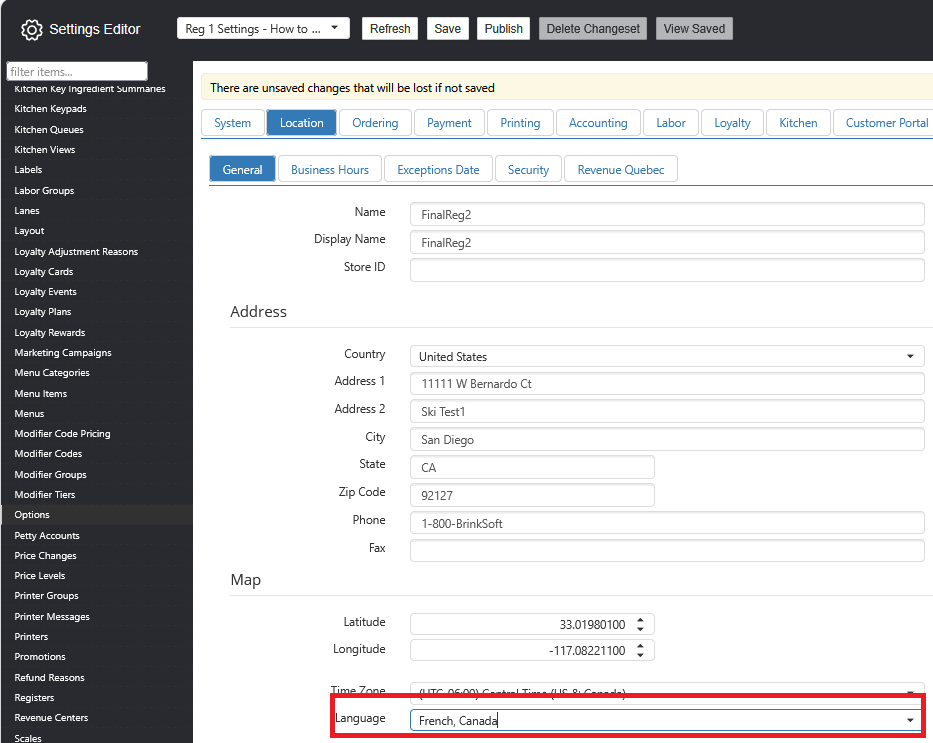
Feature Enablement
- Navigate to Settings Editor
- Click Options
- Click Locations
- Click the General tab
- Click the drop-down next to Language (bottom of the screen)
- Select French, Canada
- Save and Publish changes
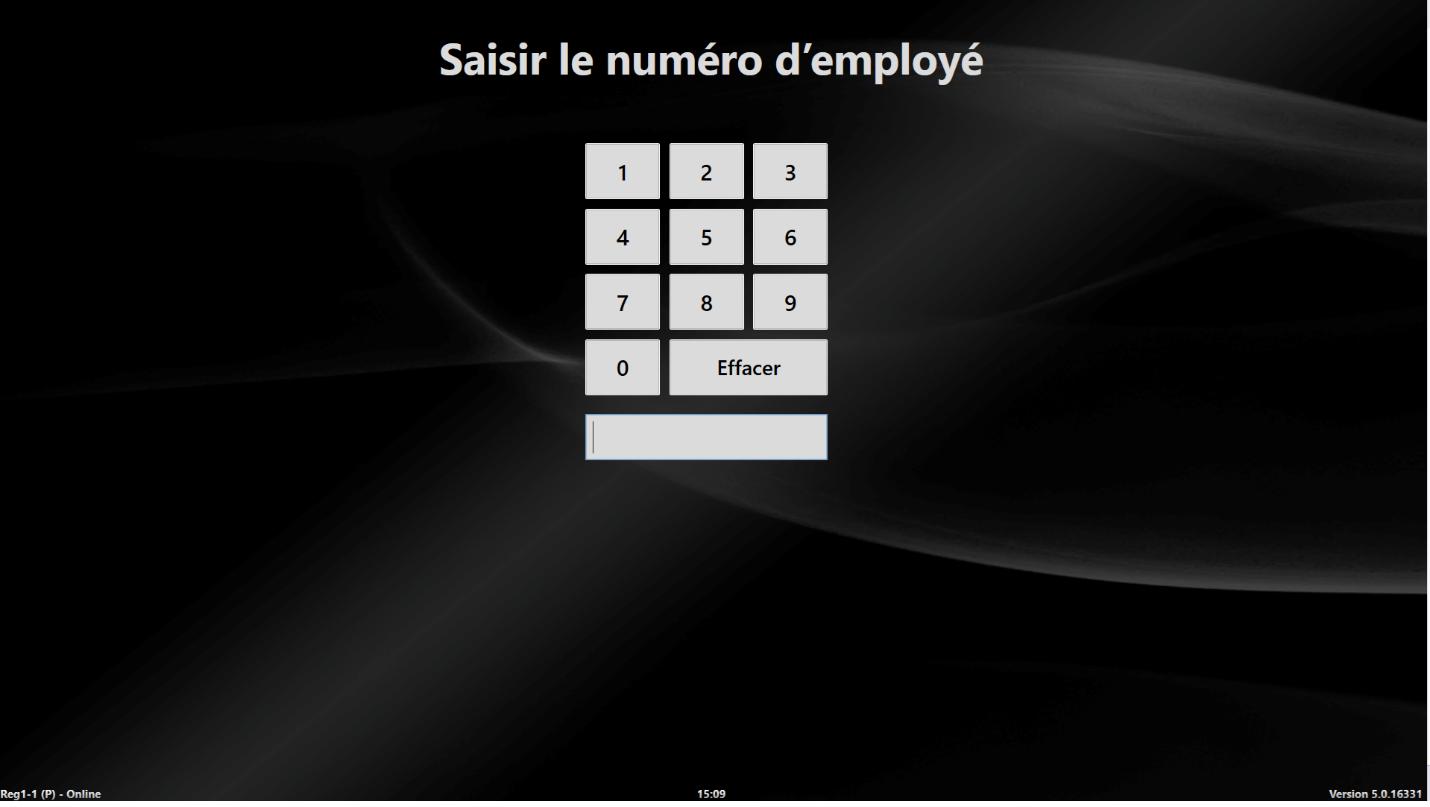
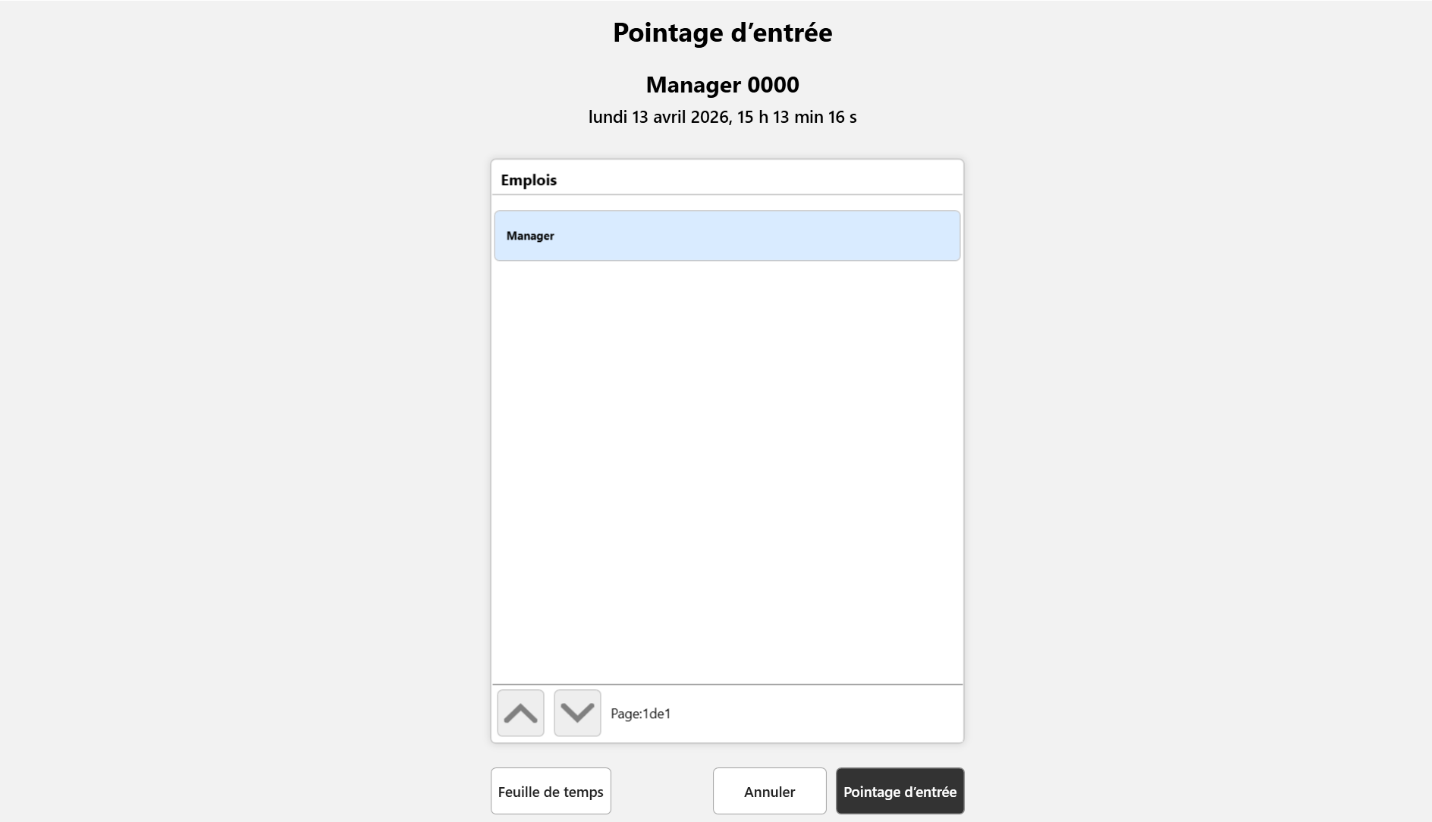
Pictures of the register with the French Language Enabled
Register's Order Window showing the Currency Format, System Screen, and Buttons
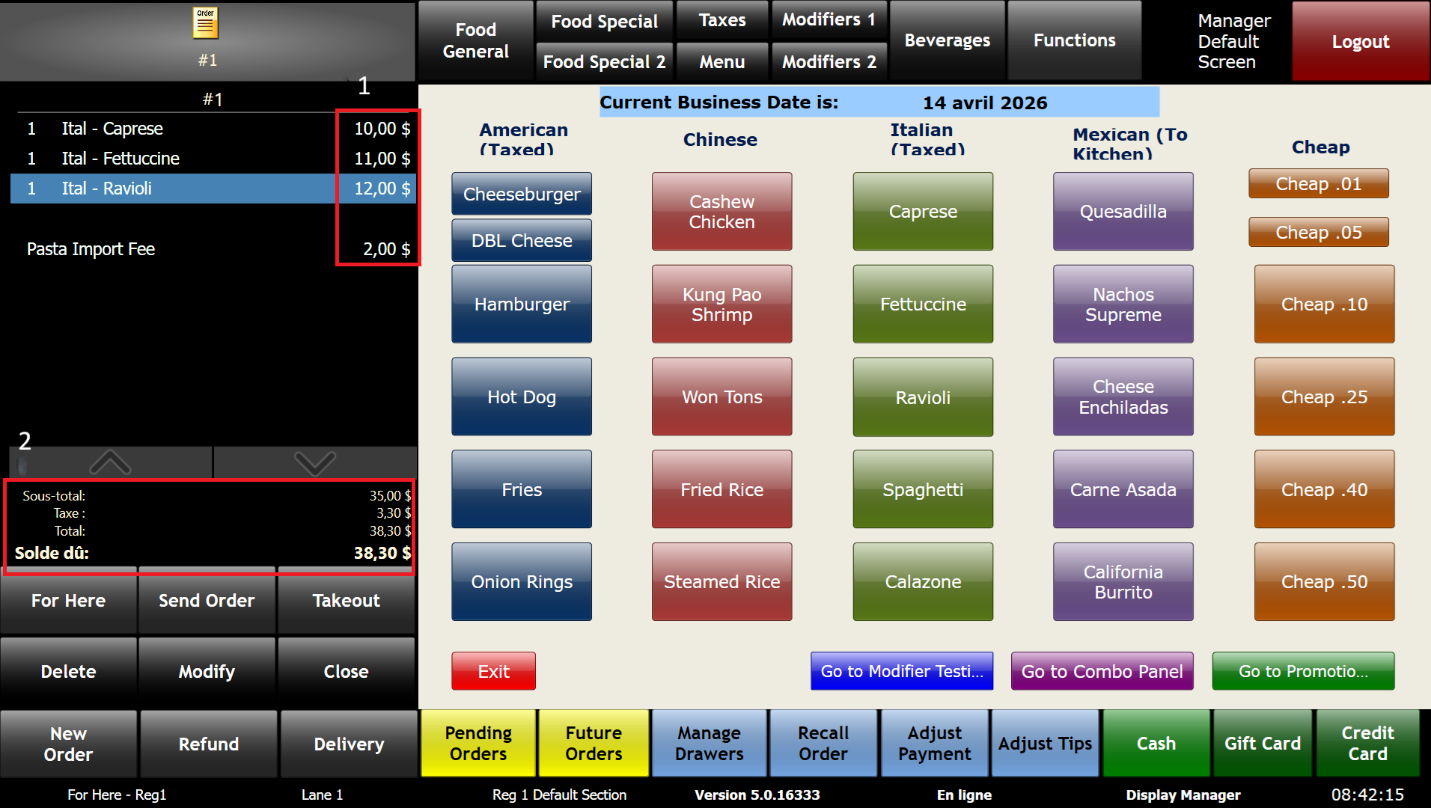
- The red section labeled 1, the difference in currency is shown
- a. Dollar sign is at the end of the dollar amount
- b. Instead of using periods to show the separation between the dollar and cents, there is a comma.
- The second section, labeled 2, shows how a system screen is automatically translated into French
- The buttons on the menu are still in English. Any configurable button needs to be manually translated into French.
Assign Drawer Receipt with French Currency and Time Format
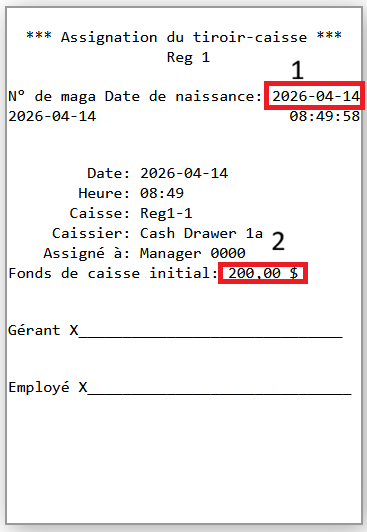
- The red section labeled 1, it shows that the date format is also different.
- a. Format is YYYY-MM-DD
- The red section labeled 2, it shows the currency format.
- a. Dollar sign is at the end of the dollar amount
- b. Instead of using periods to show the separation between the dollar and cents, there is a comma.
Customer Receipt with French Currency Enabled
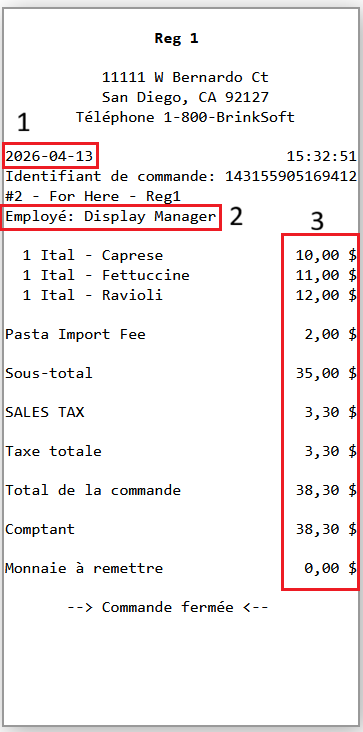
- The red boxed section labeled 1 shows the date format in the French Format
- a. Format is YYYY-MM-DD
- The red boxed section labeled 2 shows how the system information is translated but the name Display Manager is manually entered and would need to be updated to French `Gestionnaire d'affichage'
- The red boxed section labeled 3 shows the change in currency format
- a. Dollar sign is at the end of the dollar amounts
- b. Instead of using periods to show the separation between the dollar and cents, there is a comma.
API
In-Store API (Sales Data) Endpoints (BRNK-32880)
The new In-Store API (Sales Data) endpoints provide real-time data access for in-store services, enhancing customer experience through live dashboards, video surveillance overlays, and analytical tools. Customers benefit from immediate visibility into critical operational data, including active and historical order data, till states, and performance summaries, all without reliance on cloud-based systems.
This feature is essential for improving operational efficiency and decision-making at the store level. By offering real-time and low-latency access to transactional and operational data, it supports integrations with various store-facing systems, such as AI/ML sensors and video surveillance. The endpoints are designed to reduce polling costs and increase efficiency, ensuring that store management tools and third-party integrations can operate smoothly and effectively.
Simple Combo Pricing in Above-Store APIs (AS1-2720)
This feature adds support for the "Simple Combo Pricing" flag to the Above-Store Ordering APIs, so that:
- Combos can have a single, explicit combo-level price.
- That combo price is correctly reflected and persisted via APIs (items and price changes).
- Deleting items and price changes continues to work correctly when Simple Combo Pricing is in use.
- No changes are made to the core calculation and ordering logic – CalculateOrder and SubmitOrder behave as they previously did.
In practice, this means that your above-store tools can now safely set and manage combo prices without relying on UI shortcuts or risking double-counted component pricing.
Ability to Send Kitchen Instructions via Cloud APIs (AS1-3199)
This feature introduces a dedicated way to send kitchen instructions to the KDS via Cloud APIs, separate from regular revenue orders. Instead of sending kitchen instructions as "fake" orders (which affect Back of House [BOH] check counts and downstream data), integrators can now:
- Use a new API dedicated to kitchen instructions.
- Send only open, non-revenue items that represent instructions to the kitchen.
- Rely on the platform to internally mark these as OrderType = KitchenInstruction so they are clearly differentiated from true revenue orders.
Drive-Thru
Sort Drive-Thru Orders by Send Time (BRNK-58324)
In dual-lane drive-thrus, the Lane Control panel previously sorted orders by Start Time, which did not always match the actual vehicle sequence at the payment and pickup windows. This misalignment would force cashiers to manually search for the correct order, causing delays, confusion, and potential order mix-ups.
This feature enables customers to select their preferred sorting method using Lane Control. Users can now sort orders by:
- Start Time (previous behavior), or
- Send Time (new option), which reflects when the order is sent to the kitchen.
This creates a better alignment between the order list and the actual sequence of vehicles at the payment and pickup windows.
Orders are displayed as soon as they are initiated, regardless of the selected sorting method. When the "Sort by Send Time" option is chosen, the list automatically rearranges as orders are sent to the kitchen. The current active sorting method is clearly indicated in the Lane Control user interface. Additionally, all existing Lane Control options—such as style, size, fonts, and per-lane configuration—remain functional as they were before.
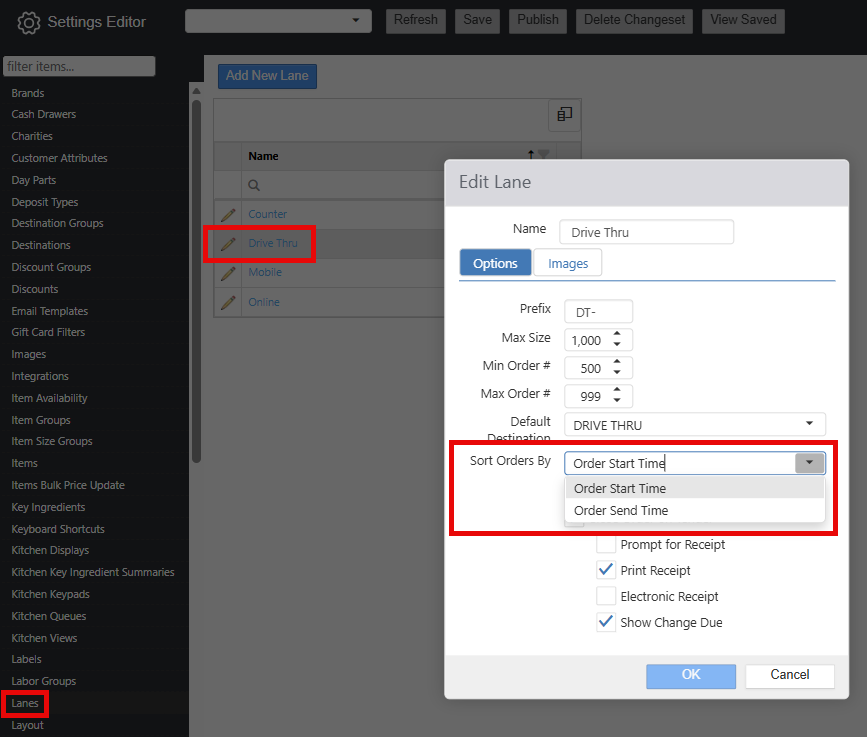
Feature Enablement
- Navigate to Settings Editor > Lanes > Drive Thru
- Select "Order Send Time" in the Sort Orders By field.
- Select OK.
- Save and Publish changes.
Kitchen
Additional Font Style Option on KDS – Strikethrough (BRNK-60596)
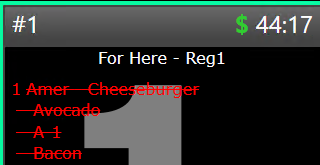
The new Strikethrough font option enhances the visibility of specific Item Types on the Kitchen Display System (KDS). This feature allows kitchen staff to easily identify and manage orders, particularly for items that have been voided. By applying Strikethrough to these items, staff can quickly recognize which orders are no longer active, improving overall order processing speed and accuracy.
Feature Enablement
- Navigate to Settings Editor > Kitchen Views > [select view] > Format
-
Select Strikethrough as a font option for relevant item types, such as "Voided Items".

- Select OK.
- Save and Publish changes.
Workflow
On the Register:
- Log in.
- Navigate to your normal order screen.
- Ring in an item.
- Send the item to Kitchen.
- Void the item.
- a. The KDS displays voided items in red with a strikethrough line.
Order Ready Board
Order Ready Board (BRNK-61099)
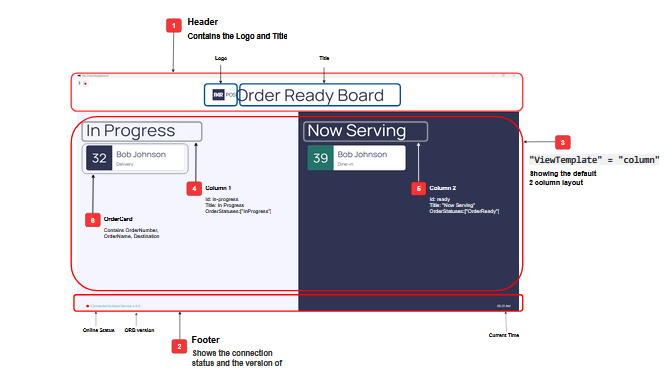
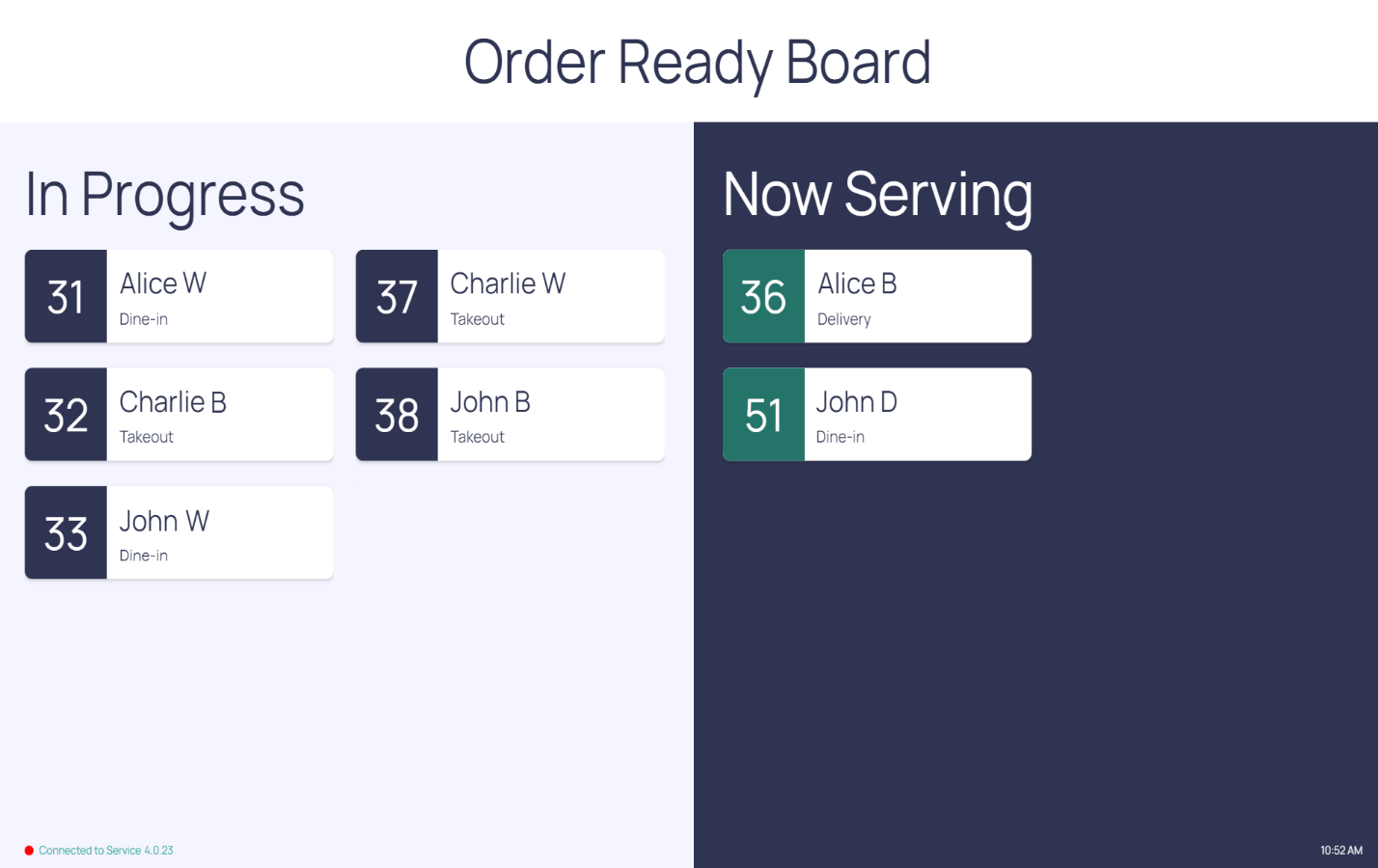
A new customer-facing display, the Order Ready Board, has been introduced for installation inside the store, near the front counter. This screen provides real-time order status updates to guests, eliminating the need for staff to manually communicate order progress. Each order displayed on the board includes the order number, guest name, and order destination.
Orders will appear under one of two statuses
- In Progress -- The order has been received and is currently being prepared by the kitchen
- Now Serving -- The order has been completed, bagged, and is ready for guest pickup
Supported Order Types
The Order Ready Board supports orders placed through the following channels:
- In-store register
- Self-service kiosk
- Digital ordering platforms
- Third-party delivery applications (e.g., DoorDash, Uber Eats)
What is configurable:
The Order Ready Board is configured in 2 different json files. See the Order Ready Board Configuration guide for more information.
- Brand/Logo
- Grid
- Cards per row
- Body Background
- Card Text Color
- Card Subtext Color
- Card Border Color
- Font
- Order Number Font
- Card Subtext Font
- Status Badges
- Badge ID
- Badge Color
- Badge Text
- Columns
- ID
- Title
- Order Status
- Background Color
- Header Text Color
- Card Background Color
- Header Text Color
- Card Subtext Color
- Card Border Color
- Accent Color
- Header Font
- Order Number Font
- Card Text Font
- Card Subtext Font
- Header
- Background color
- Title Color
- Font
- Footer
- Show Version
- Font
- Show online indicator
Operational Workflow
- A guest places and pays for an order through any supported order channel. Upon payment confirmation, the order automatically appears on the Order Ready Board under In Progress. a. For orders placed via digital or third-party ordering platforms, the order will appear on the Order Ready Board once the configured prep time has been reached – this corresponds to the moment the order becomes visible on the Kitchen Display Screens (KDS).
- When the order is bumped from the Front Counter Expo - indicating the order has been bagged and is ready for pickup - the order automatically transitions to Now Serving on the display
- After a configurable period, the order is automatically removed from the board.
This feature operates entirely without manual intervention, ensuring a seamless and efficient experience for both guests and store staff.
For more information, please see the Order Ready Board Configuration Guide.
Ordering/Loyalty
Update to Punchh 1.0 Integration for Table Service & Order Modifications (BRNK-59659)
This update improves the PAR POS + Punchh 1.0 integration's handling of order modifications, guest identification, offer application, payment changes, and tip adjustments. Specifically, it:
- Keeps valid Punchh offers/discounts on the check when the order is modified or when tips are adjusted in table service.
- Limits when offers are removed to explicit actions or true invalid cases.
- Reduces unnecessary calls to Punchh for payment-only changes, improving reliability and performance.
Customers will now have a smoother experience at the register and with guests, reducing the number of discounts lost and the need for manual re-application.
Feature Enablement
This feature is automatically enabled.
Order Events – Updates to Support Partner Requirements (BRNK-59173)
The following updates enhance Order Status Events so that partners in camera analytics and guest surveys can reliably:
- Tie survey responses back to specific transactions.
- See who worked on an order (employee identity).
- See where each event happened (register).
- Understand what exactly changed on an order (items removed, voided, reloaded gift cards).
- Accurately track order lifecycle (open/totaled/paid/closed/canceled) and payments.
In practice, this gives our customers and partners clean, event-level data that lines up with what happens on the POS, making analytics, loss-prevention, and guest-experience programs much more accurate.
Key improvements come from:
- BRNK-61397 – Add Survey Code to
OrderClosed.- The only unique key to match survey responses to transactions is a 15-digit survey code. Without this in OrderClosed, responses can't be accurately tied to the right order.
- BRNK-60531 – Capture
GiftCardReloadas an Order Status Event.- This enables partners to distinguish "normal payment" from "reloading a card," limiting fraud, comp, and promo analysis.
- BRNK-60529 – Add
TenderNameandEmployeeDisplayNameto event payload.- Employee information now has a proper display name.
- BRNK-59169 – Use the register where the event occurred.
- Payload now to reflects the register performing the event.
NOTE: These two tickets ensure that workflows such as "Register 2 took the order; Register 3 closed it" reflect accurately.
- BRNK-60521 – Capture voided items as events.
- This ensures that partners can distinguish voided vs. canceled/no-sale orders.
- BRNK-59172 – Include actual removed items and employee in payload.
ItemsRemovedevents show the actual item that was removed rather than the items currently still on the order.
NOTE: These two tickets ensure accurate differentiation between items removed and items voided.
- BRNK-59166 – Correct order date/time and state values.
- Key timestamps (Open, Created, Closed, Totaled, Paid, Business Date) and
OrderStateare now aligned with the actual event wording, making analytics and day-part reporting more accurate.
- Key timestamps (Open, Created, Closed, Totaled, Paid, Business Date) and
Auto Numbering Support for Combos and Combo Components (AS1-3197)
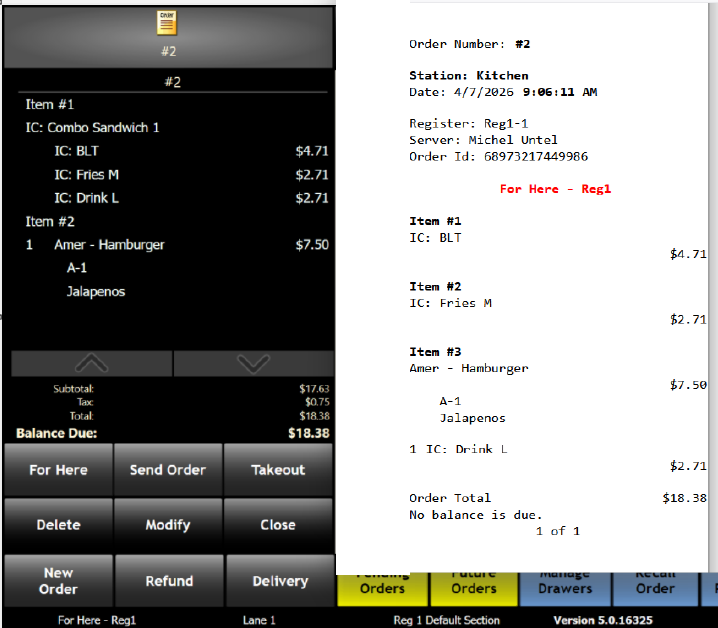
This change updates the Auto Numbering features so that it now:
- Correctly assigns auto numbers to combo items (e.g., "Classic Combo").
- Correctly assigns auto numbers to combo component items (e.g., burger, fries, drink within a combo).
- Keeps numbering behavior consistent across receipts, kitchen chits, and order lists.
When a guest orders combos, all relevant items (both the combo itself and its components) are now properly numbered and grouped wherever Auto Numbering is used. This improves consistency for crew members reading receipts, order lists, and chits. It also keeps guest orders clear and traceable, reduces the chance of missed or misprepared items, and better supports script-based printing for kitchen chits.
Feature Enablement
This feature is automatically enabled.
POS/Register
Register UI Isolation – Part Two (BRNK-57658)
This release completes the remaining Register modernization work started in the previous major release, focusing on strengthening the architectural foundation and establishing visual consistency across the system. A key part of this effort was the separation of business logic from the user interface, making the Register more modular, maintainable, and scalable for future enhancements.
Feature Enablement
This feature is automatically enabled.
No Restart of Register for Certain Configuration Changes (BRNK-59197)
This feature expands PAR POS's "Hot Reload" capability so that more configuration changes made in Settings Editor (SE) take effect on the register without requiring a restart. For multi-lane, always-on operations, requiring register restarts for configuration changes is painful. Restarting the terminals interrupts order flow and can cause backups at busy times. Now, sites may make important changes when they're needed most, even when busy.
With this update, a broader set of entities is either confirmed as already supported or explicitly evaluated for real-time update behavior:
- Changes are picked up immediately or via lightweight UI refresh, not a full register restart.
- Sites experience less downtime and disruption when making configuration changes.
- Operators can adjust configuration during operations with minimal impact to active registers.
Settings Editor Entities
Hot reload now supports the following whitelisted entities:
- Brands
- Customer Attributes
- Deposit Types
- Destinations
- Destination Groups
- Discount Groups
- Email Templates
- Item Size Groups
- Key Ingredients
- Keyboard Shortcuts
- Kitchen Key Ingredient Summaries
- Kitchen Keypads
- Labels
- Labor Groups
- Loyalty Adjustment Reasons
- Loyalty Cards
- Loyalty Events
- Loyalty Rewards
- Marketing Campaigns
- Menu Categories
- Modifier Tiers
- Price Levels
- Printer Groups
- Printer Messages
- Refund Reasons
- Scales
- Sections
- Shift Edit Reasons
- Survey Question Groups
- Survey Questions
- Survey Rating Scales
- Surveys
- Tares
- Void Reasons
Feature Enablement
This feature is automatically enabled.
Workflow
-
Log in to the Register.
-
Navigate to the normal order screen.
-
Navigate to Admin Portal > Settings Editor
- a. Make necessary changes to the above entities.
- b. Select Publish.
- c. Notice a blue information banner on the Publish Changeset Pop-up:
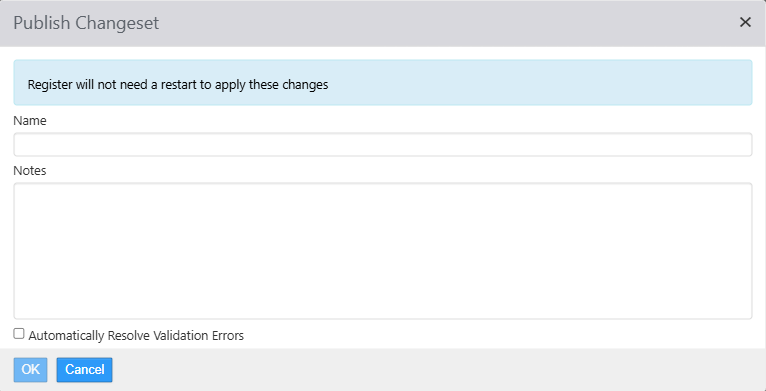
- d. Enter "Name" and any relevant "Notes".
- e. Select OK.
-
Return to the Register.
-
Notice a Pop-Up informing users that "Settings Changed".
-
Dismiss the message by selecting the X or allow the message to automatically dismiss after 10 seconds by default.

NOTE: If a changeset includes any entities outside of the supported list, a Register restart will still be required, just like before. The blue information banner will not display.
Enable Looping of Button Behaviors Within a Macro (BRNK-60882)
This feature introduces a loop count for macros, enabling the system to repeat the complete sequence of button actions within a macro when using the Quantity and Repeat Button behaviors. Previously, users had to press the button multiple times to run a macro more than once. Now, they can use the Quantity and Repeat buttons to achieve this. The new functionality works with the following Button Behaviors:
- Order Item
- Order Modifier
- Order Menu Item
Feature Enablement
This feature is automatically enabled.
Workflow Example
- Log in to the register
- Press a button with the button behavior Execute Macro
- Press a button with the button behavior Repeat
- a. Note: All three items were rung in again
- Press a button with the button behavior Quantity and select the # of times the Macro should be repeated, then click the button with the button behavior Execute Macro
- a. Note all three items were rung in the number of times entered in the Quantity field.
Printing/Receipts
Improve Printer Routing Configuration Flexibility (BRNK-60234)
When a kitchen queue is rerouted to a different KDS display, the associated kitchen printer now automatically follows that reroute. This means:
- Printed tickets always match the active KDS display for that queue.
- When a queue is moved from one kitchen station to another, the printer output moves with it--no manual printer reconfiguration required.
- Customers gain configuration flexibility around which jobs move and how long the reroute persists.
Previously, there was no automatic relationship between queue rerouting and printer routing. This meant that rerouting queues could cause mismatches between what cooks saw on the KDS and what printed on tickets. With this update, KDS queues and kitchen printers are automatically aligned when queues are rerouted. Customers can also persist reroutes through End of Day (EoD).
Feature Enablement: Persisting Printer Reroutes
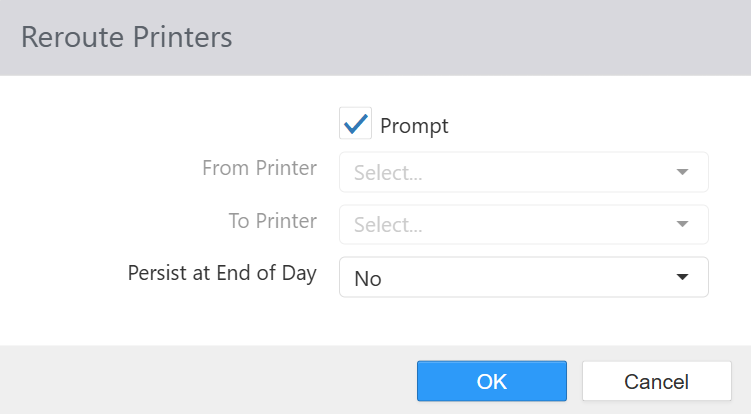
- Navigate to Settings Editor > Layout > [select panel] > Reroute Printer > Configure
- a. Default Settings:
- i. "Prompt" is checked/enabled.
- ii. Persist at End of Day = "No"
- a. Default Settings:
-
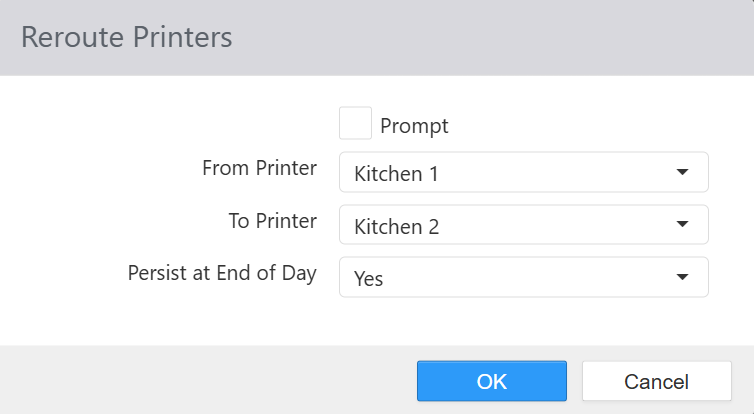
Create a new button and update the Reroute Printer configuration:
- a. Uncheck "Prompt".
- b. From Printer = "Kitchen 1"
- c. To Printer = "Kitchen 2"
-
d. Persist at End of Day = "Yes"
-
Select OK.
-
Save and Publish changes.
Workflow
On the Register:
- Log in.
- Navigate to your selected panel.
- Select Reroute Printer.
- a. Based on your configuration, the printers will reroute automatically.
- Select OK.
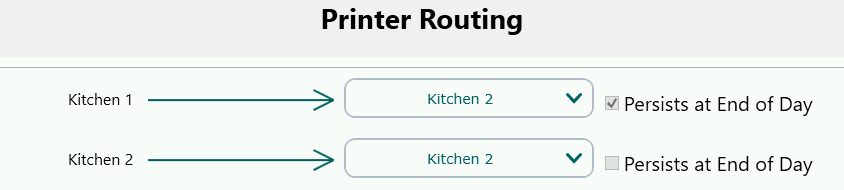
- Select the original Reroute Printer button with the default settings.
- a. The routings display with "Persist at End of Day" setting.
Publishing Enhancements
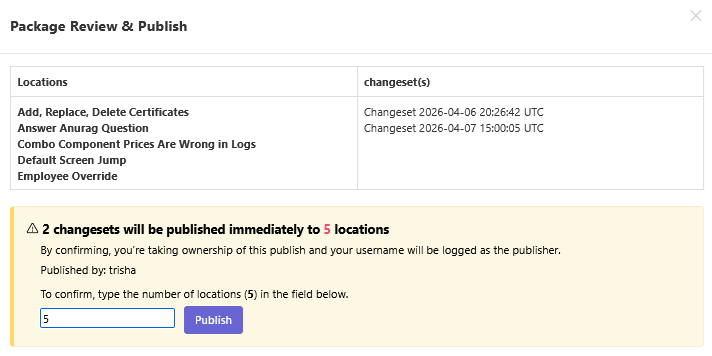
Added "Type to Confirm" to Changeset Package Dialog (BRNK-60877)
We are excited to introduce Type to Confirm, a powerful new feature designed to give you greater control and confidence when managing changes across multiple locations. For users responsible for reviewing, validating, and publishing change packages, this feature adds an important layer of protection to help prevent unintended or large-scale changes from impacting your business.
Type to Confirm streamlines the review process, making it easier than ever to thoroughly inspect outgoing changes before they go live – helping you maintain the integrity and reliability of your operations.
Feature Enablement
This feature is automatically enabled
Workflow
- Log in to the Admin Portal
- Navigate to Configuration
- Click Changeset Publisher
- Add desired information into the Filters section
- Click Apply Filters
- Select desired Changesets
- Click Continue
- Select desired Publish Time
- Select desired locations
- Click Submit
- A pop-up message will show the Changesets and the locations you are publishing to, if you are publishing to more than one location.
- You are required to confirm by typing in the number of locations in the available field
- a. Note: It is required that you enter the number of locations before the Publish button will be active.
- Click Publish
Changeset Packages – Performance & Search Improvements (BRNK-64937)
We've made significant improvements to how changeset packages are loaded and displayed in the Changeset Packages view within the Admin Portal, delivering faster and more reliable publishing -- especially for organizations managing large fleets.
What changed and why
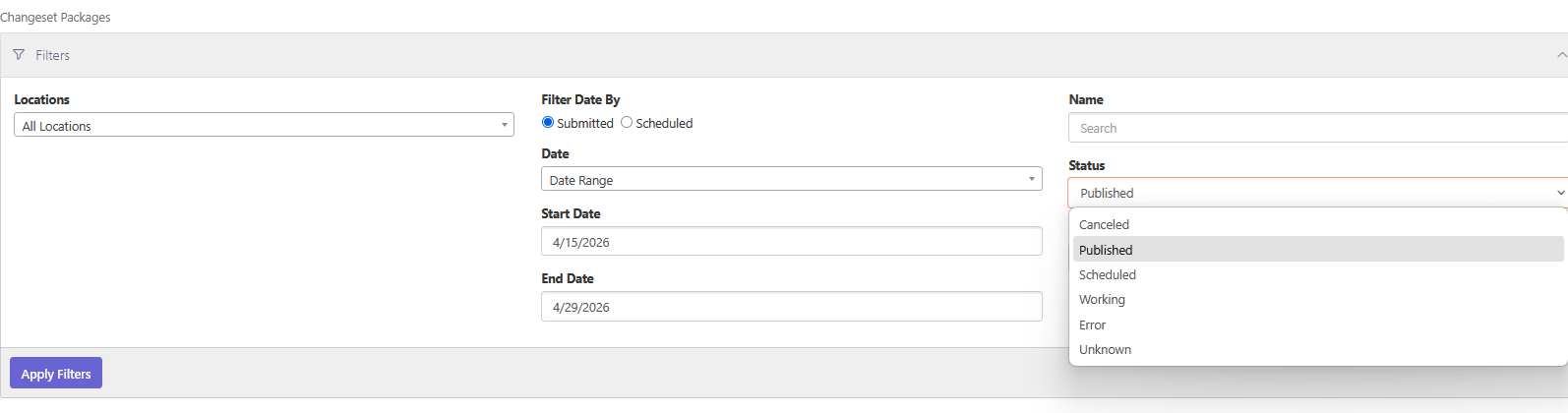
Previously, the view attempted to load all packages regardless of status, which could cause performance bottlenecks and, in some cases, lock up operations for high-volume locations. The view now defaults to displaying Published packages -- the most relevant state after a publish -- so the page loads quickly and efficiently every time.
Finding packages in other statuses
Locating packages outside of the Published status is simple. Use the Status filter to instantly surface packages in any state -- Working, Error, Pending, and more -- with results returning quickly, even across large fleets.
- Note: If a location experiences a hard delivery failure, its package will appear under Error status, even if other locations in the changeset are still Working or successfully Published. Filtering by Error is the fastest way to identify and investigate those locations.
Finding packages by source
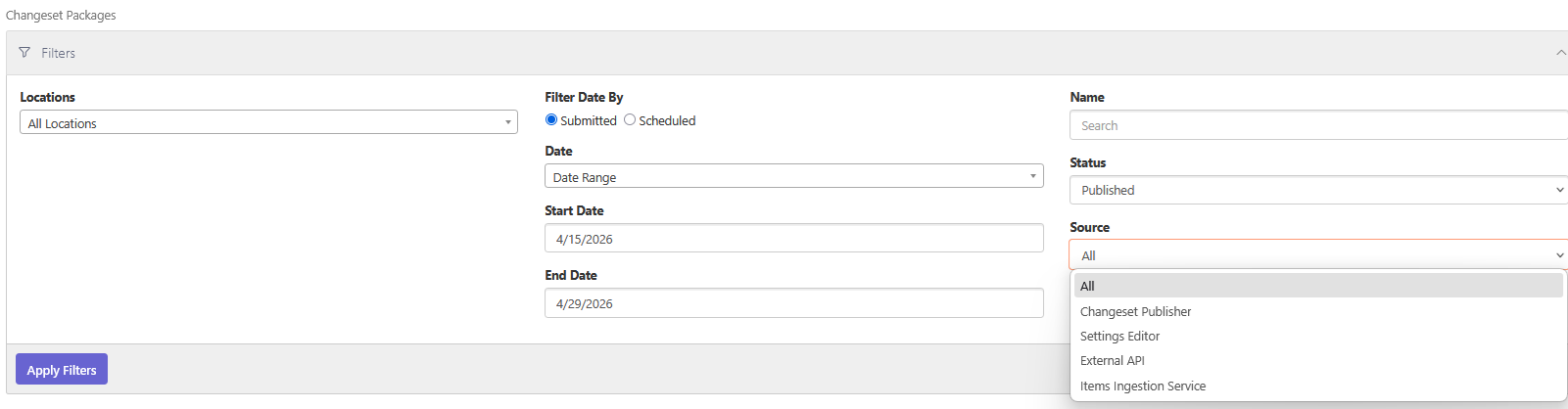
You can now filter changeset packages by where the change was made. Use the Source filter to quickly narrow results to any of the following:
- Changeset Publisher
- Settings Editor
- External API
- Items Ingestion Service
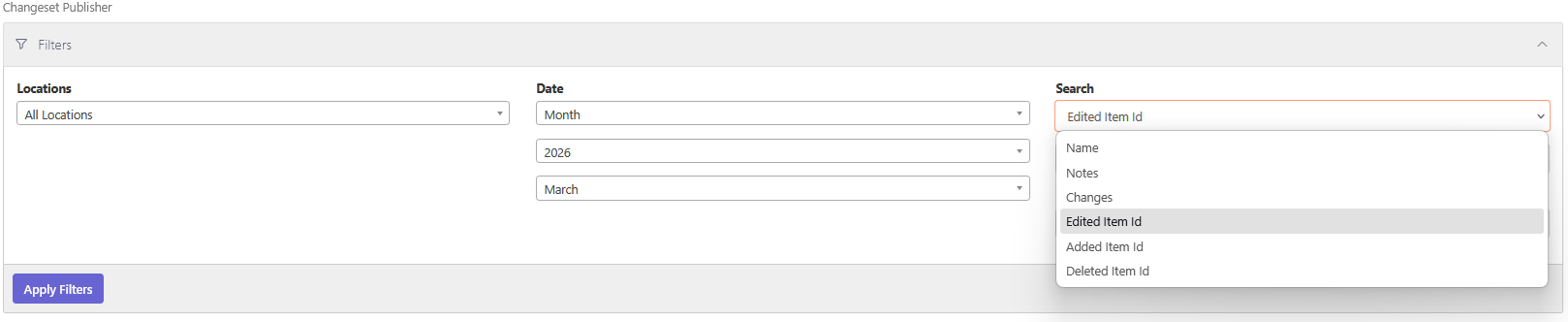
Expanded Search Options for Changeset Publisher
You can now search for changeset packages using the following filters:
| Filter | Description |
|---|---|
| Name | Search by the name entered when publishing in Settings Editor |
| Notes | Search by the notes entered when publishing in Settings Editor |
| Changes | Search by what changes were made in the package |
| Edited Item ID | Find packages containing a specific edited item |
| Added Item ID | Find packages containing a specific added item |
| Deleted Item ID | Find packages containing a specific deleted item |
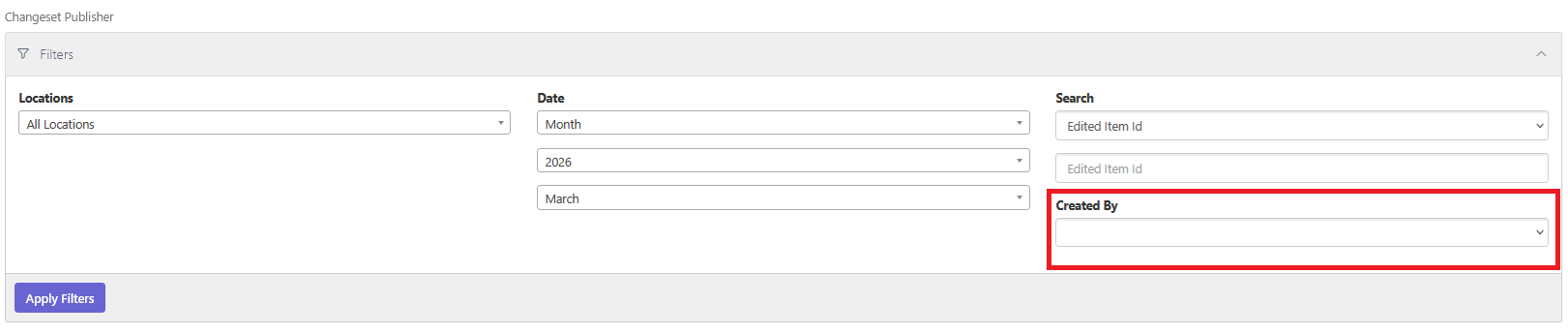
Search by Created By
Use the Created By dropdown to filter changeset packages by the user who created them, making it easy to track down changes by a specific team member.
Feature Enablement
This feature is automatically enabled.
Workflow
- Log in to the Admin Portal
- Click on Configuration
- Click Changeset Publisher or Changeset Packages
- Use the above filters to find the desired information
- Select Desired Changesets or Packages
- Select Desired Publish Time
- Click Submit
- Enter the number of locations you want to send the Changesets or Packages to
- Click Publish
Reporting Enhancements
Added PAR Numbering to Credit Card Audit Report (MH1-1665)
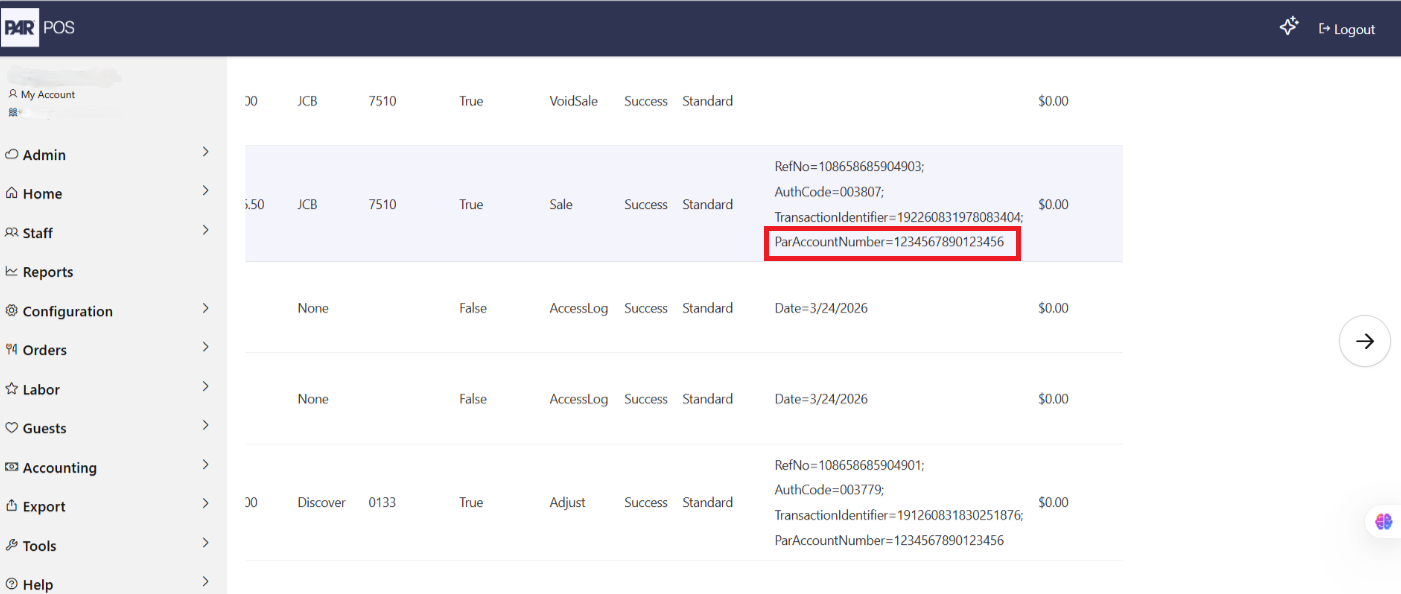
To simplify transaction matching, a unique identifier, PAR Account Number, has been added to the Credit Card Audit report, in the Details field, the Store Place Portal, and the Processor. Customers can now use this identifier to quickly search for and reconcile payment transactions across all platforms.
Feature Enablement
This feature is automatically enabled.
Workflow
- Log in to the Admin Portal
- Click Reports
- Click on Credit Card Audit
- Select desired filter options
- Click Submit
- In the Details field, the PAR Account Number is the unique identifier
5.16 Tickets Resolved (build 5.0.16xxx)
| Description | ID |
|---|---|
| Copying a Price Change with "Valid Destinations" sometimes carries over the flag but not the selected destinations, causing incorrect limits after the copy. Fix ensures destination settings are copied consistently when duplicating a Price Change. | BRNK-37754 |
| Macros-based combo ordering with a quantity key rings incorrect items (e.g., 1 combo + 2 singles instead of 3 combos), confusing cashiers and customers. Fix corrects macro quantity handling so the requested combo count is honored. | BRNK-56680 |
| Payments intermittently fail with an "Unable to communicate with card processor" error, blocking gift card checkouts. Resolved by stabilizing the integration so transactions complete reliably. | BRNK-58326 |
| Heartland refunds could return an unexpected gateway response, preventing successful refund completion. Fix ensures proper handling of gateway responses so refunds proceed and orders close as expected. | BRNK-58327 |
| Online orders sent to the POS without a gift card number were causing a null reference exception that rebooted the POS and blocked additional orders with a "POS Offline" error. This fix allows such orders to be processed without requiring a gift card number, preventing crashes and ensuring new orders continue to be accepted. | BRNK-59153 |
| At End-of-Day, changeset packages could apply out of order, leaving in-store settings out of sync with above-store. Fix introduces deterministic ordering to ensure dependencies apply in sequence. | BRNK-59196 |
| Publishing changes for customer modifiers intermittently produced duplicate or missing items across stores, blocking menu updates. Investigation isolated EoD/publishing edge cases; corrective actions taken and monitoring added in this release. | BRNK-59559 |
| Bearer-token redemptions could assign the guest but not display the reward selection, sometimes erroring on missing POS IDs. Fix aligns configuration validation and shows the reward pop-up to complete redemption. | BRNK-60000 |
| Updated the version of an older security app to a more secure version to prevent any potential security violations. | BRNK-60122 |
| After upgrading to 5.15, the Devices page in AP failed to load, blocking device management activities. Fix restores page loading so admins can view and manage devices. | BRNK-60148 |
| Order Service REST responses surfaced literal "\n" characters instead of line breaks for invalid gift card errors, reducing readability. Fix returns formatted messages with proper newlines. | BRNK-60290 |
| Applying payments without a valid till could silently succeed after a prior crash fix, risking cash control issues. Validation is unified, so an invalid-till message is shown, and no payment is applied. | BRNK-61167 |
| Tapping Employees from the Sales Summary caused the Register to crash, interrupting reporting workflows. The fix prevents the crash, so the report opens normally. | BRNK-61818 |
| AP Staff screens showed inconsistent Last Updated date formats across browsers, confusing audits. Fix standardizes date formatting for a consistent cross-browser display. | BRNK-61854 |
| Added location ID to logs to assist in troubleshooting issues with headless locations (locations with no online registers). | BRNK-62534 |
| Combining two orders could create duplicate discount entry IDs with differing amounts, leading to reconciliation discrepancies. Fix ensures unique, correct discount entries when orders are combined and retrieved via GetOrders. | BRNK-62600 |
| Unable to close an order because the employee who started the order is not the same employee who is trying to close the order. Issue resolved by optimizing the requirements for closing an order. | BRNK-62800 |
| Publishing retries are causing locking issues. We have updated the behavior in the service that handles multiple retries. This fix should improve publishing behavior and create an improved experience. | BRNK-64764 |
| Certain Combinations or missing filters result in slow execution times, particularly during peak activity like End of Day. Query patterns were optimized to fix this issue. | BRNK-64937 |
| Scheduling End of Day Changesets was causing multiple issues. We optimized our calls and duplicate event handling to help correct this issue. | BRNK-64968 |
| When Generic Loyalty is configured to suppress the offer screen, the system incorrectly shows a "No Rewards Applicable" message when no offers are returned. This fix removes the incorrect message and ensures that the offer screen behavior, guest assignment, and loyalty payment token handling all follow the Generic Loyalty contract. | BRNK-62797 |
| Corrected the behavior of how changesets are applied Above Store to match how the register applies changesets. This will help prevent publishing issues during the End of Day process. | BRNK-64929 |
| Some customers were experiencing slow performance when publishing. We've made improvements that speed up this process, making it more reliable and ensuring the accuracy of your data. | BRNK-64983 |
| When searching in Changeset Publisher or loading the package list, the user would see an error message after a long time had passed. Timeout behavior was modified to help alleviate this issue. | BRNK-65014 |
| Improved the way location settings are saved and loaded behind the scenes, resulting in a more reliable and efficient experience. | BRNK-65237 |
| Upgraded to a function that more efficiently applies settings during End of Day | BRNK-65677 |
| Saving an item allows duplicate taxes; only one persists in Admin Portal. Customers may see inconsistent tax data. Fix: block duplicate TaxIds on save. | AS1-2551 |
| SaveItems lets an item include a modifier group that already contains the same item, creating a circular reference. Risk of broken item configuration; now prevented on save. | AS1-2560 |
| CalculateOrder returns "Invalid Customer" even with a valid customerId, blocking order calculation for customers. Now accept valid IDs and return calculated order details. | AS1-2755 |
| Negative/zero menu IDs return wrong result code/message in SOAP. Leads to misleading client handling; now returns validation error (Result Code 2). | AS1-3078 |
| Updating an item with an invalid modifierGroupMappingId returns Unknown error in REST/SOAP. Customers get opaque failures; they should return clear not-found message for the mapping id. | AS1-3083 |
| GetSettings without required params throws 500/InternalServiceFault. Now returns a clear validation error for missing parameters. | AS1-3137 |
| SaveEmployee with invalid location IDs returns incorrect HTTP/result codes though message is correct. Client's mis-handle errors; now is 400 (REST) / Result Code 2 (SOAP). | AS1-3138 |
| Saving taxes allows duplicate names that differ only by case (e.g., VAT vs vat), causing duplicate logical records. Now enforces case-insensitive uniqueness. | AS1-3135 |
| Nested modifiers submitted in SubmitOrder are not returned by GetOrder. Customers lose details in retrieved orders; the response should include all submitted nested modifiers. | AS1-3290 |
| Printing config: chit spacing needs single spaces in specified areas. Impacts rollout; change scripts/config to normalize spacing. | AS1-3328 |
| GiftCard failures don't record OrderId in GiftCardAudit though CreditCardAudit does. Hinders troubleshooting; now logs OrderId on failed gift card transactions. | AS1-3352 |
| Void Detail Report: Showing a different employee assigned depending on the data range selected. Now the approver and employee will show correctly each time the report is loaded no matter the date range. | BBS-11177 |
| Duplicate journal events caused Sales Summary to show $0; customer reporting was blocked. Server now rejects duplicates. | BBS-12159 |
| Duplicate journal entries prevent R1 from starting, impacting store operations. Requires resolution to deduplicate the journal and allow startup. | BBS-12462 |
| Data injection/journal mismatch led to missing events and required forwarding, affecting reporting accuracy. SEG forwarded data as a temporary resolution. | BBS-12582 |
| Added Time column doesn't capture the actual upload time, hindering incident timelines. Now records upload time. | BBS-12684 |
| Open till not present in journals/logs blocked R365 polling; ghost till appears in reports--no workaround; required investigation of missing journal event. | BBS-12784 |
| On secondary registers, creating multiple earlier shifts collapses the UI and removes the selected highlight; it affects shift editing/clarity only on secondary. Now retains prior selection. | BBS-12830 |
| DataLake migrator fails to inject very large SDFs due to the configured max database size, causing inaccurate sales data. Increase configurable max size. | BBS-12867 |
| Multiple sites intermittently fail EOD, requiring manual advances and SDF renames; this disrupts nightly processing. Workaround: running EOD manually/advance via tools. | BBS-12875 |
| Publishing a modifier item returned Duplicate Item errors, leaving 25 stores without the item. Fix implemented with new release. | BBS-12885 |
| SaveItems generated a duplicate NewItem changeset for an existing entity, causing publishing failures and stuck changes; affects store updates. Needed logic to skip/update existing item instead of duplicating. | BBS-12896 |
| Sales Summary failed unless "Filter By Section" is set to All; minor user friction and confusion. Workaround: select all sections before running report. | BBS-12897 |
| Register and ServiceHost versions can drift when only EmployeeSettingsChanged occurs, leading to AboveStore/InStore mismatch. Requires engineering fix; current mitigation is manual SDF rename/recovery. | BBS-12899 |
| Some sites saw EoD blocked by R2 Synchronization Failure; EoD resumed after restarting Register App on R2. Impact: nightly EoD completion risk; workaround is to restart R2 app. | BBS-12932 |
| Combo required modifiers remain unmet after the Make Combo process in the customer flow, confusing ordering. Fix implemented with the new release. | BBS-12977 |
| Punchh receipt barcodes could not be looked up by guests; likely patch-related, impacted loyalty crediting. Fixed in POS/Punchh integration. | BBS-12978 |
| Pay rate was visible on the register Edit Shift UI post-5.0P with no toggle, exposing sensitive info. Setting to hide implemented. | BBS-12980 |
| Product Mix by Revenue Center and Revenue Center Sales by Destination were showing conflicting amounts. Found the issue was due to how items are applied to reports for future orders. Now the reports attribute items and totals only to the date the order is fulfilled. | BBS-13098 |
| Publishing a layout while on the Home screen caused visual artifacts overlaying UI; it impacted register usability until navigating away and back. Workaround: Change the screen to clear the artifact. | BBS-13099 |
| Two Jefferson's locations get "An error occurred while processing report data" on 09/22 Sales Summary post-update; reports won't load. No workaround; needs settings/data fix. | BBS-13102 |
| Customer display showed tip prompt on employee screen instead; affects tipping UX; Currently under investigation. | BBS-13114 |
| Missing early-day events skewed reports at a store; injecting missing events restores data; workaround applied (global rename + inject). | BBS-13128 |
| Settings Editor failed to load after many publishes, blocking store publishes; engineering is aware of a memory issue. | BBS-13133 |
| Post-upgrade tablets looped or required a reboot for changes to apply; a temporary fix is a manual register reboot. | BBS-13135 |
| Combo flow left required modifiers unmet on kids' items; fix implemented with new release. | BBS-13155 |
| Refunds under $4 miscalculated tax due to rounding rules; customers over/under charged on refunds. Workaround: avoid refunds under $4. | BBS-13158 |
| Remote Care showed terminals missing from Term-Info; reduced visibility into upgrade readiness. Fix implemented with the new release. | BBS-13188 |
| Hot Reload intermittently failed; some registers didn't get changes without reboot; reboot resolves temporarily. | BBS-13209 |
| Sales Summary report failed due to historical sync issues; fixed with the new release. | BBS-13213 |
| Cash tender on future orders didn't open the drawer, slowing cashier flow. Fix implemented with the new release. | BBS-13267 |
| Publishes were being sent to locations that were removed from the group. The fix for this issue is now in this release. | BBS-13063 |
| Scheduled publishes were showing OLO mismatches. Fix has been implemented in this release. | BBS-13276 |
| Loyalty lookup crashed with unsent items; forced app restart. A workaround is to restart the POS or send items before the lookup. | BBS-13283 |
| BMS service wouldn't start (Error 1053), blocked patch deployment and troubleshooting. Fix implemented with the new release. | BBS-13285 |
| Two stores got report errors post-update: reporting blocked. Required data cleanup and settings adjustments. | BBS-13311 |
| KDS showed the entree again after converting it into a combo and duplicated kitchen items. Fixed from integration logic review. | BBS-13320 |
| Epson U220 couldn't print the Punchh barcode; an unreadable numeric code was printed; affected loyalty use. Required printer/receipt setting change. | BBS-13344 |
| Orbit installer creation failed. Fixed from Upgrade Portal/DB fix. | BBS-13463 |
| Tablets showed "No current order" repeatedly, locking devices. Fixed with the new release. | BBS-13483 |
| Future orders were shown with double-counted quantities and totals in the Product Mix report. Fix included in release. | BBS-13129 |
| Some customers reported registers slow to respond to future and new orders. Fixed with new release. | BBS-13512 |
| Previously, some customers experienced their Valuelink gift card transactions being unexpectedly declined at the point of sale. This was caused by a missing piece of required information in the transaction request. This has now been corrected, and Valuelink gift card transactions should be processed successfully. | MH1-2088 |
Version History
| Version | Date | Updates |
|---|---|---|
| 2.0 | 4/13/26 | Initial Publication |
