Transactions
The Transactions module provides a detailed view of individual payment transactions processed across merchants. It supports monitoring, reconciliation, and reporting by offering comprehensive data and flexible filtering options.
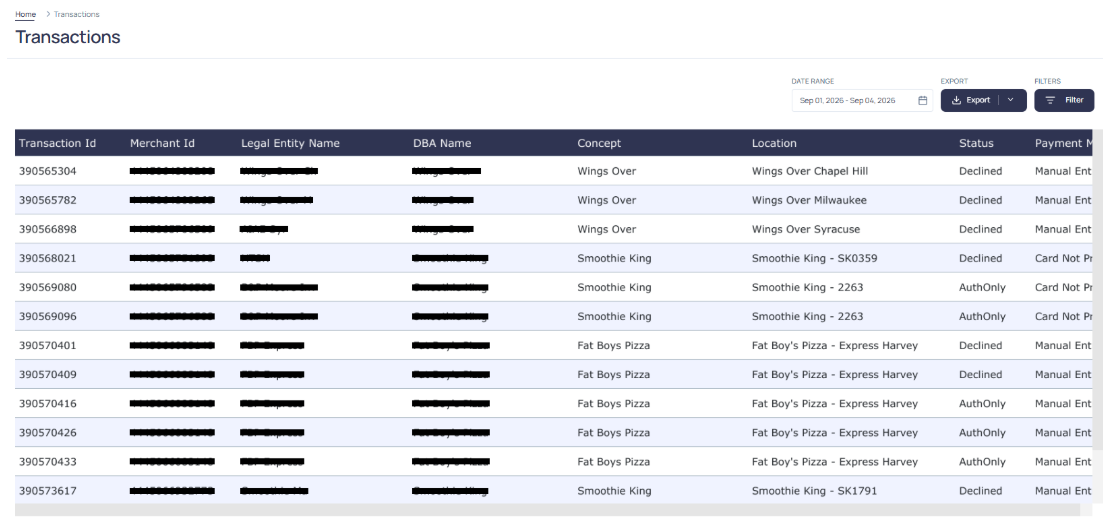
Displayed Fields
Each transaction record includes the following information:
- Transaction ID: Unique identifier for the transaction.
- Legal Entity Name: The registered legal name of the merchant.
- DBA Name: The "Doing Business As" name of the merchant.
- MID: Merchant ID associated with the transaction.
- Status: Current status of the transaction (for example, funded, declined, auth only).
- Payment Method: Type of payment used (for example, card present).
- Transaction Date: Date the transaction occurred.
- Settled Date: Date the transaction was settled.
- Type: Indicates the transaction type (for example, deposit, refund, decline).
- Auth Code: Authorization code returned by the payment processor.
- Card Type: Brand of the card used (for example, Visa, Mastercard).
- Card BIN: Bank Identification Number (first 6 digits of the card).
- Card Last 4: Last four digits of the card number.
- Expiration Date: Expiry date of the card used.
- Gross Amount: Total transaction amount before fees.
- Net Amount: Amount after fees and adjustments.
- Tip Amount: Any tip included in the transaction.
- Currency: Currency in which the transaction was processed.
Filtering Options
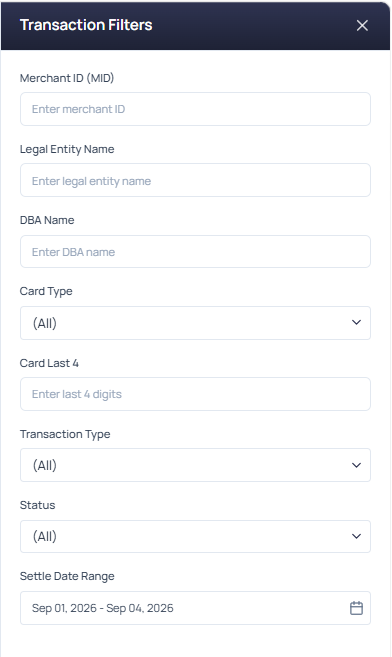
Users can refine the transaction list using the following filter options:
- MID
- Legal Entity Name
- DBA Name
- Card Type
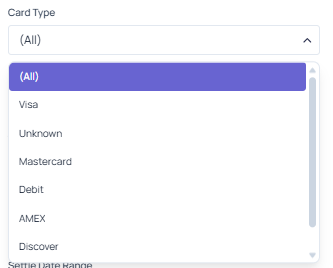
- Card Last 4
- Transaction Type
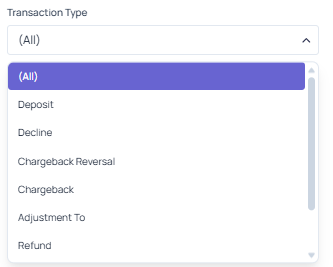
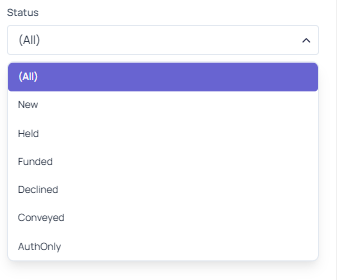
- Status
- Settle Date
Sorting Options
All columns in the Transactions table can be sorted in ascending or descending order. Click on any column header to toggle the sort direction.
Exporting Transactions Data
To export transaction data:
- Click the Export button
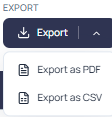
- Choose the desired format (for example, CSV or PDF)
- Specify export settings such as date range, scaling, page size, and orientation
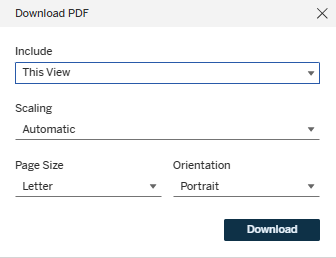
- Click Download to save the file locally
