Toast POS Revenue Center Mapping
Overview
Toast Revenue Center Mapping lets you direct orders from different ordering channels into separate revenue centers in Toast. By assigning a revenue center to web ordering, mobile ordering, kiosk, catering, or a specific third-party marketplace channel, you can break down sales by channel in Toast's reporting dashboard without manual tagging.
Configuration is hierarchical:
- Brand-level settings (configured per store group) apply as the default across all stores in that group.
- Store-level settings for the same channel override the brand-level value for that store only.
There is no way to actively prevent a store from inheriting a brand-level revenue center. Selecting None at the store level clears the store-level override, then the brand-level value applies automatically. To ensure that no revenue center is sent for a specific channel at a given store, you must also clear that channel at the brand level.
Prerequisites
Before configuring revenue center mapping, confirm the following:
- Your brand is integrated with Toast POS.
- You have a Management Center account with brand configuration permissions.
- Revenue centers are already created in your Toast back office.
Configuring Revenue Centers at the Brand Level
Brand-level settings apply as the default for all stores in the store group.
Static ordering channels (Web, Mobile, Kiosk, Catering)
-
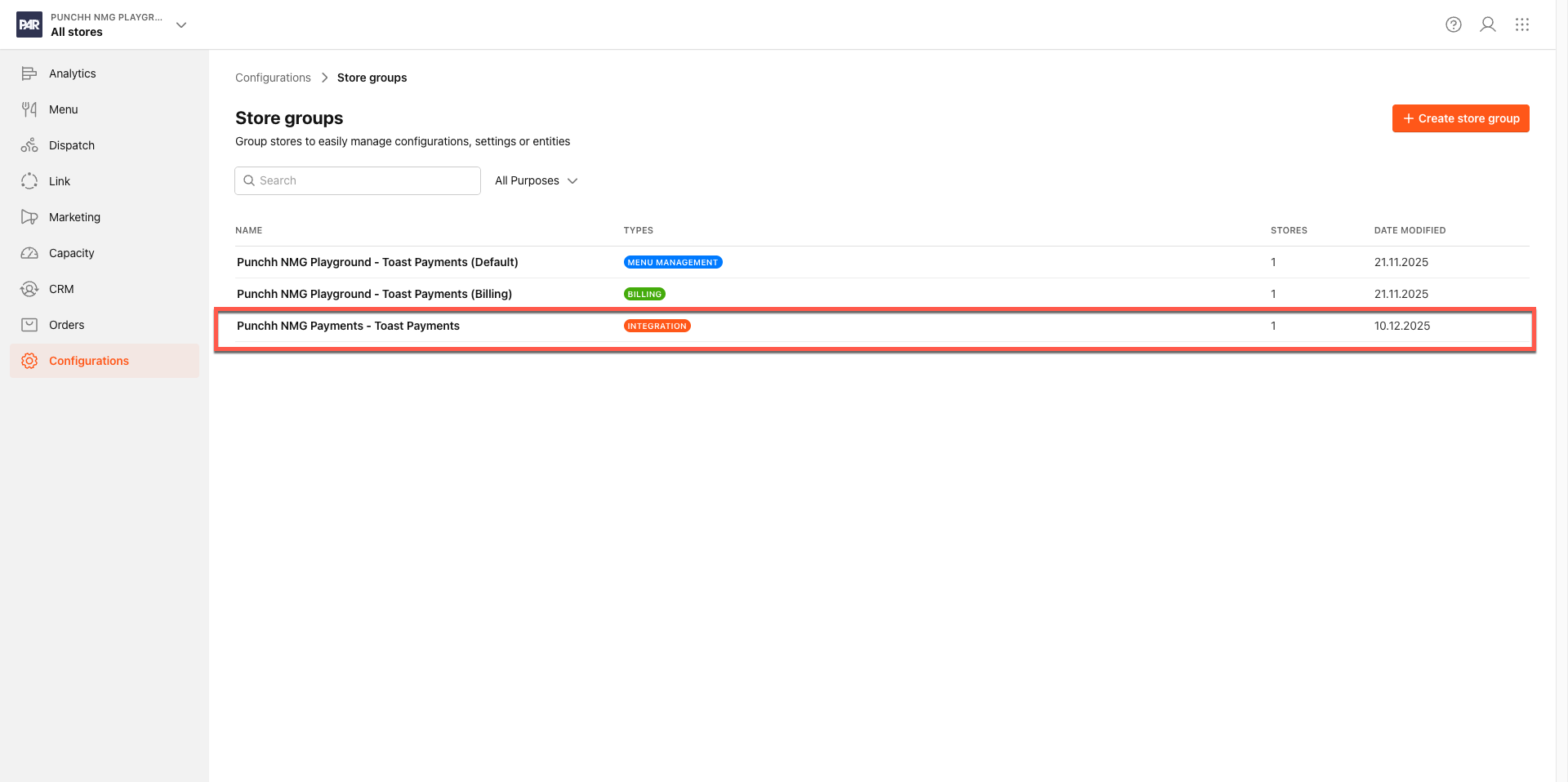
In the Management Center, go to Brand > Configurations > Store Groups.
-
Select the store group linked to your Toast integration.
-
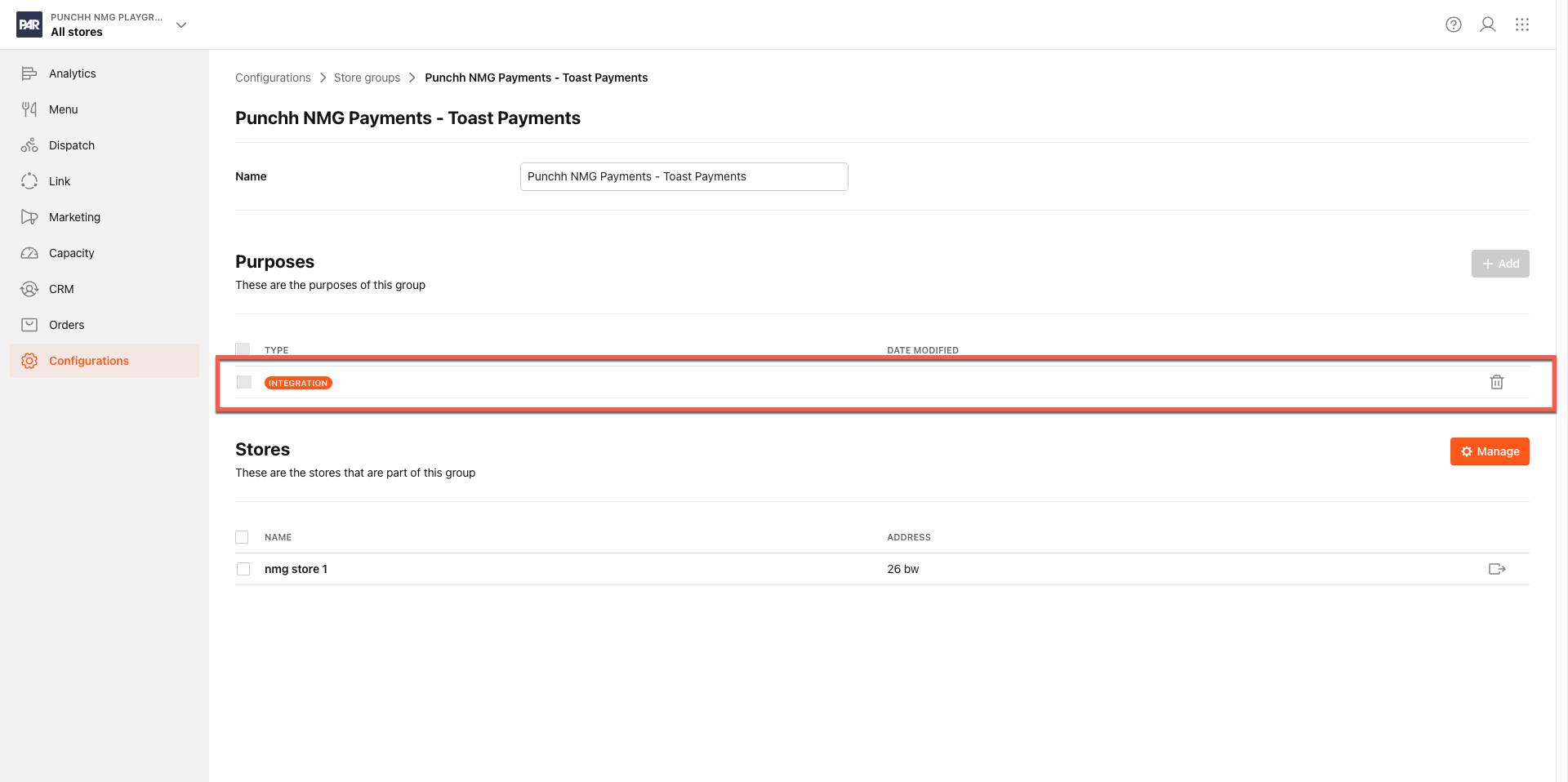
Select Integration on the Store Group page.
-
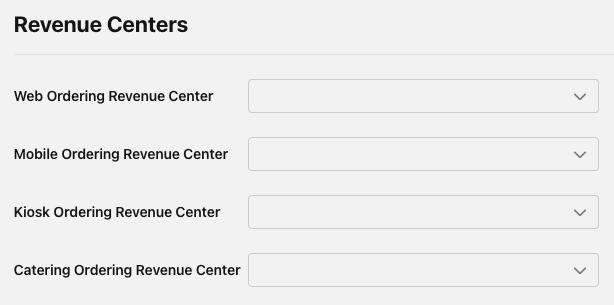
Open the Integration Type tab and scroll to the Revenue Centers section.
-
For each channel, select a revenue center from the dropdown:
- Web Ordering Revenue Center
- Mobile Ordering Revenue Center
- Kiosk Ordering Revenue Center
- Catering Ordering Revenue Center
Note: To leave a channel unmapped, select None.
-
Click Save.
External marketplace channels (DoorDash, GrubHub, Uber Eats, etc.)
- From the same store group configuration page, open the External channels tab.
- For each marketplace assigned to your brand, select a revenue center from the Ordering Revenue Center dropdown on that channel's row. To leave a channel unmapped, select None.
- Click Save.
Revenue centers are fetched live from Toast when you open the dropdown. If the list is empty, confirm that revenue centers are configured in your Toast back office, then try again.
Configuring Revenue Centers at the Store Level
Store-level settings override the brand default for that store only. Any channel left as None at the store level will use the brand-level value as a fallback.
Static ordering channels (Web, Mobile, Kiosk, Catering)
- Navigate to the store's Configurations > POS Integration.
- Open the Integration Type tab and scroll to the Revenue Centers section.
- For each channel, select a revenue center from the dropdown, or leave as None to inherit the brand-level value.
- Click Save.
External Marketplace Channels
- From the same store's POS Integration Settings page, open the External channels tab.
- For each marketplace channel row, select a revenue center or leave as None to inherit the brand-level value.
- Click Save.
Marketplace rows appear only for channels currently enabled at that specific store. If a marketplace row is missing, enable the channel first, then return to configure its revenue center.
How Revenue Centers Are Resolved on Orders
When an order is submitted, PAR Ordering determines the revenue center using the following priority:
| Priority | Source |
|---|---|
| 1 (highest) | Store-level revenue center for the matching channel |
| 2 (fallback) | Brand-level revenue center for the matching channel |
| 3 | No revenue center sent (Toast default behavior) |
The following table shows how ordering channels map to their configuration rows:
| Ordering channel | Configuration row |
|---|---|
| Web browser ordering | Web Ordering Revenue Center |
| Mobile app ordering | Mobile Ordering Revenue Center |
| Kiosk | Kiosk Ordering Revenue Center |
| Catering delivery/catering pickup | Catering Ordering Revenue Center |
| Third-party marketplace (DoorDash, GrubHub, Uber Eats, etc.) | [Channel Name] Ordering Revenue Center |
Full Service Revenue Center: Brand vs. Store Level
Brand level: field removed
The Full Service Revenue Center field that previously appeared under Full Service Order Type Settings at the brand level has been removed. If you previously configured a value there, you need to re-configure it using the appropriate channel row (Web Ordering Revenue Center, Mobile Ordering Revenue Center, or Kiosk Ordering Revenue Center) in the Revenue Centers section under the Integration Type tab.
No automatic migration is performed for previously configured values.
Store level: field retained
The Full Service Revenue Center field remains available at the store level under Order Type Settings → Full Service Revenue Center.
If a store has a value configured in the store-level Full Service Revenue Center field, that value takes precedence over the channel-based revenue center configuration for ALL orders submitted as the Full Service order type at that store. The channel-level settings (Web, Mobile, Kiosk) do not apply to those orders.
The store-level Full Service Revenue Center field and the channel-level configuration can coexist — the store-level Full Service field simply takes precedence for its specific order type. If this behavior is working as expected for your stores, no changes are needed.
Troubleshooting
| Issue | Explanation |
|---|---|
| Revenue center dropdown is empty | Revenue centers are fetched from Toast when the dropdown is opened. If the list is empty, verify that revenue centers are configured in your Toast back office, then try again. |
| A marketplace row is missing from the External channels tab | Marketplace rows only appear for channels currently enabled at that store or assigned to that store group. Enable the channel first, then return to configure its revenue center. |
| Selecting None at the store level is not preventing the brand revenue center from being sent | This is expected behavior. Selecting None at the store level clears the store-level override but does not block the brand-level fallback. To prevent a revenue center from being sent for a channel at a specific store, clear it at the brand level as well. |
