Tablet App: How to Change the Connected Store?
To change the connected store on your Tablet App please follow these guidelines:
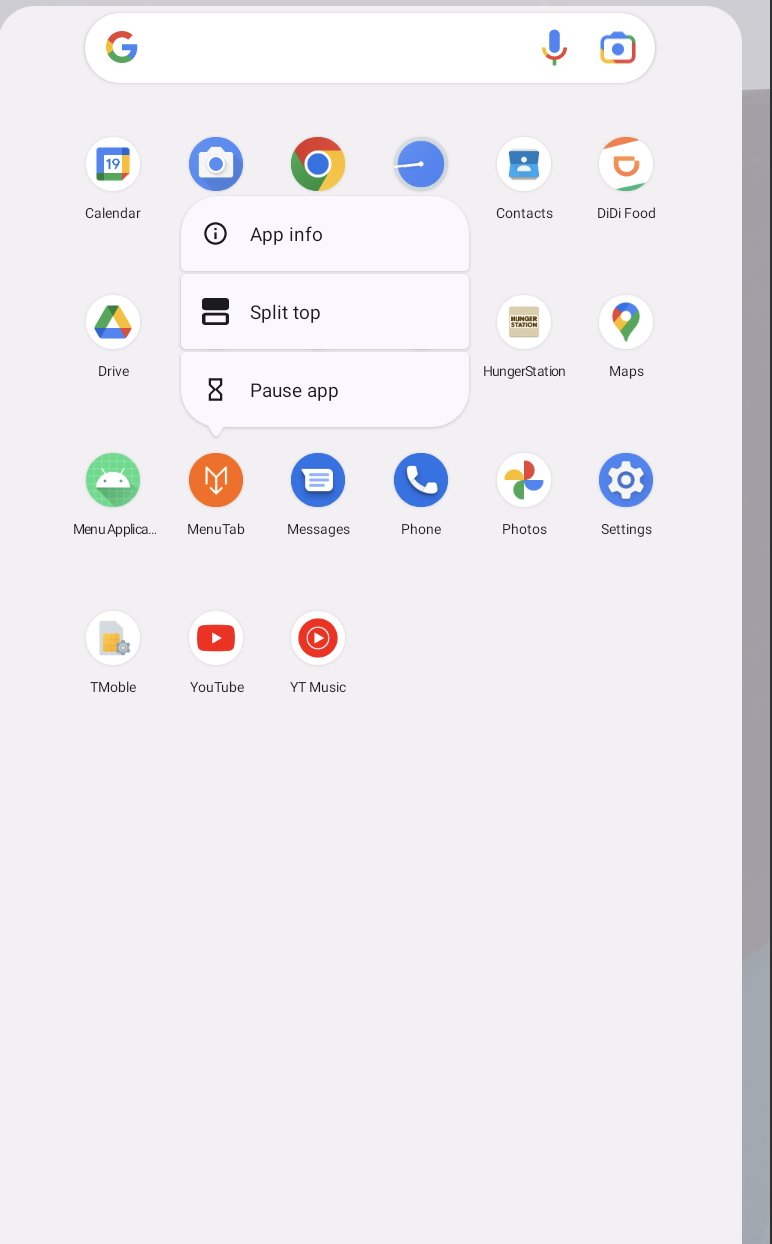
- Long Click on the MenuTab App Icon:
- Long-press the app icon on your home screen or in the app drawer.
- This action will open a context menu with various options related to the app.
- Select "App Info":
-
Look for the option labeled "App Info" in the context menu.
-
Tap on it to access detailed information about the app.
-
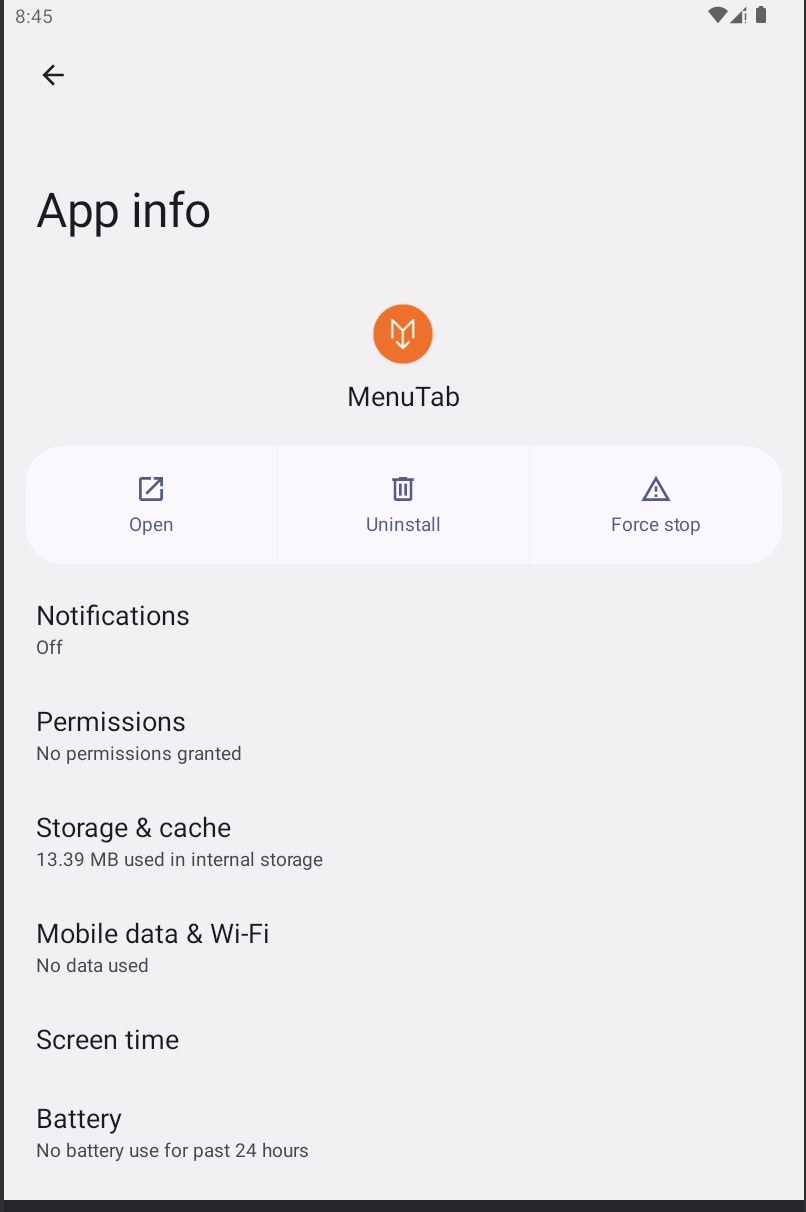
- App Info Screen:
-
You'll now be on the App Info screen for that specific app.
-
Here, you can find details such as the app's version, permissions, and storage usage.
-
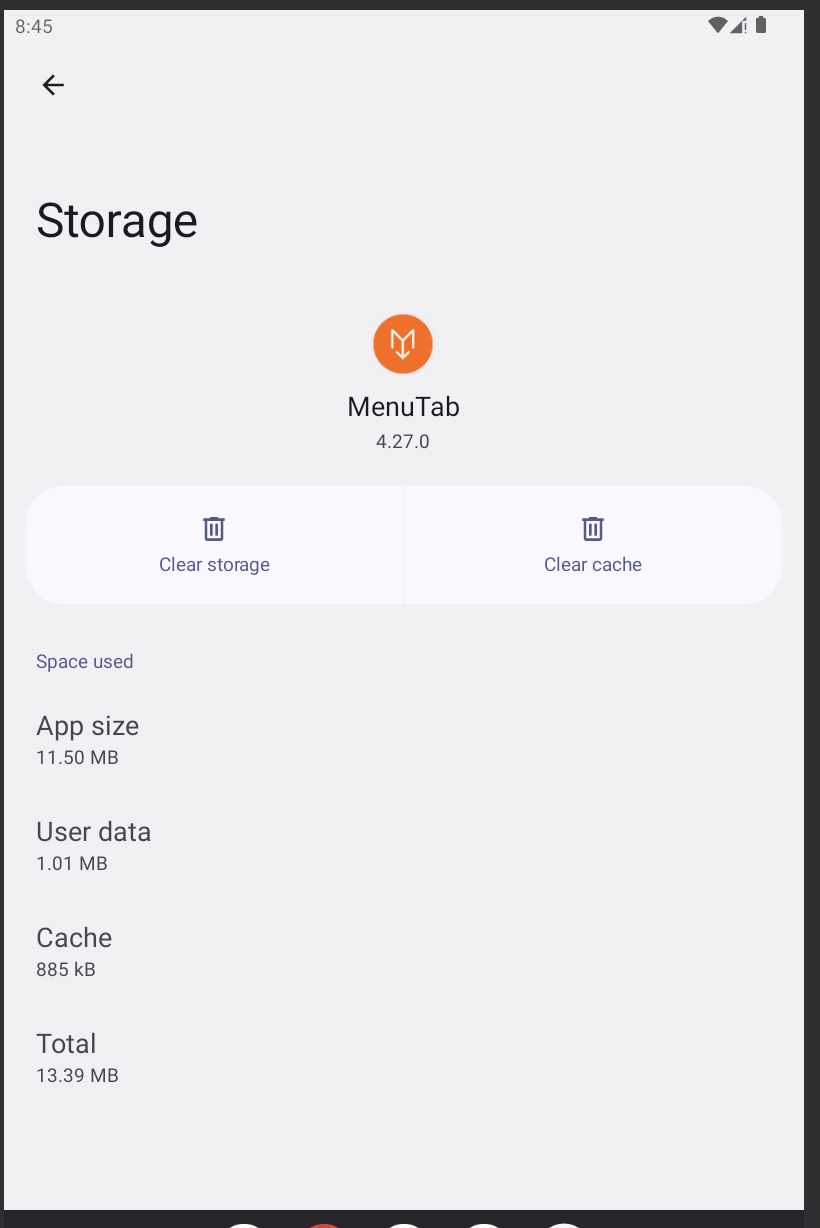
- Clear Cache:
- On the App Info screen, locate the "Storage" section.
- Tap the "Clear Cache" button.
- Clear Storage (Data):
-
In the Storage section, tap the "Clear Storage" (or "Clear Data") button.
-
This will reset the app to its initial state, as if you had just installed it.
-
- Set Up the App Again:
- After clearing storage, launch the MenuTab app and introduce the Tablet App Token. To know more about how to get the Tablet token visit the following article from our Help Center at PAR Ordering Tablet App in Google Play Store
