PAR POS Native Marketplace Facilitator (MPF) Tax
Overview
Marketplace Facilitator (MPF) tax applies when a third-party marketplace (such as DoorDash or Uber Eats) remits sales tax to the tax authority on behalf of your restaurant, rather than your restaurant remitting it directly.
Previously, PAR Ordering handled MPF orders by marking them as tax-exempt and applying a surcharge to represent the marketplace-remitted tax amount. This workaround skews tax and surcharge reporting and complicates reconciliation.
With native MPF tax support, PAR Ordering submits orders to PAR POS with an explicit Taxes collection that shows which portion of tax the marketplace remitted and which portion the store remitted. This eliminates the tax-exempt and surcharge workaround and produces correct tax reporting.
Note: Native MPF tax is activated per store or store group by configuring two Tax ID fields in Management Center. Stores without those fields configured continue to use the legacy tax-exempt and surcharge behavior with no disruption.
PAR Ordering handles three order scenarios. Each produces a different Taxes payload to PAR POS.
| Scenario | MPF Tax Amount | Store Tax Amount | Taxes Collection Sent to PAR POS |
|---|---|---|---|
| No MPF | 0 | Any | Empty (no change from legacy behavior) |
| Full MPF | Equals total order tax | 0 | One entry: ThirdParty remittance for the full MPF tax amount, using the Third-Party MPF Tax ID |
| Partial MPF | Less than total order tax | Remainder | Two entries: ThirdParty (MPF amount, Third-Party MPF Tax ID) and Store (remainder, Store Tax ID) |
In all scenarios, the payment amount sent to PAR POS excludes the MPF tax amount, consistent with how the marketplace settles the order.
Before You Begin
Before you configure native MPF tax in Management Center, the following prerequisites must be in place.
Step 1: Create tax entries in the PAR POS Settings Editor
In the PAR POS Settings Editor, go to Options > Online Ordering > Taxes.
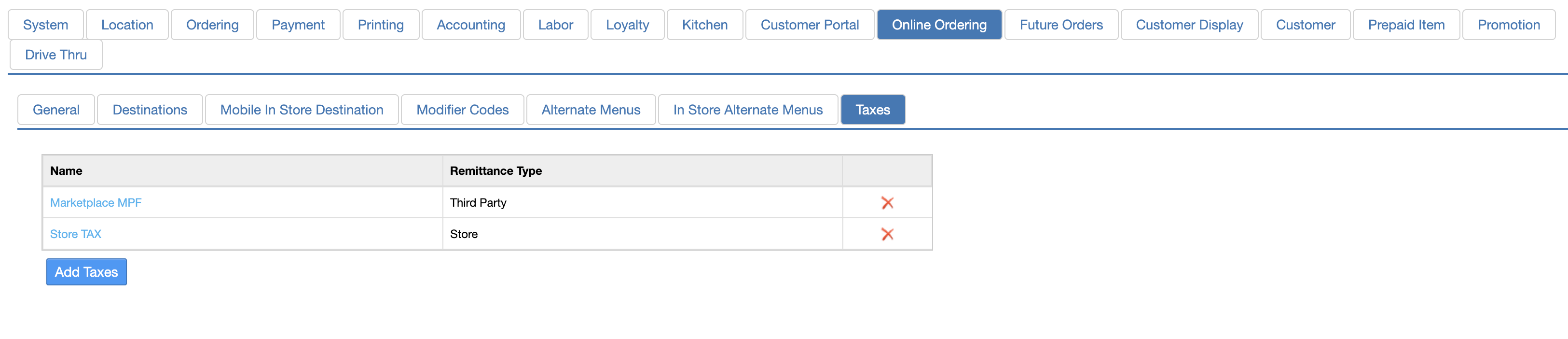 Click Add Taxes.
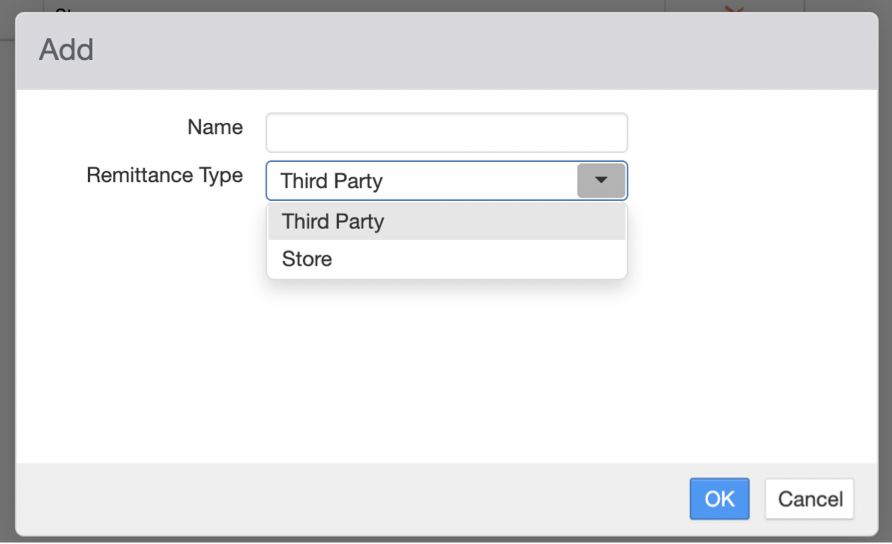
- Create (or identify) a tax entry for marketplace-remitted tax. Set its Remittance Type to
ThirdParty. - Create (or identify) a tax entry for store-remitted tax. Set its Remittance Type to
Store.
Step 2: Retrieve the Tax IDs
There are two ways to retrieve the Tax IDs:
Changeset Publisher in the Admin Portal (PAR POS)
- Open the PAR POS Admin Portal.
- Click Configuration.
- Click Changeset Packages.
- Find a published Changeset.
The best way to find a changeset with the appropriate details is to filter by date, name, and source.
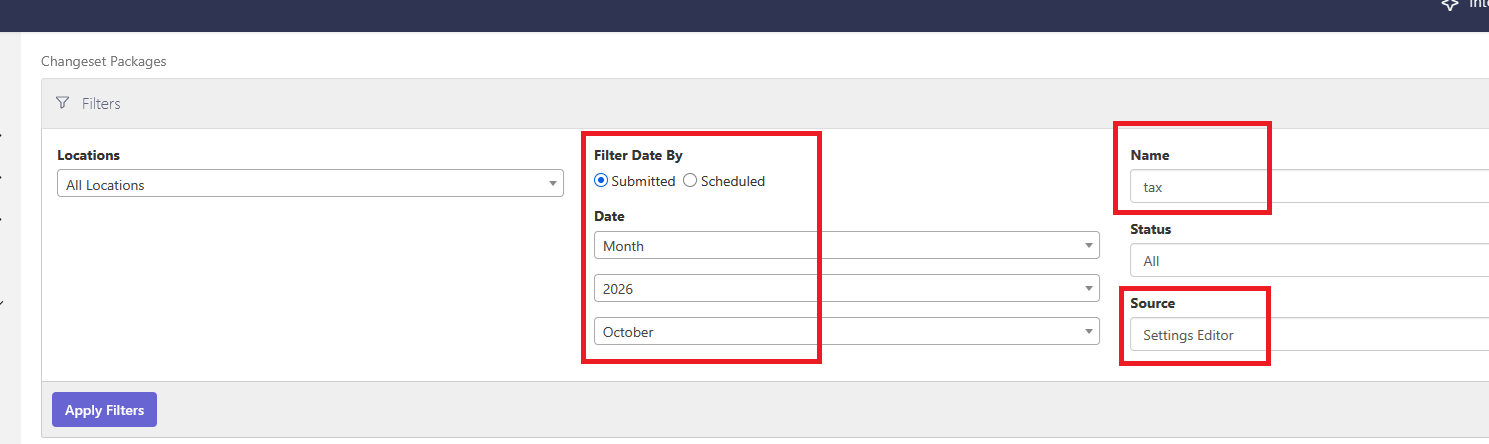
- Date: Filter by the month and year the store location opened with PAR POS or when the changeset containing the tax entries was published.
- Name: Enter "tax" as the keyword.
- Source: Enter "Settings Editor"
-
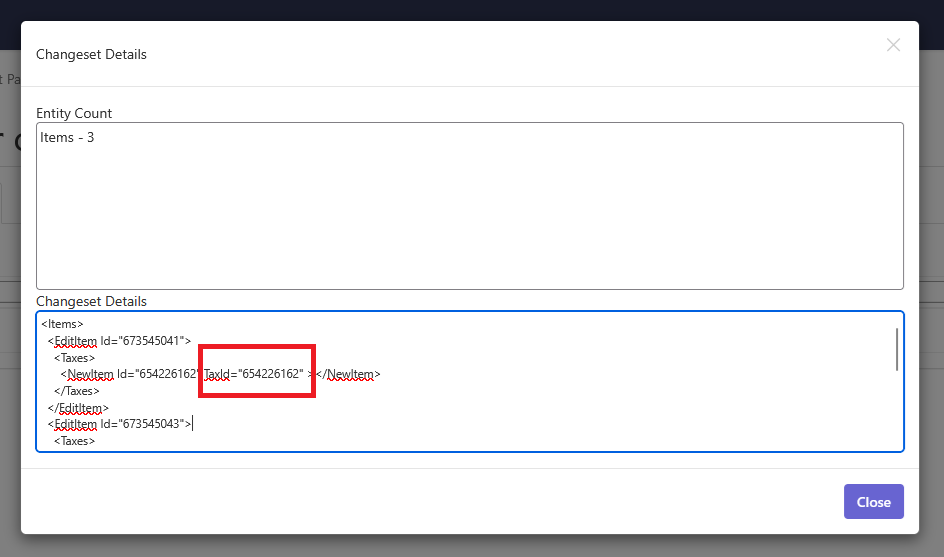
Click the name of the changeset to view the details. The Tax ID will be shown under Changeset Details.
PAR POS API
The numeric Tax IDs required for Management Center configuration can also be retrieved from the PAR POS GetOptions API.
Note: Retrieving Tax IDs via the GetOptions API requires PAR POS credentials scoped to the store being configured. Contact your PAR representative to have the Tax IDs retrieved for your stores.
Your PAR representative will provide you with:
- The numeric
Idfor theThirdPartytax entry. This is your Third-Party MPF Tax ID. - The numeric
Idfor theStoretax entry. This is your Store Tax ID.
Configure Native MPF Tax in Management Center
The Third-Party MPF Tax ID and Store Tax ID fields are available in the PAR POS Integration panel at both the store group level and the store level.
Configure at the store group level
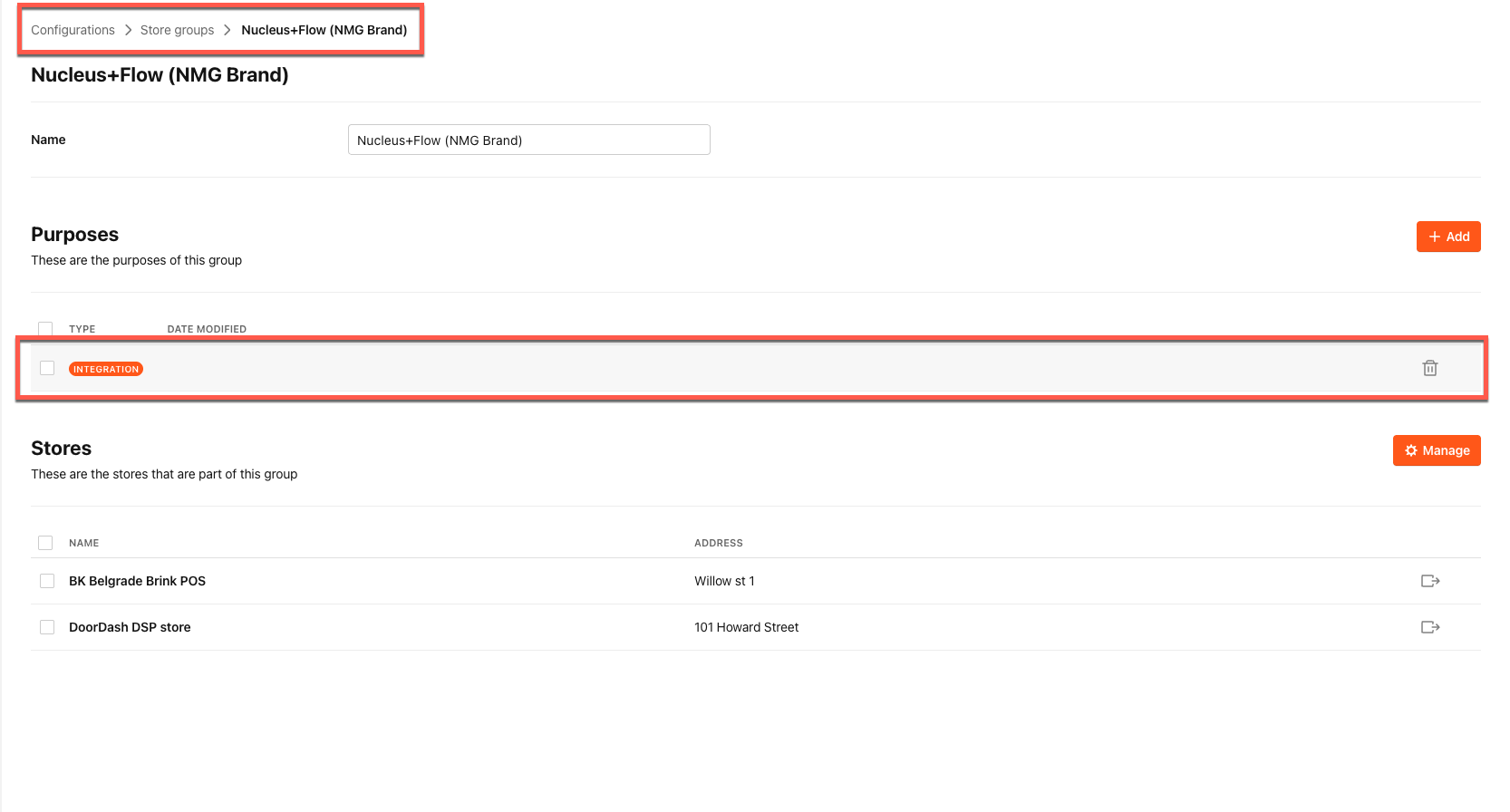
- In Management Center, go to Brand > Configurations > Store Groups.
- Select the store group you want to configure.
-
Select Integration to manage the PAR POS integration.
-
Under Integration Type > Settings:

- Enter the Third-Party MPF Tax ID value provided by your PAR representative.
- Enter the Store Tax ID value provided by your PAR representative.
- Click Save.
Configure at the store level
Use store-level configuration to override the store group settings for a specific store.
- In Management Center, go to Store > Configurations > POS Integrations.
- Enter the Third-Party MPF Tax ID value for this store.
- Enter the Store Tax ID value for this store.
- Click Save.
Note: To clear a store-level override and fall back to the store group configuration, leave both store-level Tax ID fields empty.
Lookup order
PAR Ordering resolves Tax IDs in the following order:
- Store-level values, used when both fields are populated at the store level.
- Store group-level values, used when one or both store-level fields are empty.
- Legacy fallback, used when both fields are empty at both levels.
Keep the MPF Surcharge ID configured
Important: Even when native MPF is active, keep the MPF Surcharge ID field populated on the PAR POS Integration panel.
Marketplace mismatch tolerance: The MPF Surcharge ID is used by the marketplace mismatch tolerance feature, which compares order totals between PAR POS and the marketplace. This feature requires the surcharge configuration regardless of whether native MPF is enabled.
Activate Native MPF
Native MPF is active only when both the Third-Party MPF Tax ID and Store Tax ID fields are populated at either the store or store group level. Populating only one field is not sufficient.
This applies to both MPF types:
- Full MPF stores: Both Tax IDs must be configured even though the Store Tax ID is not included in the
Taxespayload for full MPF orders. Its presence signals that native mode is intentional. - Partial MPF stores: Both Tax IDs are used directly in the
Taxespayload.
Troubleshooting
| Symptom | Likely Cause | Resolution |
|---|---|---|
| Orders still show tax-exempt and MPF surcharge after configuring Tax IDs | One or both Tax ID fields are empty at the effective level | Verify that both fields are populated. Store-level fields take priority over store group-level fields. |
| Orders are rejected or fail at PAR POS | Tax IDs entered do not exist in PAR POS, or remittance types are misconfigured | Confirm the Tax IDs with your PAR representative and verify that remittance types are correct in the PAR POS Settings Editor. |
Full MPF orders show both a ThirdParty and a Store entry unexpectedly |
The MPF tax amount does not equal the total order tax; the order is treated as partial MPF | Confirm with the marketplace that 100% of tax is being remitted for full MPF channels. |
| Store-level configuration is not taking effect | Only one Tax ID field is populated at the store level | Both Tax ID fields must be populated at the same level for that level to activate native MPF. |