PAR POS - Price Change
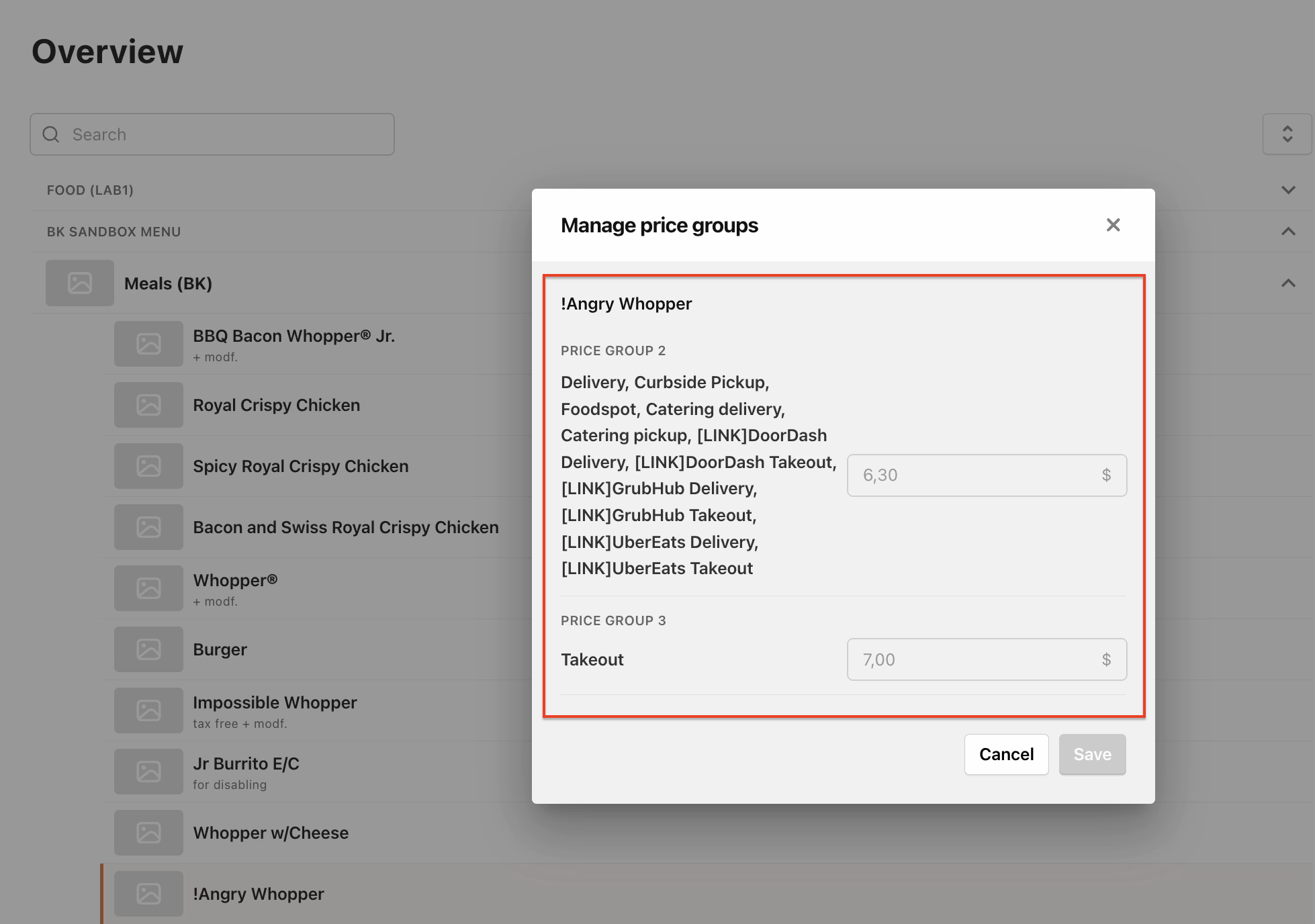
With PAR POS price changes, you can increase/decrease Prices for specific menus, destinations or items.
This is done via a bulk function, over the whole menu (percentage & amount) but also with manual changes on specific items.
How to set up at PAR Ordering
-
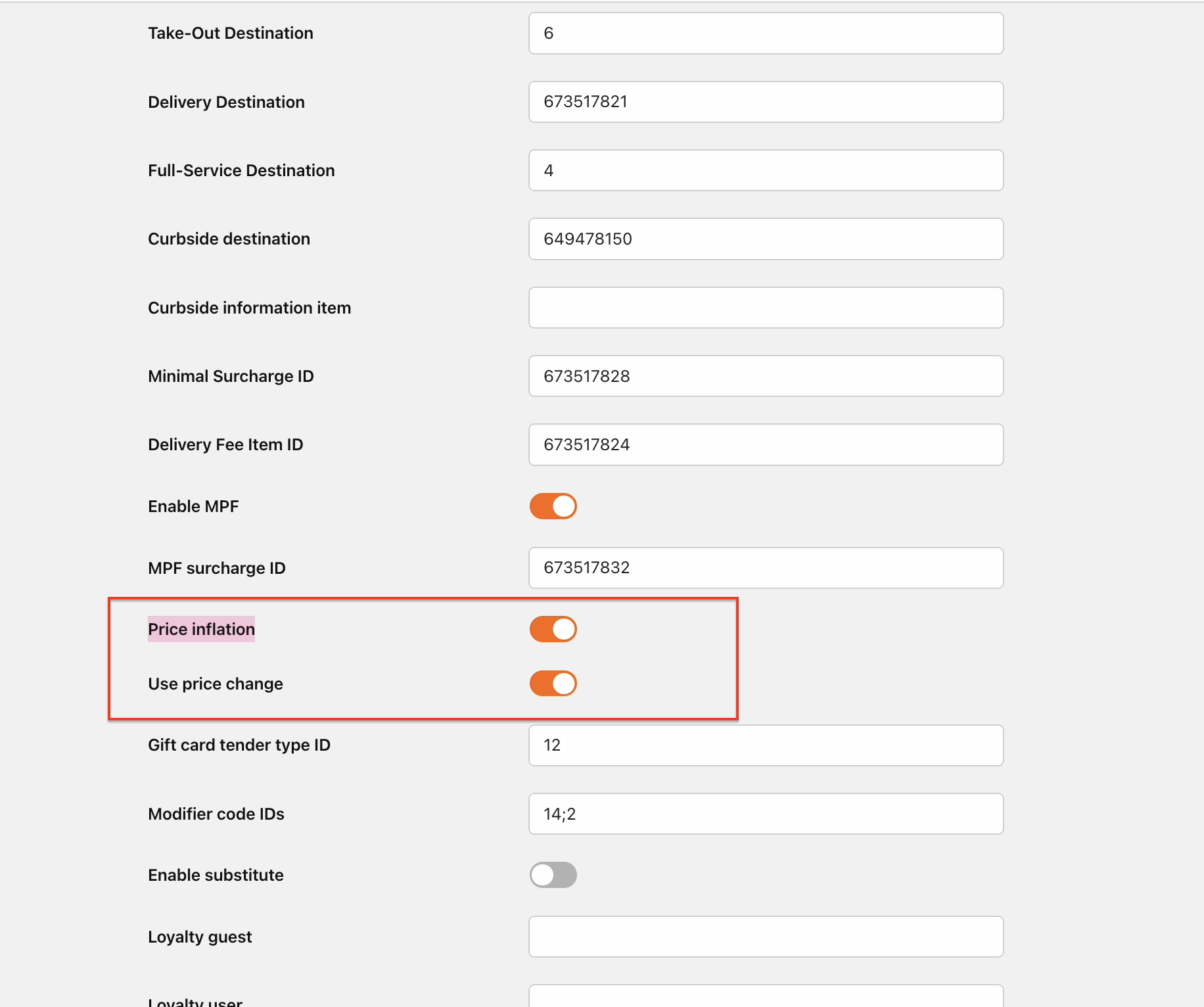
Enable at Store Group Price Inflation & Price Change
-
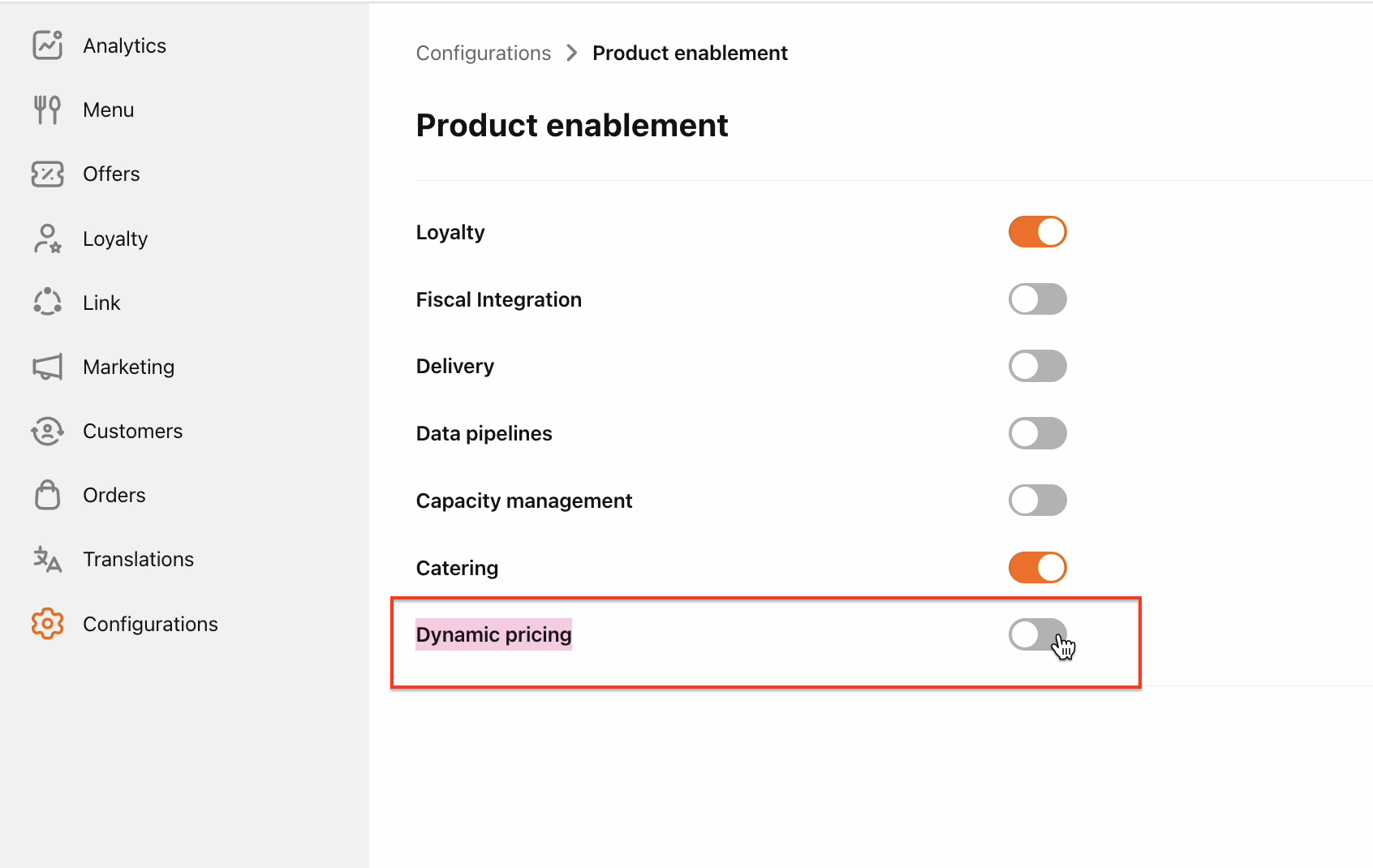
Make sure that on Store Group → Product Enablement, Dynamic Pricing is disabled
-
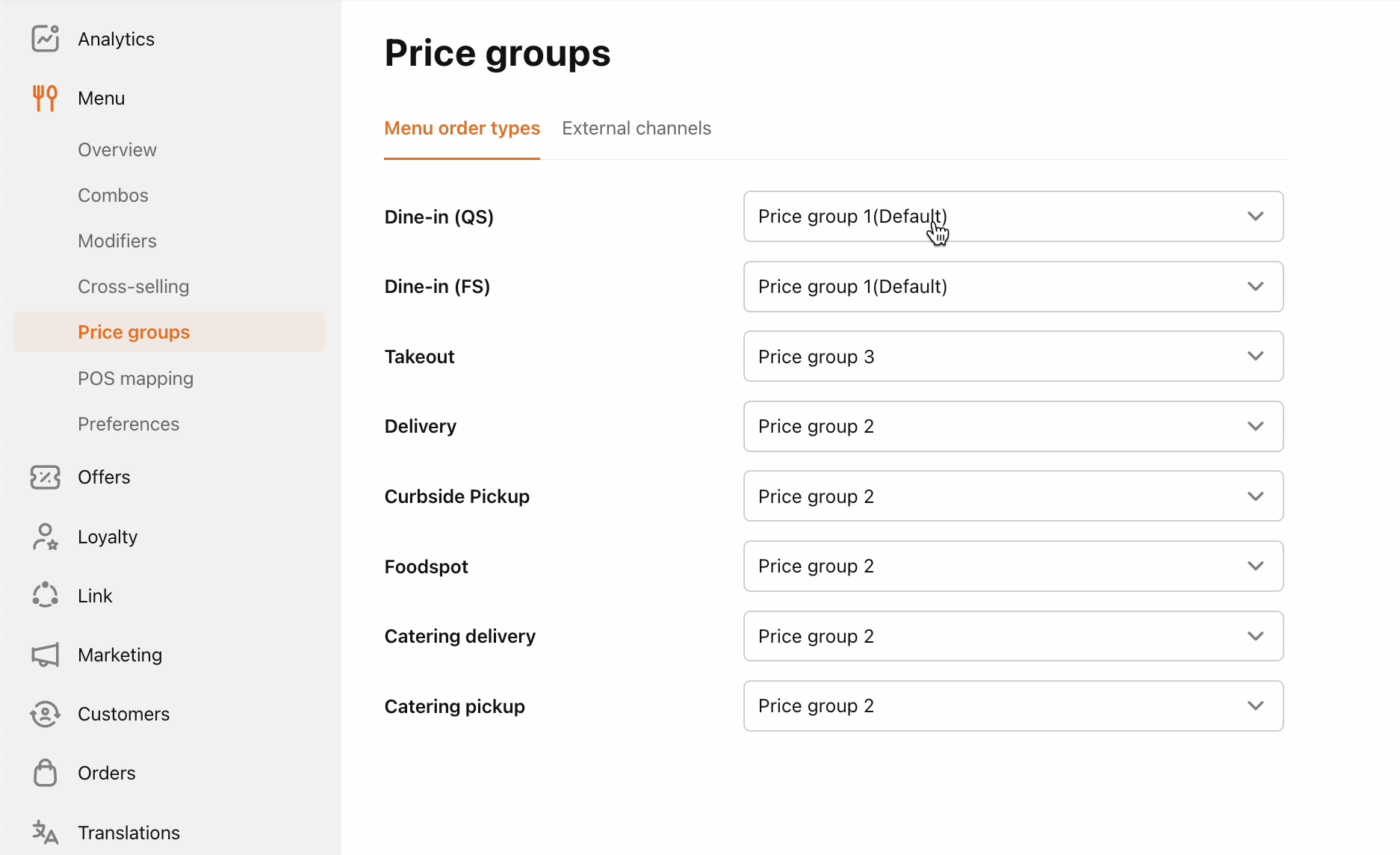
Define the correct Price Group on the Store Group
-
Find the correct Price Group IDs in the PAR POS Office under Settings Editor → Price Changes → Choose the correct Price Change. Copy the ID and past it in Store Integration Settings under the correct Price Group.
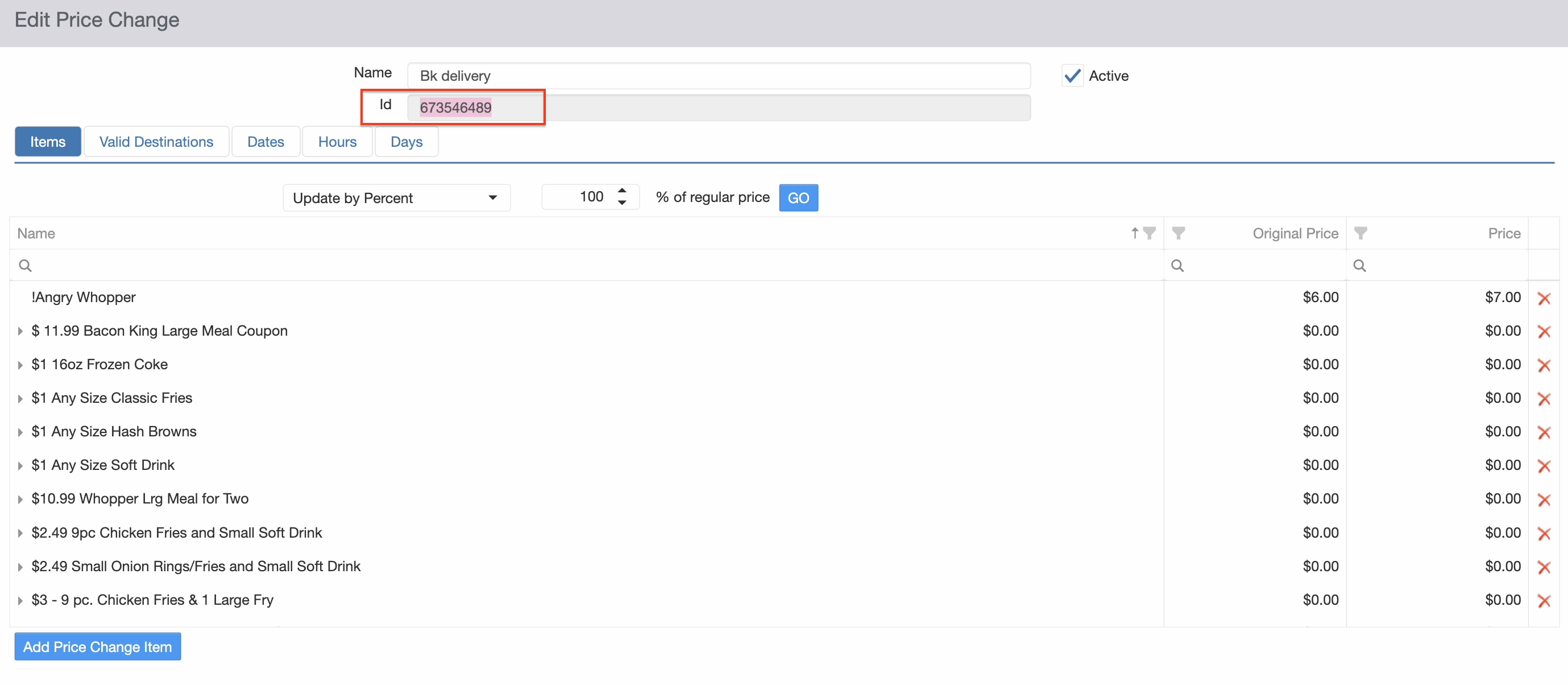
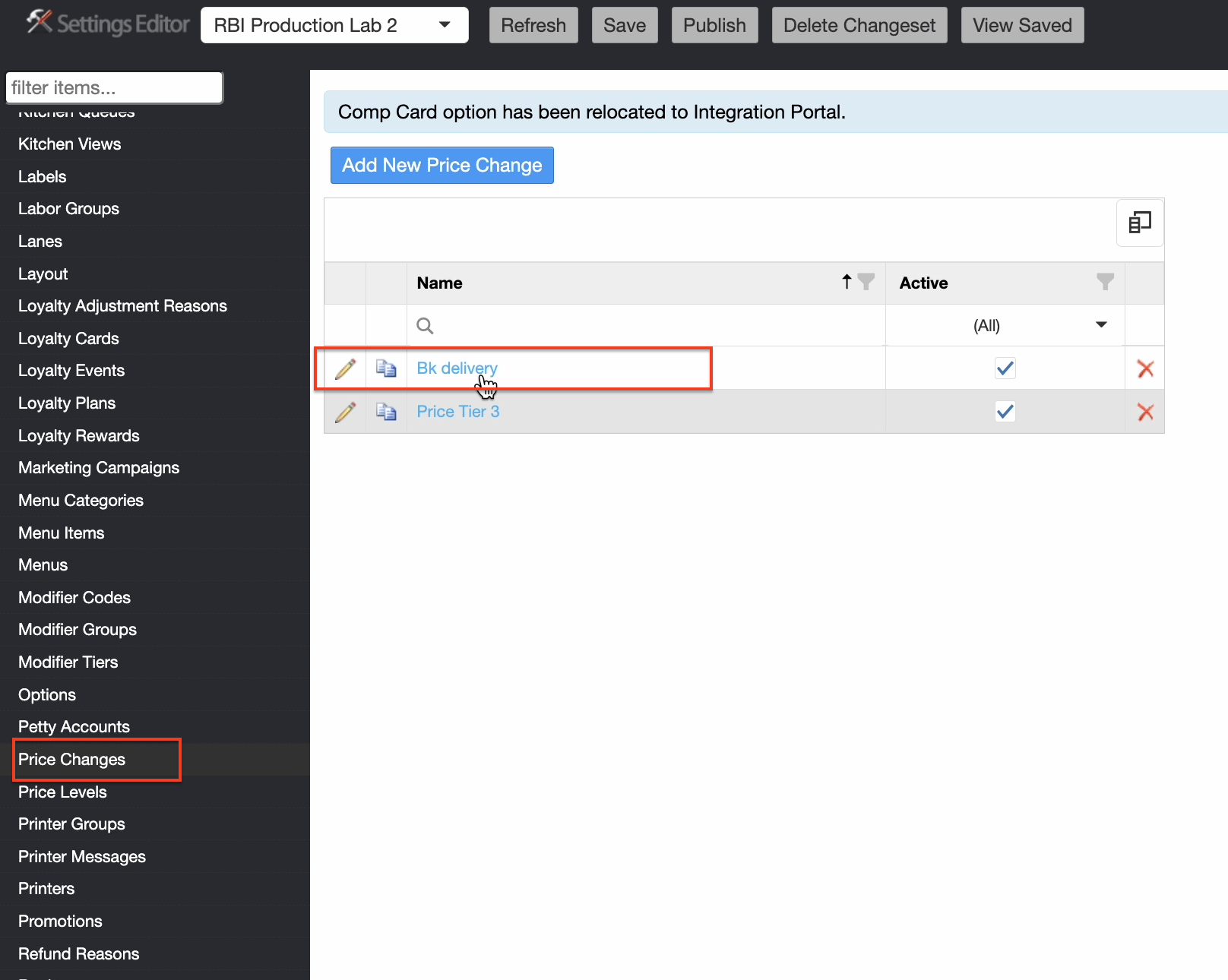
-
As mentioned in the previous point, enable the Price Change flag and copy the correct Price Change ID in Store Integration Settings
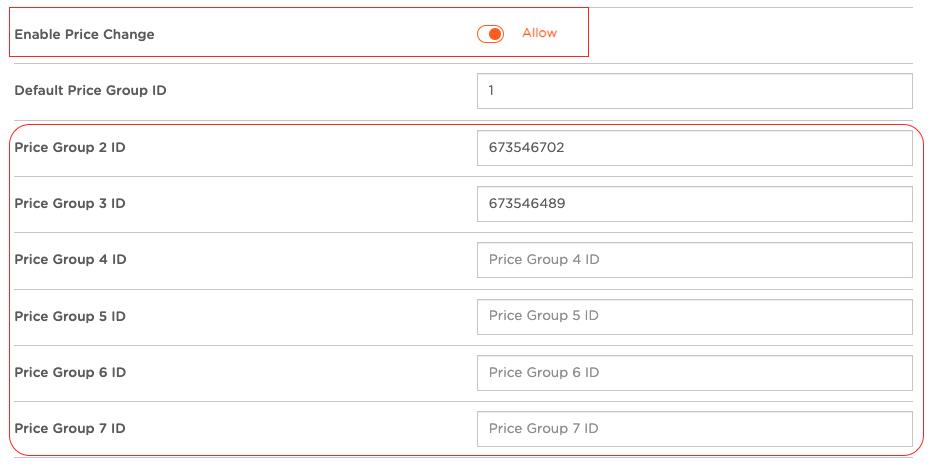
-
Make an Item, Modifiers, Combo Sync and compare the prices of the Price Change and the Store menu:
Price Change: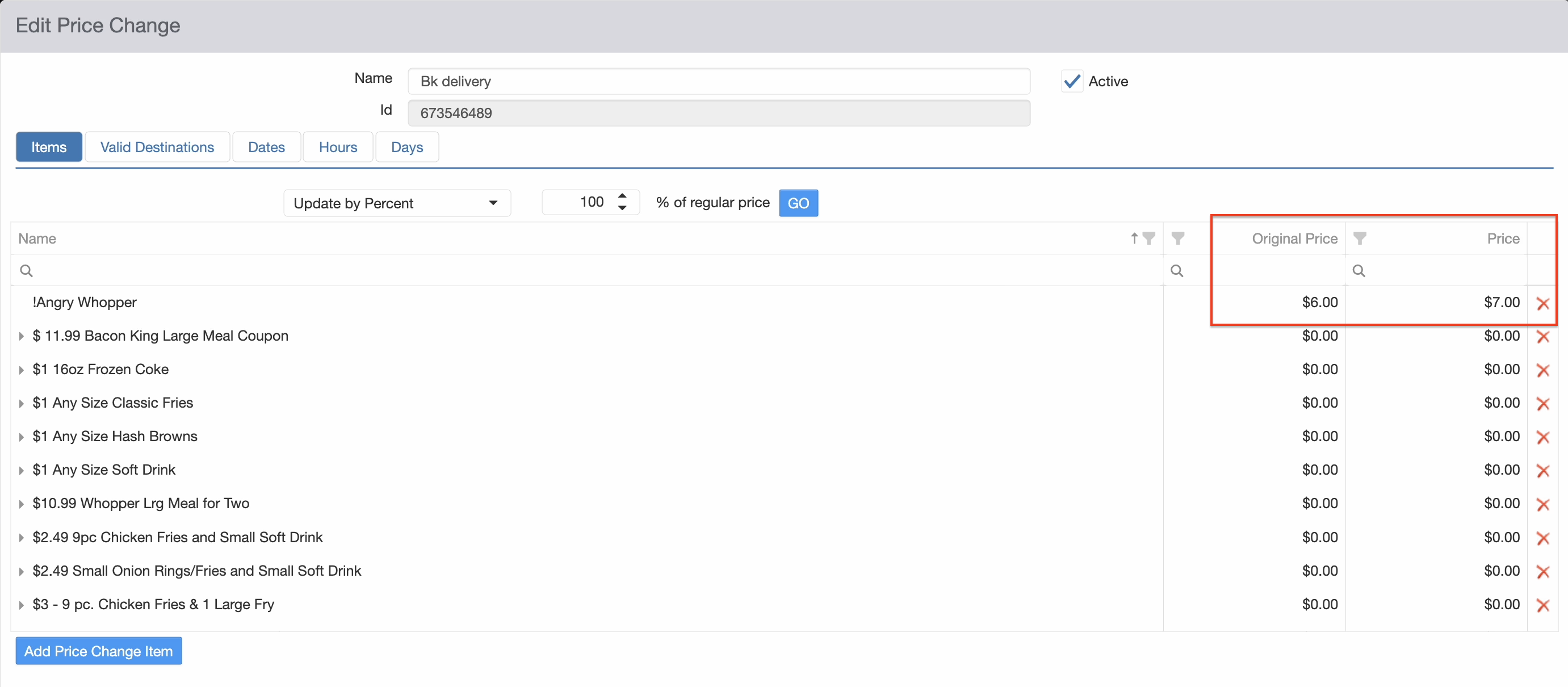
Store: