PAR POS: Discount ID Configuration by Marketplace and Promo Type
PAR Ordering lets you map distinct PAR POS discount IDs by delivery marketplace (DoorDash, Uber Eats, Grubhub, and others) and by Punchh promo type (Coupon, Loyalty Reward, Promotion, Credit, and Promo Code). Because PAR POS groups its reporting by discount ID, each channel and promo type rolls up separately in your POS reports once you configure the mappings.
Prerequisites
- Your brand is on Menu V2 (Product Structure). Contact your PAR representative to confirm your status.
- Each PAR POS discount you plan to map is set up in PAR POS as open amount, Comp type, and Order-level granularity.
All discount ID fields are optional. If you configure none of them, orders use the default discount ID.
How It Works
You can map discount IDs at three levels. PAR POS applies the most specific match when an order is placed:
- Per marketplace channel (for example, DoorDash or Uber Eats)
- Per promo type (for example, Coupon or Loyalty Reward)
- Default discount ID (applies when no other mapping matches)
At each level, a store-level setting takes precedence over the store group setting.
Marketplace-funded discounts are never sent to PAR POS as a discount line. Only the merchant-funded portion of a marketplace discount is reportable through discount ID mappings.
If an order has a discount and no discount ID resolves at any level, the order fails validation. Make sure your default discount ID is always configured.
Configure Discount ID Mappings
You can configure discount ID mappings at the store group level (applies to all stores in that group) or override them at the individual store level.
Store group level
-
In Management Center, go to Brand (All stores) > Configurations > Store Groups.
-
Select the store group that has an integration purpose.
-
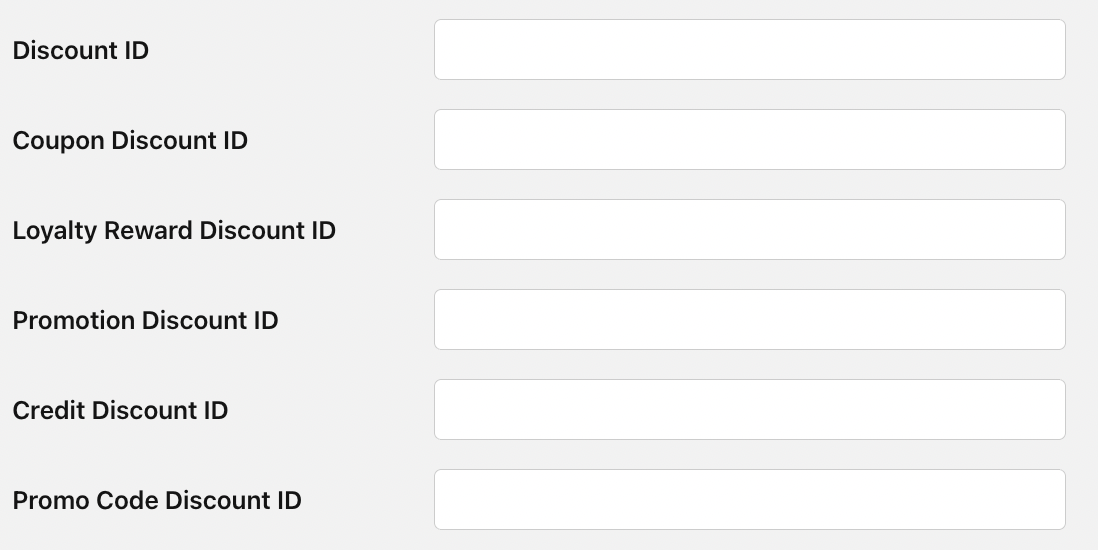
Open the Integration Type tab to configure per-promo-type and default discount IDs.
-
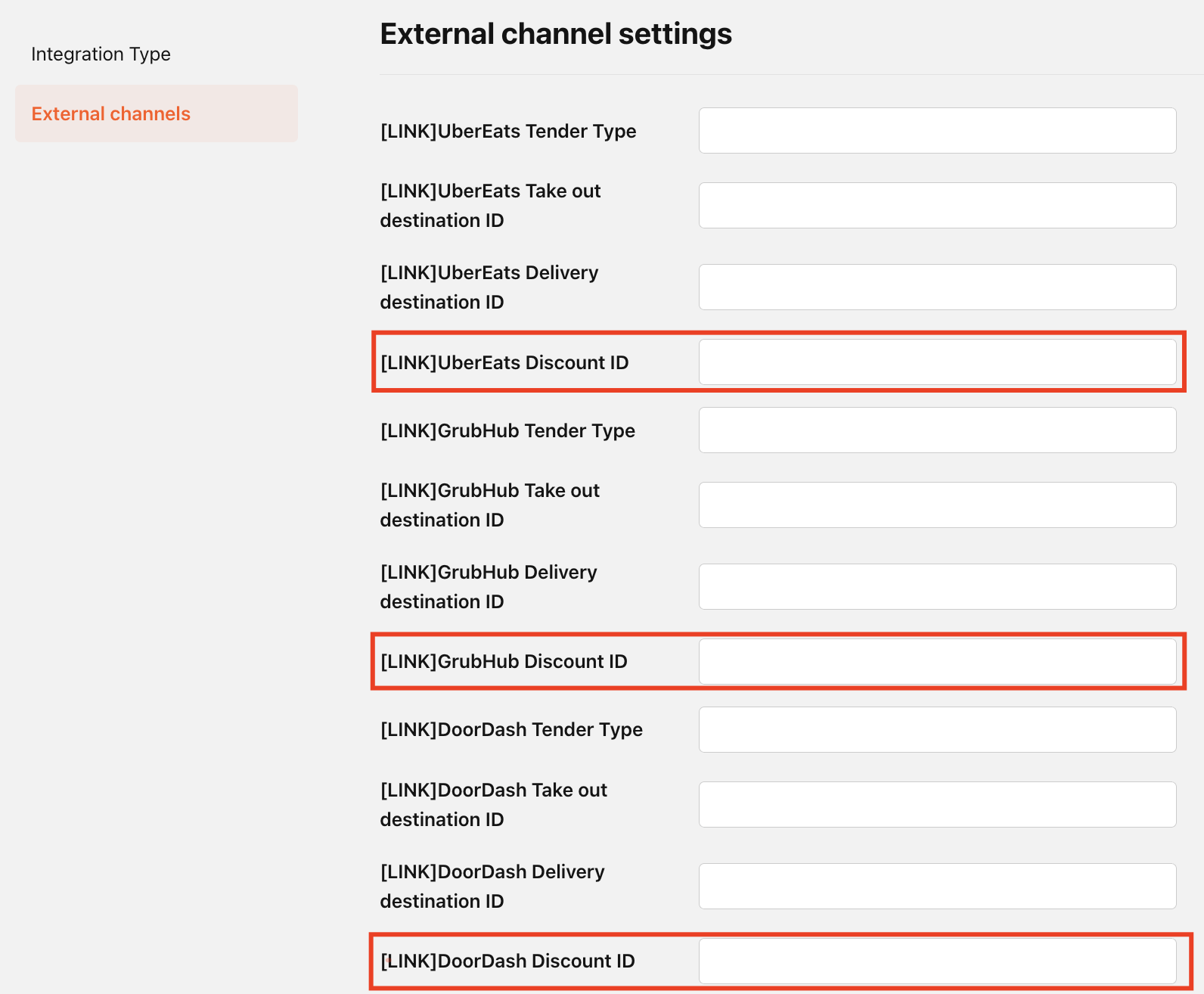
Open the External Channels tab to configure per-marketplace discount IDs.
-
Enter the discount IDs you want to map. All fields are optional. Leave any field blank to fall through to the next level.
-
Select Save.
Store level (override)
- In Management Center, go to the store you want to configure.
- Go to Configurations > POS Integration.
- Open the Integration Type tab or the External Channels tab, depending on which IDs you want to override.
- Enter the discount IDs for this store. Any field you fill in here takes precedence over the store group value.
- Select Save.
Promo Types Reference
The following promo types are available for per-type discount ID mapping:
| Punchh Promo Type | Description |
|---|---|
| Coupon | A discount applied through a coupon code |
| Loyalty Reward | A Punchh redeemable (loyalty points redemption) |
| Promotion | A promotional discount |
| Credit | A credit applied to the order |
| Promo Code | A discount applied through a promo code |
Frequently Asked Questions
- Do we need to be on Menu V2 for this to work? Yes. Menu V2 (Product Structure) is a prerequisite. If your brand is on the legacy data model, the discount ID mapping fields have no effect until you migrate.
- Are all discount ID mapping fields required? No. All fields are optional. If you configure none of them, orders use the default discount ID configured in your PAR POS integration settings.
- Can we configure per-promo-type discount IDs without touching the marketplace settings? Yes. The marketplace and promo type mappings are independent. You can configure only the promo type IDs, only the marketplace IDs, both, or neither.
- What happens if we enter a discount ID that doesn't exist in PAR POS, or isn't configured correctly? Management Center rejects the entry and identifies which field failed. Nothing partially saves. Verify that the discount exists in PAR POS and is set up as open, Comp, and Order-level before trying again.
- Will this show us how much DoorDash-funded promotions cost us? No, only the merchant-funded portion. DoorDash-funded promotional spend is reflected in marketplace item and subtotal pricing. It is not sent to PAR POS as a discount line and cannot be broken out through discount IDs.
- Can we report on a specific promo code or campaign by name? No. PAR POS groups reports by discount ID. A campaign name on the discount line does not create a separate reporting bucket. To report on a specific campaign, you would need a dedicated discount ID per campaign.
- Does configuring a marketplace discount ID for DoorDash affect Uber Eats or Grubhub? No. Each marketplace discount ID is independent. Configuring one does not affect the others.
- What if a store has no discount ID configured at any level, and an order comes in with a discount? The order fails validation and is not sent to PAR POS. Make sure at least the default discount ID is configured at either the store or store group level.
