How to Pause Online Orders from the Tablet
This article explains how kitchen and front-of-house staff can pause and resume incoming online orders directly from the ordering tablet, without accessing the Management Center.
For information on pausing orders from the Management Center, see Control Tower
Before you start
- The store must have an active order-throttling strategy configured. If the pause icon does not appear in the tablet app bar, order throttling is not set up for that store. Contact your PAR representative for assistance configuring capacity management.
- Any staff member with access to the store's ordering tablet can pause and resume orders. No separate role or permission is required on the tablet itself.
Pause incoming orders
-
In the tablet ordering app, tap the pause icon in the app bar.

-
A dialog opens. Select a pause duration:
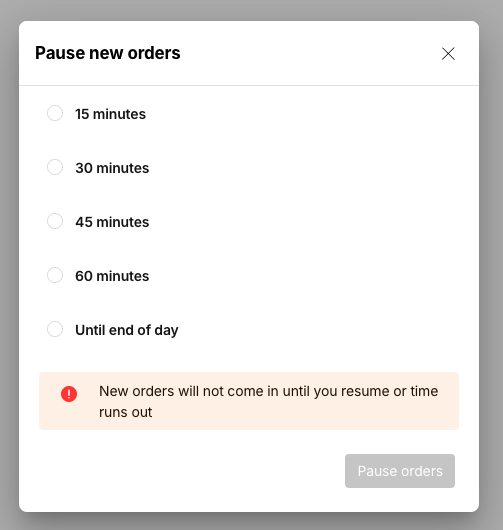
- 15 minutes
- 30 minutes
- 45 minutes
- 60 minutes
- Until end of day
- Tap Pause orders.
Incoming orders stop for the store for the selected duration. If you selected a timed duration, orders resume automatically when the time expires.
Extend an active pause
You can add time to an active timed pause in 15-minute increments.
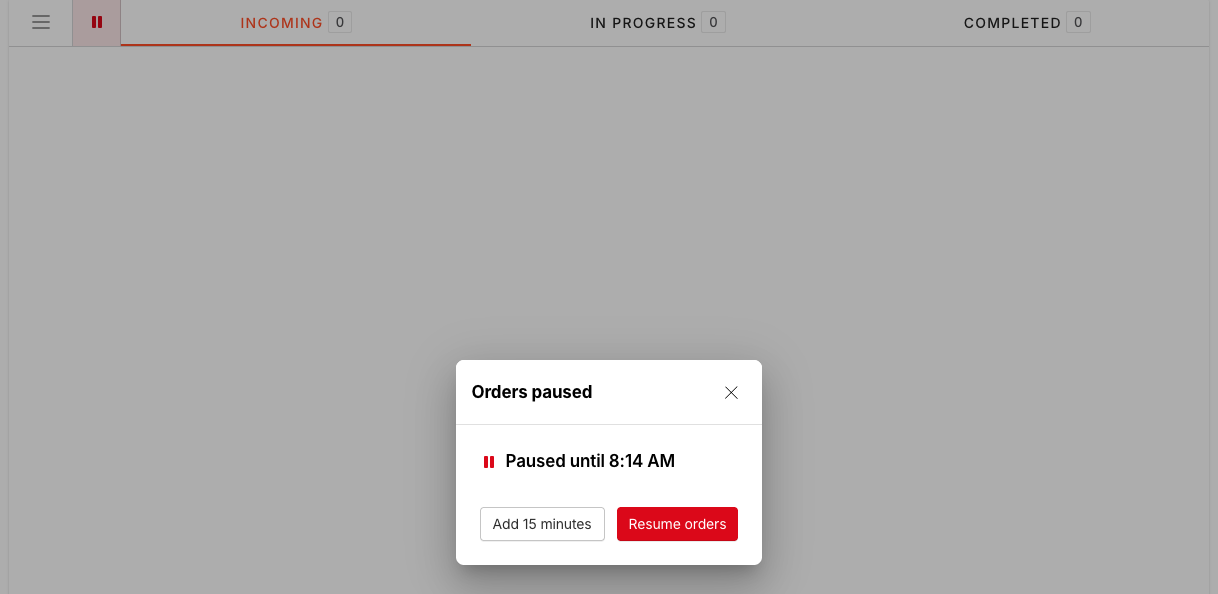
- Tap the pause icon in the app bar.
- Tap Add 15 minutes.
Repeat as needed. Each tap extends the pause by 15 minutes.
You cannot extend an "Until I resume" pause because it has no end time. To switch to a timed pause, resume orders and start a new pause with a duration.
Resume orders
- Tap the pause icon in the app bar.
- Tap Resume orders.
Orders resume immediately.
If the store was also paused from the Management Center, a confirmation message appears before orders resume. Tap Resume anyway to confirm.
Resuming orders clears all active pauses at the store, including any pause that was set from the Management Center.
What guests see during a pause
When your store is paused, guests who attempt to place an online order see an explanatory message instead of the standard "fully booked" message.
- If the pause has an end time, guests see a message indicating high order volume and a temporary delay.
- If the pause is indefinite, guests see a message indicating the store is not accepting orders at this time.
Pause messaging is confirmed for the web ordering experience. Guest-facing messaging on kiosk and native mobile app is not confirmed at this time.
