Texts and Translations
Texts & translations is where you manage all customer-facing text for each channel, including button labels, screen titles, error messages, and anything else your customers read.
Structure
Translations are organized into features: groups of related text entries for a specific part of the product. Each text entry holds a separate translation value for each language in your set.
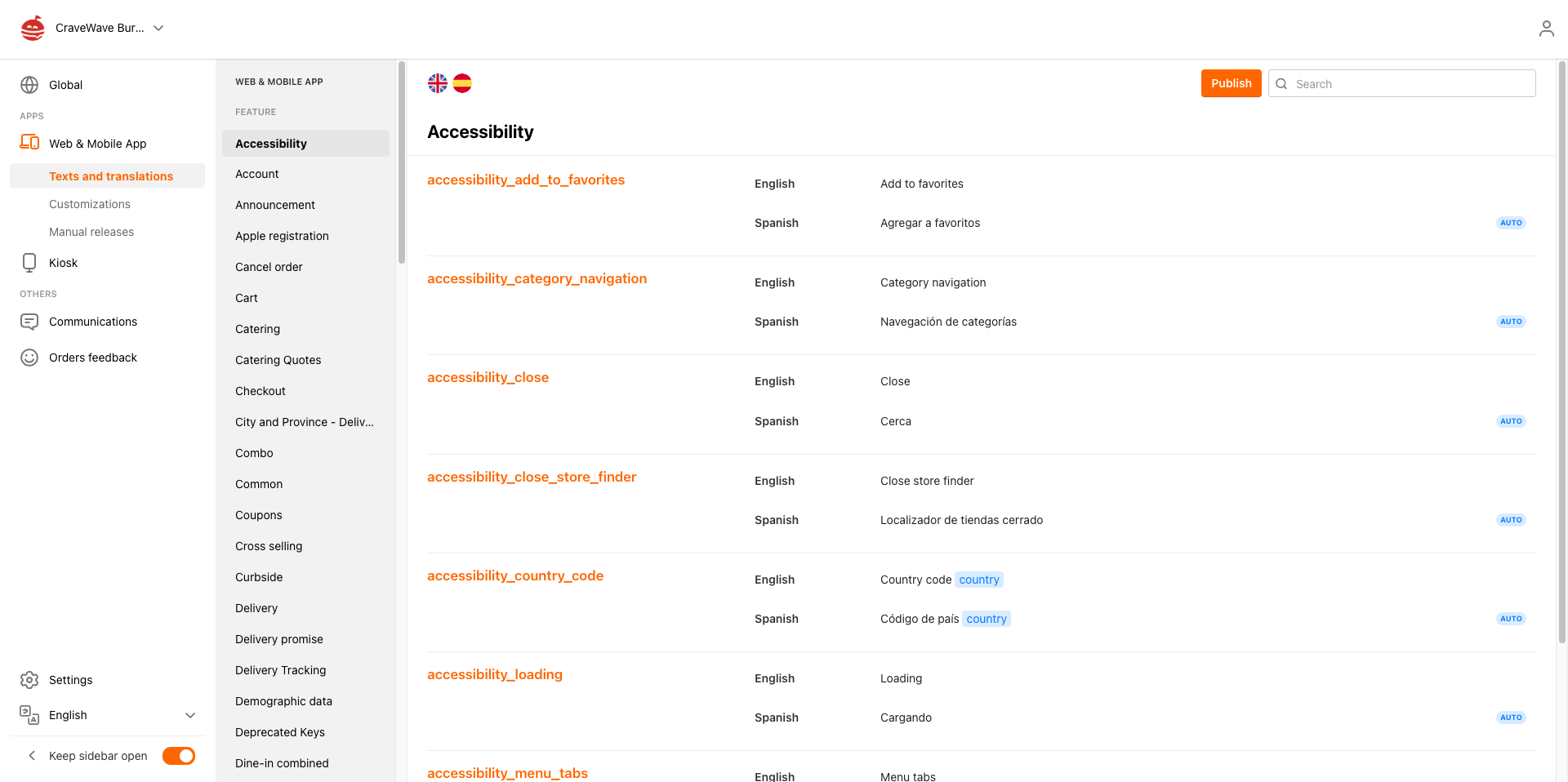
When new text entries are added to a feature, they appear marked with a NEW label. The label clears when you open the entry.
Editing a Translation
To edit a translation value:
- Open Texts & translations for your project.
- Browse features in the left panel and select one to expand it.
-
Select the text entry you want to edit. A helper panel appears below it showing the current value and any edit history (if applicable).

- Enter your updated text.
- Press Enter to save.
Select Publish in the upper-right corner when you are ready to push your changes live.
Translation Tags
Translation values display a tag that shows how they were set.
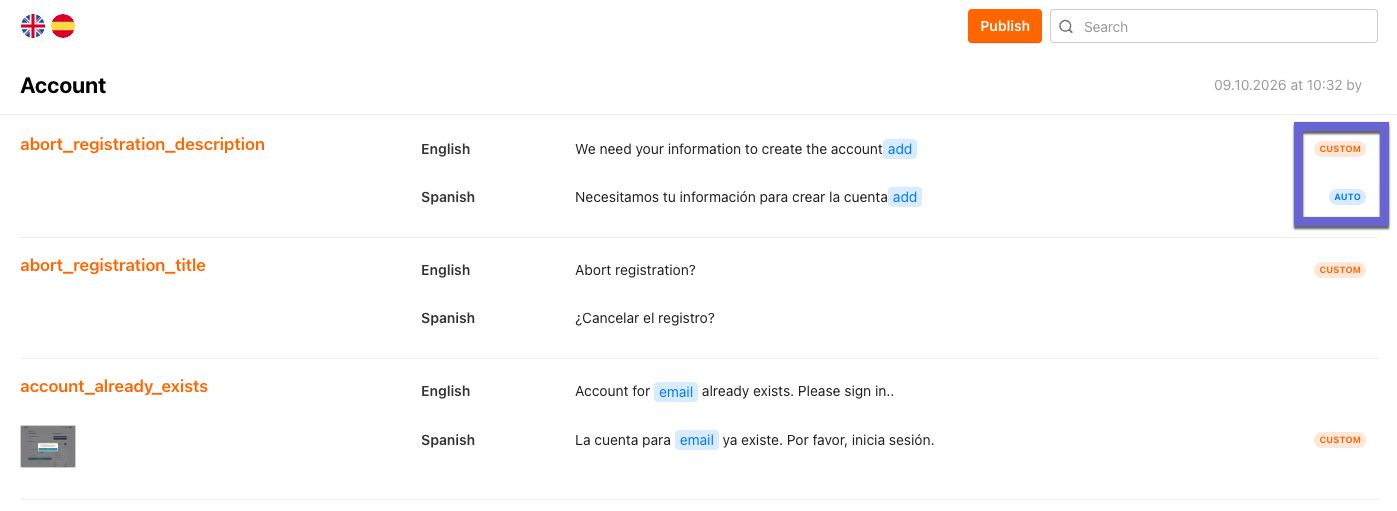
- An AUTO tag means the value was auto-translated from English when the entry was added. Edit the value to remove the tag.
- A CUSTOM tag means you or a team member entered the value manually. Reverting to a previous version removes the CUSTOM tag.
Placeholders
Some text entries contain placeholders: variables the app fills in with real values at runtime. Leave them exactly as they appear; do not translate or remove them.
 For example, "Account for {email} alreadyt exists. Please sign in." uses
{email} as a placeholder. The app replaces it with the customer email when displaying the text to your customers.