Tips
Context
When using PAR Ordering's internal Channels (Mobile, Web and Kiosk Apps), your Customers can leave a Tip - just like they could normally do when paying their dinner bill.
To show appreciation of your business, they can leave a percentage of the total to be paid.
Which Order Types does it work with?
Tipping works for all Order Types:
- Dine-in QS
- Dine-in Table Service
- Takeout - In restaurant
- Takeout - Curbside
- Delivery
- Catering delivery
- Catering pickup
However - please note that Tips are not supported for cash payments.
Depending on Order Types, the tip is distributed differently:
- For Dine-in Table Service, Dine-in QS, Takeout, Curbside: the tip goes to the staff
- For Delivery the tip goes to the courier
Tips within Dispatch
When it comes to Dispatch, here's how Tips are supported:
- the information about Tips for drivers is automatically transferred to DSPs, currently enabled for Uber, Doordash and Ally
- Own Drivers from Stores can also get Tips; in this case the info is stored in the PAR Ordering Ecosystem
- The Store Manager will be able to generate a report on Tips per month by going to Delivery Hub, then Drivers, then Generate Tips Report, and see what drivers/DSPs need to receive for the given month
Tips within PAR Link - Marketplace Apps
Currently, Tips for Delivery and Takeout are implemented for these two apps:
- Doordash
- GrubHub
Tip calculation
- Tip is not included in the subtotal calculation of the cart
- Tip is not included in the VAT calculation. The VAT amount won't change if the Tip that is added to the Order increases or decreases
How does it work?
Let's have a look in more details, starting from the configuration (your perspective as the business owner), through all the Apps (your Customers' experience), to Tablet App (restaurant staff) and email receipt (end of the Order).
Management Center
Brand Level
As of now, the configuration of the Tip can be done in the Management Center. However, the Order Statistics and Reporting sections are still in the CMS.
Tip Configuration
The main settings are:
- Enable / Disable Tip per Order Type
- Default Tip value
Enable / Disable Tip per Order Type
- When the Tip is enabled for the chosen Order Type, a slider for adding Tip to the Order will show up in the Channel Apps during the ordering flow
- When the Tip is disabled for the chosen Order Type, a slider for adding Tip will not show up and the User will not be able to add a Tip to the Order
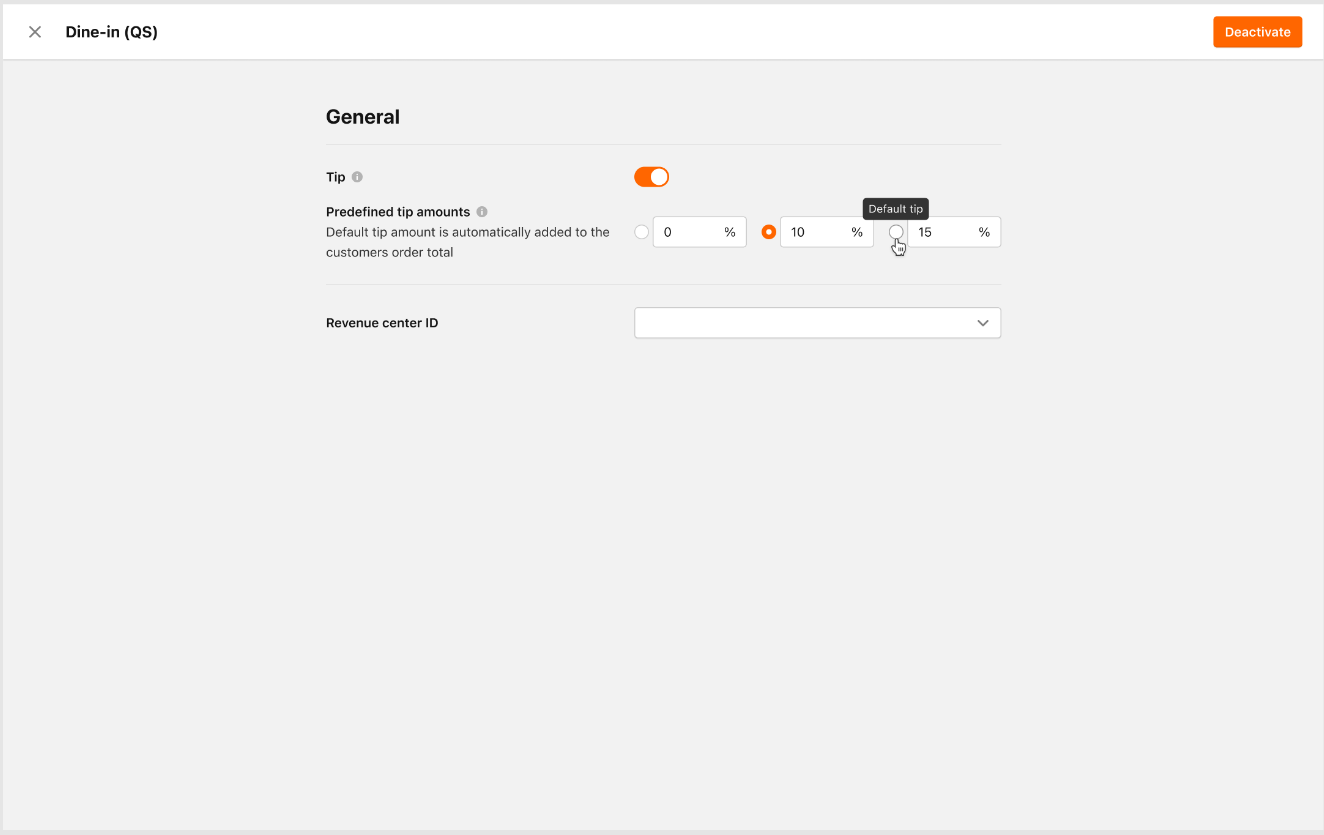
Predefined tip amounts
- Predefined tip amounts are customizable based on the store’s preferences.
- The brand sets default values for these predefined tips.
- Stores can also adjust the preselected default tip amount for different order types.
- The predefined tips include helpful pop-up messages and descriptions for clarity.
- All three predefined tip amounts are required fields, and the tip feature cannot be enabled without configuring them.
Maximum Tip value
- If this value is set, the User can select a Tip value from 0% to the maximum that is indicated
- If this value is left unset, 100% will be used as the default
Store Level
As of now, the configuration of the Tip can be done in the Management Center. However, the Order Statistics and Reporting sections are still in the CMS.
Tip Configuration
The main settings are:
- Enable / Disable Tip per Order Type
- Default Tip value
Enable / Disable Tip per Order Type
- Store managers can configure the tip feature individually for each applicable order type.
- The tip switcher enables or disables the tip feature based on brand-level settings by default.
- Stores have the option to enable or disable the tip feature according to their preferences for each order type.
- The tip switcher includes a pop-over hover message to explain the feature’s function clearly.
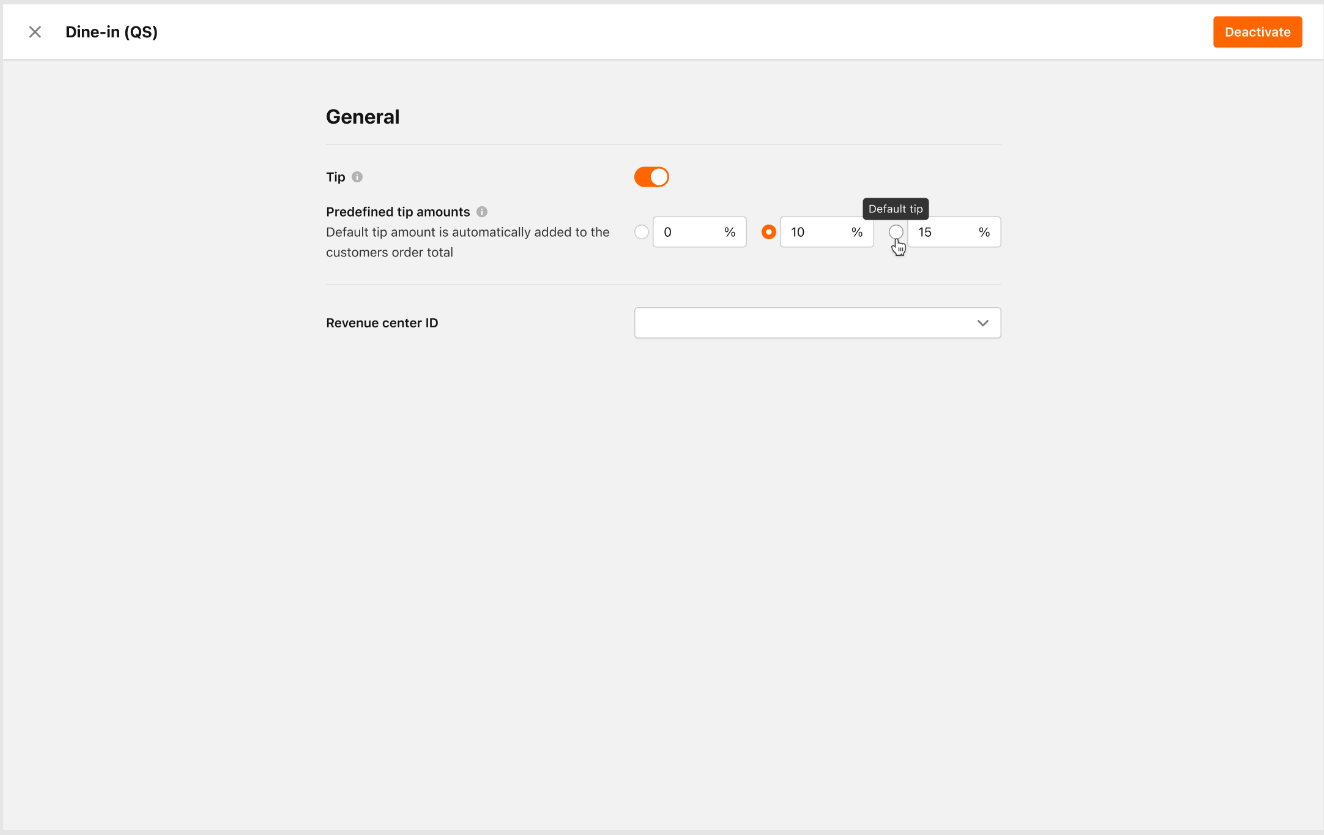
Predefined tip amounts
- Predefined tip amounts are customizable based on the store’s preferences.
- The brand sets default values for these predefined tips.
- Stores can also adjust the preselected default tip amount for different order types.
- The predefined tips include helpful pop-up messages and descriptions for clarity.
Maximum Tip value
- If this value is set, the User can select a Tip value from 0% to the maximum that is indicated
- A custom tip model is shown to allow tip giving over the default amounts.
Order statistics & reporting
Just like for table service, a Tip value is visible for each of the Order Types available in the Store's (Venue's) order statistics page:
- order statistic page summary
- order detail view
- .XLS report downloads
Mobile App
When the Tip is enabled for the order type that the user selected, it should be shown as an additional component on the checkout screen for both, logged-in and logged-out users.
The tip component is always shown on the checkout screen in a hierarchy as the first thing above the order calculation section and "Points you'll earn" component when an app brand's loyalty is enabled. Custom tip amount functionality
Users can add a specific absolute tip amount using the custom tip functionality, tapping to add a custom tip opens the tip configuration modal, presenting the input field in an active state.
The system numeric keyboard is automatically presented to the user upon opening the tip configuration modal.
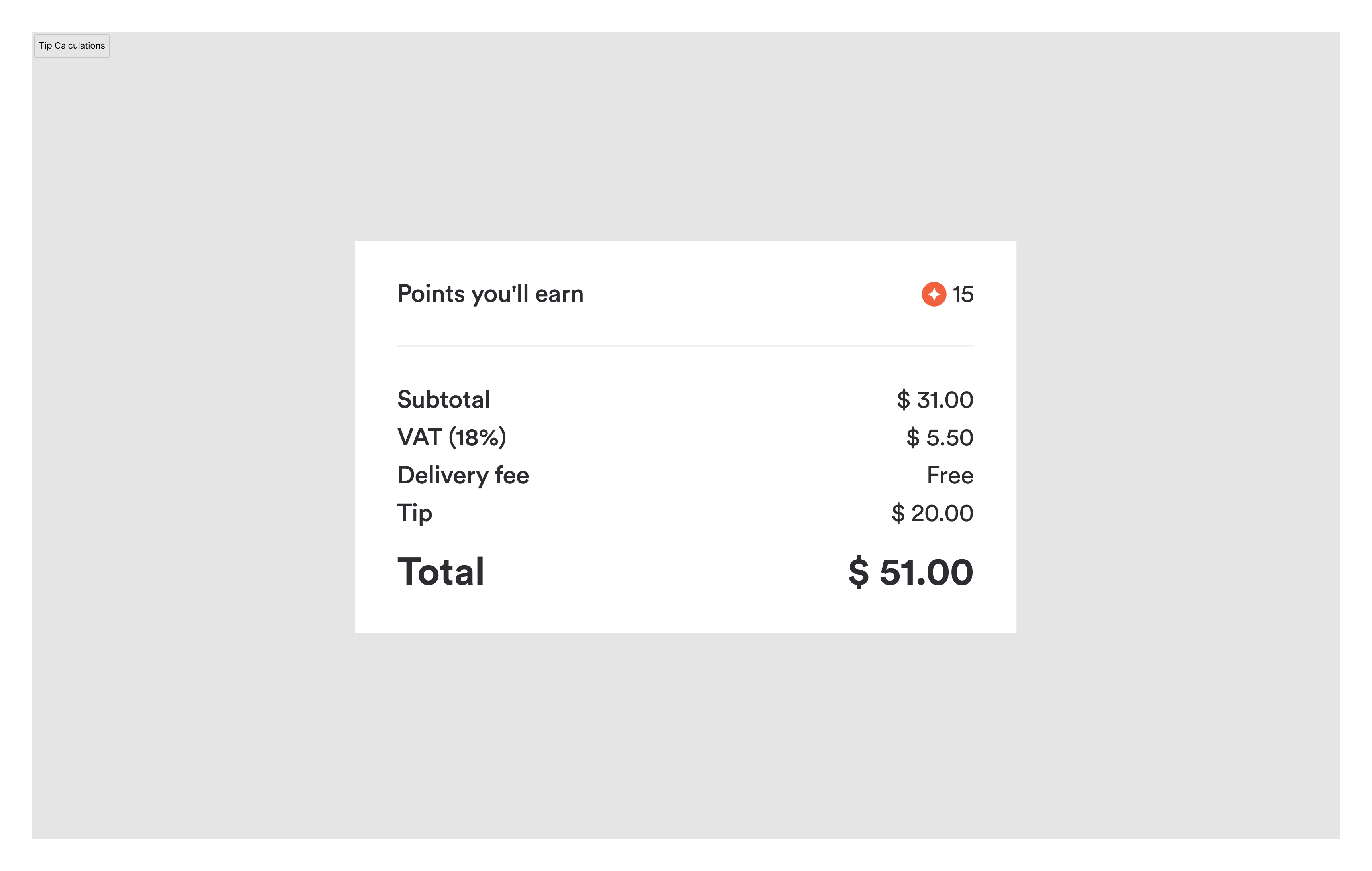
Tip calculation
In the calculation sections of the cart, checkout, and receipt pages, always display 'Tip' as the last item in the list. If the tip is set to "0," include it as "0.00" or “0,00” in the cart calculation section as per country’s currency settings.
Web App
When the Tip is enabled for the order type that the user selected, it should be shown as an additional component on the checkout screen for both, logged-in and logged-out users.
The tip component is always shown on the checkout screen in a hierarchy as the first thing above the order calculation section and "Points you'll earn" component when an app brand's loyalty is enabled. Custom tip amount functionality
Users can add a specific absolute tip amount using the custom tip functionality, tapping to add a custom tip opens the tip configuration modal, presenting the input field in an active state.
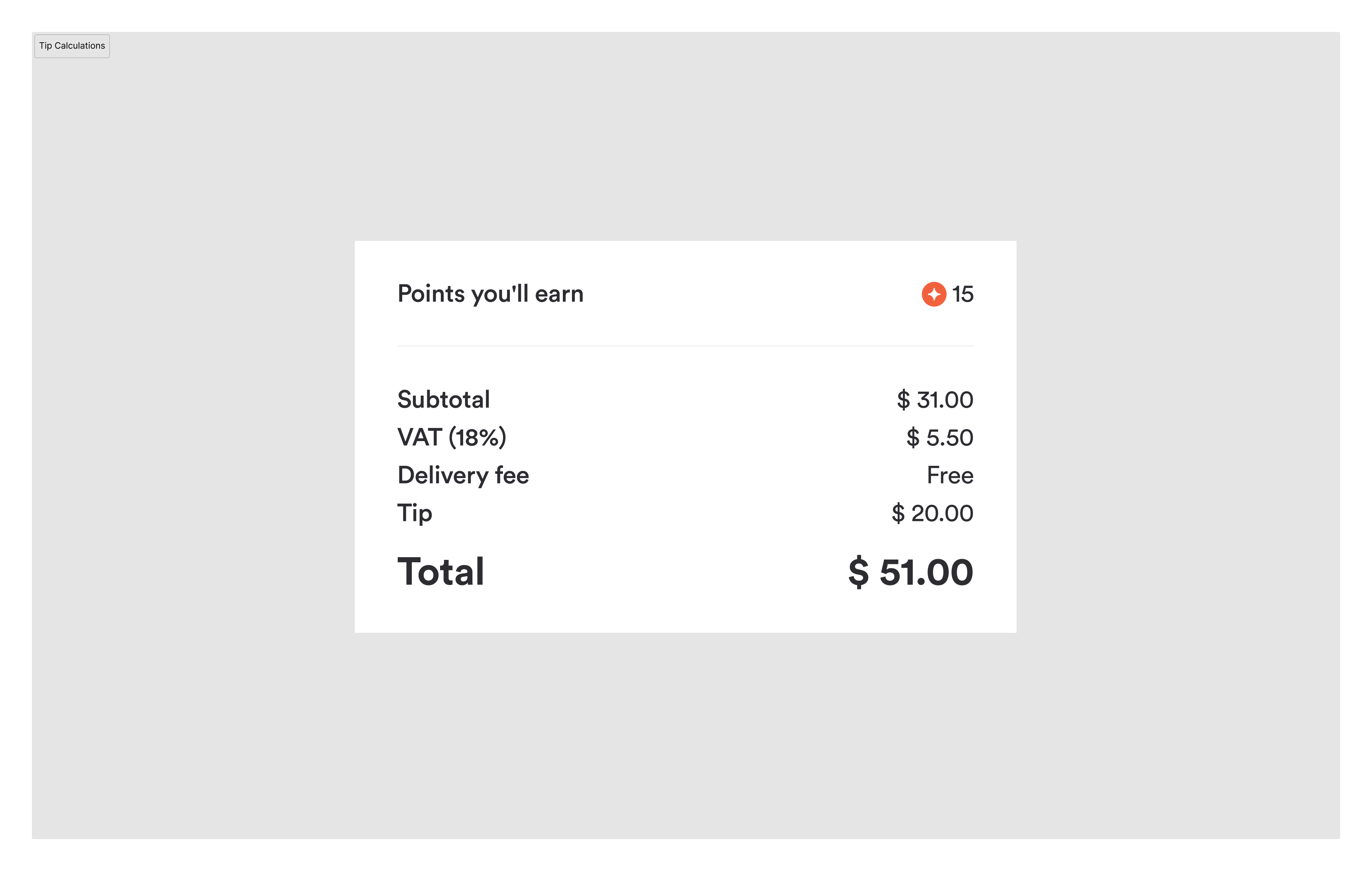
Tip calculation
In the calculation sections of the cart, checkout, and receipt pages, always display 'Tip' as the last item in the list. If the tip is set to "0," include it as "0.00" or “0,00” in the cart calculation section as per country’s currency settings.
Kiosk App
- Tip component becomes available when the User gets to the Order summary screen
- Tip component is always shown on the Order summary screen as the first thing above the Order calculation section
- If the Default value is set, the Tip is automatically included in total calculations based on a value that is configured
- If the cart total is 0.00 - Free, the Tip component will be removed from the Order summary screen and from the calculation section
- If the Tip is set to 0%, it will still show on the Order summary calculation section as 0.00, but inot on the printed receipt after the Order has been placed
Tablet App
The Tip on Tablet App is shown for both orders placed through internal Channels (Web, Mobile, and Kiosk) and Orders placed through External Channel applications.
It is displayed for Orders in any state:
- On hold
- Active
- Past
- Canceled
- Refunded
Email receipt
In email receipts, the Tip is shown in the calculation section for the Order that the User placed.
In the calculation section of the e-mail Order receipt, the Tip is the last line.
Because the cart information in receipts for Orders that have been fully cancelled isn't displayed, the Tip also won't be shown in this case.
