Publishing
Publishing sends your saved changes to the live apps. The Customization Center has two separate publish actions: one for translations and one for customizations (branding). Publishing one does not affect the other.
Publish Translations
The Publish action for translations is located on the Texts & translations for any of the projects/channels you are updating.
- Packages all translated text for all languages into a single file per channel.
- Updates the live app's text immediately after the job completes.
- Publish status is visible in the UI while the job runs (usually a few seconds).
To publish translations:
- Open the Texts & translations tab for your project.
-
Select the feature that contains the changes you want to publish.
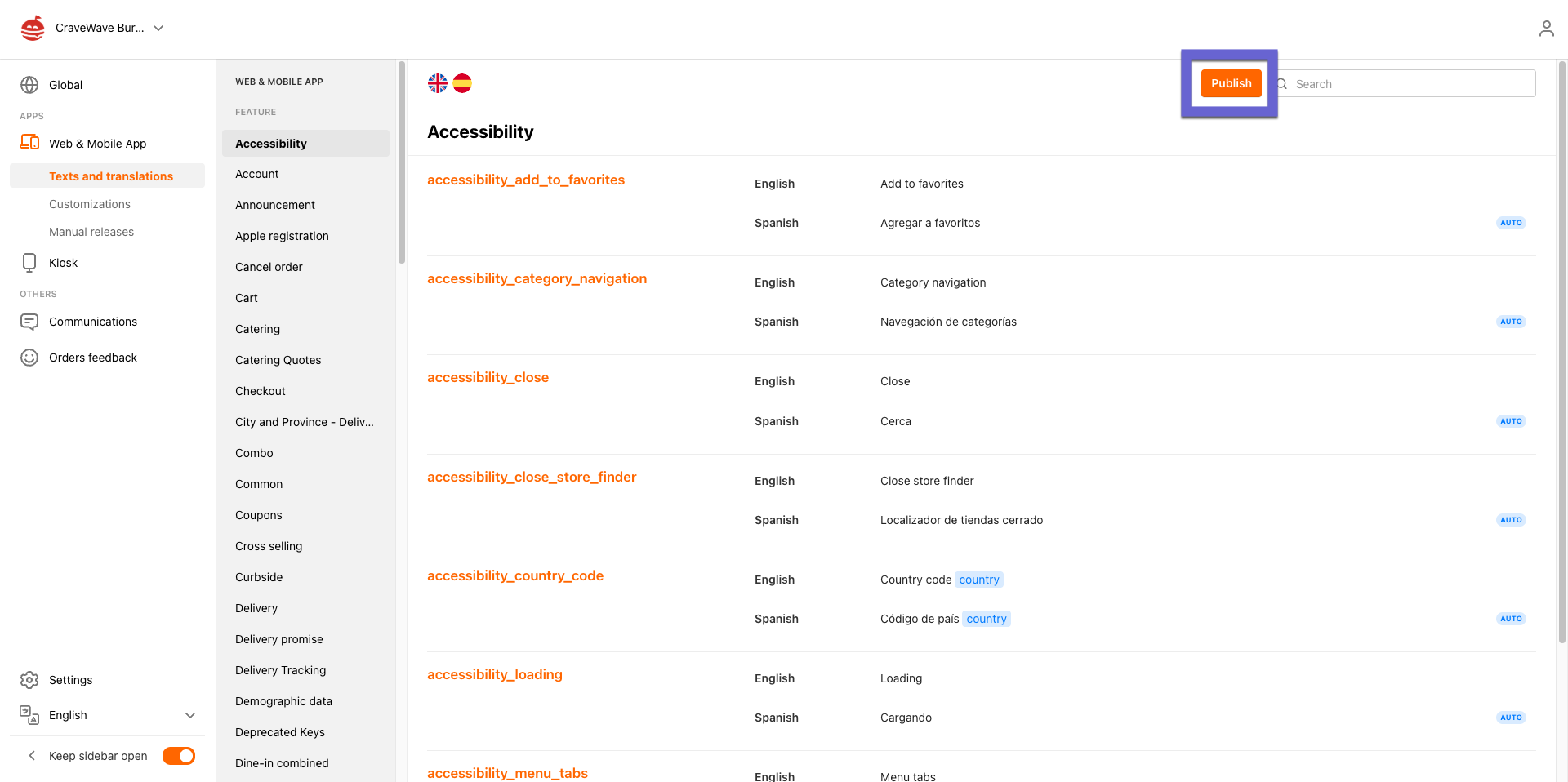
- Select Publish in the upper-right corner.
- In the confirmation dialog, select Publish.
Note: An orange dot next to a change means that change has not been published yet. The Publish button only appears when there are unpublished changes in the selected feature.
Publish Customizations
The Publish action for customizations is located on the Customizations tab.
- Packages all visual settings (colors, fonts, icons, layouts, and more) into a configuration file per channel.
- You can publish a single channel or all channels at once.
To publish customizations, open the Customizations tab for your project and select Publish.
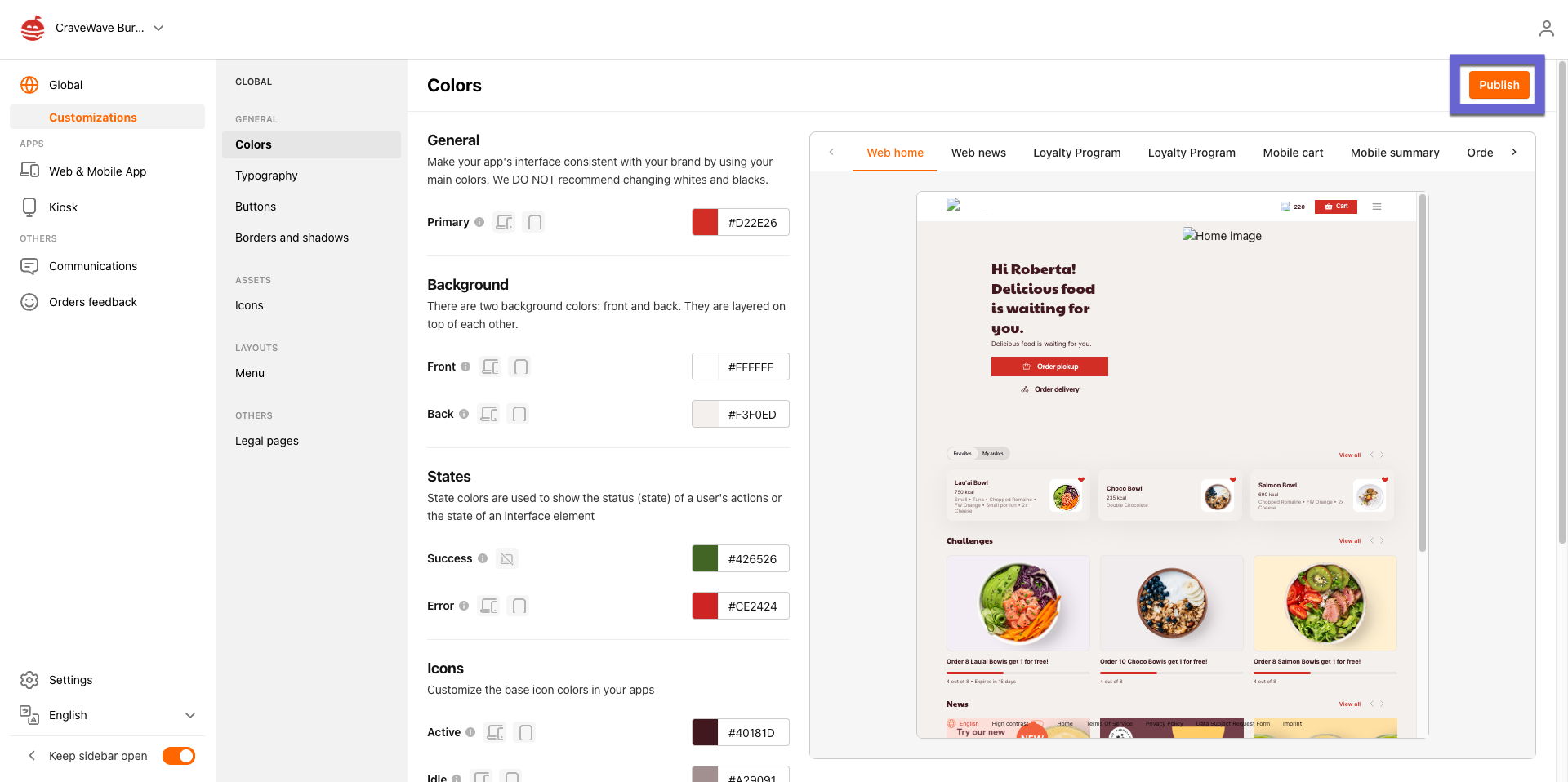
Note: Publishing branding for the Global channel publishes all connected channel values as part of each channel's own publish file. Publish Global first, then individual channels if needed, to keep everything in sync.
Viewing Change History
Each change in the Texts & translations editor tracks its full edit history. You can see what changed, when it changed, and who made the edit.
- Select the text entry you want to review for a specific translation.
-
The change history for that specific text appears below it.
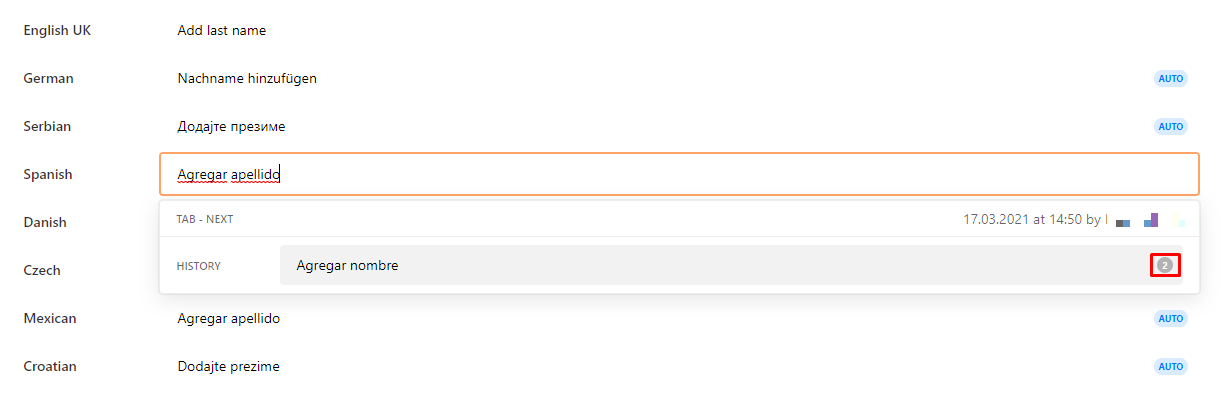
- If there are multiple changes, the entries are collapsed. Select the count to expand them.
Restore an Earlier Version
To replace the current text value with an earlier one, select any entry in the history. That version becomes the active text and the previous value moves into the history.