Invoices (House Account Reporting)
The Invoices page in Management Center shows all unpaid House Account invoices across your brand in one place. Use it to track what's owed and export records for billing follow-up.
Prerequisites
Invoices are available to Management Center users with the List of Customers permission, including Brand Managers, Catering Managers, Area Managers, and Store Managers.
House Accounts must be enabled for your brand before this page is available. For more information, see House Accounts.
Accessing Invoices
- In Management Center, navigate to CRM in the brand-level sidebar.
- Click Invoices.
Open Invoices
The Open Invoices tab displays a paginated list of all currently unpaid invoices across your brand's House Accounts.
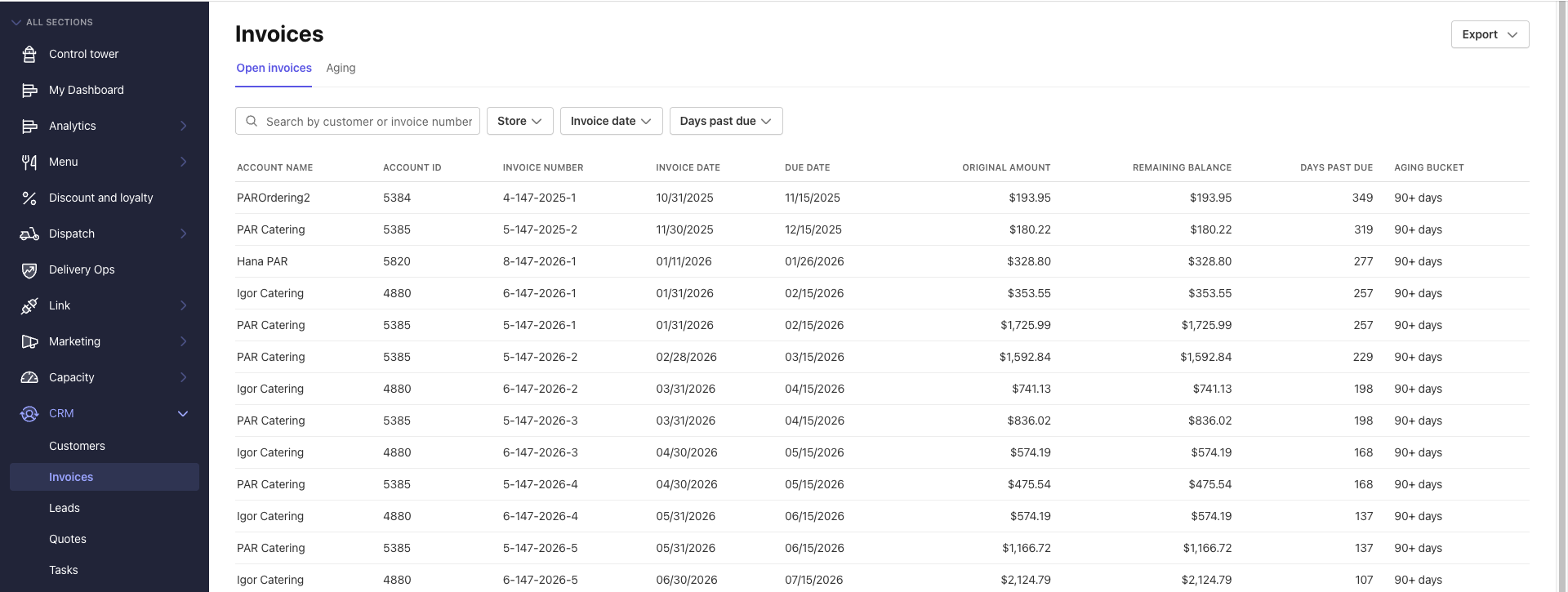
Each row includes:
- Account name
- Invoice number
- Invoice date and due date
- Invoice amount
- Remaining balance
- Days past due
Note: Remaining balance always equals the original invoice amount. House Accounts do not currently support partial payments. An invoice is either fully unpaid or fully paid.
Filtering the Open Invoices List
Use the filters at the top of the page to narrow the results:
| Filter | Description |
|---|---|
| Search | Search by customer name or invoice number |
| Store | Filter by one or more store locations |
| Invoice date | Filter by a custom date range, or use a preset: This Month, Last Month, Last 30 Days, Last 90 Days, or Year to Date |
| Days past due | Show only invoices past due by at least this many days |
The list updates automatically as you apply filters.
Aging
The Aging tab shows a summary of unpaid balances per House Account customer, broken down into aging buckets:
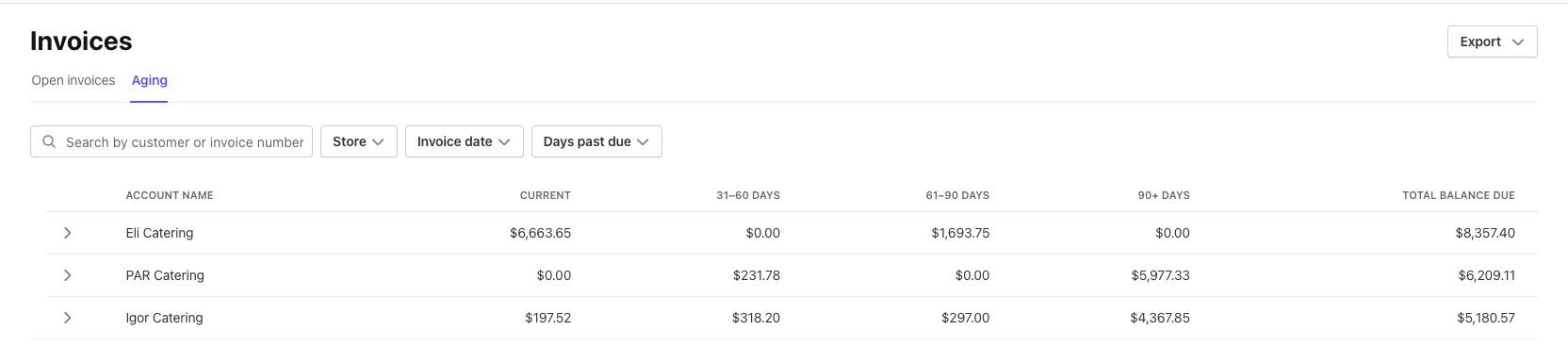
- Current: not yet past due or due within 30 days
- 31–60 days past due
- 61–90 days past due
- 90+ days past due
Each row also shows a grand total balance due for that account.
Click any row to expand a detailed list of the open invoices contributing to that account's aging totals.
Note: Aging buckets are calculated based on the invoice due date, not the system invoice status. An invoice with a future due date appears in the Current bucket regardless of how it is labeled in the system.
Exporting Reports
You can export either the Open Invoices list or the Aging summary as a CSV or PDF file. Exports reflect the filters that are active when you click Export.
To export a report:
- Apply any filters you want reflected in the export.
- Click Export and select CSV or PDF.
- The export runs in the background. You can keep working while it generates.
- When the export is ready, click Download.
CSV exports have no row limit. PDF exports are limited to 10,000 invoice rows. If your export exceeds this limit, narrow your filters by date range or store and try again, or use CSV instead.
Note: Exported files are available for download for 1 day. After that, they are removed and you will need to generate a new export.