How to Access Menu Management
- Open the PAR Ordering Pilot app.
- Tap the navigation button.
- Select Menu Management from the dropdown menu.
- You’ll see three tabs at the top: Menus, Categories, and Products.
Viewing Menus
-
If no menus exist for the store, an empty state will be shown.
-
If menus are available, you’ll see:
- Name
- Internal Name
- Ordering Channels
- External Ordering Channels
- Order Types
- Status: Published, Pending Changes, Unpublished
Searching Menus
- Use the search bar to find specific menus.
- If no results match, an empty search state will appear.
Loading More Menus
- Menus load gradually as you scroll.
- A loader icon will appear during loading.
Viewing Categories
-
If no categories exist, an empty state will be shown.
-
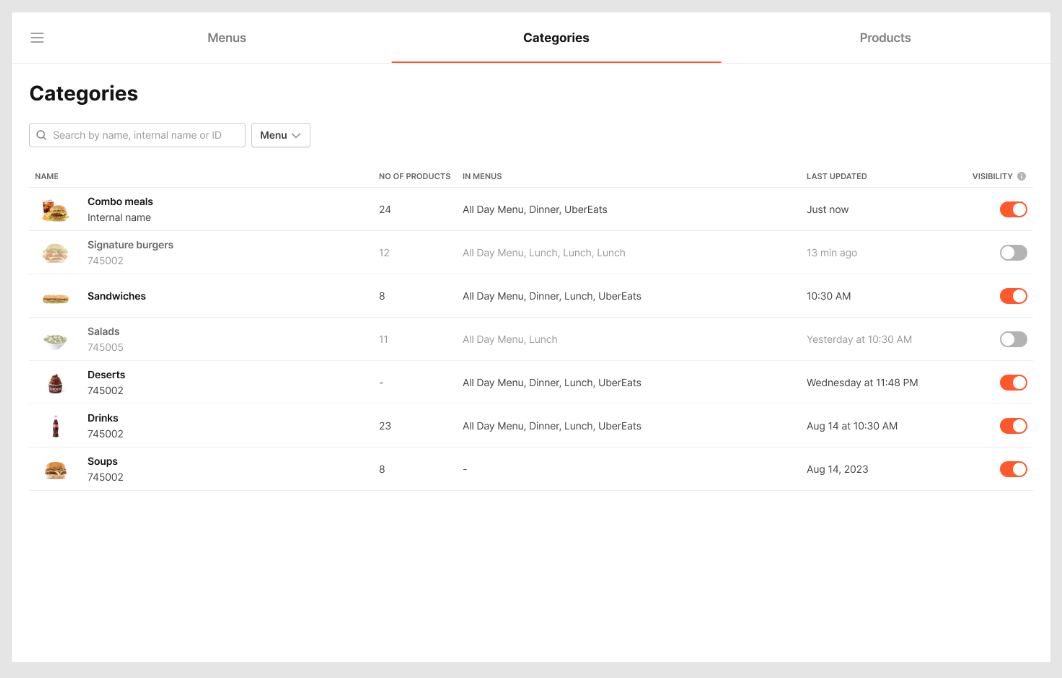
If available, categories display:
- Name
- Internal Name
- Number of Products
- Menus where included
- Last updated info/status
- Visibility switcher
Searching & Filtering
- Use the search bar to find categories.
- Use the menu filter next to the search bar.
- If no results match, an empty search state will appear.
Loading More Categories
- Categories load gradually as you scroll.
- A loader icon will appear during loading.
Managing Visibility
-
Toggle visibility using the switcher.
-
A confirmation dialog appears when turning visibility off.
-
A toast notification confirms visibility changes.
-
If visibility fails, a generic error dialog appears.
-
In single-column view, hidden categories are grayed out and tagged "Not Visible".
Viewing Products
-
If no products exist, an empty state will be shown.
-
If available, products display:
- Name
- Internal Name
- POS Status
- Online Ordering Status
- Stock Availability Switcher
- Out of Stock Duration Selector
- Visibility Switcher
Searching & Filtering
- Use the search bar to find products.
- Use menu and availability filters next to the search bar.
- If no results match, an empty search state will appear.
Loading More Products
- Products load gradually as you scroll.
- A loader icon will appear during loading.
Managing Stock & Visibility
- Toggle stock availability or show-in menu with confirmation dialogs.
- Toast notifications confirm changes.
- If toggling fails, a generic error dialog appears.
- In single-column view, hidden products are grayed out and tagged "Not Visible".
- Online ordering status is always visible, even when collapsed.
Sorting Products
- Tap the Name column header to sort alphabetically.
