How to Create and Manage Catering Quotes and Leads
This article explains how customers can request catering quotes through the web app and how catering managers can manage leads and quotes in the Management Center.
How Customers Request a Catering Quote
- Access the Web App
- Ensure that Catering and Quotes features are enabled for your account.
- Start a Quote Request
- Click the Get a Quote button on the web app.
- Complete the 5-Step Quote Request Process
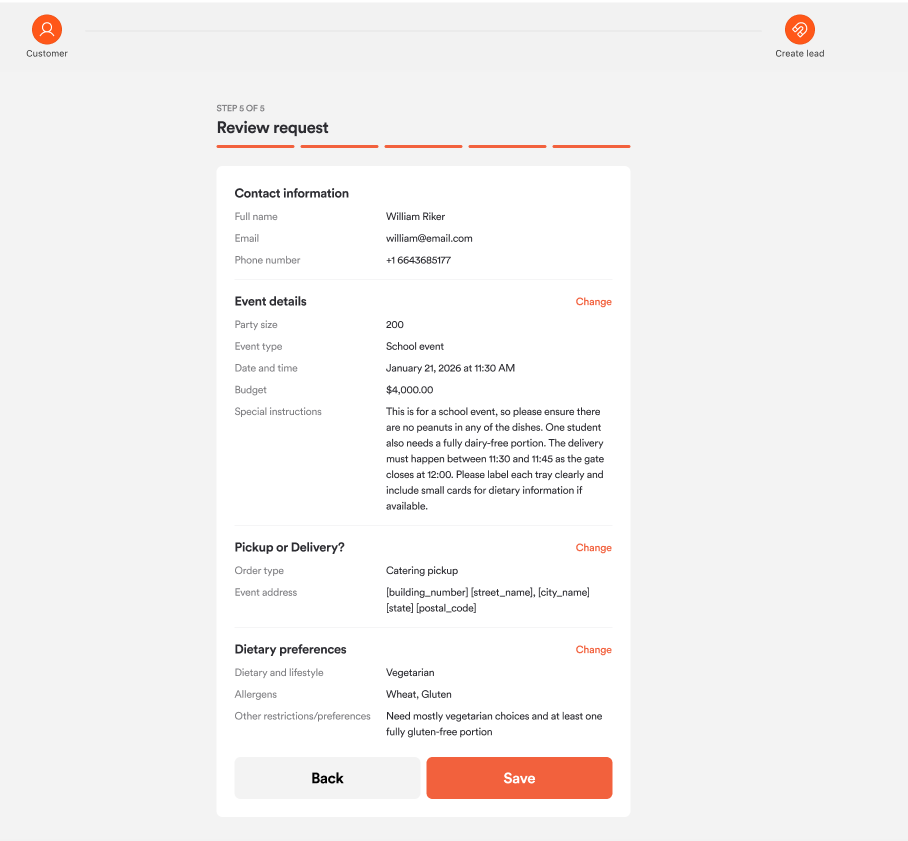
- Contact Information: Enter your name, email, and phone number.
- Event Details: Provide information about your event (type, date, time, party size).
- Pickup or Delivery: Choose your preferred method and provide the necessary address or pickup details.
- Dietary & Allergen Information: Specify any dietary restrictions or allergen concerns.
- Review & Submit: Review all details and submit your request.
- After Submission
- You will receive a confirmation, and catering managers will be notified.
- Your request becomes a lead in the Management Center.
Catering Managers: Managing Leads and Quotes
Managing Leads
- Access Leads
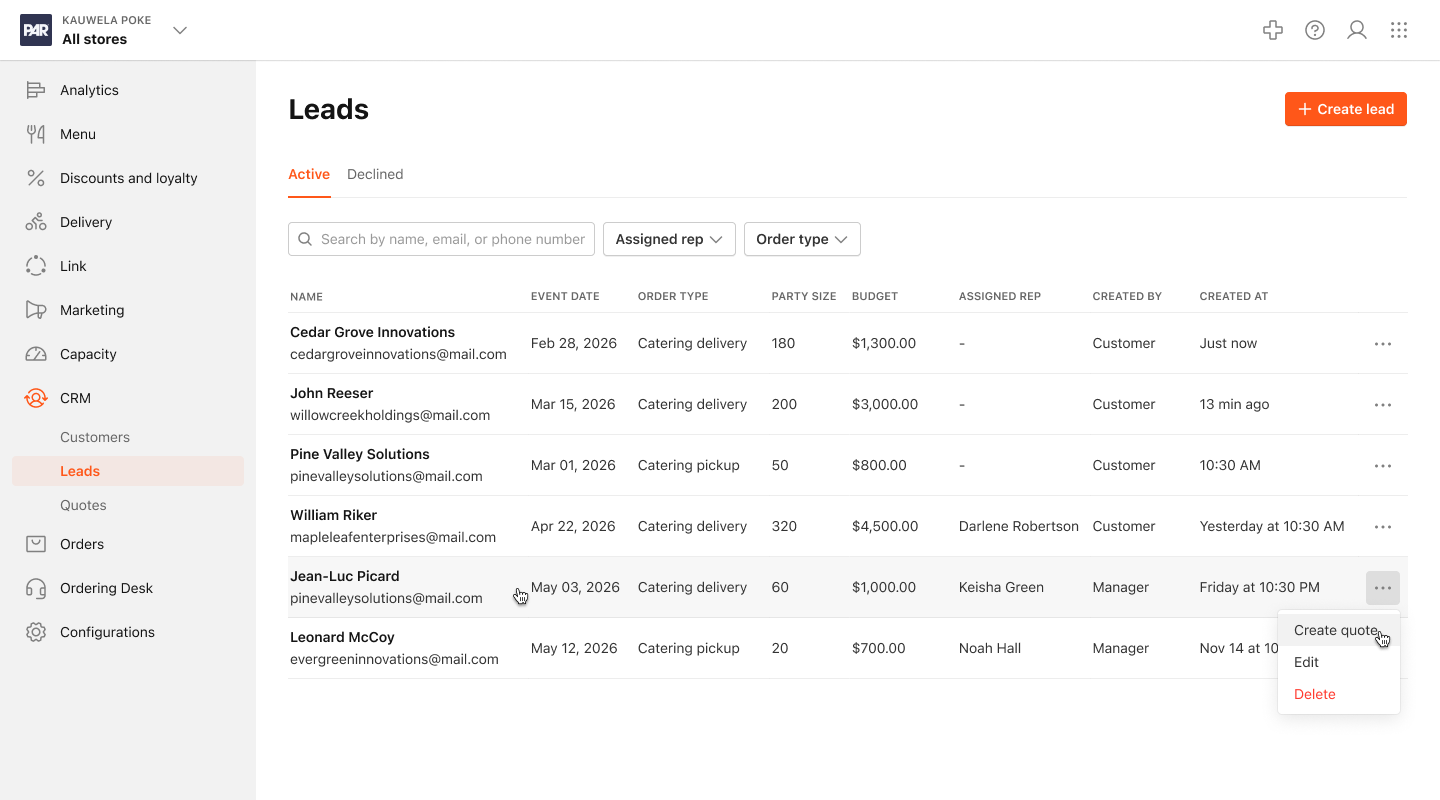
- Go to the Management Center and navigate to CRM > Leads.
- View and Filter Leads
- Use the tabs to view Active or Declined leads.
- Search and filter leads by name, email, phone, assigned representative, order type, or store group.
- Review Lead Details
- Click on a lead to view customer information, event details, delivery address, and dietary preferences.
- Take Action on Leads
- Assign a representative.
- Edit lead details (using the web app form).
- Create or view customer profiles.
- Decline requests (provide a reason).
- Create a quote for the lead.
- Create a New Lead
-
Click Create Lead.
-
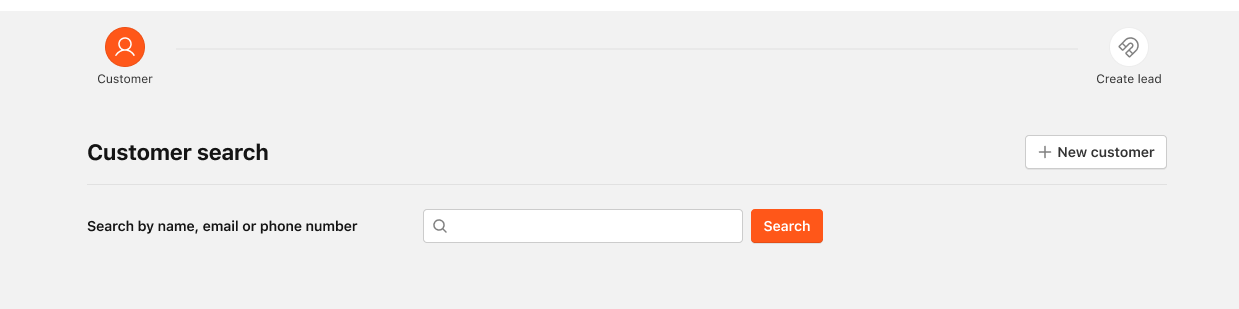
Search for an existing customer or create a new customer.
-
Complete the lead form with details of the event.
-
Click Save.
-
Managing Quotes
- Create a Quote
-
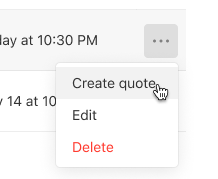
From a lead, open the three-dot menu and select Create Quote.
-
Search for an existing customer or create a new customer.
-
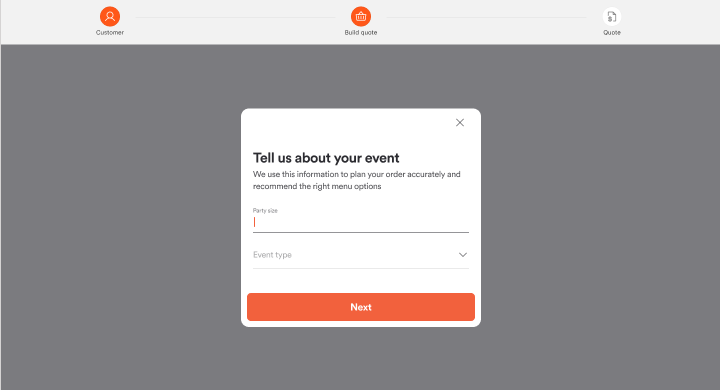
Enter details regarding the event.
-
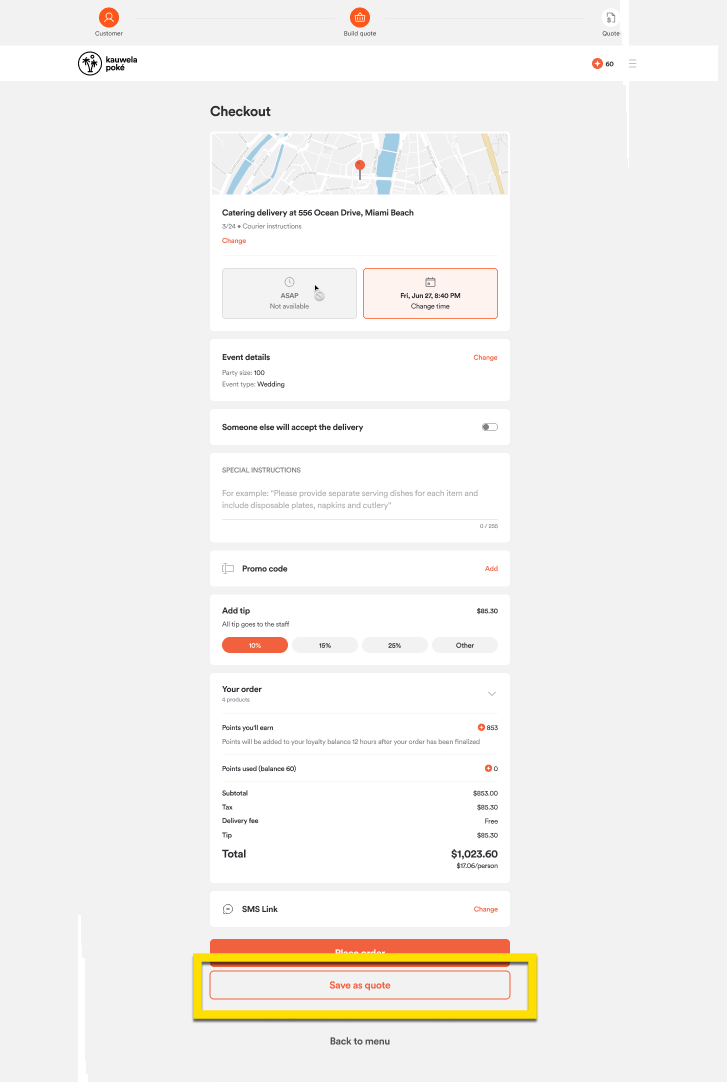
Add the requested order details.
-
Click Save as quote.
-
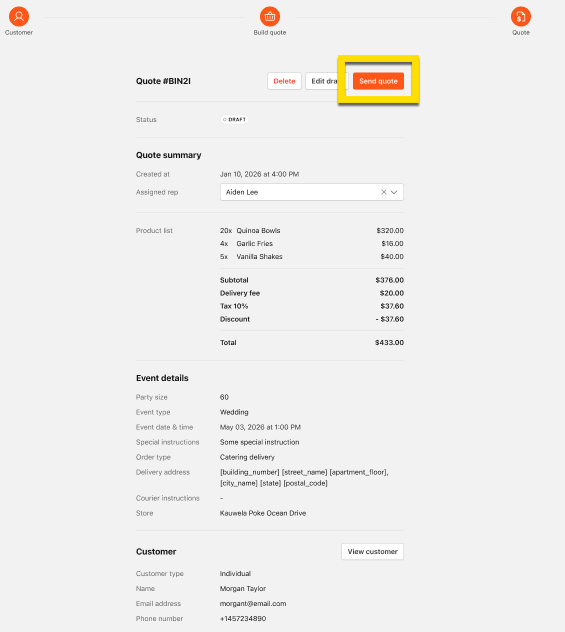
Review and click Send quote.
-
- View and Filter Quotes
- Go to CRM > Quotes
- Use the Active or Lost tabs.
- Search and filter by status, representative, order type, or store group.
- Quote Actions
- Edit draft quotes in the Order Desk.
- Send quotes to customers (add a valid until date and a custom message). When you send a quote, the PDF is automatically attached to the notification email the customer receives.
- Delete quotes if necessary.
- When editing a quote in the Order Desk, you can apply a manager discount (flat amount or percentage) to the quote total. The discount is saved with the quote and carries over automatically when the customer accepts and converts the quote to an order. You can add, change, or remove the discount at any point while editing the quote. See How to Use the Order Desk for details.
Download a Quote as PDF
You can download a formatted PDF of any catering quote directly from Management Center.
- Open the quote you want to export.
- Click Download PDF.
The PDF downloads immediately. If the quote has expired, you'll see an error instead of a file. Update the quote's expiration date and try again.
The downloaded PDF includes:
- Quote number, issue date, and expiration date
- Your brand name, logo, and legal details
- Customer contact information: name, email, and phone number
- Event details: event type, date/time, guest count, and delivery or service address
- Itemized order breakdown, including modifiers and nested selections, with unit pricing and subtotals
- Financial summary: subtotal, discounts, fees, tax, and total
- Terms section (if deposit or cancellation deadline information was set on the quote)
The PDF reflects pricing and item data captured when the quote was created or last saved.
You can forward the downloaded PDF to your customer directly, or send the quote from Management Center so that the PDF is delivered automatically as an email attachment.
How Customers Interact with Quotes
- Receive and Review Quotes
- You will receive an email when a quote is available. The email includes a PDF of your quote as an attachment. You can open, download, and share it without signing in to the web app.
- In the web app, go to My Quotes to view all your quotes.
- View Quote Details
- See the quote number, valid until date and time, catering manager’s message, event details, order details, pricing breakdown, and total price.
- Take Action on a Quote
- Accept Quote: Proceed to checkout and pay.
- Request Changes: Click to open an email to the catering manager with your requested changes.
- Decline Quote: Select a reason (e.g., too expensive, wrong items, time changed, event canceled, other).
If your catering manager applied a discount to your quote, it will be included automatically at checkout. You won't be able to apply additional discounts (such as promo codes or loyalty rewards) to a quote that already has a manager discount.
Quote Revision and Finalization
- Requesting Changes
- If you request changes, the catering manager will be notified and can update the quote.
- Quote Update Cycle
- The catering manager edits and resends the quote as needed.
- This process repeats until you accept or decline the quote.
- Final Steps
- Accepted Quotes: Move to the Order Desk Orders Table and are fulfilled as standard orders.
- Declined Quotes: Appear in the Lost Quotes tab with the status (Expired/Declined) and the reason.
