How to Create and Manage Catering Fees
Catering Fees
Catering Fees let you define additional charges that are automatically applied to catering orders (both catering delivery and catering pickup). Fees are configured at the brand level and distributed to all venues, with optional per-venue overrides. They appear as itemized line items in your customers' cart and checkout summary.
Prerequisite: Your POS needs to be set up to support custom fees.
Fee Types
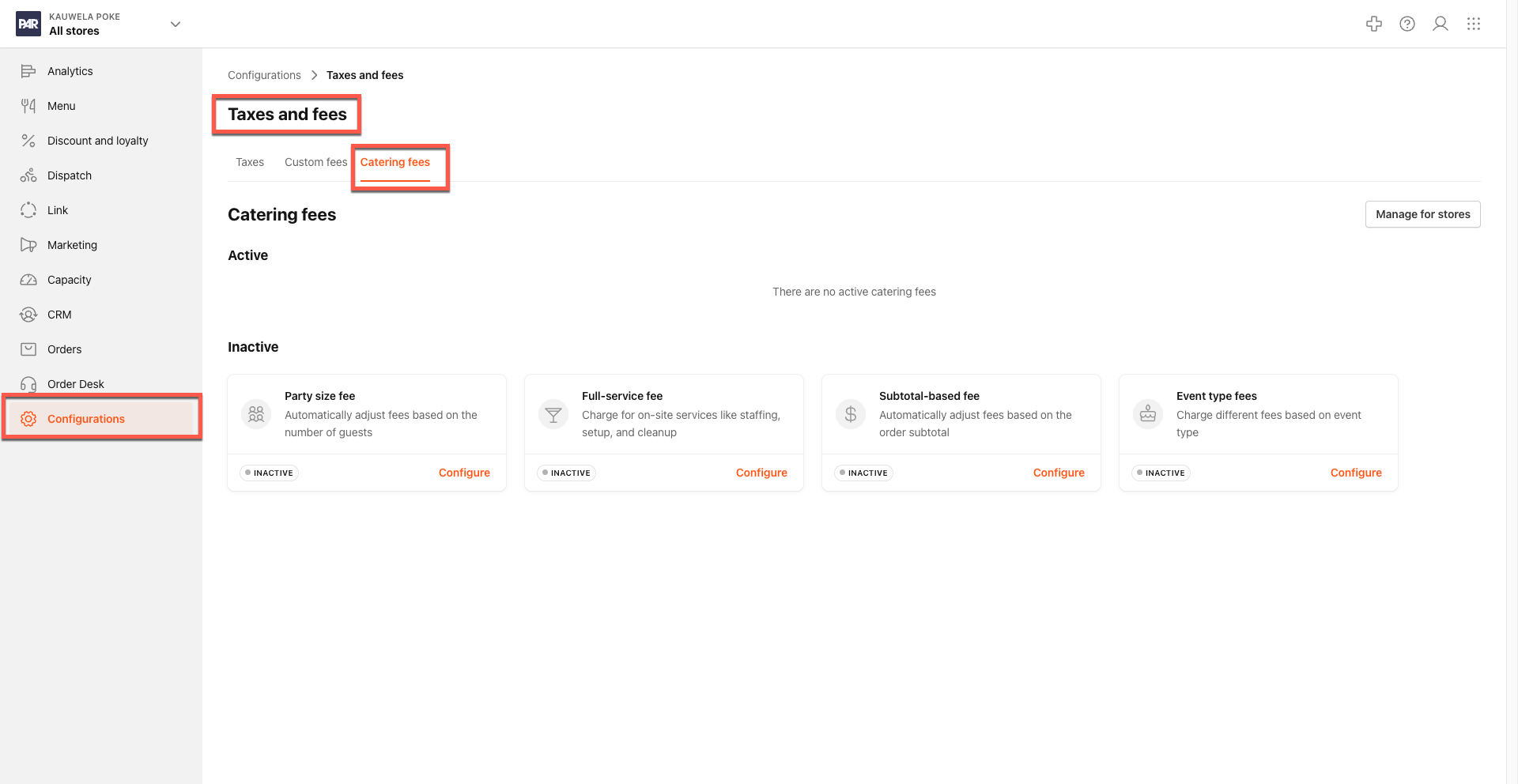
There are four types of catering fees you can configure. You can use any combination of them — they are calculated independently and stacked together on qualifying orders.
These fee types are configured in the Management Center. Navigate to Configuration > Taxes and Fees > Catering Fees
Party Size Fee
A tiered fee based on the number of guests (headcount) the customer enters when placing a catering order. You define one or more tiers with a minimum and maximum party size, and each tier has its own charge.
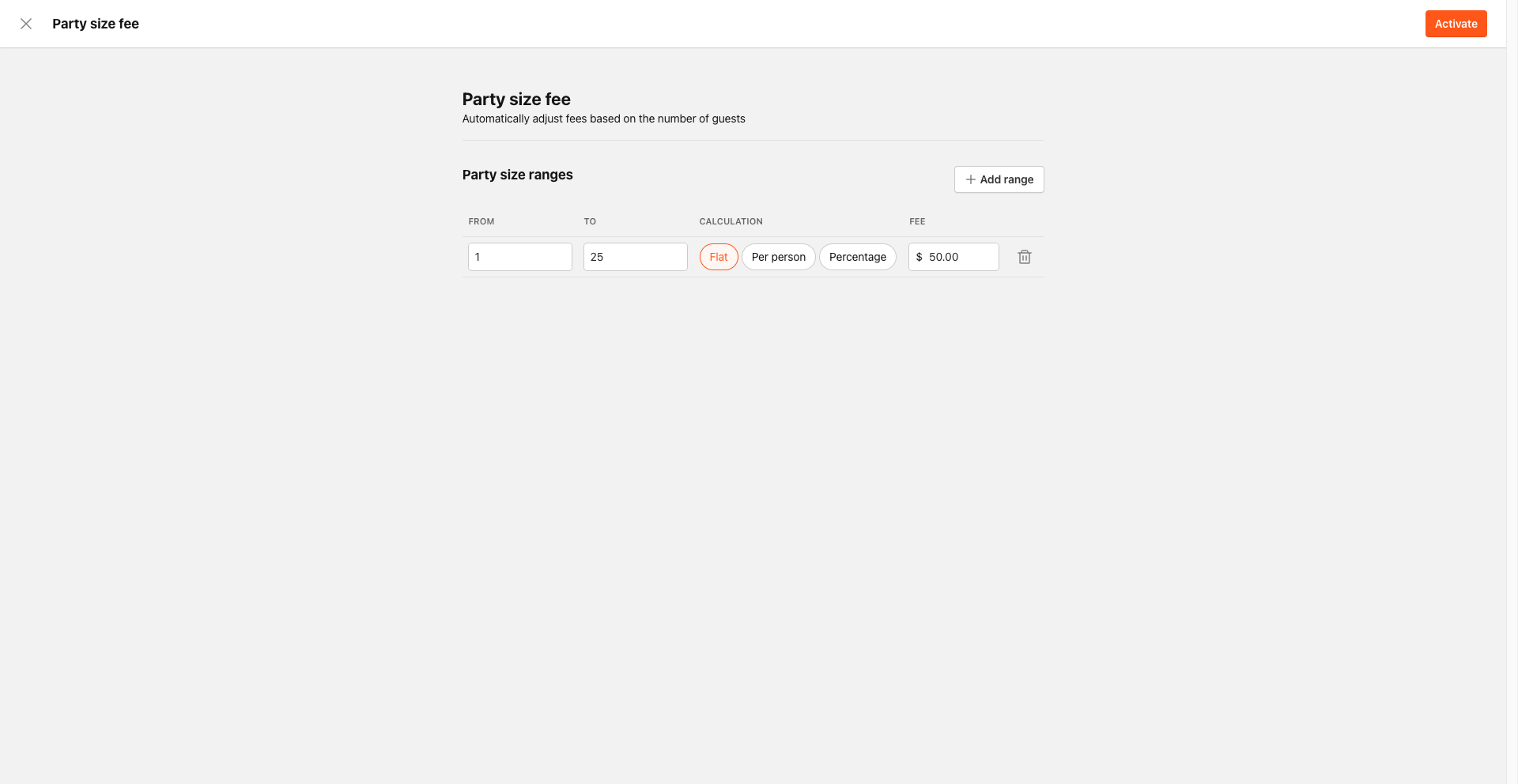
Example:
| Party Size | Fee |
|---|---|
| 1–25 guests | $50.00 flat |
| 26–50 guests | $3.00 per person |
| 51+ guests | $2.50 per person |
- Tiers cannot overlap. Each range must be distinct.
- The upper bound of a tier can be left open-ended (no maximum), meaning "this many guests or more."
- Only the tier matching the customer's headcount is applied — they are never stacked.
Displayed to customers as: "Party size fee"
"Scales with your party size to ensure adequate staffing and prep"
Subtotal-Based Fee (Service Fee)
A tiered fee based on the order subtotal (the total price of food items before fees and taxes). You define one or more tiers with a minimum and maximum subtotal, each with its own charge.
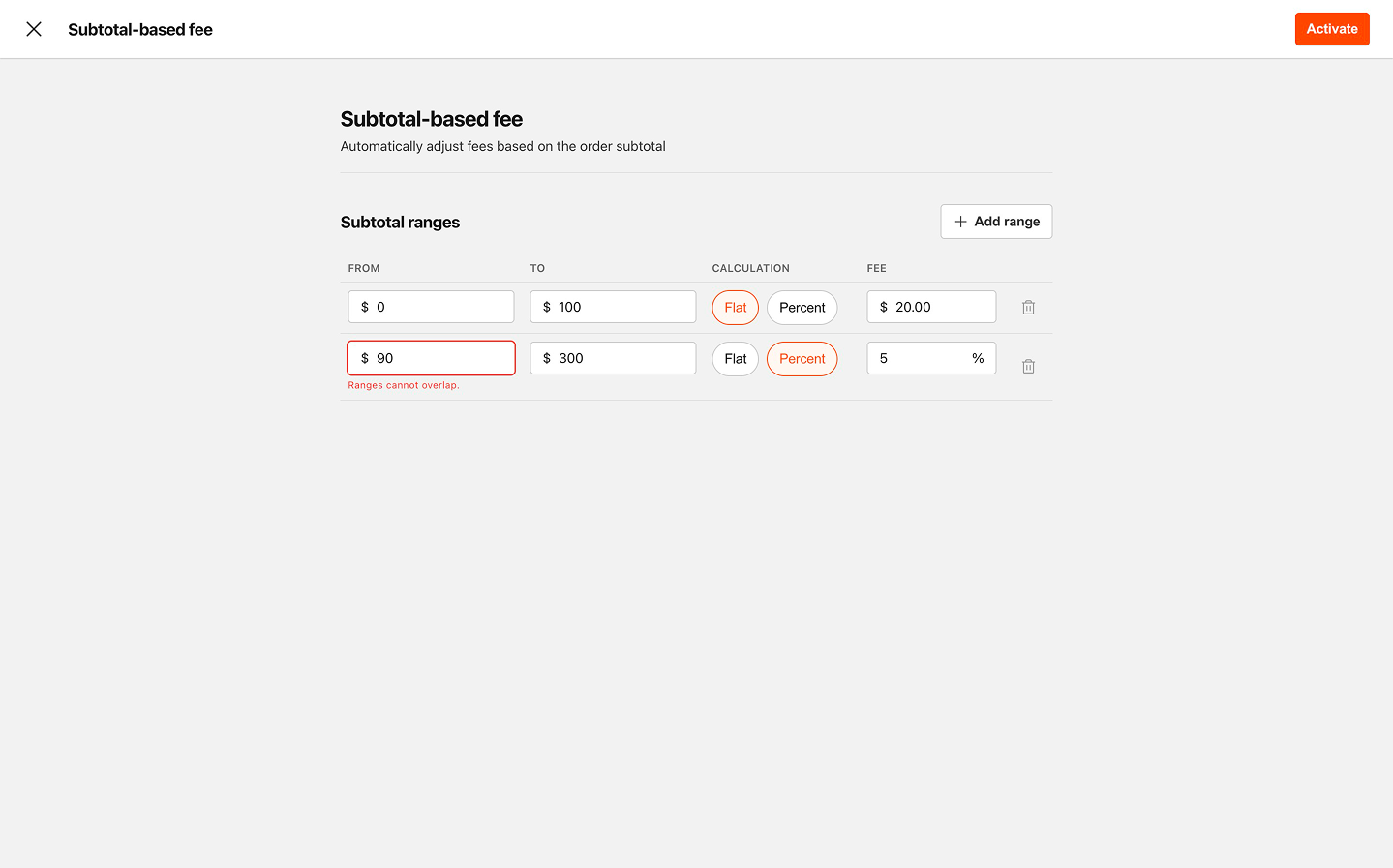
Example:
| Order Subtotal | Fee |
|---|---|
| $0–$199.99 | $25.00 flat |
| $200–$499.99 | 10% of subtotal |
| $500+ | 8% of subtotal |
- Tiers cannot overlap.
- The upper bound can be left open-ended.
- Only the tier matching the customer's subtotal is applied.
- Subtotal-based fees support flat and percentage calculation types (per-person is not available for this fee type).
Displayed to customers as: "Service fee"
"Covers the administrative and operational costs of your catering order"
Event Type Fee
A fee tied to the type of event the customer selects. You can configure a different fee for each event type and enable or disable them individually. Supported event types include:
- Birthday
- Wedding
- Anniversary
- Corporate event
- Office meeting
- Family gathering
- Holiday party
- Graduation
- School event
- Community event
- Sports event
- Baby shower
- Bachelor's party
Only the fee matching the customer's selected event type is applied.
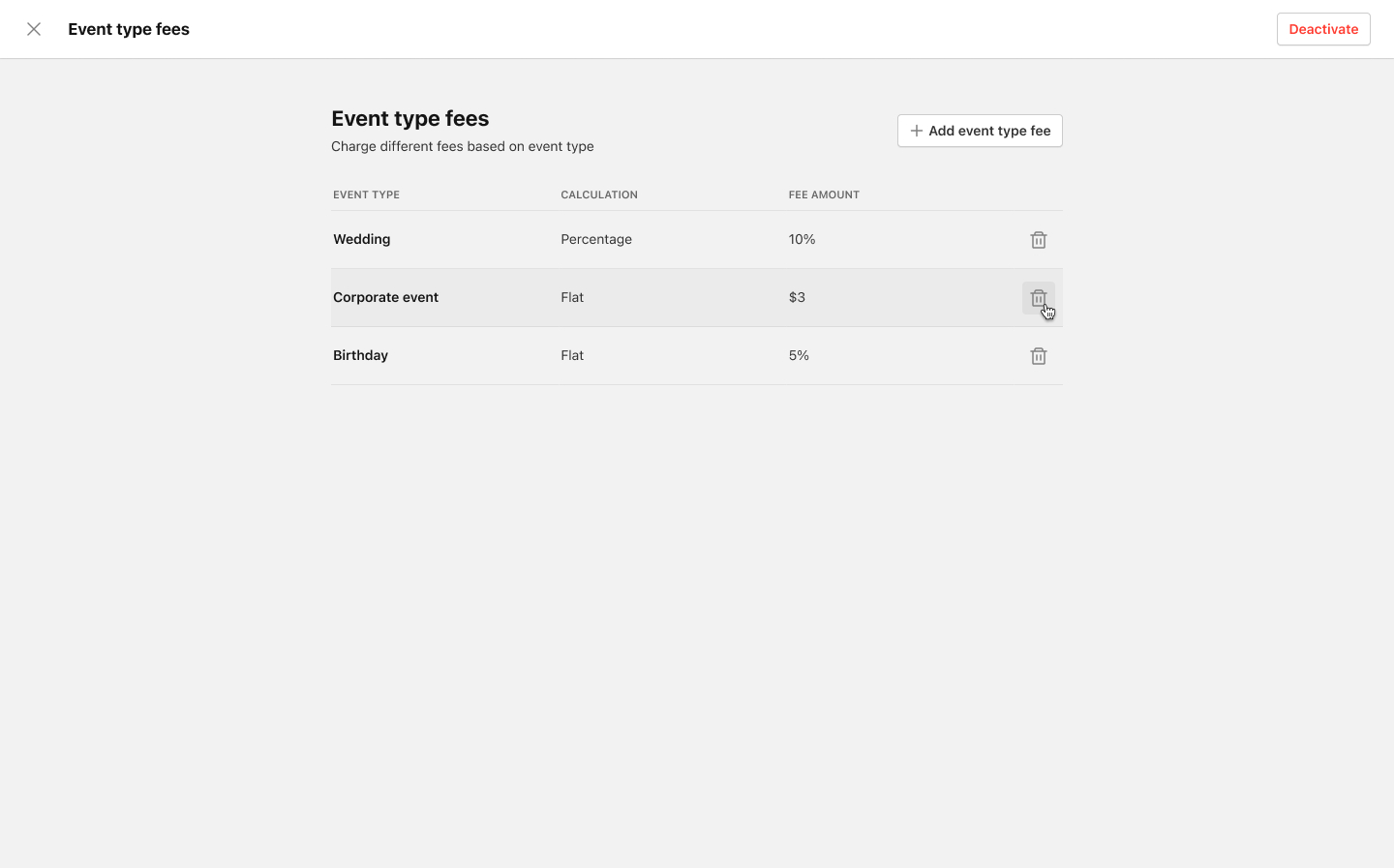
Displayed to customers as: "{Event type} coordination"
"Specialized planning and resources required for {event type}"
Full-Service Fee
A fee for on-site catering services. This fee type has two modes:
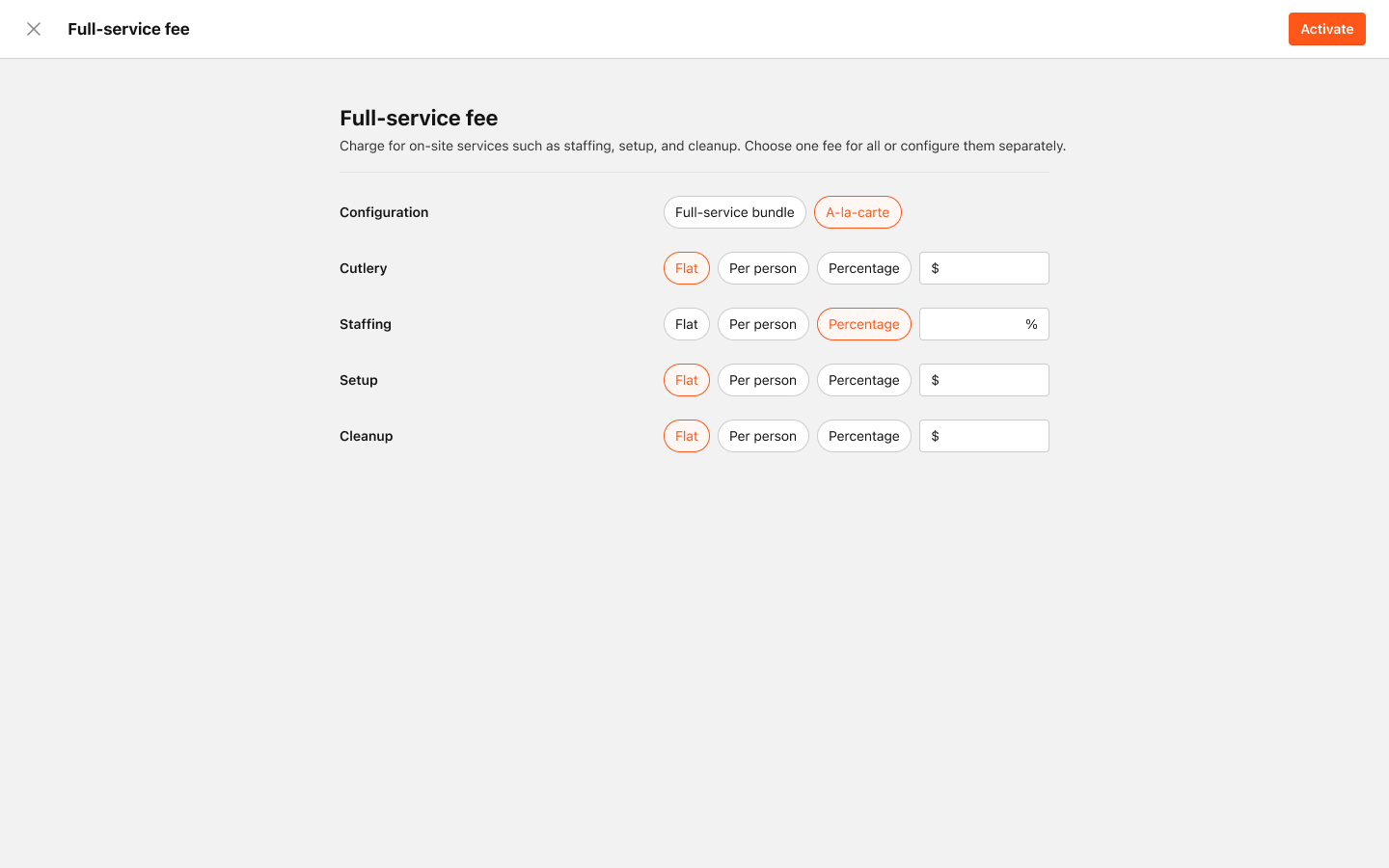
- Bundled mode — A single combined fee covering all on-site services. Customers select "Full-service" and one charge is applied. Only one bundled fee can be configured at a time.
- Individual mode — Separate fees for each service the customer selects. The available individual services are:
| Service | Description |
|---|---|
| Cutlery | Provision of all necessary dining ware for your guests |
| On-site staff | Professional team members to assist during your event |
| Setup | Professional arrangement and presentation of your catering |
| Cleanup | Professional clearing of the catering area after your event |
In individual mode, customers choose which services they need, and only the selected services are charged. Each individual service line item appears separately in the cart.
Displayed to customers as: "Full service" (bundled) or individual service names (individual mode)
Calculation Methods
Each fee (or fee tier) uses one of three calculation methods:
| Method | How it works | Example |
|---|---|---|
| Flat | A fixed dollar amount regardless of order size or headcount | $50.00 |
| Percentage | A percentage of the order subtotal | 10% of $500 = $50.00 |
| Per person | A fixed amount multiplied by the number of guests | $3.00 × 40 guests = $120.00 |
Subtotal-based fees and event type fees only support flat and percentage calculations. Party size fees and full-service fees support all three methods.
How Fees Appear to Customers
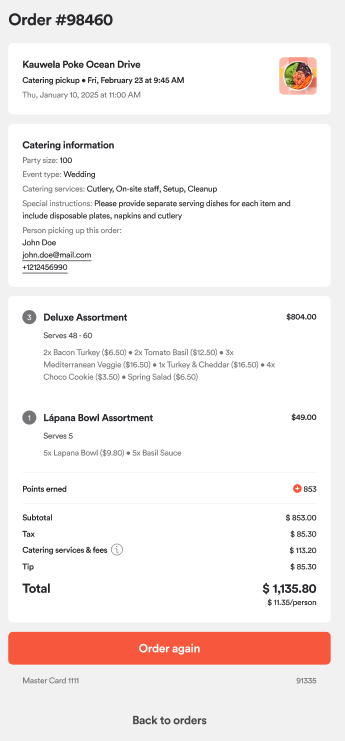
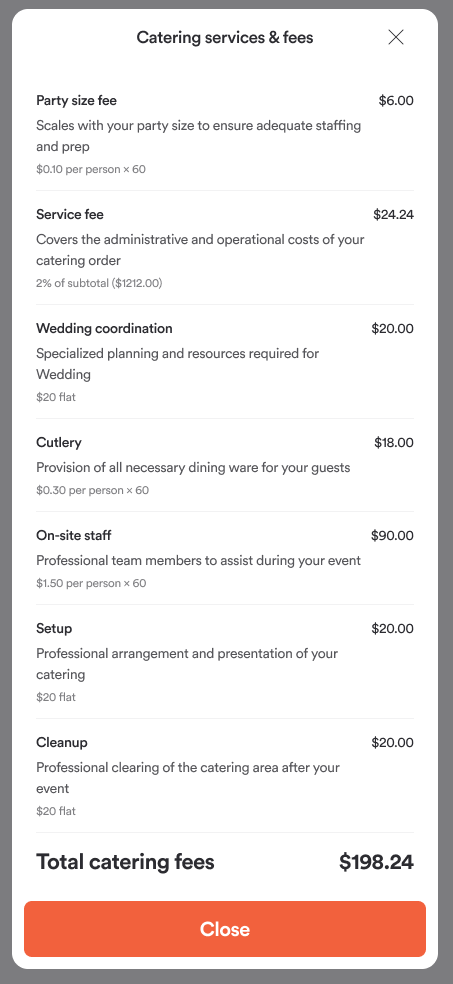
When catering fees apply to an order, customers see a "Catering services and fees" section in their cart. Each fee is displayed as its own line item showing:
- Fee name — e.g., "Party size fee," "Service fee," "Setup"
- Description — a brief explanation of what the fee covers
- Calculation detail — shows how the fee was calculated (e.g., "$3.00 per person × 40" or "10% of $500.00")
- Amount — the calculated fee amount
A total catering fees line summarizes all fees combined.
Brand vs. Venue Configuration
- Brand level: When you create a catering fee at the brand level, it is automatically distributed to all venues under that brand. Brand-level updates can be pushed to all venues at once.
- Venue level: Each venue can override the fee properties (amounts, tiers, enabled/disabled state) to account for local pricing differences. A fee can also be deactivated at the venue level without affecting other venues.
When a new venue is added to the brand, it automatically receives all existing catering fee configurations.
When Catering Fees Apply
Catering fees are calculated when all of the following conditions are met:
- The order type is catering delivery or catering pickup
- The venue has at least one active catering fee configured
- The ordering application supports catering fees (note: aggregator/marketplace apps do not apply catering fees)
Fees that don't match the customer's order context (e.g., a party size tier that doesn't match the headcount, or an event type fee for a different event) are automatically excluded from the calculation.
Key Points
- Catering fees are separate from delivery fees and other custom fees — they only apply to catering order types.
- Tiered fees (party size and subtotal) must have non-overlapping ranges.
- All fee amounts are rounded according to your venue's currency rounding rules.
- Each fee type can be independently activated or deactivated at both the brand and venue level.
