How to Control Product Visibility in Brand Menus
| User Role | Access |
|---|---|
| Brand Manager | ✅ |
| Area Manager | ❌ |
| Store Manager | ❌ |
Overview
You can customize which products and product groups are visible in each brand menu. This feature allows you to show or hide specific products, product groups, or categories for each menu, giving you control over what your customers see across all stores using that brand menu.
What is Product Visibility in Brand Menus?
- Product visibility lets you decide which products, groups, or categories appear on your brand's menu.
- You can override default settings for a specific menu without affecting other menus or the core product setup. See the following related articles:
- This helps you tailor menus for different times or occasions (like breakfast, lunch, or happy hour).
How to Change Product Visibility
Follow these steps to show or hide products in a brand menu:
-
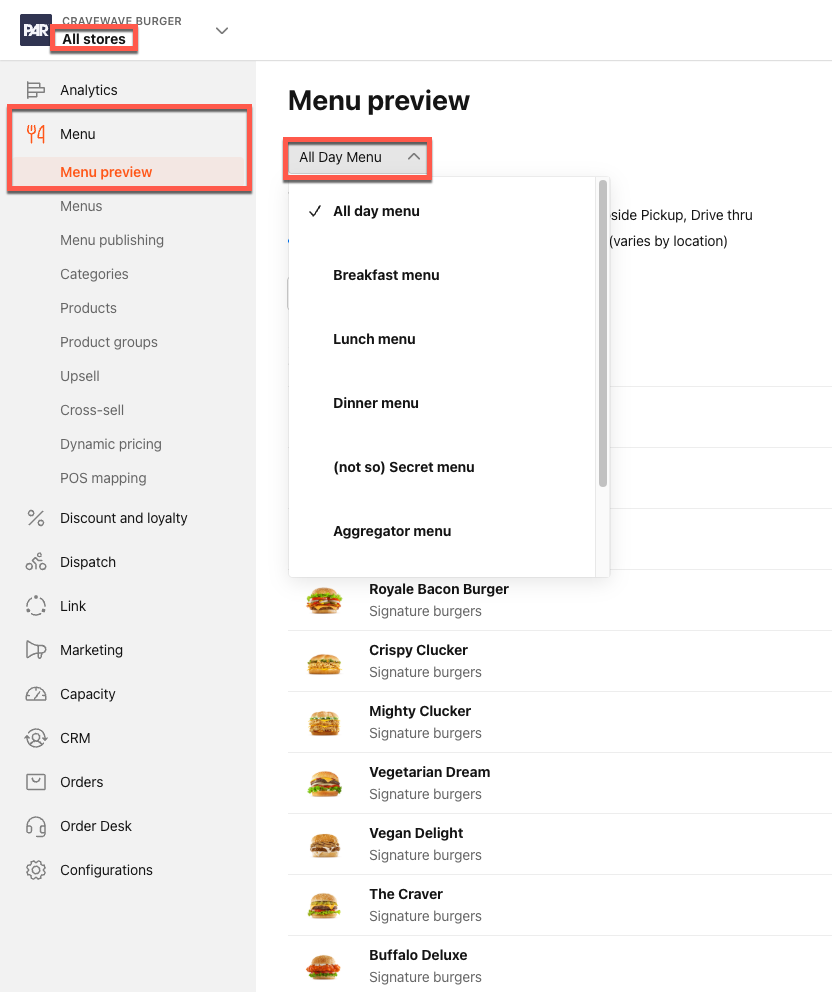
Select All Stores in the Management Center to update the brand menu.
-
Navigate to Menu > Menu Preview.
-
Use the dropdown to choose the menu you want to edit, as applicable.
-
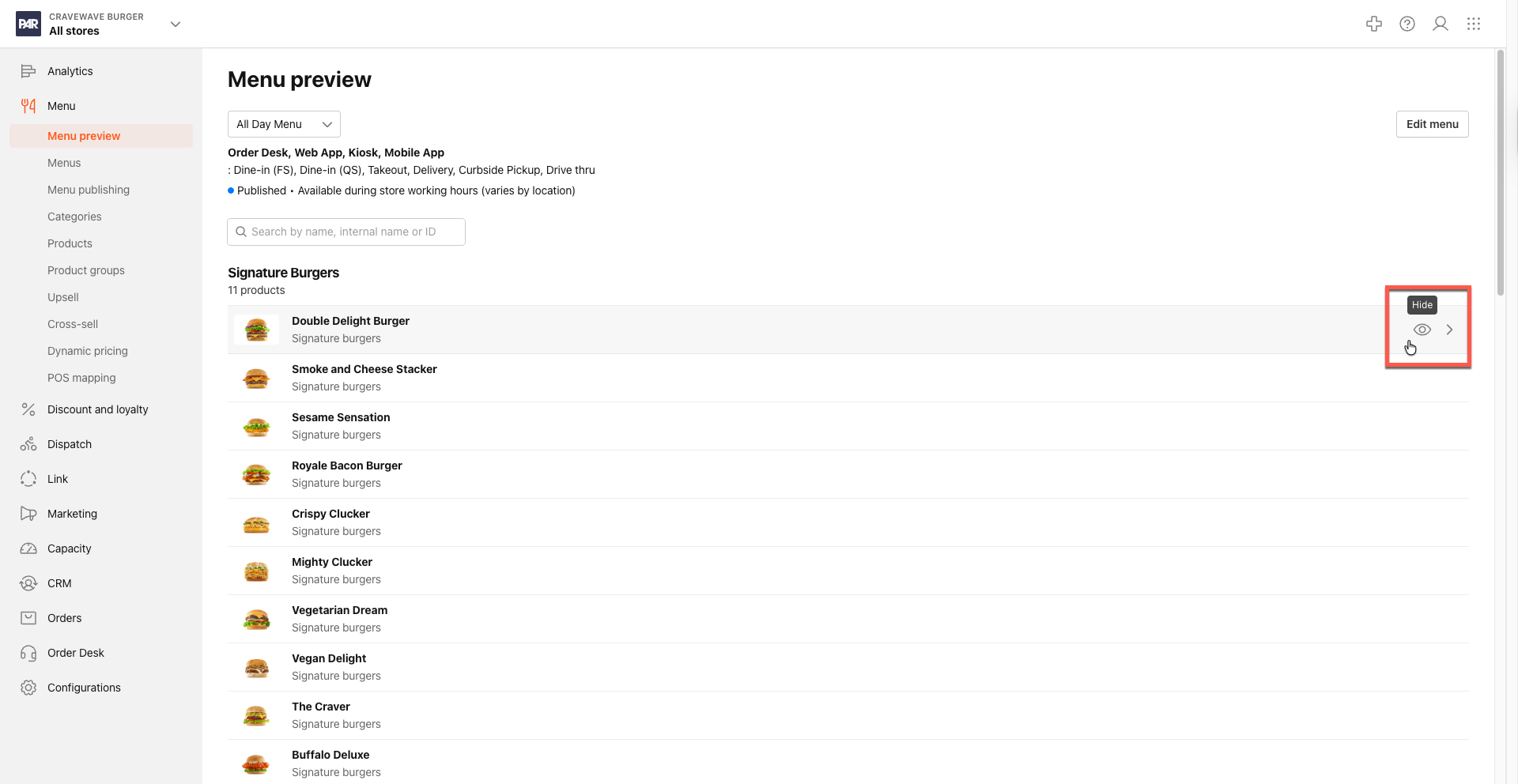
Hover over the category, product, or product group you want to change.
-
Click the eye icon next to the item to hide or unhide it.
-
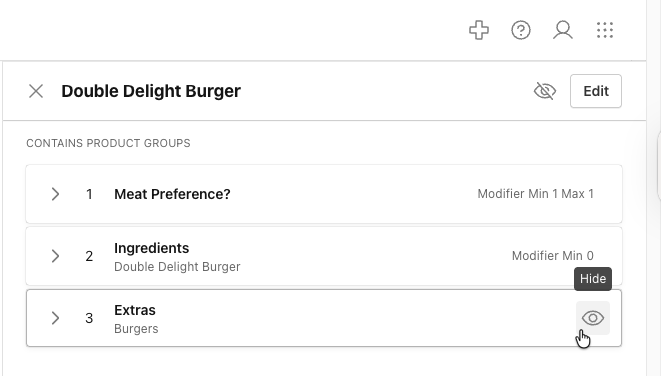
You can do this for individual products, groups, or even nested items.
- Click the > to see the nested icons in a side panel.
-
If you hide a group, all items inside it will also be hidden.
-
Important Rules and Validations
- You can only save changes if all menu rules are followed (for example, you can't hide all required options in a group).
- If you try to save with errors (like hiding too many required items), you'll see an error message explaining what needs to be fixed.
- Each menu level (brand, category, product, group) has its own rules. Only the rules for the level you're editing are checked when you save.
- When you preview the menu, the system checks all rules across all levels and shows any issues in a list.
Common Validation Errors
- Minimum required items is higher than the maximum allowed.
- Required group has no visible options.
- Nested groups have conflicting rules.
- Hiding a product that is needed for a required selection.
Menu Preview
- The Menu Preview shows you exactly what customers will see.
- Any errors or conflicts are displayed in a list, so you can fix them before publishing.
Tips
- You can override hidden items from higher levels (like the core product) for a specific brand menu.
- Changes made to one menu do not affect other menus.
